How Can I Reset My Apple ID Password If I Don’t Remember It? – Solved
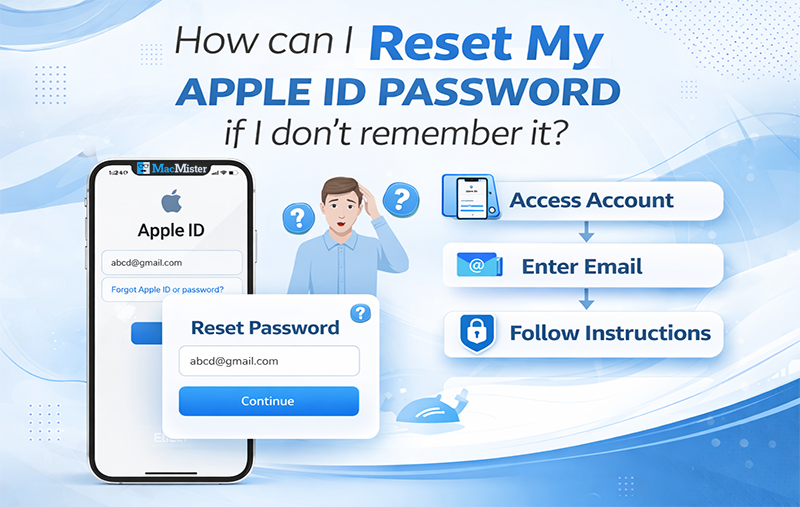
If you’re wondering how can I reset my Apple ID password if I don’t remember it, you’re not alone. Your Apple ID is essential for using your iPhone, iPad, Apple Watch, and services like the App Store, Apple Music, and iCloud. Forgetting your password can feel frustrating, but Apple provides several secure ways to recover it even if you don’t remember your Apple ID or password.
The first step is always to try to remember your Apple ID and password. If that fails, you can use Apple’s account recovery methods. This includes resetting your password through your trusted device, using your registered email address, or answering security questions. Apple also offers options like two-factor authentication or account recovery keys for added security.
To prevent future headaches, consider storing your Apple ID password in a secure password manager and updating it regularly. Avoid writing it down in unsecured places, but do make it easy enough to access when needed. Your Apple ID is the key to your Apple ecosystem, so keeping it safe and accessible is crucial.
Even if you’ve forgotten which email you used as your Apple ID, Apple’s recovery process can guide you step by step to regain access, keeping your data secure while helping you get back into your account.
Reset Your Apple ID Password Using iCloud
- First, go to Apple’s account recovery page and click “Forgot Apple ID or password?” at the center of the page.
- On the next page, enter your Apple ID. If you don’t remember it, input the email address associated with your account. Then click “Continue” to proceed with resetting your password.
- Choose how you want to reset your password either through your email address or by answering the security questions you set up when creating your Apple account.
- Apple will then send instructions to your primary email address. Once the instructions are sent, a message saying “Email has been sent” will appear on the screen. Follow the email instructions to complete the password reset.
Change Your Apple ID Password Using Your iPhone Passcode
- Open the Settings app on your iPhone or iPad.
- Tap your name at the top, then select Password & Security.
- Tap Change Password.
- Enter your device passcode when prompted to verify your identity.
- Finally, follow the prompts to create a new Apple ID password.
Reset Your Apple ID Password Using Two-Factor Authentication
If you have Two-Factor Authentication enabled (different from two-step verification), resetting your Apple ID password becomes much easier. You can do this directly from your iPhone, iPad, or the Apple ID account page.
- On your Apple device, select “Request Account Recovery.” Enter your mobile number to receive a verification code. Use this code to verify your identity.
- After verification, you’ll see a confirmation message stating that you will be contacted when your account is ready for recovery.
- Once your account is ready, visit iforgot.apple.com, enter your Apple ID email, and confirm your mobile number.
- You’ll receive an Account Recovery code via text. Enter this code and click Continue. You will then be directed to a page where you can create a new password and sign in to your account.
Reset Your Apple ID Password Using Two-Step Verification
If you set up two-step verification for your Apple ID, resetting your password requires both a trusted iOS device and your recovery key.
- Go to iforgot.apple.com and enter your recovery key.
- Select your trusted device to receive a verification code.
- Enter the verification code and click Continue.
- Choose a new password and click Reset Password.
Apple requires that you have at least two of these three elements recovery key, trusted device, or verification code to successfully reset your password.
Remember to Use a Password Manager
Apple offers multiple ways to reset your Apple ID or iCloud password, and the method you choose depends on your account settings. After changing your password, it’s highly recommended to store your credentials in a password manager. Many reliable password managers work seamlessly with Apple devices, keeping your authentication information secure and accessible.
Bonus Tip: Use Mac Apple Mail Converter for Easy Email Management
After resetting your Apple ID password, managing your Apple Mail data efficiently is also important. MacMister Apple Mail Converter for Mac can help you export, backup, or convert your Apple Mail emails to multiple formats (PST, PDF, EML, MSG, MBOX, ICS, CSV, Gmail, IMAP, Thunderbird, Office 365, etc.), keeping your data secure and accessible across devices. This tool is especially useful if you switch Apple IDs or want to archive your emails safely.
MacMister also offers a free demo pack that lets you convert the first 25 emails per selected folder, so you can try the tool and check its functionality before purchasing the full version.