How Do I Change Font Size in Apple Mail with Ease?
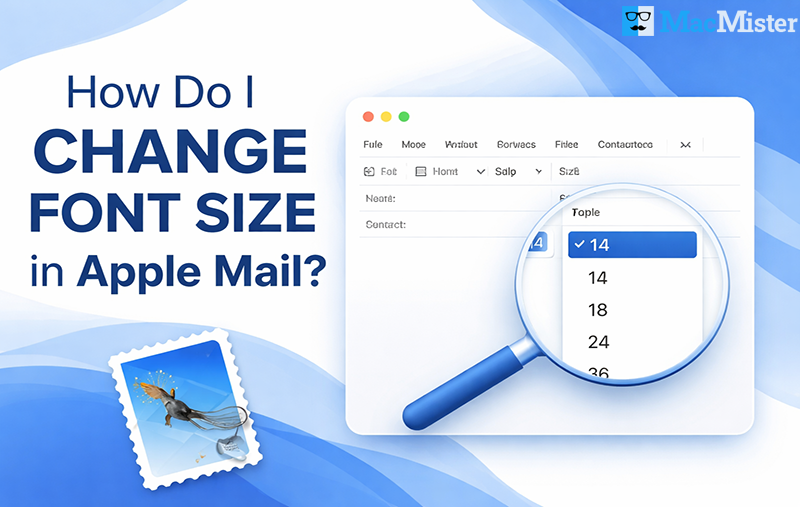
Emails are more than just clean formatting and good structure, many users often ask, how do I change font size in Apple Mail, especially when they run into display or formatting challenges. Whether you’re writing a professional email, handling newsletters, or sending casual messages, the font size you choose directly affects readability and how your message is received.
A common issue among Apple Mail users is not being able to locate or adjust the right settings for font size. This can make emails harder to read and less visually appealing. If you’re trying to improve text visibility or make your emails more comfortable to read on your Mac, knowing how to adjust font size properly can make a big difference.
In this article, you’ll learn why font size is important and discover simple, effective ways to change font size in Apple Mail for a better overall email experience.
Why Changing Font Size in Apple Mail Matters
Adjusting the font size in Apple Mail isn’t just about personal preference, it has a direct impact on usability, clarity, and how effectively your message is delivered. Here are some important reasons why users choose to modify font size:
- Using a larger font can reduce eye strain, especially when reading or writing emails for extended periods.
- Well-sized text helps your emails appear clean, organized, and polished, creating a better impression.
- Increasing the font size on a Mac makes emails easier to read for users with vision challenges or screen fatigue.
- When text is easy to read, your message becomes more understandable, reducing the chances of miscommunication.
Benefits of Increasing Font Size in Apple Mail
Customizing the font size in Apple Mail offers several practical advantages that improve both usability and the overall email experience. Here are some key benefits:
- Easier Email Reading and Management– Adjusting the font size makes it simpler to read and handle emails, especially for users who struggle with smaller text.
- Improved Accessibility– Users with low vision or age-related eye conditions can increase the font size according to their comfort, making emails more accessible.
- Personalized User Experience– By increasing text size on a Mac, users can tailor the interface to suit their preferences, helping them stay focused and productive.
- Consistent Email Formatting– Setting a default font size for composing emails ensures all outgoing messages maintain a uniform and professional appearance.
- Better Email Differentiation– Changing font size for specific emails can help highlight important messages or distinguish between different types of communication.
- Enhanced Conversation Clarity– Adjusting font size along with quoted text formatting (and even color) makes it easier to follow replies and forwarded messages.
- Clear Display of Plain Text Emails– Defining a fixed-width font size ensures plain text emails are displayed neatly and remain easy to read.
- Viewer-Side Customization– In many cases, increasing font size mainly affects how emails appear on your screen, rather than changing how recipients see them.
Change Font Size in Apple Mail on iPhone, iPod, and iPad
You can easily adjust the font size across Apple Mail and other apps like Contacts, Calendar, Notes, and more using built-in settings. Here’s how:
Adjust Font Size in Apple Mail
- Open Settings
- Go to Display & Brightness
- Tap on Text Size
- Drag the slider to increase or decrease the font size as needed
Increase Text Size for Better Visibility
- Open Settings
- Navigate to Accessibility
- Tap Display & Text Size
- Select Larger Text for additional size options
- Move the slider to choose your preferred font size
Important Note: Setting the font size too large may make it difficult to tap buttons or navigate certain features. If that happens, simply return to settings and adjust the size to a more comfortable level.
How to Change Font Size While Composing a New Email on Mac?
If you want to adjust the font size while writing an email, you can do it directly from the compose window. Here’s how:
- Open Apple Mail on your Mac
- Click on Compose to create a new email
- In the formatting toolbar, find the “A” (Font) icon
- Select your preferred font size from the dropdown menu
- Start typing your email with the updated font settings
Set Default Font Size in Apple Mail on Mac
To make permanent changes to your email font size, you can adjust the default settings:
- Open Apple Mail on your system
- Click on Mail in the top menu
- Select Settings or Preferences
- Go to the Fonts & Colors tab
- Adjust options like Message font, Fixed-width font, and Message list font
- Close the settings to save your changes
These steps ensure your emails maintain a consistent and comfortable font size every time you compose or read messages.
Best Practices for Professional Email Formatting
- Use a standard font size to keep your emails clear and professional
- Avoid overly large fonts, as they can appear informal and distracting
- Choose a clean and readable font style for better presentation
- Maintain consistency in font size and style throughout the email
- Always preview your email before sending to check formatting
- Use bold text and proper spacing only where necessary to highlight key points
Need Additional Assistance?
I hope this post has helped you understand how to manage and change font size in Mac Mail more effectively. If you’re still facing challenges while managing your emails or data, you might consider switching to a more advanced solution.
For a smooth and reliable experience, you can use the MacMister Mac Apple Mail Converter Tool. This tool allows you to easily convert and transfer your Apple Mail mailbox data to PST, PDF, EML, MBOX, MSG, CSV, IMAP, Office 365, Gmail, and more options.
If you continue to experience any issues or need further guidance, feel free to reach out to our Technical Support Team anytime. Our experts are available around the clock to assist you.