How Do I Remove An Account from Apple Mail Across Multiple Devices?
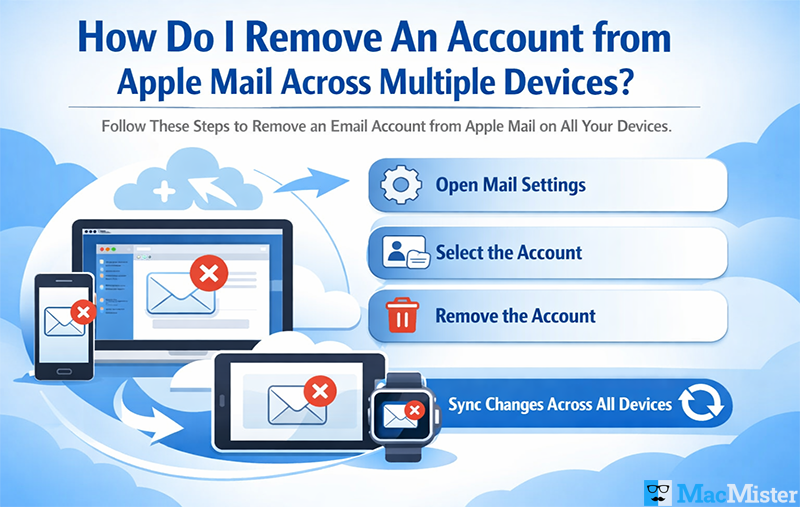
Sometimes, users wonder how do I remove an account from Apple Mail across multiple devices. This may be necessary for several reasons, such as cleaning up unused accounts, switching to another email client, or organizing your inbox for better visibility and efficient email management.
Apple Mail is widely used across iOS and Mac OS devices because of its seamless integration, user-friendly interface, and powerful email management features. However, many users have various email accounts, and some of them may be outdated, unused, or needless.
Removing an account from Apple Mail not only simplifies your workflow but also enhances data security and overall performance.
In this article, we will discuss the best methods to remove account from Apple Mail and explore ways to manage your data efficiently across all devices. Let’s get started.
Why Users Remove Account from Apple Mail?
There are several reasons why users decide to delete an account from Apple Mail:
- Old or Unused Accounts: Some accounts are outdated and unused, and removing them helps declutter your inbox.
- Switching Email Clients: Users may want to move to a better email client, requiring removal of their account from Mac Mail.
- Compromised Accounts: If an account is suspicious or compromised, removing it protects your other existing data.
- Large Attachments and Storage Issues: Unused accounts may contain large files that consume significant storage space.
- Troubleshooting: Sometimes, removing and re-adding an account is necessary to fix syncing or connectivity issues in Apple Mail.
Benefits of Deleting an Email Account from Mac Mail
Deleting unnecessary email accounts from Mac Mail isn’t just about decluttering, there are multiple advantages:
- Improved Performance: Fewer accounts mean faster syncing and smoother overall performance.
- Better Organization: Helps users manage emails and attachments more efficiently, reducing distractions.
- Enhanced Security: Reduces the risk of unauthorized access to sensitive data.
- Free Up Storage Space: Removing large or unused accounts helps if Apple Mail storage limits are exceeded.
- Reduce Notifications: Avoid constant alerts from accounts you no longer use.
How Do I Remove An Account from Apple Mail Across Multiple Devices?
Apple devices are widely used, and knowing how to remove account from Mac Mail across all your devices is essential for proper email management and security.
Removing an Apple Mail Account on Mac
There are two main ways to remove an account on a Mac:
1: Using Mail Preferences
- Open Apple Mail on your Mac.
- Click on the Mail option in the menu bar.
- Select Settings (or Preferences on older versions).
- Go to the Accounts tab and choose the account you want to remove.
- Click the (-) icon and confirm by selecting Remove.
This will remove the Apple Mail account from both the Mail app and your Mac system settings.
2: Using System Settings
- Open System Settings on your Mac.
- Click on Internet Accounts.
- Select the email account you want to delete.
- Click Delete Account to remove it permanently.
Deleting an Mac Mail Account on iPhone
- Open Settings on your iPhone.
- Scroll down and tap Mail.
- Tap Accounts.
- Select the account you want to remove.
- Tap Delete Account.
- Confirm by tapping Delete from My iPhone.
This removes the account from your device but does not delete the actual email account from the provider.
Removing Apple Mail Account on iPad
Steps on iPad are almost identical to iPhone:
- Open Settings on your iPad.
- Tap Mail.
- Select Accounts.
- Choose the account to delete.
- Tap Delete Account.
- Confirm the deletion.
How Do I Remove An Account from Apple Mail Across Multiple Devices? – Using An Expert Solution
Before you remove an account from Apple Mail across multiple devices, it’s important to manage and secure your data, especially if you plan to migrate to another email client or keep a backup.
We recommend using MacMister Apple Mail Converter for Mac. This powerful program ensures that all your Apple Mail data is safely exported without any loss. You can convert Apple Mail emails into multiple formats including PST, PDF, EML, MBOX, ICS, CSV, HTML, DOC, and more. Additionally, it allows seamless migration of Mac Mail data to email clients like Office 365, Gmail, IMAP, Thunderbird, Outlook.com etc.
A free trial version of Mac Mail Converter is available for both Mac and Windows, allowing you to test the tool before purchasing the full version.
Key Considerations before Deleting a Mac Mail Account
Before starting the process of removing an Apple Mail account, keep these points in mind:
- Deleting the account will also remove any locally saved email data.
- Always create a backup of important emails and attachments before deleting the account.
- Removing the account from your device does not delete it from the email service provider.
- Removing and re-adding accounts can help troubleshoot minor syncing or connectivity issues.
Top Tips for Managing Apple Mail Accounts Effectively
- Regularly review your accounts and remove any that are unused.
- Use folders, labels, and filters to organize emails and attachments efficiently.
- Archive essential data instead of deleting it permanently.
- Keep Mac Mail updated to ensure smooth functionality and access.
Contact Our Team for Apple Mail Guidance
If you still have questions or need guidance on managing your Apple Mail mailbox data, our team of experts is here to help. Simply contact our Technical Support Team, and an expert will guide you through the process of removing accounts and managing your Mac Apple Mail safely across all devices.