How Mac Outlook Add PST File Data on MacBook?
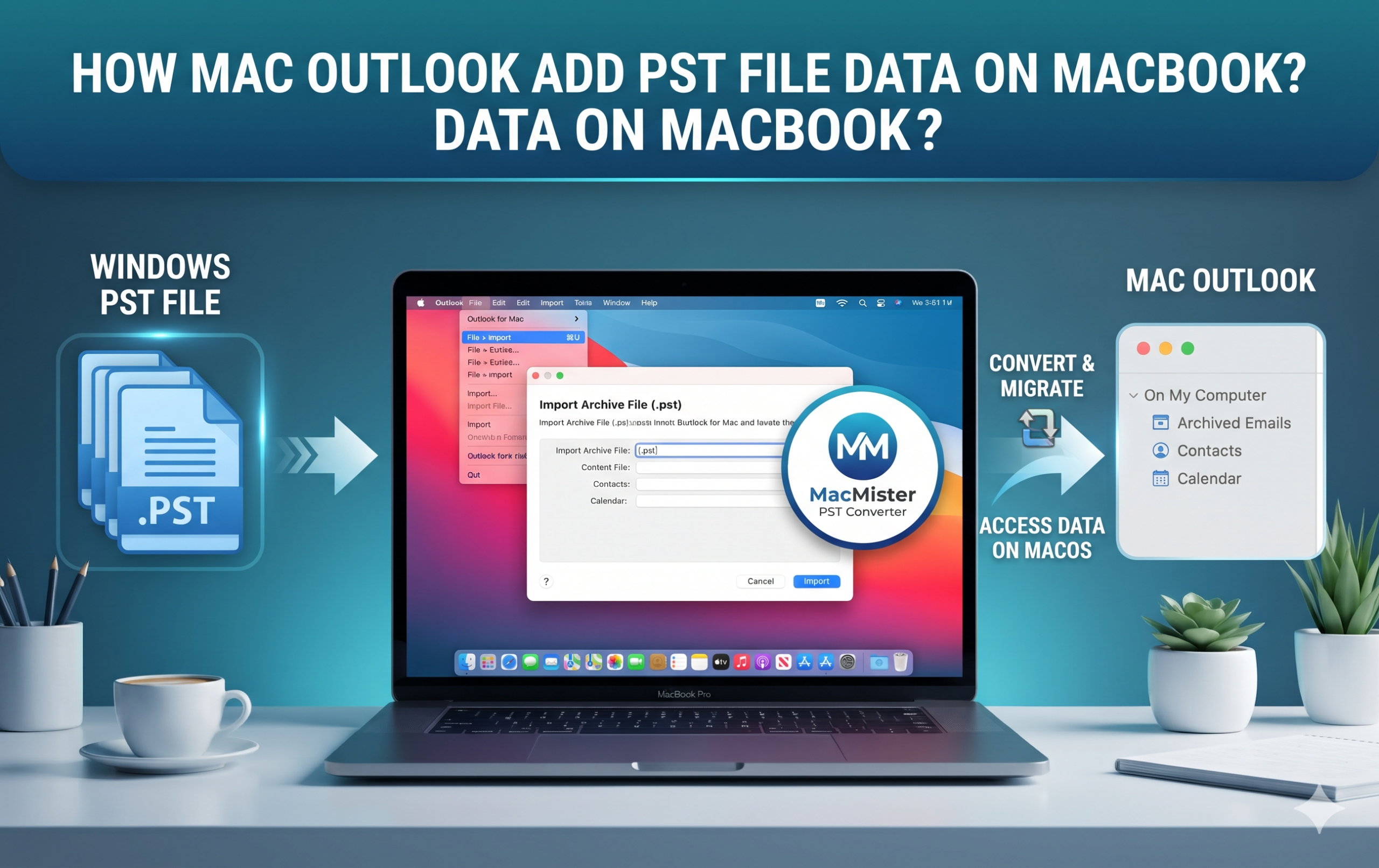
Migrating from a Windows computer to a MacBook usually comes with an old association – years of emails, contacts, calendars, and attachments stored within a Windows PST file. Since Microsoft Outlook in Windows and Microsoft Outlook in Mac utilize different internal structures (whereas Microsoft Outlook in Mac uses local database and OLM file format instead of default PST file format), adding a .pst file on your MacBook may become somewhat problematic.
This depends on what build of Microsoft Outlook you have installed on your Mac operating system and on how you wish to process your mailbox data prior to importing your PST file.
Why Adding PST Files on a MacBook Can Be Tricky?
The email client Microsoft Outlook for Windows creates PST files that contain local mailbox folders, messages, calendars, tasks, and notes. In case of a MacBook, Outlook operates with local data in a different way:
- Format and Database Variations: The email client Outlook for Mac employs its own profile database and creates exports of archives in OLM format rather than creates PST files.
- Client Version Specifics: The import of .pst files is possible in classic/legacy imports on some versions of Mac Outlook but restricted or disabled in newer Mac Outlook experiences. Moreover, Microsoft announced end-of-support dates for legacy Outlook for Mac starting from October 2026 due to licensing.
- Big Archives and Security: Multi-gigabyte PST archives and password-protected PST files may take much time to transfer, be prone to incomplete transfers, or be inconvenient to use in case you also need emails to be exported in portable formats (PDF, MBOX, EML) or synced to a cloud mailbox.
Method 1: Direct Import in Outlook for Mac (Supported Versions)
If the version of Outlook for Mac on your MacBook is capable of importing PST archives, then you will be able to import the file straight away into the “On My Computer” portion of your navigation pane.
1. Transfer the PST archive to your MacBook:
- First copy the .pst file from your Windows computer.
- The next step involves transferring the .pst file from your Windows computer to a folder on your MacBook computer like Downloads or Documents through an external device or through network drives. It is advisable not to open large archives through a network drive.
2. Open the Import wizard in Outlook for Mac:
- Open Outlook on your MacBook computer. Go to the top menu bar, select File, and then Import….
3.Choose the Windows PST archive option:
- Choose “Outlook for Windows Archive File (.pst)” (or “Outlook for Windows Data/Archive File (.pst)”, based on which build you have) and click Continue or Next.
5. Select your file and finish the import:
- Navigate to your transferred .pst file and select Import, wait for the process to end, and select Finish. The folders you have imported will appear under On My Computer in the Outlook side bar.
Limitations of Direct Import
- Built-in import will do nicely if you deal with simple files on compatible versions, but it also has some disadvantages:
- It can be grayed out in recent Mac Outlook interface versions or in cases when importing .pst is impossible.
- Processing a lot of .pst files separately or working with some certain dates will be less effective than using migration software.
- In case you wish to save your emails as separate PDF files or transfer them to another email client/webmail using IMAP or work with large .pst archives on Mac OS, you need one more step.
Method 2: Using Professional Approach
MacMister Mac PST Converter is an application that runs on the macOS platform designed for the reading of Windows .pst files on MacBook and migration of those files into other formats and storage without using Windows Outlook.
Key Features of the Application
- Works locally on your MacBook without sending mailbox contents to any third-party servers, and uses read-only extraction that does not modify your original .pst file.
- Allows adding either individual files or folders (Add File(s) or Add Folder(s)), making it possible to convert multiple PST files and even large mailboxes by keeping folder structure and attached documents.
- Converts the PST content into document/desk top formats (PDF, MBOX, EML, MSG), as well as allows direct migration to cloud or email service providers like Microsoft 365, IMAP, Gmail.
- Created specifically for macOS (Apple Silicon / M-series MacBooks) and modern versions of macOS as signed and notarized Mac app.
How to Use the Application on a MacBook?
Step 1. Download, install and start up the app on your MacBook.
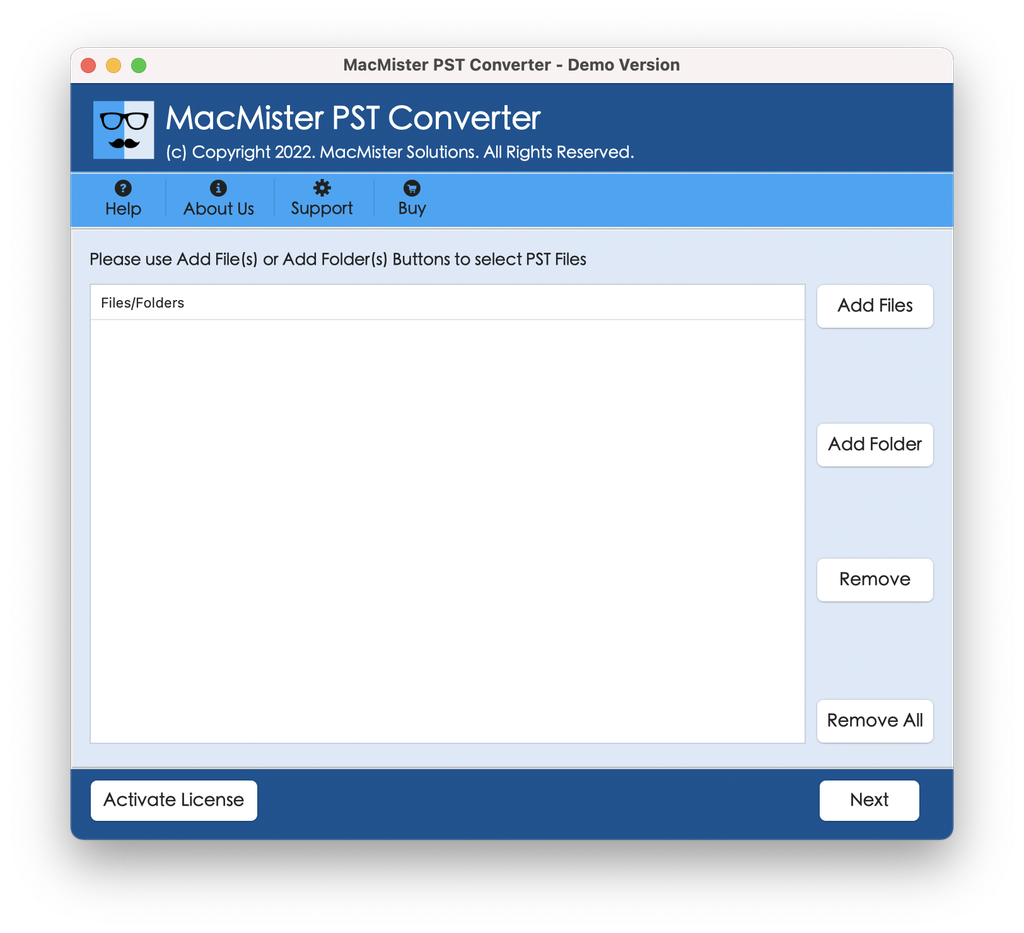
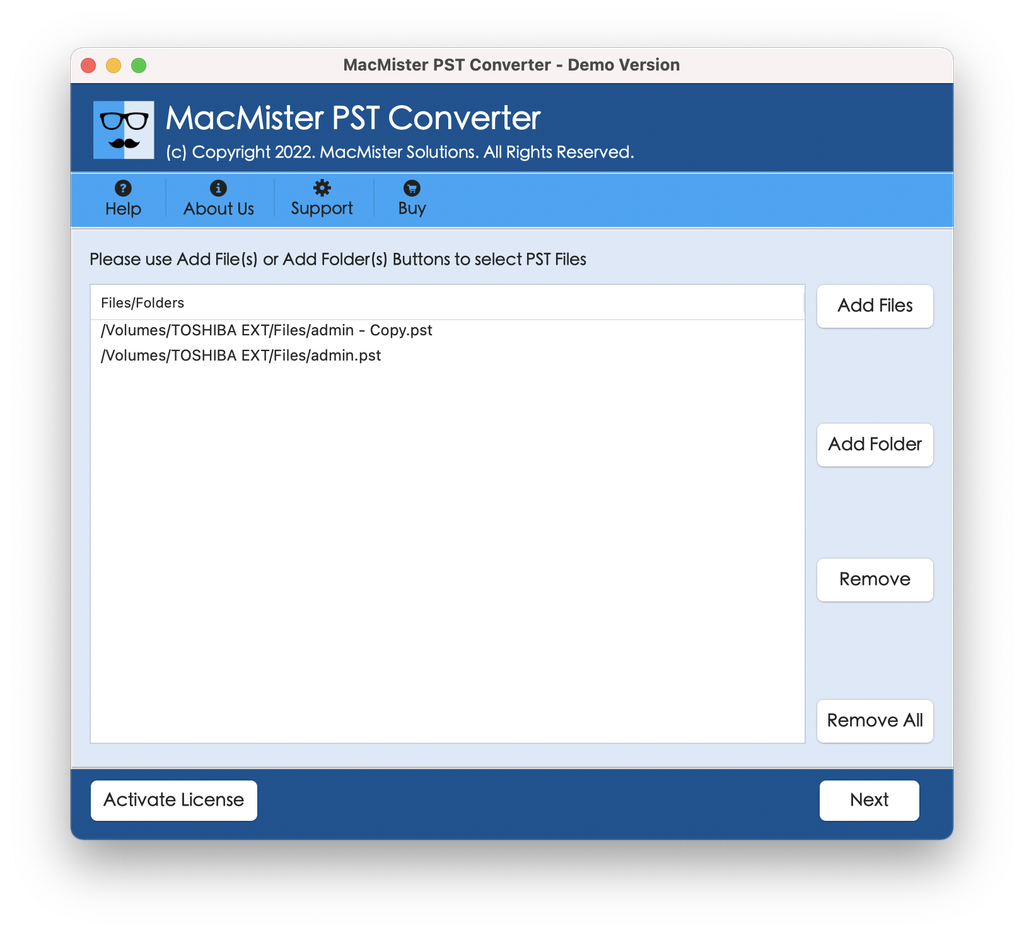
Step 2. Click Add File(s) in order to add a .pst file(s) or Add Folder(s) for importing a folder with multiple PST archives at once.
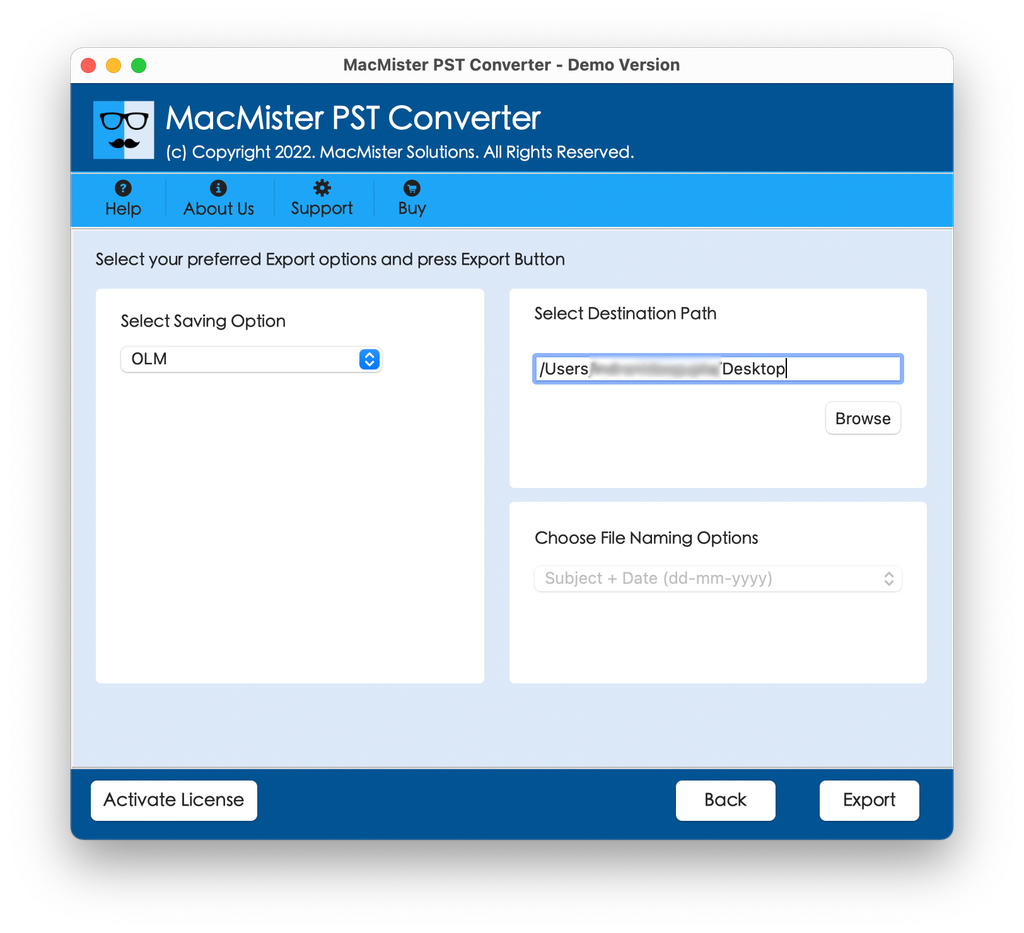
Step 3. Pick the necessary format on your MacBook that you want to convert to i.e. OLM.
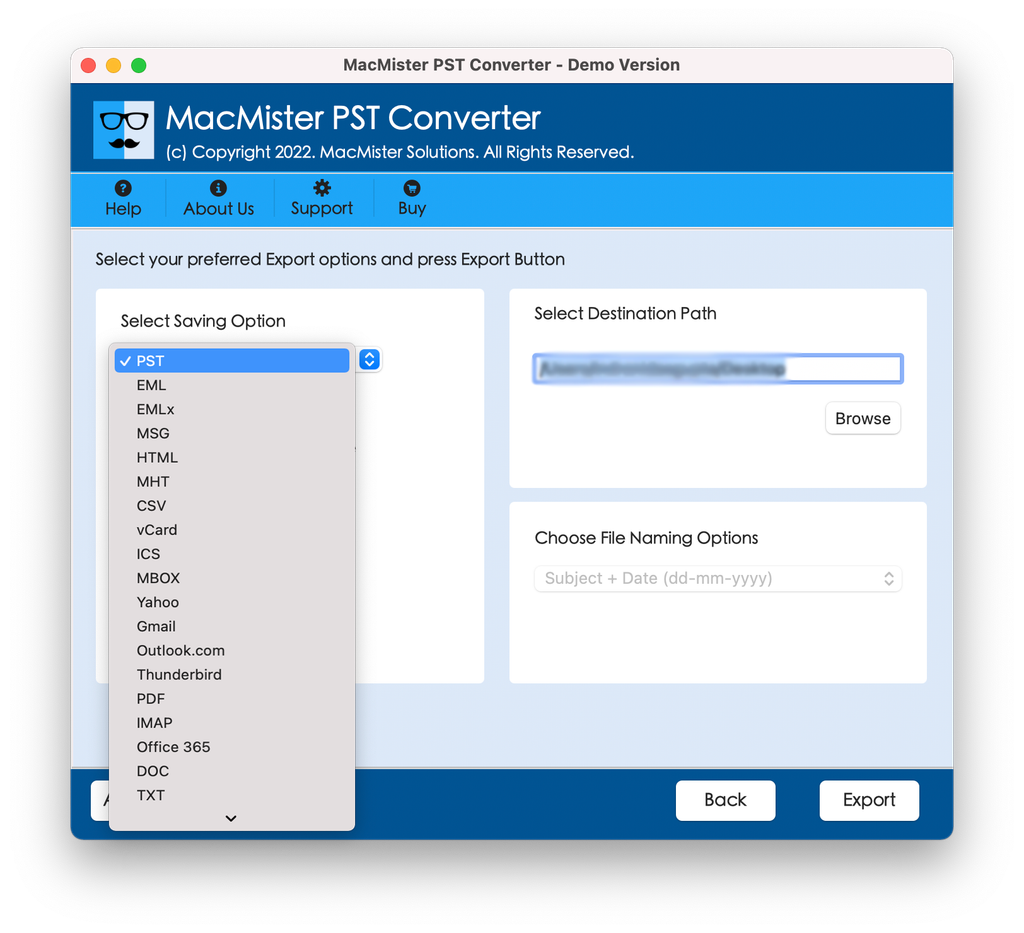
Step 4. Apply sub-options of a chosen saving type according to the requirements and press Export.
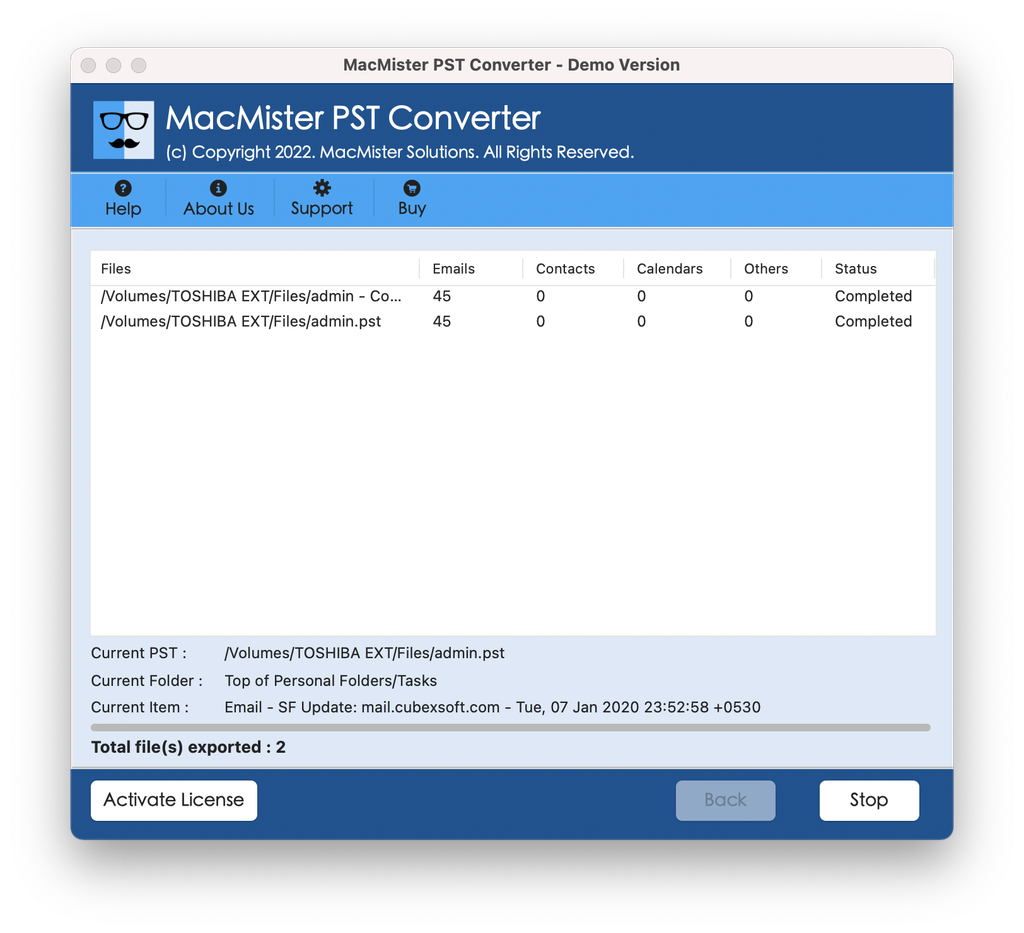
Step 5. Wait until the process is completed, till then track the live conversion status of PST files appearing in Live Conversion Window screen.
Choosing the Best Approach for Your MacBook
| Scenario | Recommended Approach | Why It Fits |
| Only one .pst file in Mac Outlook with capability to import .pst files | Inbuilt option to File>Import… in Outlook on Mac | Imports data directly from native Outlook using On My Computer feature without additional software. |
| The issue could be .pst import greyed out, multiple PST files, or require MBOX/PDF/EML/IMAP file type. | MacMister PST Converter | PST file processes on macOS in batch form, maintains its structural integrity, and produces flexible formats. |
| Continuous cloud mailbox (for example, Microsoft 365 or IMAP) | Synchronize with an IMAP-compatible cloud service | Allows access to emails from multiple devices without depending only on archives. |
Whichever path you choose, keep a clean backup copy of your original .pst file before starting any import or conversion, and test with a small archive or free trial first to verify that folder layouts and attachments match your expectations.
Epilogue
In the write-up we have explored different methods to fix how Mac Outlook add PST file data on MacBook. You may take help of a necessary approach and access PST data in Mac Outlook with emails, contacts, calendars and other data items with ease. However, it is advised to use reliable and certified solution for the same. Therefore, Mac PST to OLM Converter is definitely a suitable approach to add PST file data in Mac Outlook.