How to Add Blueyonder Email to Office 365 on Mac?
There are different ways to import Blueyonder email to Office 365. Users can configure their accounts manually or use Blueyonder to Office 365 tool on Mac Tool to export mailbox data into Office 365 account. This blog explains how to transfer Blueyonder email to Office 365 on Mac by the given approaches.
Blueyonder email users may want to move their existing mailbox to Office 365 for easier access, better email organization, and centralized communication. Whether you are switching email providers or simply want to manage multiple accounts through one platform, transferring Blueyonder emails to Office 365 can make everyday email management more convenient. However, the migration process requires proper account configuration and careful handling of existing messages.
Overview of Blueyonder Email and Office 365
Blueyonder is an email service associated with Virgin Media in the UK. It provides email facilities through addresses ending in domains such as @blueyonder.co.uk. Users can access their mailboxes through supported email clients and webmail services, depending on account availability and configuration.
Office 365, now known as Microsoft 365, is a cloud-based productivity suite developed by Microsoft. It provides various applications and services, including Outlook, Word, Excel, PowerPoint, Teams, and OneDrive, to support communication, collaboration, and data management. Outlook, powered by Exchange Online, allows users to send, receive, and organize emails while accessing their mailboxes across multiple devices. Microsoft 365 also offers cloud storage, document sharing, and real-time collaboration features, making it a suitable platform for individuals, businesses, and organizations.
Why Transfer Blueyonder Email to Office 365?
- Centralized Email Management: Manage business and personal email communication through Microsoft Outlook.
- Advanced Collaboration: Work with Microsoft Teams, SharePoint, Word, and other productivity applications.
- Cloud Accessibility: Access your emails from different devices using an internet connection.
- Better Organization: Organize mailbox data using folders, categories, and email management features.
- Business Productivity: Integrate email communication with other Microsoft 365 applications.
- Reliable Data Management: Keep important email conversations and attachments accessible within the Microsoft 365 environment.
How to Add Blueyonder Email to Office 365 Manually?
Users can configure their Blueyonder email account in Microsoft Outlook included with Office 365 using IMAP settings. This method allows users to access their Blueyonder mailbox through Outlook without forwarding individual messages. Follow these steps to configure the account on your Mac –
Step1 – Open Microsoft Outlook on your Mac and sign in using your Office 365 account.
Step2 – Navigate to Outlook Settings and select Accounts.
Step3 – Click the Add Account option and enter your complete Blueyonder email address.
Step4 – If Outlook does not configure the account automatically, select the manual setup option and choose IMAP as the account type.
Step5 – Enter the following incoming mail server settings:
- Incoming Server:
imap.virginmedia.com - Port Number: 993
- Encryption: SSL
- Username: Full Blueyonder email address
- Password: Virgin Media Mail app password
Step6 – Configure the outgoing mail server settings:
- Outgoing Server:
smtp.virginmedia.com - Port Number: 465
- Encryption: SSL
- Authentication: Password
- Username: Full Blueyonder email address
Step7 – Save the account configuration and allow Outlook to establish a connection with the Blueyonder mail server.
Step8 – Once the account is connected, open Outlook and check whether your Blueyonder emails and folders are visible.
Step9 – Verify that you can send and receive messages using the configured account.
Note – Adding Blueyonder through IMAP in Outlook provides access to the mailbox within the application. It does not automatically migrate the messages into the Office 365 Exchange Online mailbox. A separate mailbox migration or import process is required to complete that transfer.
This method allows users to transfer selected emails without manually forwarding every message individually. However, the email application must support both accounts, and the server connection must work correctly.
Limitations of Manual Blueyonder to Office 365 Migration
Although manual migration methods can transfer Blueyonder emails to Office 365, users may encounter several difficulties during the process.
- Complex Configuration – Setting up Blueyonder accounts requires correct IMAP server details, authentication credentials, and connection settings.
- Time-Consuming Process – Transferring a large number of emails and folders manually can take considerable time.
- Attachment Size Restrictions – Microsoft 365 IMAP migration does not support individual messages larger than 35 MB.
- Limited Data Migration – The IMAP migration method transfers emails but does not migrate contacts, calendars, or tasks.
- Mailbox Item Restrictions – Microsoft’s IMAP migration supports a maximum of 500,000 items per mailbox.
- Folder Structure Issues – Certain folder names and structures may require modification before migration, and some folders might not transfer as expected.
For users handling large & quick Blueyonder mailboxes to Office 365, smart email backup solution provides another way to prepare mailbox data for migration.
Advanced Method – Transfer Blueyonder Email to Office 365 on Mac
The MacMister Email Backup Tool for Mac provides perfect way for users who want to export Blueyonder mailbox data to Office 365 account. Instead of depending entirely on manual email movement, users can backup Blueyonder mailbox into Office 365 and use the exported data for further migration.
|
|
|


The software provides a structured way to process mailbox data and offers multiple export options. The tool provides perfect options to export emails from Blueyonder account to Office 365 account effortlessly.
Steps to Export Blueyonder Emails to Office 365 account
Step 1 – Download, install & launch the software for Mac on your system.
Step 2 – Select the IMAP options from email account source options.

Step 3 – Enter your Blueyonder email address and the required account authentication details with IMAP server details. Click on Login button to connect the Blueyonder account for migration.

Step 4 – Select the required email folders or mailbox items that you want to export.

Step 5 – Choose Office 365 as your saving option.

Step 6 – Fill the Office 365 login details for migration and click on Start Backup button to begin the process.
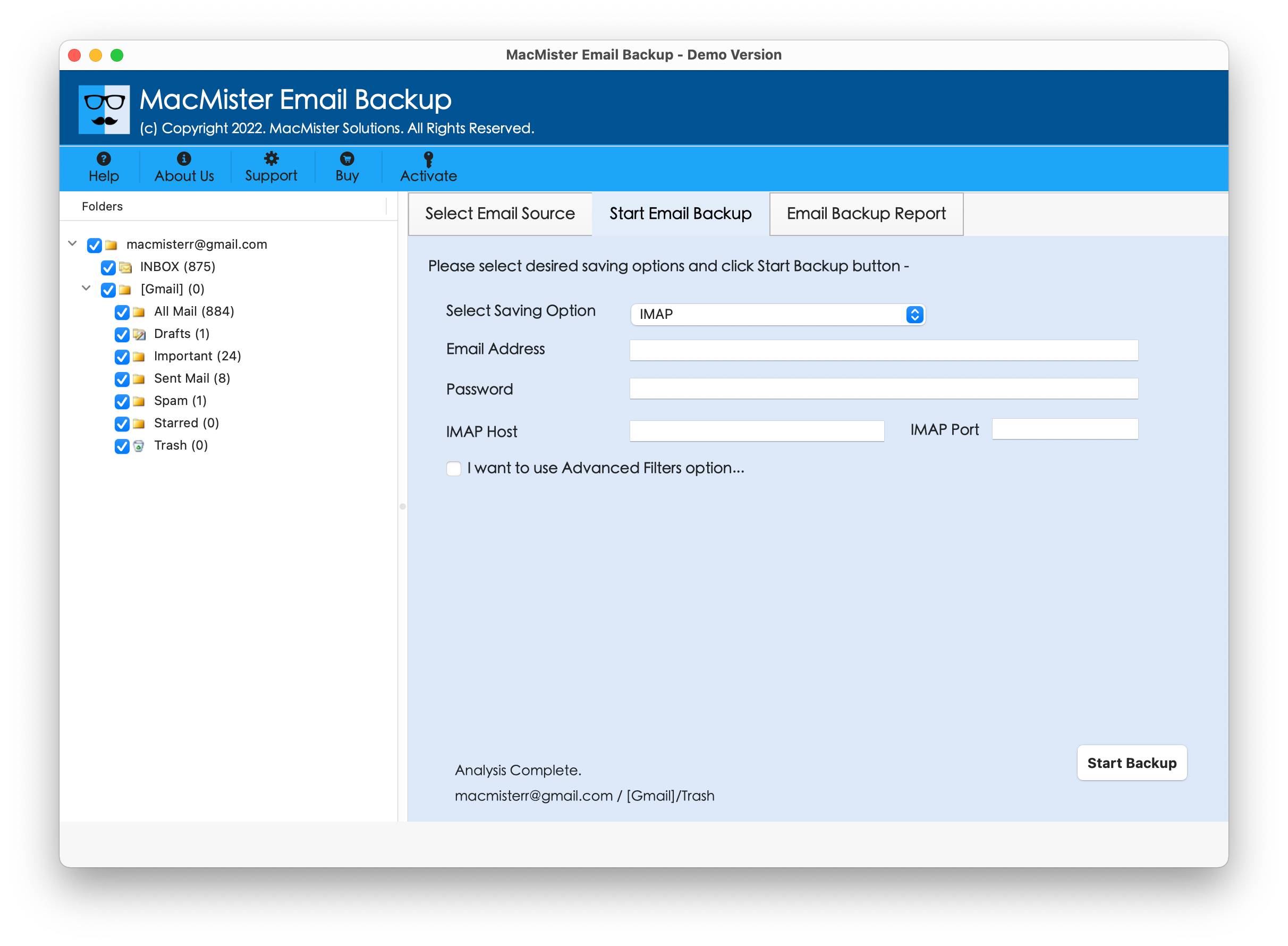
Step 7 – Start the export process and allow the software to save the selected mailbox data.

Why Choose the Blueyonder to Office 365 Migration tool on Mac
- Batch Processing – Export multiple emails and mailbox items in a single operation.
- Attachment Support – Retain associated email attachments during supported exports.
- Selective Backup – Choose specific folders and email items for processing.
- Advanced Filters – Use available filtering options to organize the required mailbox data.
- Email Information – Preserve important email properties and metadata during supported processing.
- Mac Compatibility – Work with supported all macOS versions.
- Free Trial – Evaluate the software’s working before purchasing the full edition.
Conclusion
Transferring Blueyonder email to Office 365 helps users bring their existing email communication into a more centralized environment. Manual methods can work for smaller transfers, but account configuration, synchronization, and mailbox size can make the process challenging. MacMister Blueyonder IMAP Backup Tool on Mac offers perfect way for exporting Blueyonder mailbox data to Office 365 account. Users can select the required emails, process multiple items, and prepare their mailbox data for migration to Office 365 account.