How to Convert Huge Archive PST Files on Mac without Crashing?
Handling large PST files when migrating between email systems become quite challenging for professionals, researchers, and users. These PST files act as huge archives of all email history, calendar information, contacts, and other attachment files.
But the problem arises when one needs to work on these archive files on a macOS system. If the user is working on huge archive PST files, which are from 10 GB to 50 GB or more in size, then the regular procedure of converting them freezes and causes a memory problem.
In this detailed guide, we will learn why large PST files cause the crash and also explain proven ways of managing big archives without issues, and present a specially designed utility for Mac to preserve the same.
Why Huge PST Files Crash Mac Systems?
With the PST file size growing too large, it becomes similar to a inappropriate organized filing storage. Opening, exporting and converting a PST file becomes too heavy for the computer’s resources.
There are several technical problems, which cause the frequent crashes of the conversion programs while dealing with large size archives on a Mac OS machine:
- Memory Pressure (RAM Drainage): The usual converters attempt to load the whole database into memory cache. Loading of a 30 GB PST file in its totality leads to the reduction of RAM’s storage and causes crashes.
- Complex Folder Structure: The complex structure of subfolders, customized labels and metadata (such as read/unread status, inline images and HTML formatting) makes the parsing process complicated.
- Headers Corruption/Bad Sectors: Over time old PST files may obtain some corruption or bad sectors. In case of meeting such corrupted emails by strict conversion software, it stops parsing or even crashes.
- Parsing/Translation Layer for Mac OS: The .pst file format is specific to Windows OS and thus, macOS requires some layer for parsing this file.
Best Practices for Preparing Huge PST Files before Conversion
By performing few preliminary actions, you will be able to significantly reduce the chances of crashes and execute the entire conversion process:
1. Terminate Background Resource-Eating Programs
Close all applications that takes a large amount of RAM and CPU capacity. It’s recommended to close such programs as creative tools (video editors, IDEs), browser applications with many tabs open and various background sync programs before starting your converter tool.
2. Make Sure There is Enough Free Hard Drive Capacity
While processing files, the software usually creates some cache and parsed output files. Make sure that your Mac computer has at least double free disk capacity compared to the size of the PST file you’re converting (for example, if you have a 40GB PST file, make sure there is at least 80 GB of free SSD space available).
3. Check File Access Permissions
The source PST file should be located on your local computer’s internal SSD drive and not in any kind of external storage or network. Reading large files via network protocols causes delays which result in crashing the software.
How to Convert Huge Archive PST Files on Mac using Professional Approach?
When manual tools and small scripts become inefficient, then what you need is an enterprise tool that has been developed exclusively for the macOS environment i.e. MacMister PST Converter for Mac & Windows. The application comes as a leading option that is particularly tailored for such purposes.
Main Features of the Application:
- The application is designed using advanced algorithm, thus, the program efficiently handles huge PST file sizes such as 5GB, 50GB, or more for conversion.
- The user can convert many PST files at once or an entire archived folder.
- PST files can be exported into various file formats such as MBOX, EML, EMLX, MSG, PDF, HTML, RTF, CSV, and even directly migrate to cloud destinations such as Office 365, Gmail, Yahoo, and IMAP.
- The software will ensure that your folder hierarchy, subfolders, and other metadata are preserved during the process.
- There are inbuilt filters to select items within certain date range or specific folders, which helps in saving processing time.
Step-by-Step Guide: Converting Huge PST Files Without Crashing Using MacMister
Conversion with the app is very easy. Take the following step-by-step guide to perform a trouble-free conversion of your huge PST archive files:
Step 1. Download the software from their official website on Mac OS.
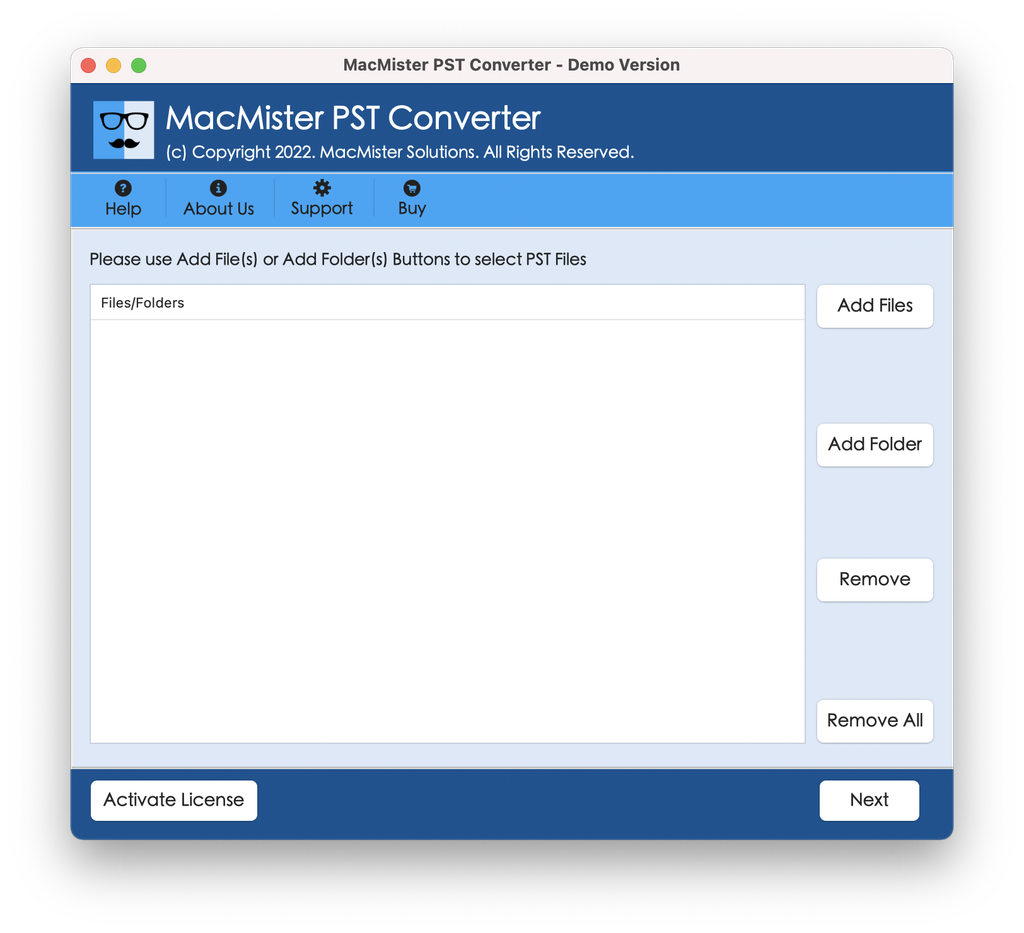
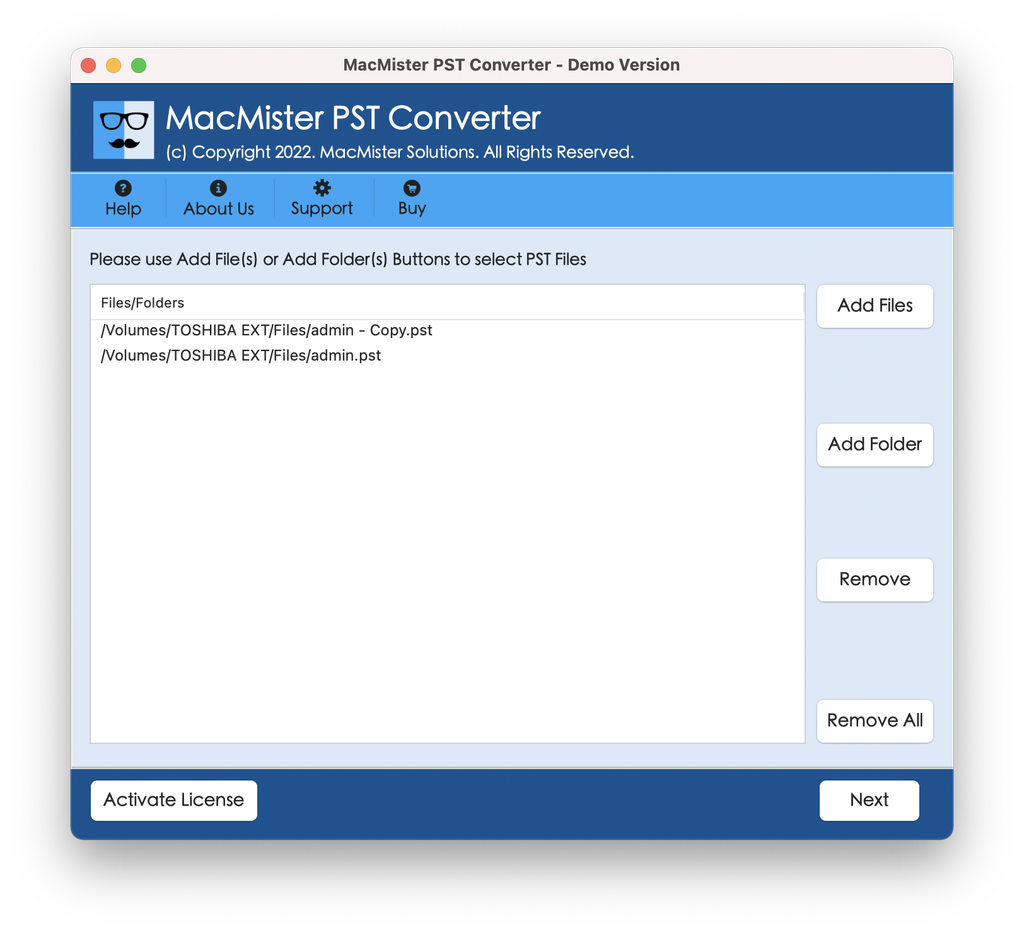
Step 2. Click on the Add File(s) or Add Folder button to add PST files.
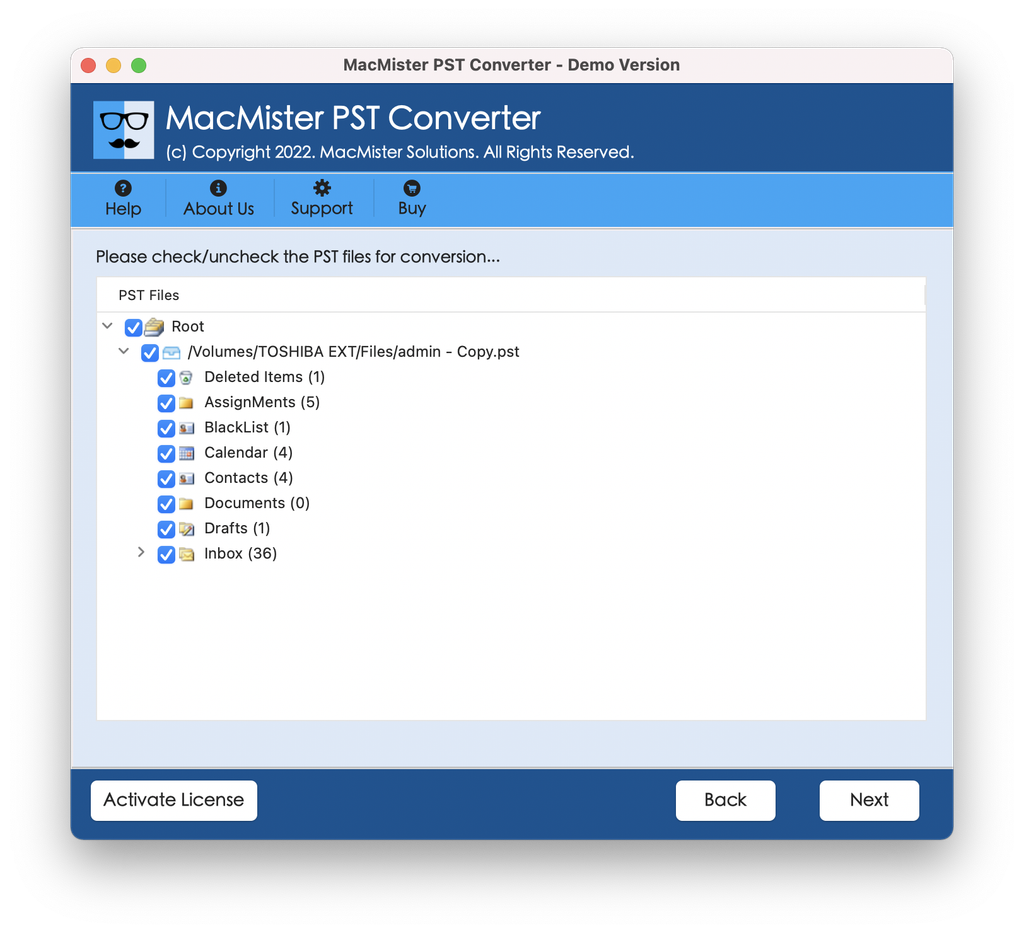
Step 3. The application will scan and display the preview of the mailbox folder on the left panel.
Step 4. Go to the Select Saving Option drop-down menu and choose the format in which you want to export the data (select MBOX in case of migration to Apple Mail/Thunderbird, PDF for saving documents, etc.)
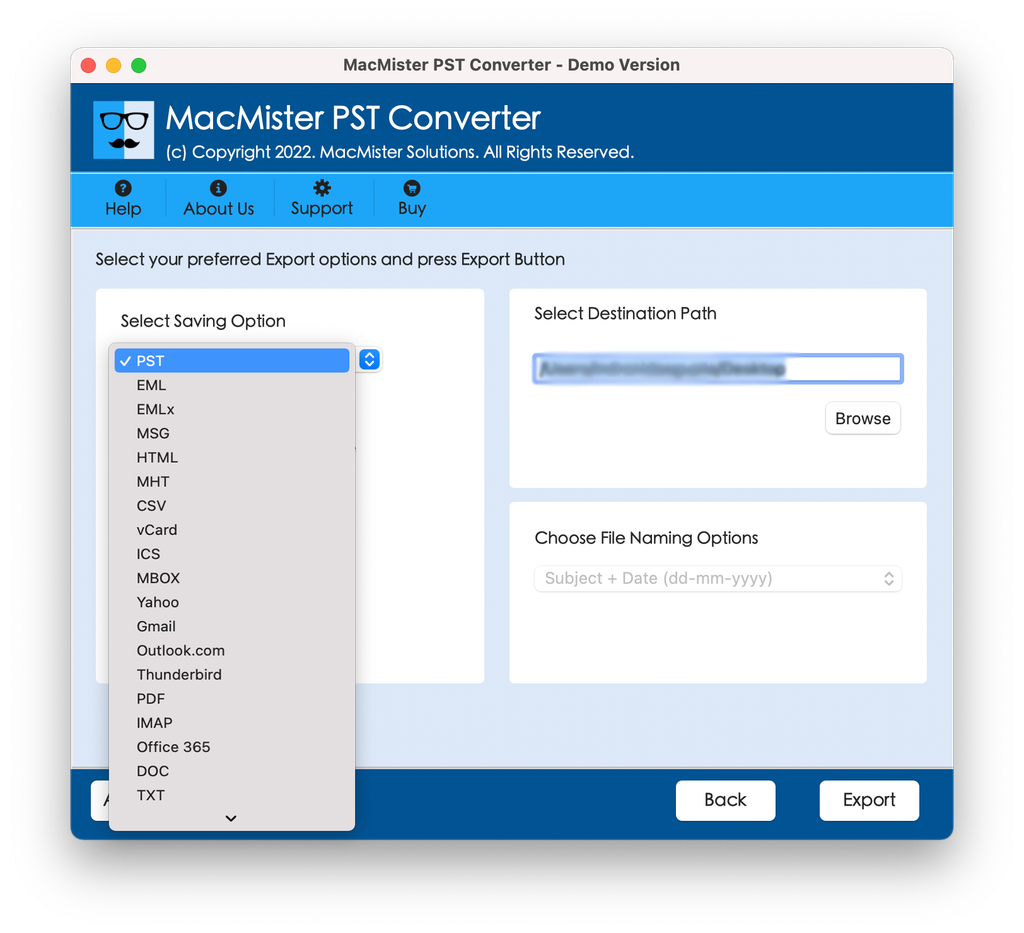
Step 5. Select the destination folder where you want to save your data by clicking the Browse button. Set other optional preferences like Maintain Folder Hierarchy, Save attachments in separate folder, etc. and click Export.
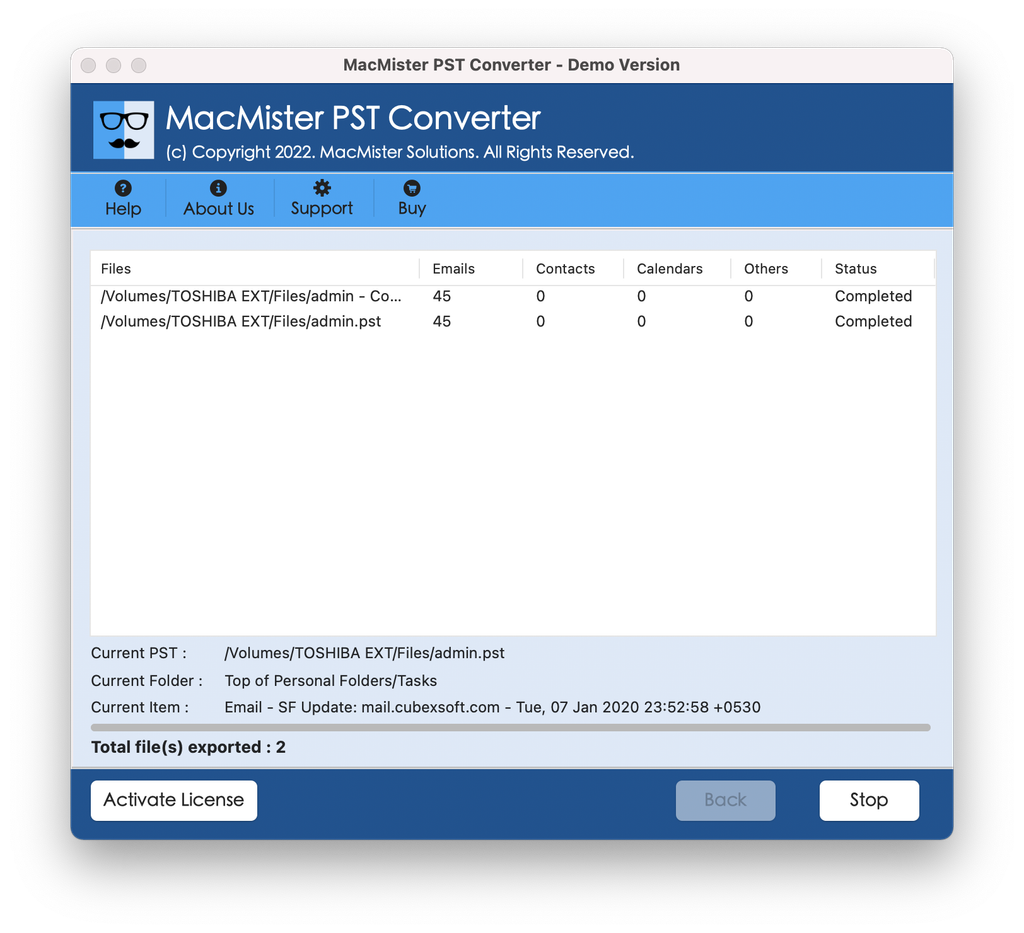
Step 6. Now, view the Live Conversion of PST files using the window displaying.
Conclusion
Converting huge archive PST files on a Mac is not supposed to be a troublesome experience involving crashes and hang-ups. Once you understand the limitations of the PST file handling capabilities of Mac and prepare yourself properly by organizing the storage space prior to the conversion process and using an effective utility discussed above, you can easily make a challenging job seem like an automatic one.
Whether you want to convert to Apple Mail or convert to PDF files, everything from your past will be saved and made accessible.