How to Convert PST to EML on Mac?
Constantly wondering how to convert PST to EML on Mac! No worries, just go through the write-up and you will explore a method that will help quickly batch convert PST to EML at once on Mac.
In today’s business world, switching between different email systems and computers happens all the time. One big problem people encounter is dealing with Microsoft Outlook’s PST files when they switch to a Mac.
If you moved from Windows and Outlook to Apple Mail, Thunderbird, or even Mac Outlook, you’ve probably found out that these Mac apps can’t read PST files. For seeing old emails, converting those PST files to EML format is really what you need to do.
We’ll cover why conversion is essential, how tough it is to do this on your own Mac, and share the best method using a specialist tool to get it done right.
Understanding the File Formats: PST vs. EML
Before diving into the conversion process, it helps to understand why converting to EML is such a popular choice for Mac users:
- PST is a master database file made only by Microsoft Outlook for Windows. It contains an entire mailbox, including emails, calendar events, contacts, tasks, and notes, all compressed into one file. The problem is, this format is pretty locked down and hard for non-Windows apps to use.
- EML, on the other hand, is an open standard that stores just one email message. It keeps all the original formatting, headers, and even attachments. Plus, it’s easy for Apple Mail and most email apps on macOS, iOS, and Linux to handle.
So, when you convert a PST to EML, you’re basically taking that big, Windows-specific database and turning it into simple, accessible email files. These can be opened instantly by pretty much any email program on Macs and other systems too.
Why Is PST to EML Conversion Tricky on a Mac?
Trying to open a PST file on a Mac without Outlook for Windows is pretty impossible. The thing is, macOS lacks any built-in tool to handle PST files.
Some folks look for workarounds, but that gets tricky too:
- First, you could install Outlook on your Mac. While it lets you import PST files, it only converts them to OLM files internally. So you’re just swapping one kind of proprietary file for another, basically trapped in Microsoft’s system.
- Second, manually dragging and dropping emails or relying on free online converters tends to mess things up. This can cause all sorts of problems like broken attachments, corrupt character sets, and stripped-down email headers which leave out “Bcc” and “Date” info.
- Third, there’s the big issue of security. These free online converters are risky when dealing with sensitive information because uploading company files might break data privacy laws such as GDPR or HIPAA.
So really, the safest and most effective method involves using specialized local software for conversion.
Convert PST to EML using Ultimate Solution
For important business messages or your personal email collections, you need something secure and reliable, especially with lots of data. That’s where the MacMister PST Converter for Mac comes in. This pro tool is built to move emails from Windows Outlook databases to macOS apps smoothly. You can easily take emails out of PST files and save them in EML format right on your Mac, no Windows needed at all.
Key Features of MacMister PST File Conversion Tool:
- It has “Add Files” and “Add Folder” buttons. The options allows users to load PST files, even entire directories with several PSTs at once for converting.
- Unlike discarding everything in one cluttered folder from manual extraction, MacMister keeps your Inbox, Sent, Drafts, and other custom folders just how you left them.
- It safeguard all email properties – like To, Cc, Bcc, Subject, Date, inline images, hyperlinks, rich text formatting, and attachments.
- No Microsoft Outlook is required either; it works independently on Macs.
- It is equipped date ranges, specific sender, and folder-based filters that helps in converting PST files to EML according to the requirements.
Step-by-Step Guide: How to Convert PST to EML on Mac
Using the application will simplify what used to be a highly technical headache into a straightforward, automated process. Follow these steps to complete your conversion:
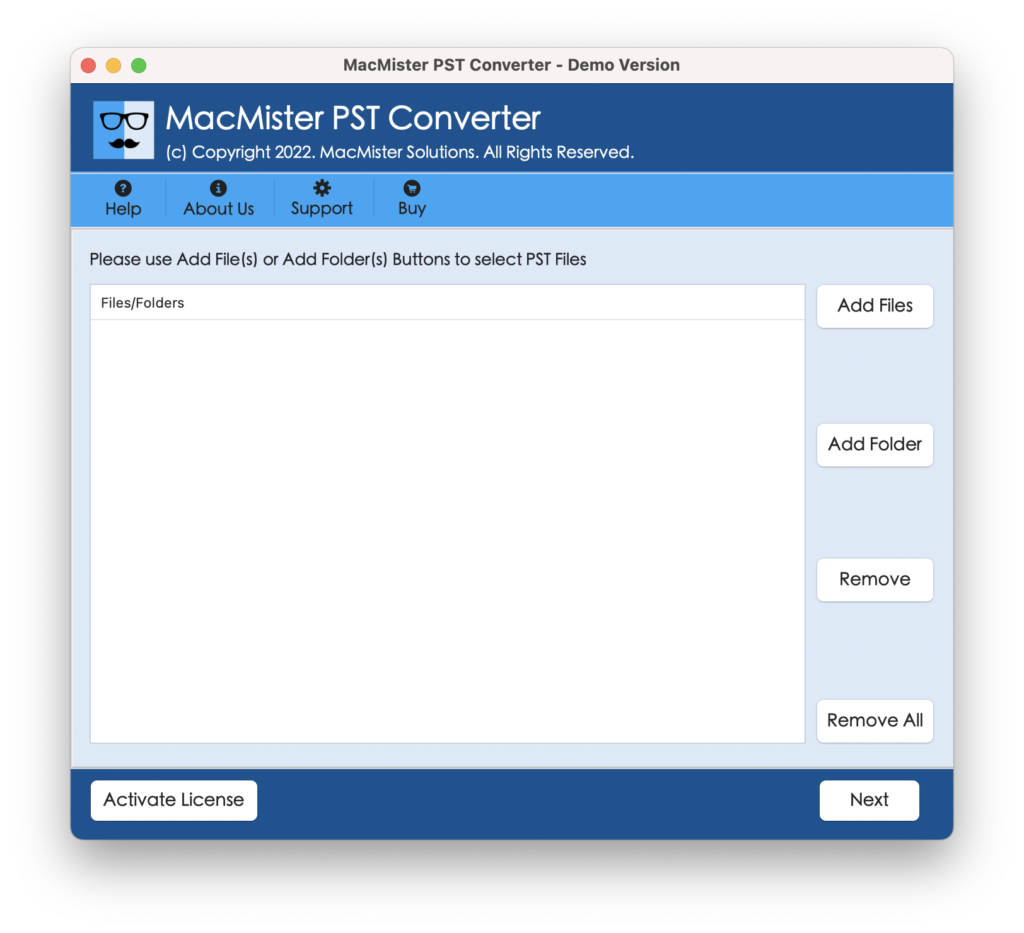
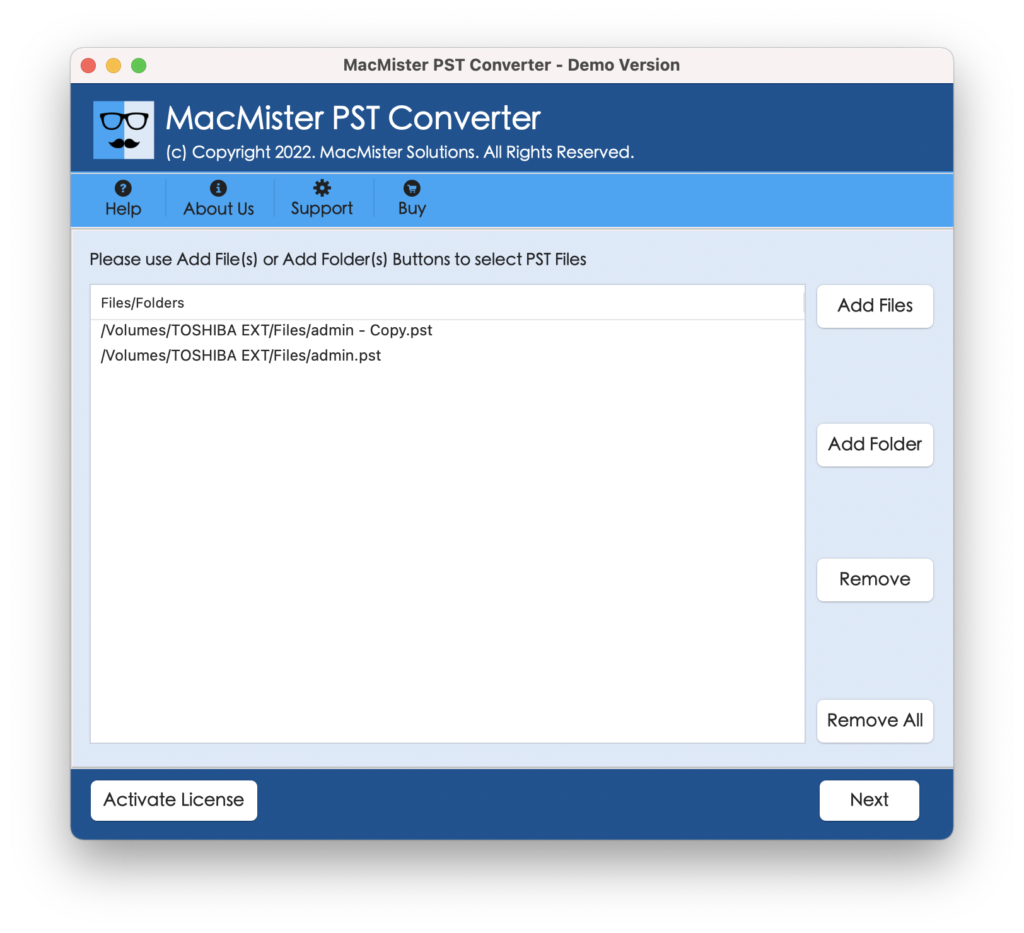
Step 1. Download, install, and launch the software on your macOS device. On the main interface, click on Add Files to select specific PST databases, or choose Add Folder if you want to import a whole directory of PST files for bulk conversion.
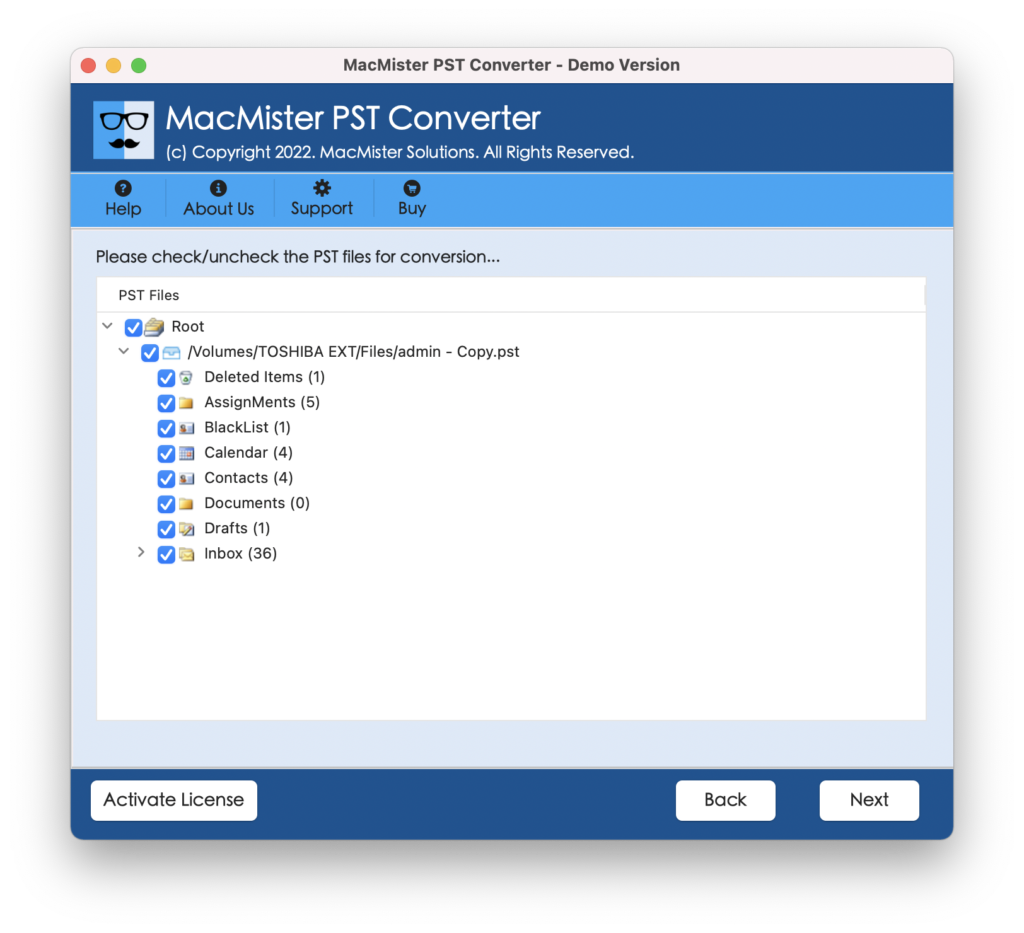
Step 2. The software will instantly scan and load your PST data, displaying a tree-view structure of all your folders on the left panel. You can expand the folders to preview individual emails, ensuring that you are converting the correct data set. Uncheck any folders you wish to exclude from the final export.
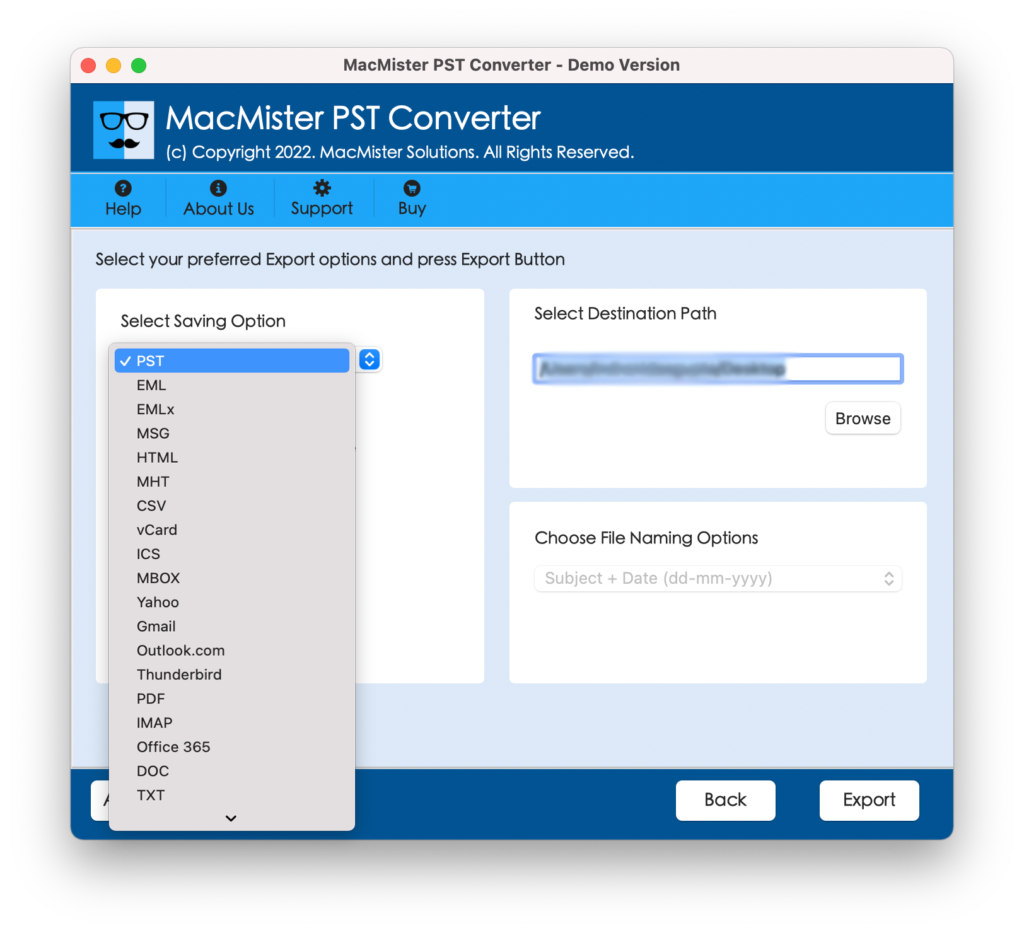
Step 3: Navigate to the Select Saving Option drop-down menu. You will see a variety of formats (such as MBOX, PDF, MSG, and HTML). Select EML from the list to ensure native compatibility with Apple Mail and other Mac email clients.
Step 4. Choose where you want to save your converted EML files by clicking the Browse button next to the Destination Path. Additionally, you can utilize the tool’s file-naming conventions (e.g., Subject + Date, From + Subject) to keep your newly generated EML files neatly organized on your hard drive.
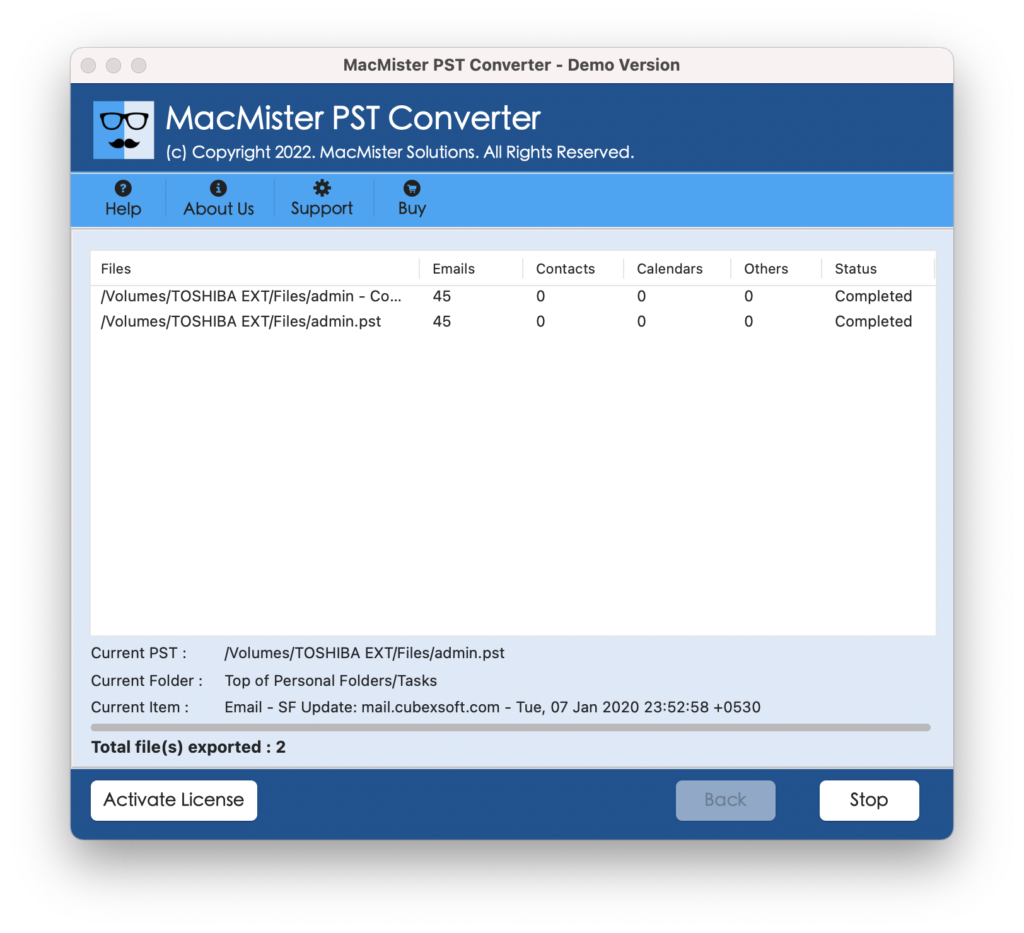
Step 5. Click the Export button. The software will display a live progress report showing the number of items processed. Once finished, a notification reading “Conversion Completed Successfully” will appear. You can now open your destination folder to find perfectly structured EML files ready to be imported into Apple Mail or Thunderbird via a simple drag-and-drop.
Epilogue
Manually dealing with cross-platform file migrations can be a recipe for data loss and frustration. While Microsoft Outlook for Windows locks your data into a rigid PST container, converting those files to EML gives your emails universal mobility on macOS. By using a specialized professional tool, you completely bypass the need for a Windows machine or complex cloud workarounds. It provides an efficient, secure, and accurate way to safeguard your email history, maintaining the integrity of your attachments and formatting from start to finish.