How to Download and Save Gmail Email as PDF Mac?
Many Mac users with Gmail accounts are searching for an exceptional approach to save Gmail email as PDF Mac. And, there could be lot of different reasons behind this. So, here we are providing a write-up that will guide the necessary users to download all Gmail emails to PDF on Mac properly.
Gmail is one of the popular and commonly used email service provider. Mostly accessible by large organizations and individual users to manage the daily communication process. Moreover, users only require internet connectivity to utilize the benefits of Gmail application. So, users will have a freedom to use its entire facilities from any location at any time. And, many times, due to unexpected circumstances, users need to download all Gmail emails and save them into PDF file type. This creates a challenge for those who are using Mac OS as they not able to find the solution for the same.

Mac is considered a secure operating system. And, it will be difficult for Mac users to use the solution that does not guarantee user’s data safety. Therefore, using a reliable solution is must. But, at first, let us know the reasons behind Gmail emails to PDF conversion.
Main Reasons Listed to Save Gmail as PDF Mac
PDF is a universal accepted file format that stands for Portable Document Format. It can be opened and readable on any platform. Moreover, it has multiple levels of security as well that keeps the document protected from data breach. Some solid features of PDF are mentioned below –
- PDF displays the content accurately, no matter on which platform you are using it.
- Integrate various content types such as text, animations, 3D models, audio files, hyperlinks, and images and vector graphics etc.
- Supports multiple levels of security for document protection.
- PDF can be used and created easily.
- Able to compress good quality files to relatively small files.
- Easy and reliable way to exchange documents between operating systems.
How to Download all Gmail Emails to PDF on Mac?
In the section we have highlighted two approaches –
- Professional and Secure Method
- Manual Solution
Method 1. Easy and Secure Method to Save Multiple Gmail Emails as PDF
Gmail Backup Tool for Mac is a brilliant solution that help users to directly save Gmail email as PDF Mac. The software inbuilt friendly GUI and operable steps easily help technical and non-technical users to download all Gmail emails to PDF. Moreover, the three simple steps saves users time and performs batch migration at once without data loss.

The application includes many magnificent features that help users to retrieve Gmail emails as PDF on Mac as per requirement. And, you can check the same through free download version of the software.
Steps to Save Gmail Email as PDF using Outstanding Solution
Step 1. Run Gmail to PDF Tool for Mac on macOS.
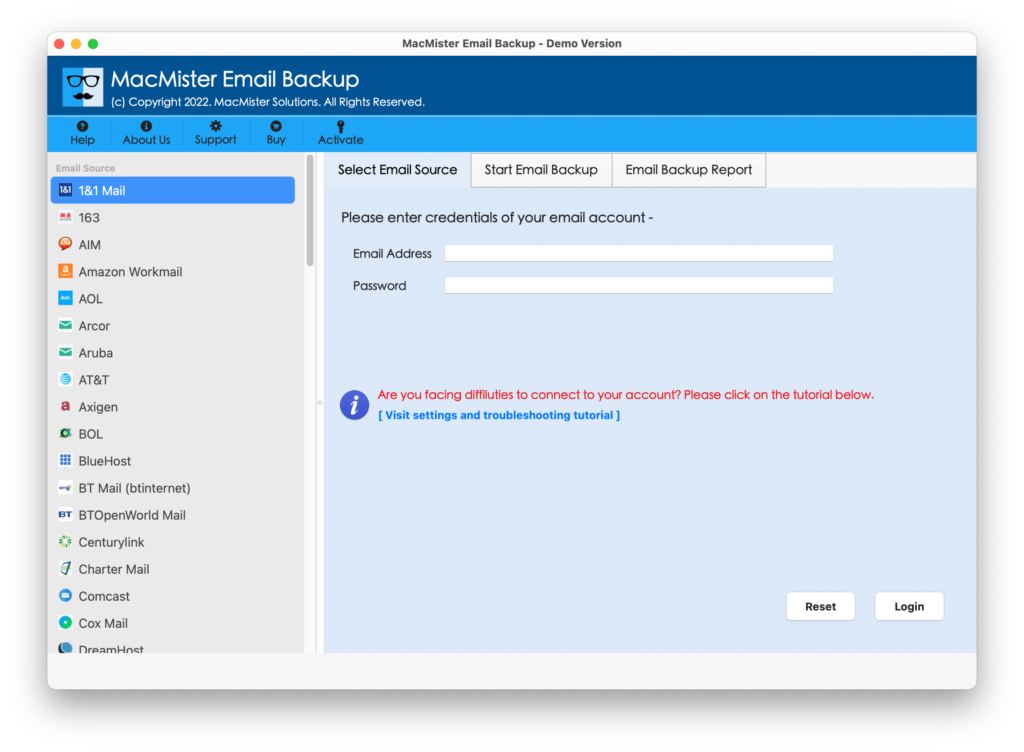
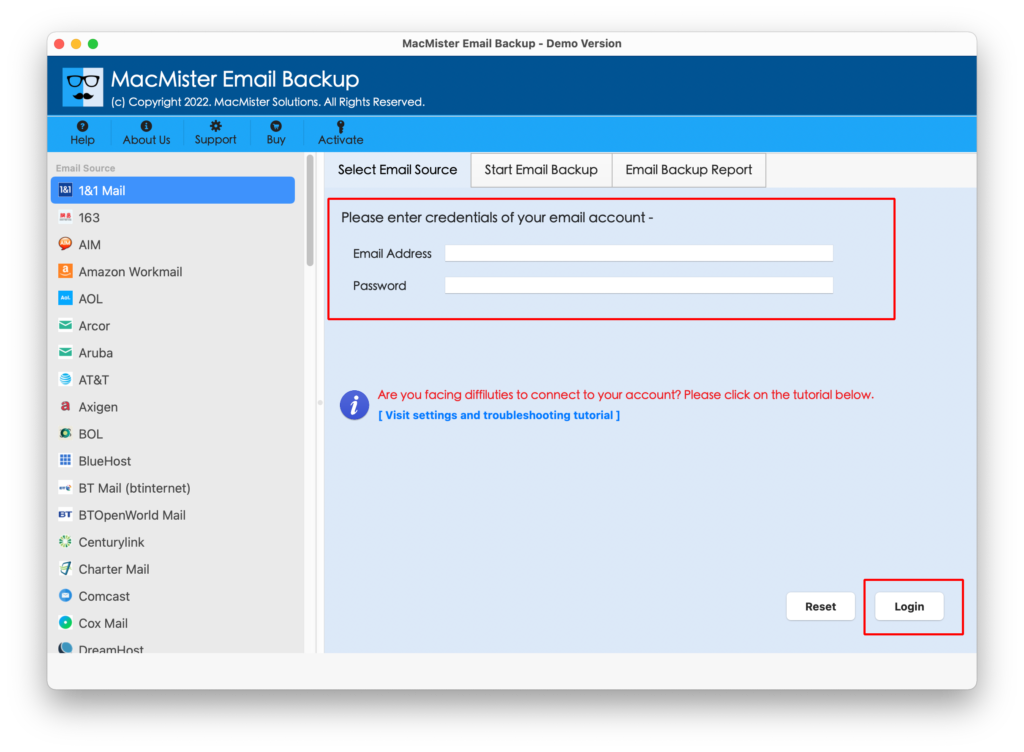
Step 2. Select Gmail option as a source from the list displaying on left side of software pane. Enter login details of Gmail account and press Login button.
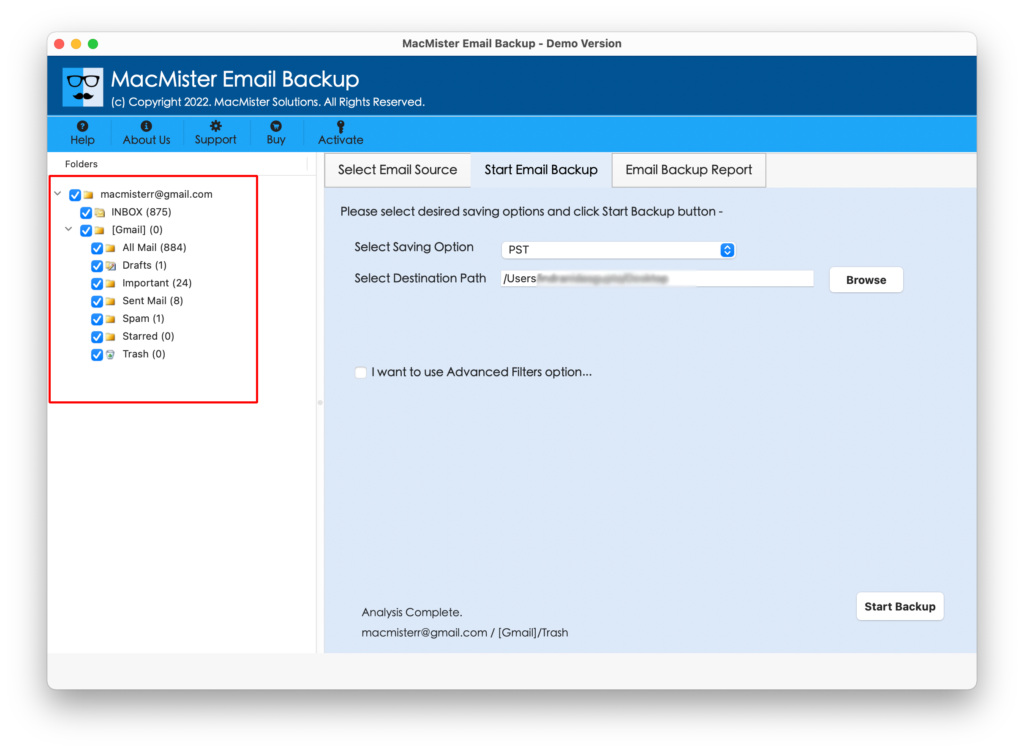
Step 3. Gmail account list now appear with checkboxes. These checkboxes are selected by default. You can apply the selection accordingly.
Step 4. Select PDF option from Select Saving Option drop-down list.
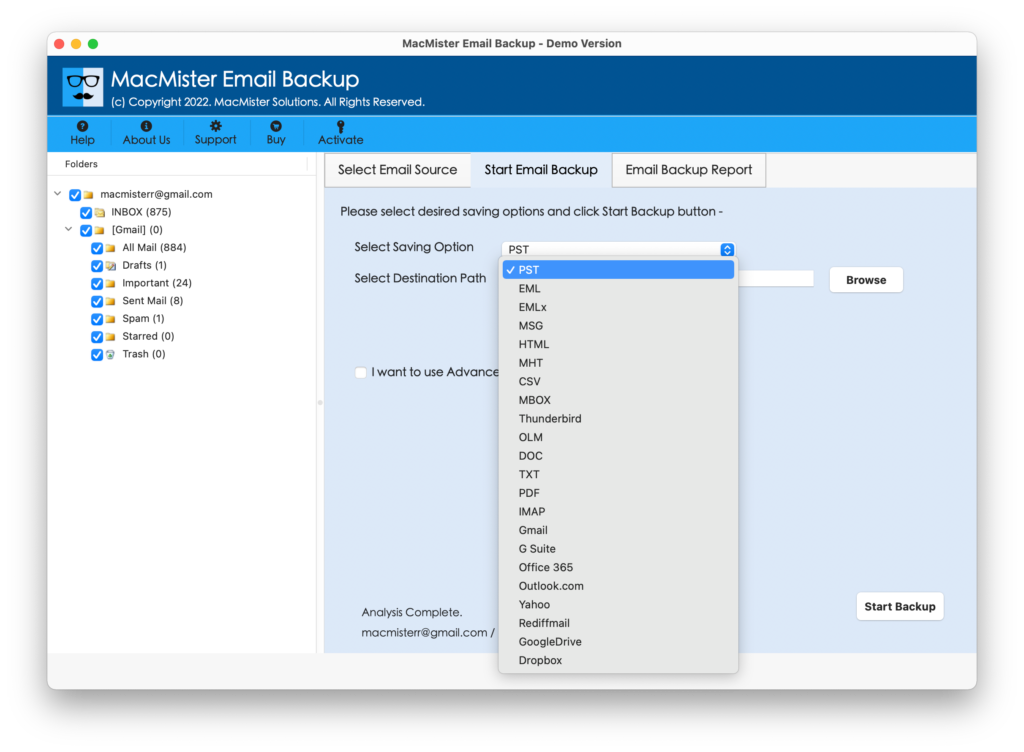
Step 5. Set PDF sub-options to save Gmail email as PDF as per need and click on Start Backup button.
Step 6. The Email Backup Report will appear showing the on-going process status.
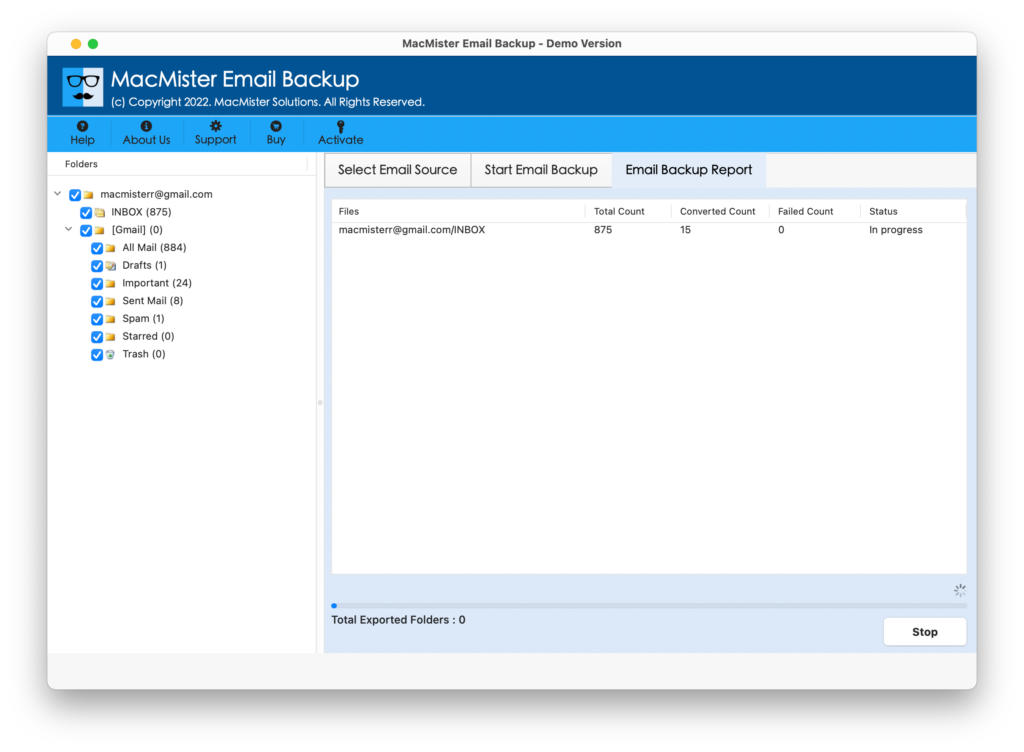
Now, go to the resultant file destination path to check the output. The resultant data originality will be accurate. The layout of the documents and the content will be preserved throughout procedure.
Impressive Traits of Gmail to PDF Tool for Mac
Directly Save Gmail Email as PDF on Mac
The Gmail to PDF Tool for Mac includes direct conversion facility. The tool asks to enter the Gmail login details, choose PDF as a saving option and download all Gmail emails as PDF with attachments in a single time without data loss.
Maintains the Data Integrity of Gmail Emails
The software has the ability to save Gmail emails as PDF with 100% accuracy. In other words, you do not need to worry about data originality. The formatting properties and layout of the resultant PDF will be maintained after the process.
Avail Multiple Filters for Specified Backup
The Gmail to PDF Tool for Mac delivers multiple filters with the help of which users can perform specified migration of Gmail emails to PDF. The option offers date range, to, from and subject. Set them accordingly and download specific emails from Gmail to PDF.
Save Gmail Email as PDF in Different Ways
The application provides multiple options for saving Gmail emails into PDF format. After choosing PDF as a saving option, users will get many sub-options to save emails and attachments from Gmail accordingly.
Set Destination Path Option for Easy Access
The Gmail to PDF Software is has the option of Set Destination Path with Browse button. Clicking on it, help users set the location as per need and save the resultant output at desired path. It will be easy for users to access the resultant output after conversion.
Note. Unlock more software features by downloading the trial edition. The free version of the application allows to download first 25 Gmail emails to PDF free of cost.
Method 2. Manual Solution to Download Multiple Emails from Gmail to PDF
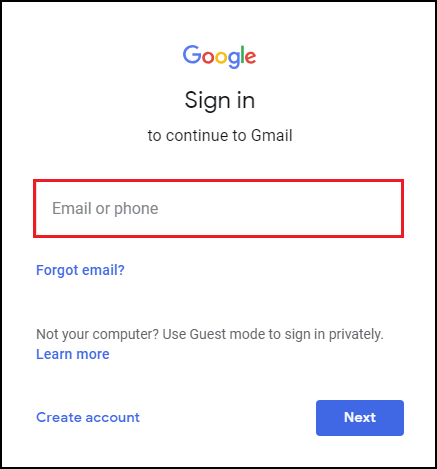
Step 1. Go to www.gmail.com and login with your credentials from which you want to save Gmail emails.
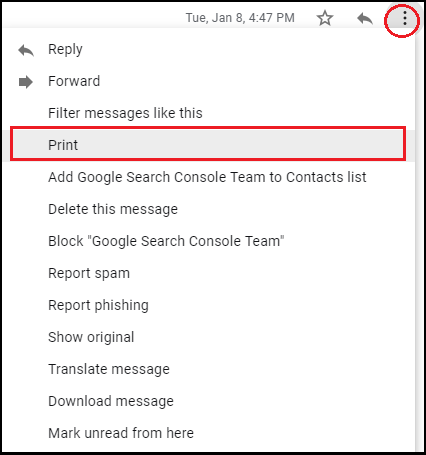
Step 2. Open a required email file and go to the three dots appearing vertically and click on it. Choose Print.
Step 3. Another screen will appear. You will see Save as PDF option with drop-down button, click on it and the list carries multiple options. Choose the option of Save as PDF and click on Save.
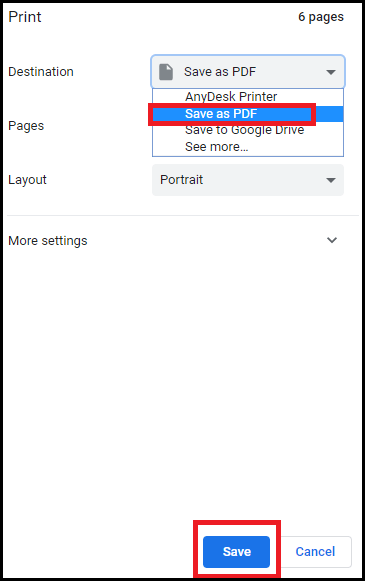
Step 4. Now, the process will save a file at desired location successfully.
Note. The manual steps are implementable, but make sure to use it when you have only few files to download. Otherwise you will be exhausted while saving numerous files one by one. Moreover, the procedure can consume lot of time.
Conclusion
The entire section discussed different techniques to save multiple emails from Gmail to PDF. You can use the suitable method and download Gmail emails to PDF with attachments. In case you encounter any trouble when saving emails locally, then you can contact our support team anytime. They will help you in carrying the process smoothly without data loss.