How to Fix PST File Not Opening on macOS by Exporting to EML
For those switching from Windows to macOS, the process of transferring all your emails, which have been stored in your computer for many years now, may be considered quite a problem. By default, the format of storage for Microsoft Outlook mail in Windows system is PST file (Personal Storage Table). But when a user tries to transfer PST file to a Mac, he encounters number of troubles: Outlook for Mac doesn’t open the database, Apple Mail displays grayed out files, or simply the operating system gives format incompatibility errors.
In case your PST file doesn’t want to open on your Mac computer, the best and the most compatible solution is to export all emails in EML format.
Why PST Files fail to open on macOS?
Knowledge of how the architecture works between the Windows Outlook Storage and the Apple environment will help you avoid these repeated problems with migrating:
1. Format Lock-In: PST is a Microsoft proprietary format specifically developed for Windows file systems. macOS applications can’t read PST files unless they use conversion filters.
2. Legacy ANSI PST Support: Old PST files created using Outlook versions prior to 2002 use the ANSI format. The modern version of Outlook for Mac tries to read only Unicode PST files, completely ignoring ANSI ones when importing.
3. New Outlook for Mac Restrictions: The new interface of Outlook for Mac (“Toggle New Outlook”) stopped supporting the import of PSTs directly for many accounts, which means that users have to either use “Legacy Outlook” or some other workaround.
4. No Outlook Installed: In case you don’t have Microsoft 365 subscriptions or Outlook installed on your Mac, there are no default solutions provided by macOS itself to open PST files by double-clicking them.
Why Exporting PST to EML Is the Best Solution
Instead of battling with the Outlook import utilities, conversion of emails to EML (Electronic Mail Format) circumvents the entire PST framework.
- Standard Mac Support: EML is a standard and an open format according to RFC 822, which works out of the box on Apple Mail, Mozilla Thunderbird, SeaMonkey, and all Web browsers. Simply clicking on an EML file launches it on Apple Mail.
- Granular 1:1 Preservation: As opposed to the massive PST files that can become totally corrupted if even one sector fails, EML saves each message as a distinct file that includes the metadata, inline images, HTML formatting, and attachments.
- No Outlook Dependence: Once your emails have been converted to EML, there will be no dependency on Microsoft Outlook or a Microsoft 365 subscription on Mac.
Guide Fix PST Errors Using MacMister‘s Powerful Data Conversion App
Whereas the issue of unreadable or orphaned PST files on macOS is concerned, manual alternatives may not be possible as Apple Mail will not be able to directly handle PST files. By using specialized software such as MacMister PST Converter for Mac, one can easily open, extract, and convert their Windows PSTs into easily accessible EML files.
Key Capabilities of MacMister File Conversion Utility:
- Batch converts multiple PST files to different saving options MBOX, EML, PDF, MSG, and other formats in a single pass.
- Seamlessly processes both legacy ANSI (Outlook 2002/earlier) and modern Unicode PST files without file size limits.
- Converts PST files completely standalone on macOS without requiring Microsoft Outlook to be installed.
- Retains original email metadata (To, From, CC, BCC, Date, Subject) and inline formatting intact.
- Extracts and preserves all email attachments within their respective messages during conversion.
- Maintains the exact folder hierarchy and directory tree layout after conversion.
- Offers date-range, subject, and sender filters to export specific emails selectively.
- Runs natively on all Apple Silicon (M1/M2/M3/M4) and Intel-based Mac systems.
- Directly imports PST data to Office 365, Gmail, Yahoo, and IMAP servers.
- Allows users to test functionality by converting the first 25 items per folder at no cost.
Step-by-Step Instructions to Export Files to EML:
Step 1. Install and launch the app on your system.
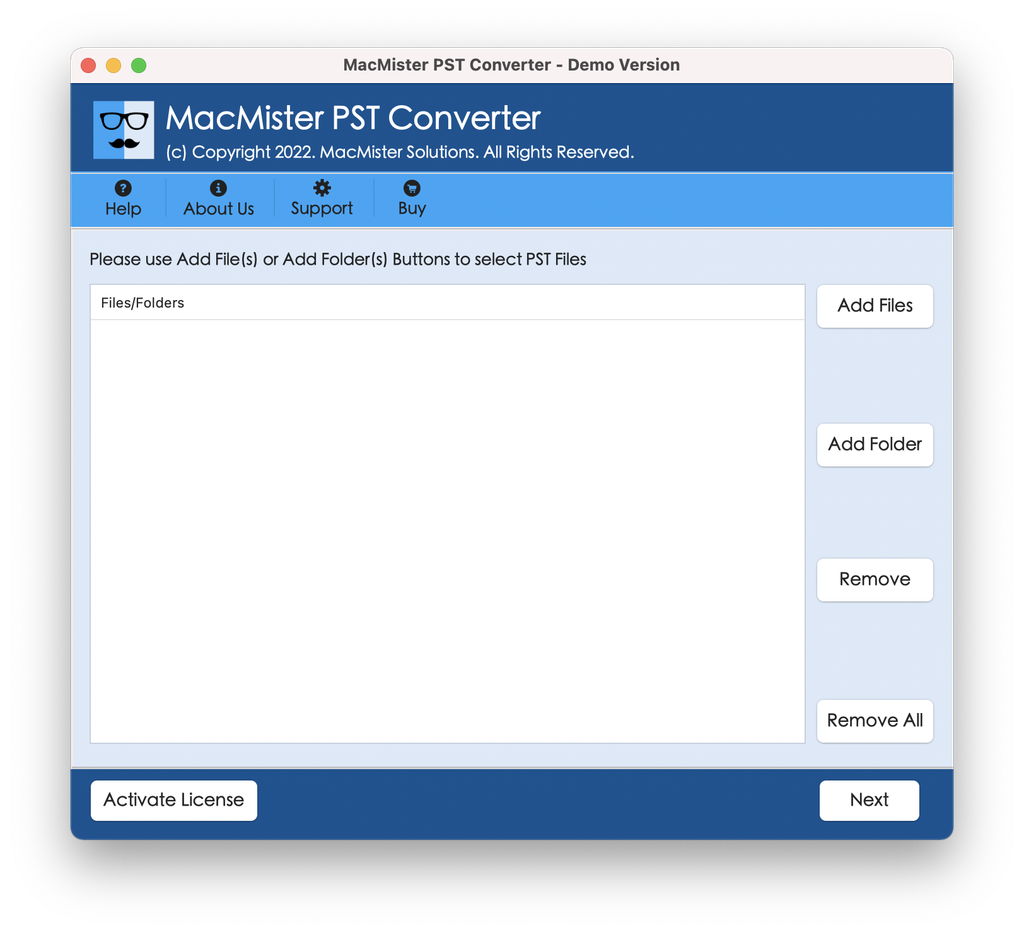
Step 2. Click Add Files or Add Folder to select the PST file(s) that are failing to open on your Mac.
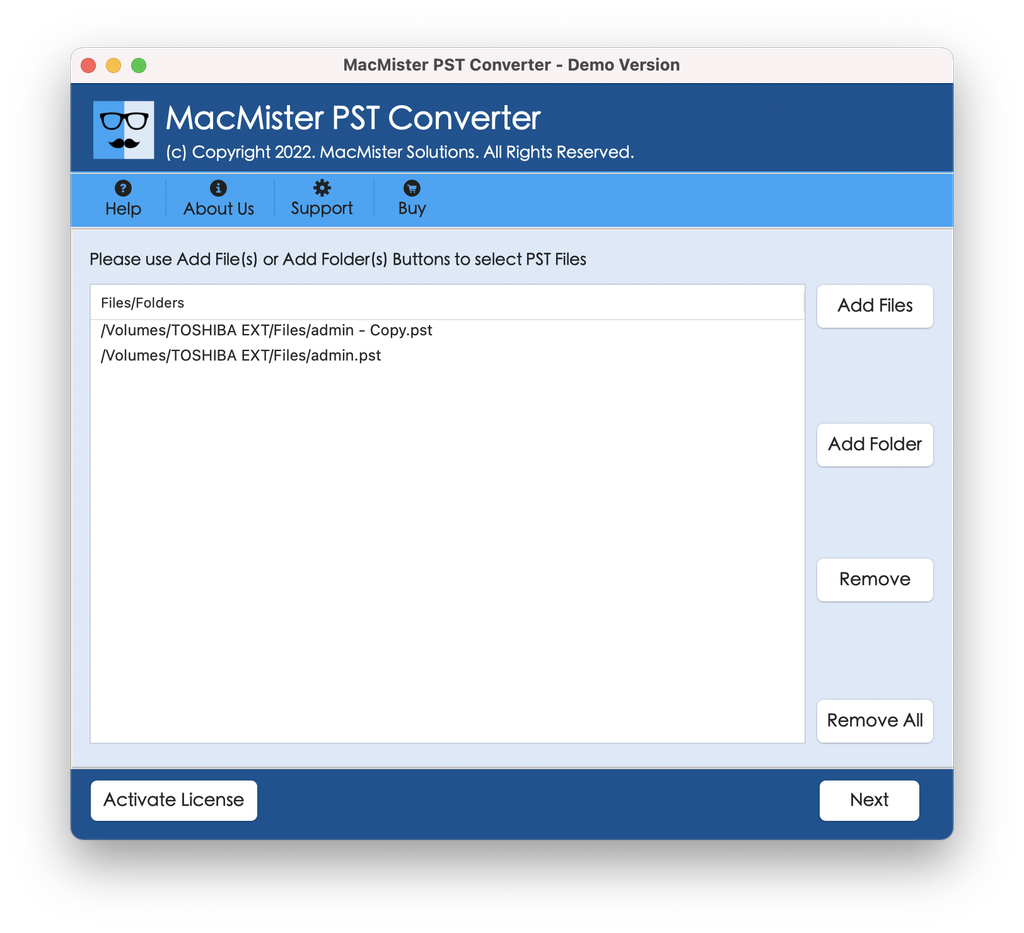
Step 3. The utility displays a tree structure of your PST mailboxes. Select the specific email folders (Inbox, Sent, Custom Folders) you want to extract.
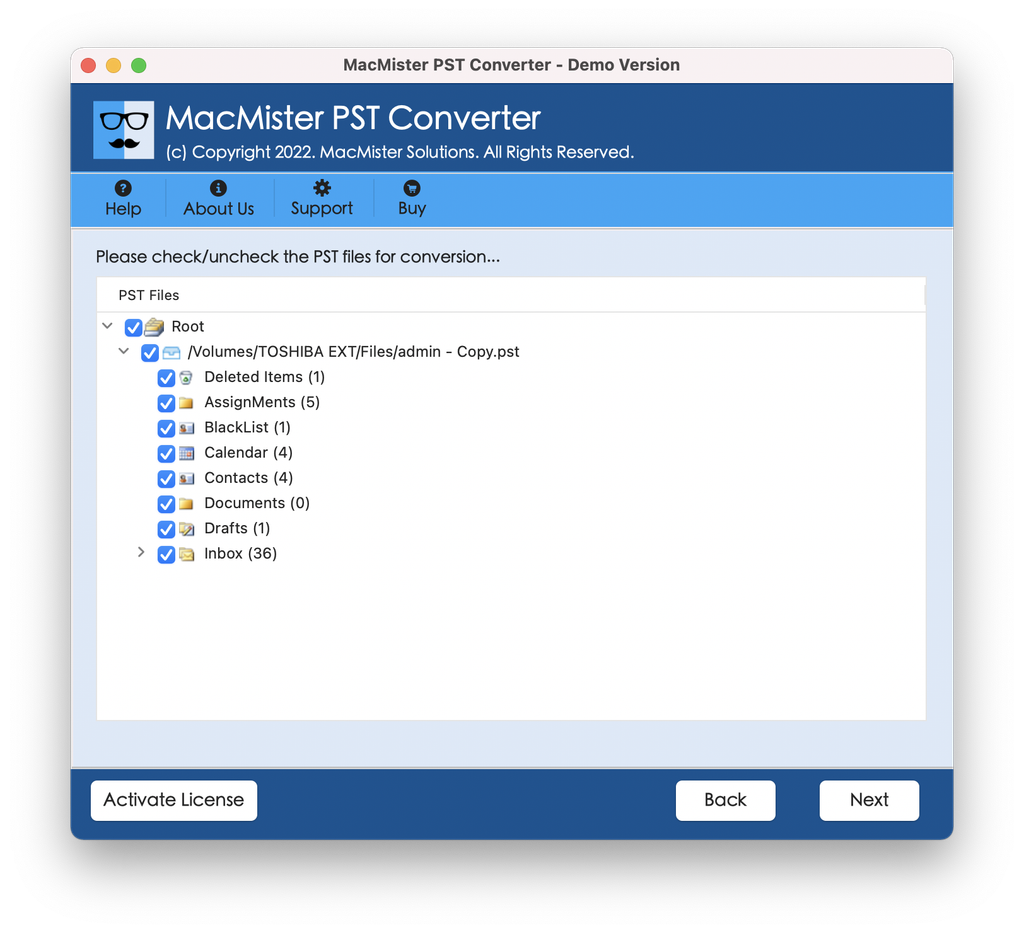
Step 4. In the Select Saving Option menu, select EML from the list of available export formats. Set sub-options and tap Export.
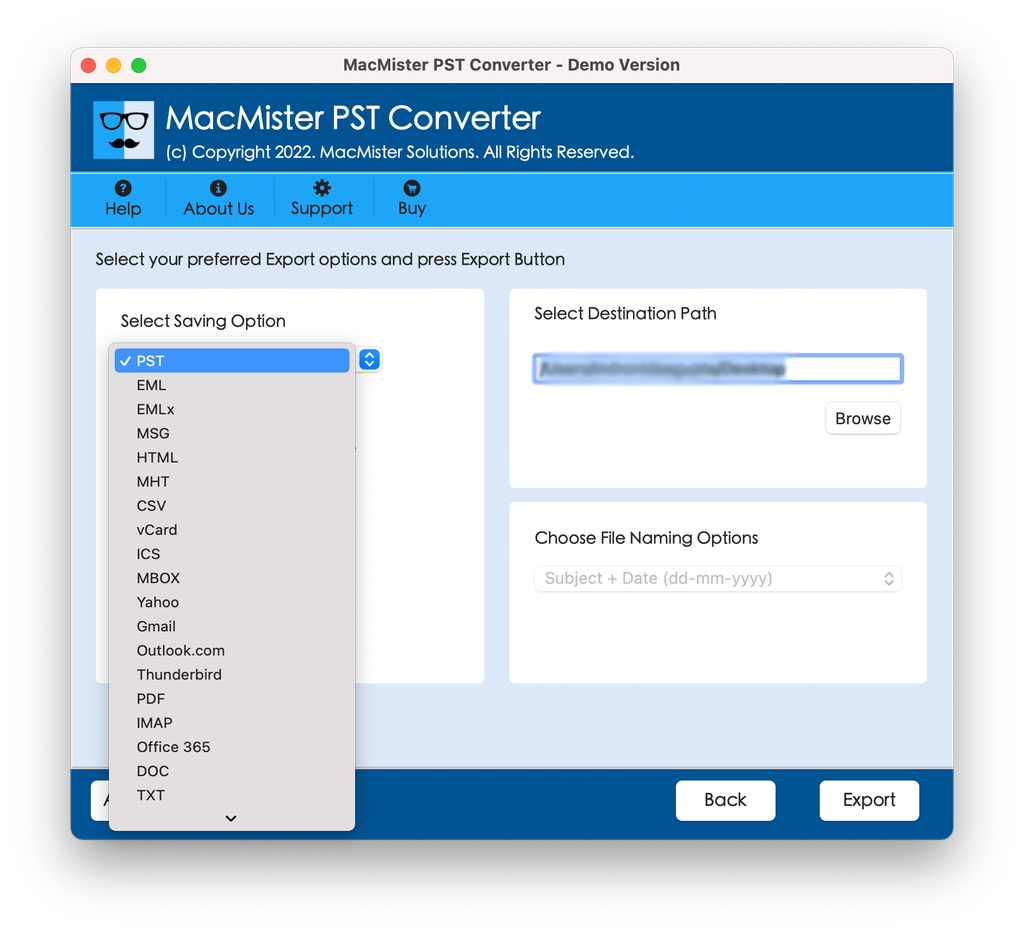
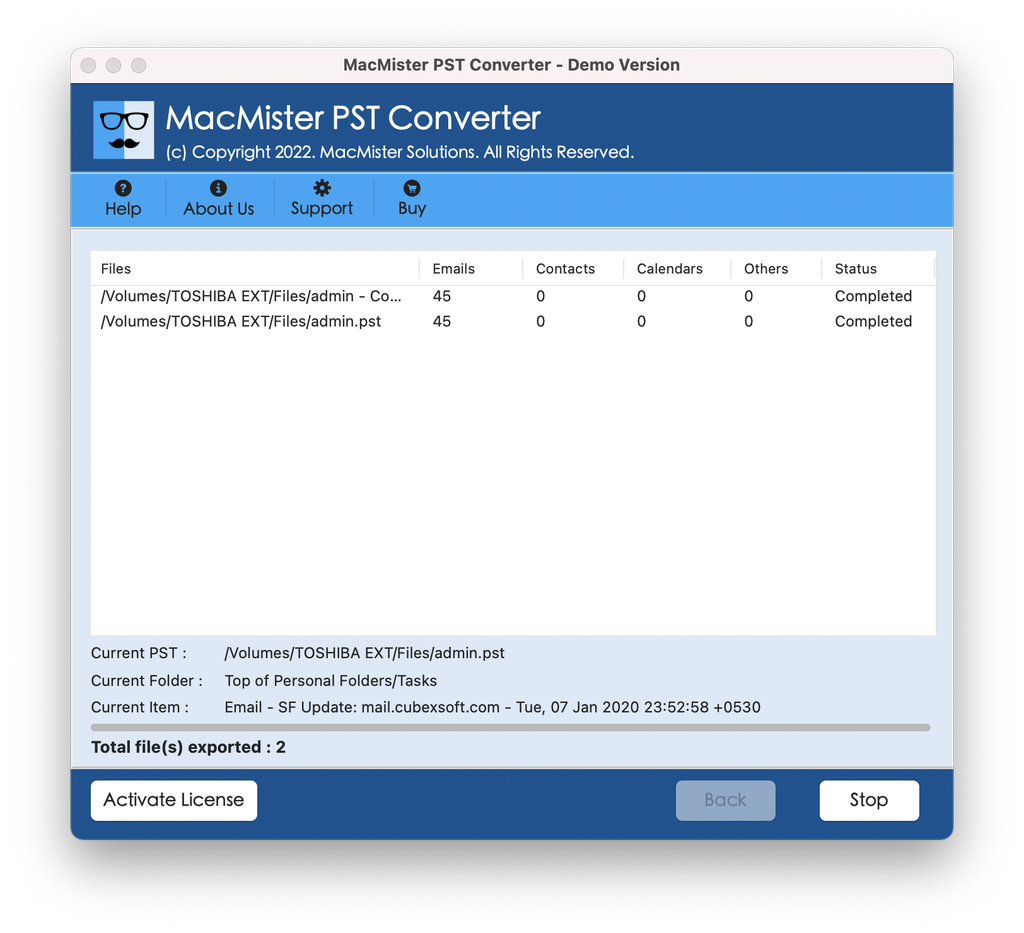
Step 5. The software will extract all emails into individual, fully accessible EML files. You may track the process using Live Conversion Report window as shown below –
How to Import Your New EML Files into Apple Mail?
After the conversion is done, importing your emails into Apple Mail is quick and easy with only four steps:
- Open Apple Mail on your Mac computer.
- Go to File > Import Mailboxes… in the top menu bar.
- Choose Apple Mail or Files in MBOX/EML Format and then continue.
- Specify the target directory where your MBOX email files have been converted by MacMister.
- Press Choose. Apple Mail will move all the emails into a brand new folder in the left-side pane of On My Mac > Import.
- Another way would be to simply drag and drop your converted MBOX email files right into Apple Mail.
Epilogue
A PST file which won’t open on the Mac computer does not imply that all your archived emails have been lost forever. The reason behind this is the inherent proprietary formatting incompatibilities between Windows Outlook databases and the Apple computer itself. With the conversion of the unreadable PST file to the EML file format, you can skip the Outlook dependency and access your emails directly within the Apple Mail.