How to Force Indexing of PST File on Legacy Outlook Mac?
Microsoft Outlook for Mac make use of inbuilt search engine, Spotlight, that is widely used in indexing and searching for email content. If you try to import a PST (Personal Storage Table) file (Windows-default data format used by Outlook) into old versions of Outlook for Mac (Outlook 2011, 2016, and 2019), searching for crucial emails, attachment files, and contact addresses via the search field will be troublesome task.
Empty search results, missing emails from searches, or truncated threads for your PST files in Outlook can mean that there is an indexing problem with the Outlook installation. In the guide, we will highlight some reasons why the older versions of Outlook for Mac not able to index your PST files, how to make Outlook force indexation, and what one should do when nothing else helps.
Understanding PST Files and Legacy Outlook for Mac
Before exploring the ways to fix this problem, one should get familiar with the reasons responsible behind the PST management in legacy Outlook for Mac.
- Difference between Windows and Mac data formats: PST is a proprietary database format designed for Windows Outlook. On the other hand, Outlook for Mac uses another format by default (i.e. .olm files or identity/profile databases). In the process of importing PST to legacy Mac Outlook, the app access items into its default database format (typically called “On My Computer” folders).
- Spotlight search: As opposed to Windows Outlook, which creates its own search index using Windows Search service, legacy Outlook for Mac relies on Spotlight search entirely.
- The indexing process: After importing a PST file, Outlook creates separate cache files for each email message, calendar item, and contact card. Spotlight indexes these files (analyzes the text in the files) and creates an index. If any part of this process fails because of file permissions or corrupt cache files or hung background processes, the search becomes broken immediately.
Common Symptoms of PST Indexing Failure
If you experience the below listed issues, then most probably you are facing the indexing problem.
- No Results Found: You perform searches using exact email subject or sender name but find no results even though the email is visible in your folder.
- Incomplete Search Results: Searches show old emails from PST file but do not show new emails or new folders that have been imported.
- Search Keeps Spinning: The search bar remains spinning endlessly without bringing up any results.
- Greyed Out Search Filters: Search filters like advanced filters by date or attachments don’t respond.
Step 1: Basic Troubleshooting and Initial Checks
Before executing terminal commands or deleting index caches, perform these essential preliminary checks:
1. Confirm Identity/Profile Name and Location
Ensure your active legacy Outlook identity does not contain special characters (such as /, \, :, or *) in its folder name. Special characters can cause macOS Spotlight to avoid the folder during index sweeps.
- Legacy Mac Outlook profile paths are typically found at:
- Outlook 2011: ~/Documents/Microsoft User Data/Office 2011 Identities/
- Outlook 2016 / 2019 / Legacy 365: ~/Library/Group Containers/UBF8T346G9.Office/Outlook/Outlook 15 Profiles/
2. Verify Available Storage Space
Indexing an imported PST file is going to need lots of resources on your computer. Make sure that you have 15-20% of free disk space on your main drive. If there is not enough disk space left, then OS X will stop indexing process automatically.
Step 2: Force Indexing via macOS System Settings
However, the easiest way to ensure that Spotlight indexes the older Outlook PST files is to use the GUI of the operating system. Adding and removing the Outlook Profile folder in the Privacy settings of Spotlight leads to an indexing process of the whole folder.
For macOS Ventura, Sonoma, and Later:
- Go to System Preferences from the Apple menu.
- Click on Siri & Spotlight under the sidebar list.
- Browse to the end, then choose Spotlight Privacy from the list.
- Press the + (Plus) sign to add a location.
- Use Command + Shift + G to access “Go to the folder” window.
- Paste the following file path depending on your Outlook version: ~/Library/Group Containers/UBF8T346G9.Office/Outlook/Outlook 15 Profiles/
- Choose your primary identity file (for instance, Main Profile) and press Choose.
- The process may take about 2 minutes. It informs macOS about deleting the current index from that folder.
- Access Spotlight Privacy again, choose the file you have added and press the – (Minus) sign to delete it.
- Tap Done. Spotlight instantly recognizes it as a newly added one and starts indexing all PST files from scratch.
For macOS Monterey, Big Sur, and Earlier:
- Open System Preferences > Spotlight.
- Click on the Privacy tab.
- Drag your Outlook Identity or Profile folder into the window.
- Wait for two minutes and then remove the folder using the – (Minus) button in the bottom-left corner of the window.
- Close System Preferences.
Step 3: Force Re-indexing via Terminal Commands
In case the graphical user interface does not cause an index search, the Terminal application on macOS offers a way to execute commands for the control utility of Spotlight (mdutil).
Remark: The execution of these commands is only possible with administrative rights. Be prepared to enter your password.
Method A: Restart the Spotlight Daemon
- Launch Terminal (located in /Applications/Utilities/).
- Turn off Spotlight indexing entirely by typing the following command and pressing Enter:
sudo mdutil -i off /
- Enter your administrator password when prompted.
- Erase the existing Spotlight index database across the primary volume:
sudo mdutil -E /
- Turn Spotlight indexing back on:
sudo mdutil -i on /
- Check the status of the index rebuild:
sudo mdutil -s /
Method B: Target the Outlook Data Folder Directly
If you prefer not to rebuild the index for your entire hard drive, you can target the specific directory housing your imported PST records:
- Open Terminal.
- Execute the erase command specifically for the Outlook profile path:
mdutil -E ~/Library/Group\ Containers/UBF8T346G9.Office/Outlook/Outlook\ 15\ Profiles/Main\ Profile
- Spotlight will purge the cache for Outlook items and queue the directory for immediate re-indexing.
Step 4: Repair the Legacy Outlook Database
If Spotlight works well with all other Mac programs yet it fails to search PST data within Outlook, it is likely that the database index of Outlook has become corrupt. Fixing this index enables Spotlight to read the imported data by restoring file pointers to their normal positions.
For Outlook for Mac 2011 (Microsoft Database Utility):
- Make sure that you completely close any running Office programs.
- Press the Option key and start Microsoft Outlook.
- An application window entitled Microsoft Database Utility will come up.
- Choose the identity which contains the PST file imported by you.
- Press Rebuild.
- After finishing the task, open Outlook in the regular way and let Spotlight index the rebuilt database for an hour.
For Outlook for Mac 2016 / 2019:
Older versions of Outlook 2016/2019 will not make use of the traditional Database Utility. Rather, database repair is automatic and occurs in the background process. Nonetheless, you can trigger a manual repair via the Outlook Profile Manager as follows:
- Launch Finder, click on Applications, right click on Microsoft Outlook, and select “Show Package Contents.”
- Open Contents/SharedSupport/ and double-click on Outlook Profile Manager.
- Create a new profile by clicking on the + (Plus) sign located at the bottom.
- Make the new profile your default and import your PST file into this new profile.
Limitations of Legacy Outlook for Mac with Large PST Files
Although the process mentioned above helps solve virtually all problems related to indexing, legacy Outlook for Mac has built-in restrictions while working with PST data:
- Limitations Related to File Size: The usage of PST files bigger than 10 GB can cause slowness of legacy Outlook identity which, in turn, will result in constant corruption of indices.
- Unavailability of Native Format: PST is not a native format of macOS. Every time one uses Spotlight to search for something in PST files, an additional layer of translation is required between Spotlight and local cache of Outlook.
- New OS & Processors: Usage of outdated version of Outlook on new macOS versions (like Sonoma or Sequoia) or Apple Silicon (M1/M2/M3/M4) processors makes Spotlight unusable for searches.
If the native methods do not provide sufficient results, it might be useful to convert PST data to Mac-native format.
Rely on a Powerful and Effective Approach
Even after trying out forced re-indexing several times and failing to get your results from searching in your PST file using legacy Outlook for Mac, there could be something wrong with the file itself that makes it incompatible with the Spotlight indexing engine.
That is where MacMister PST Converter for Mac comes in the picture.
Why Choose MacMister’s File Conversion Solution?
The software is a specific utility programmed exclusively for Mac OS users to facilitate the process of migration, viewing, and indexing PST files effortlessly. Instead of making Outlook interpret an imported PST file, which is often unstable, the tool converts the Windows-based PST files into popular Mac OS file formats, including OLM, MBOX, EML, EMLX, PDF, and MSG.
Key features include:
- Entirely designed for macOS, providing full support for both Intel CPUs and Apple’s Silicon-based (M1/M2/M3/M4) CPUs in all current versions of macOS.
- Preserves the complete directory structure of your PST file, including folders like Inbox, Sent Items, Custom Folders, Subfolders without losing even a single folder or email.
- Preserves all metadata associated with each email including To, CC, BCC, Subject, Date, Inline Images, Hyperlinks, Attachments enabling accurate indexing of emails using native search indexes.
- Process multiple PST files in batch mode.
- PST can be converted directly into OLM (enabling instant indexing in Outlook for Mac) or MBOX formats (enabling instant indexing in Apple Mail), circumventing PST indexing altogether.
Steps to Convert PST Files using MacMister PST Converter:
Step 1. Download and install the app on your Mac, then launch the software.
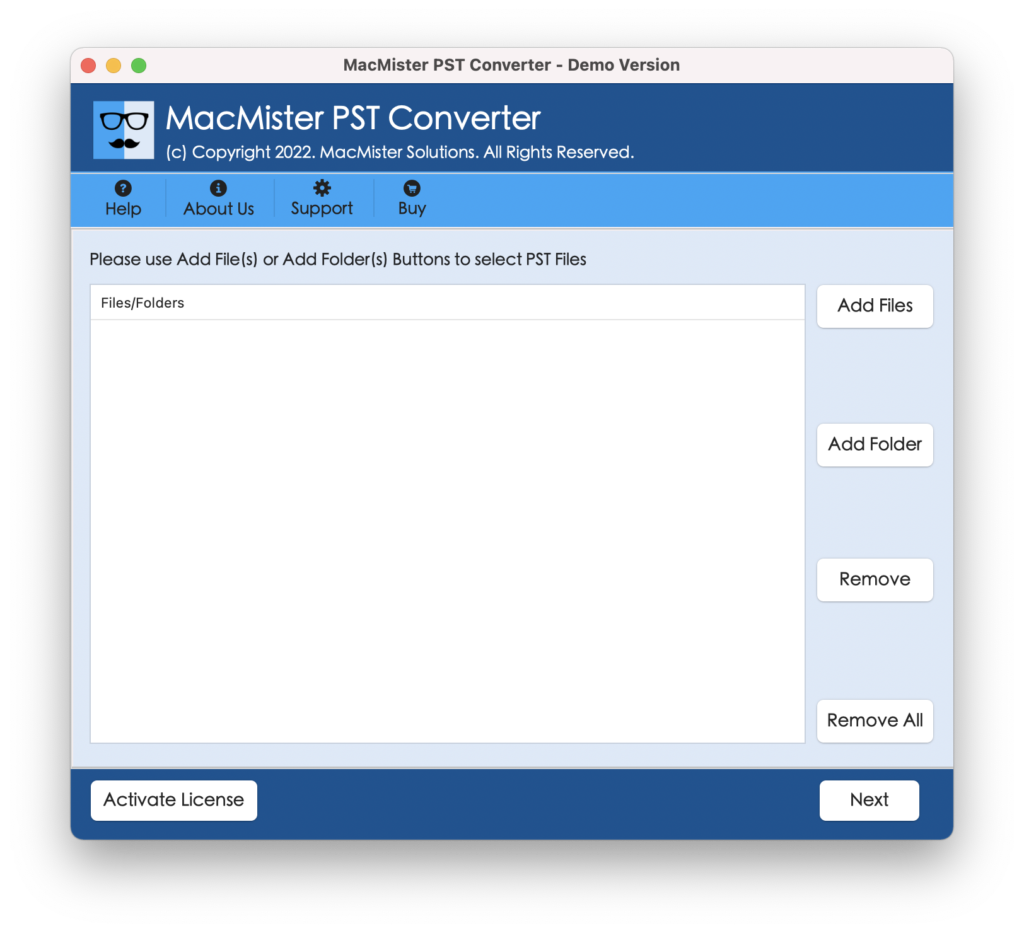
Step 2. Click Add Files or Add Folder to select the PST files that are failing to index in your legacy Outlook.
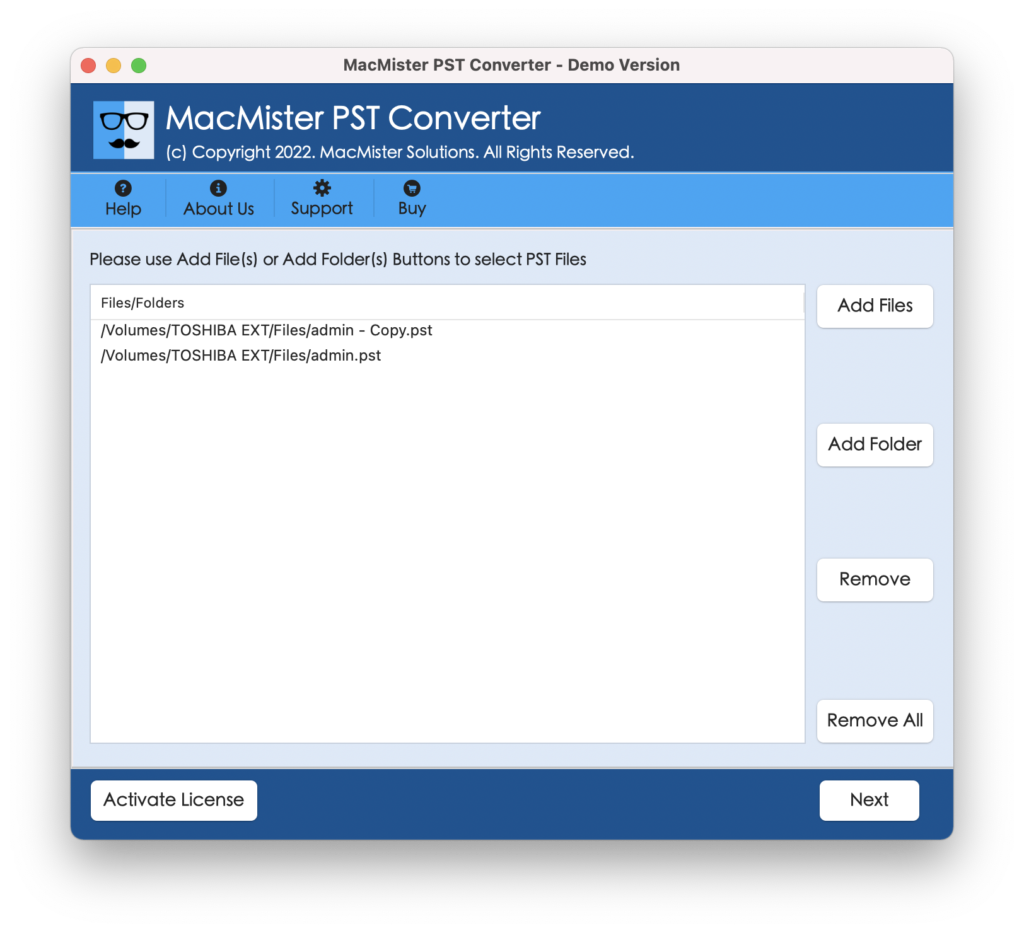
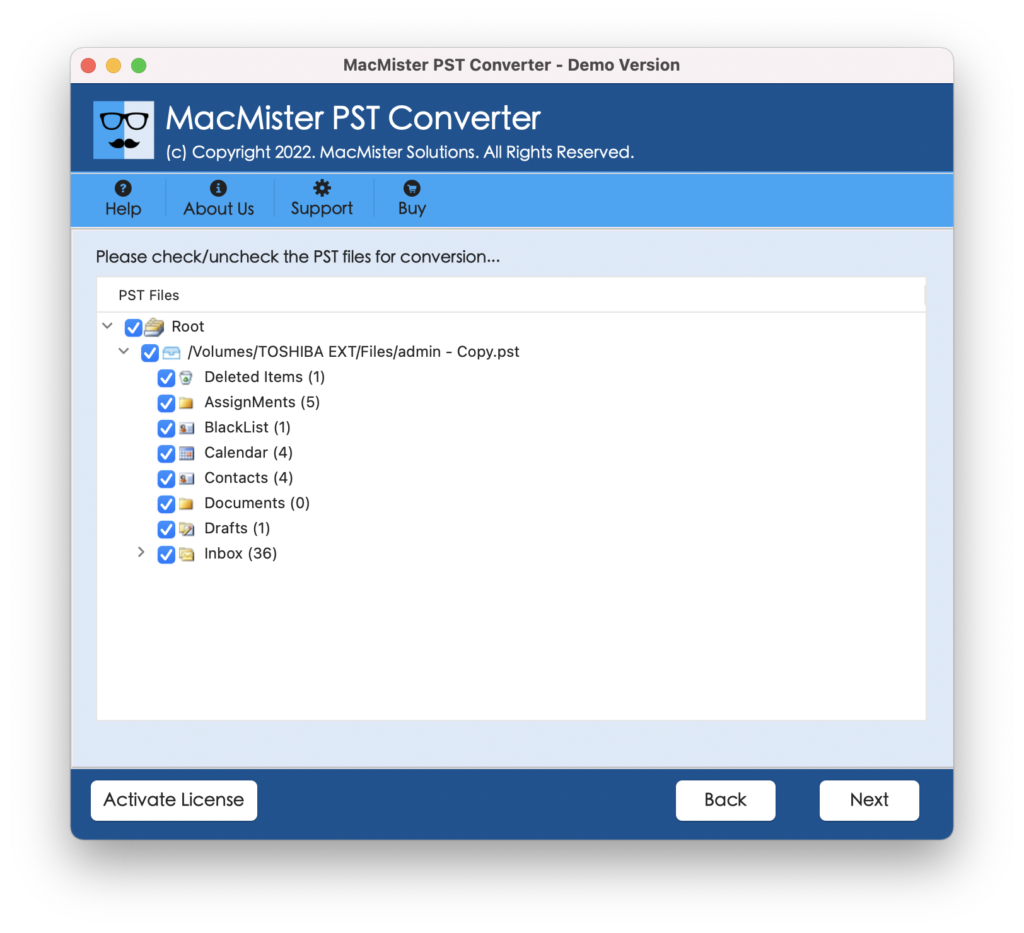
Step 3. Review the loaded folder preview and check the specific folders or items you wish to convert.
Step 4. Select OLM in case you need to continue using Outlook for Mac with native, fast indexing or MBOX / PDF from the Select Saving Options drop-down menu.
Step 5. Choose your preferred saving location on your Mac drive.
Step 6. Click the Convert button. The software processes the PST file, generating clean, non-corrupted data files.
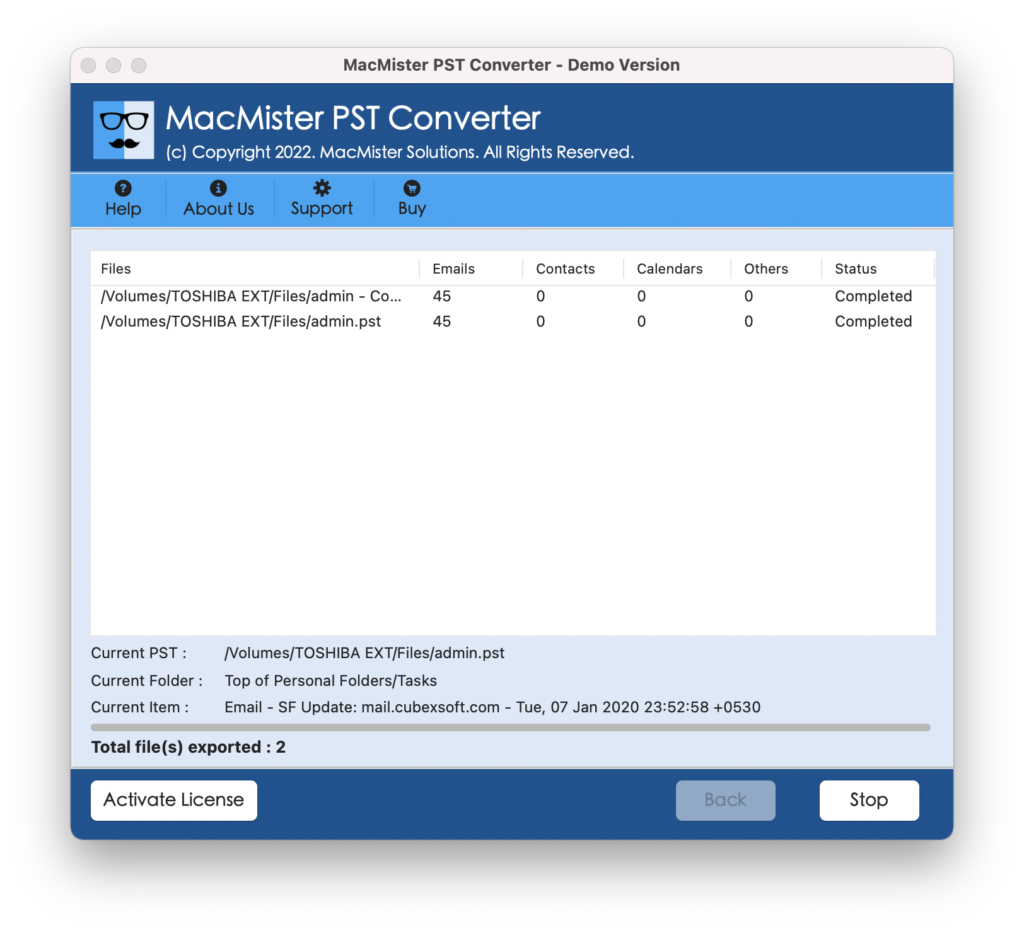
Once the conversion finishes, simply import the resulting OLM file into Outlook for Mac (or MBOX into Apple Mail). Because the output file uses a default Mac format, Spotlight will instantly parse and index your entire archive without requiring any forced terminal commands or system tweaks.
Epilogue
Searching through historical PST archives is vital for business continuity, legal discovery, and day-to-day productivity. When legacy Outlook for Mac fails to index imported PST files, walking through Spotlight privacy resets, Terminal commands (mdutil), and identity repairs will usually restore basic search functionality.
However, if legacy platform constraints continue to break your search index, converting your PST files with MacMister’s advanced file conversion solution that eliminates the root cause of the issue. By transforming the data into a clean, natively supported Mac format, you ensure instant search performance, data integrity, and hassle-free email management across any version of macOS.