How to Organize and Convert MSG Files Stored in Multiple Outlook Folders on Mac?
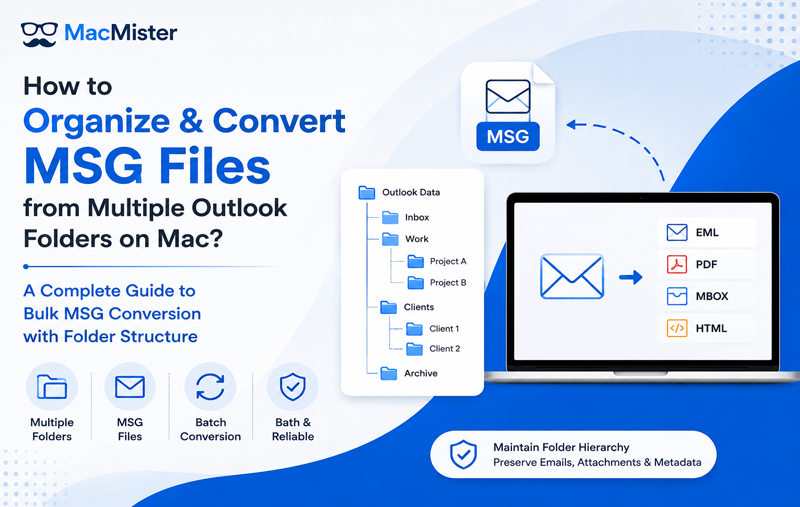
Managing a large collection of Outlook MSG files on Mac can become complicated when emails are stored across multiple folders, subfolders, project directories, and archived locations. MSG files usually contain complete email information, including the message body, sender and recipient details, timestamps, attachments, and other properties. When hundreds or thousands of these files are distributed across different Outlook folders, manually organizing and converting them can be time-consuming.
The challenge becomes greater when users need to preserve the original folder hierarchy while converting MSG files into another format. Moving every file individually can result in misplaced emails, duplicate files, missing attachments, and inconsistent folder organization.
A structured approach to organizing and converting MSG files from multiple Outlook folders on Mac can make the process more manageable. This guide explains how to prepare a large MSG collection, maintain folder organization, and use a dedicated MSG converter for bulk processing.
Organize and Convert MSG Files in Bulk on Mac
Managing MSG files across multiple Outlook folders can be time-consuming, especially when dealing with a large email collection. MacMister MSG Converter for Mac provides a convenient way to process multiple MSG files and folders in bulk while making the conversion workflow easier to manage.
With its folder-based processing approach, users can select the required MSG data, choose a suitable output format, and convert emails without handling each file individually.
Simplify your MSG file conversion process with MacMister MSG Converter for Mac.
 |  |
Why Is Managing MSG Files Across Multiple Mac Folders Challenging?
MSG files are commonly created when individual Outlook emails are saved as files. A single Outlook mailbox may contain hundreds of folders, such as Inbox, Sent Items, Clients, Projects, Finance, HR, Archives, and custom folders.
When these emails are exported or saved individually, the original mailbox structure may not automatically remain intact. Instead, users may end up with multiple directories containing similarly named MSG files. For example, an organization might have a structure like –
Outlook Mailbox
- Clients – Client A, Client B
- Projects – Project Alpha, Project Beta
- Finance -Invoices, Payments
- Archive -2024, 2025
Converting all these MSG files without proper organization can make it difficult to identify which emails belong to which folder after conversion.
Therefore, folder management should be considered before starting the actual conversion process.
If you are facing compatibility problems, see this guide on unable to open MSG files on macOS Sequoia for possible causes and solutions.
Key Issues When Processing MSG Files from Multiple Outlook Folders
1. Maintaining the Original Folder Hierarchy
The biggest challenge is preserving the existing organization. If messages from multiple Outlook folders are placed into one destination folder, users may have difficulty locating specific emails later.
For business users, folder hierarchy often represents important information about customers, projects, departments, or transactions. Losing that structure can make the converted data difficult to manage.
A good conversion workflow should therefore allow users to process folders systematically rather than treating every MSG file as an unrelated item.
2. Handling Nested Subfolders
Large Outlook mailboxes often contain multiple levels of subfolders. For example, a folder named Projects may contain separate folders for individual projects, while each project may contain folders for contracts, communication, and attachments.
When manually converting MSG files, maintaining these nested relationships requires additional effort. Users may have to create destination folders manually and move converted messages into the correct locations.
For hundreds or thousands of MSG files, this approach is inefficient and increases the possibility of human error.
3. Duplicate or Similarly Named MSG Files
Different Outlook folders can contain MSG files with similar or identical names. For example, several folders may contain an email saved as Meeting.msg or Invoice.msg.
When multiple MSG files are combined into one location, files with identical names may create confusion or overwrite-related issues. Some files may need to be renamed, while others can become difficult to distinguish.
Organizing files according to their original folders before conversion helps reduce this problem.
4. Large Numbers of MSG Files
Manually opening and converting MSG files individually may be practical for a small collection, but it is not efficient for large datasets.
Businesses may have thousands of archived emails containing attachments and years of communication. Processing these files one by one can consume considerable time and require repeated manual operations.
A batch-processing approach is more suitable when the migration involves a large number of MSG files.
How to Prepare Multiple MSG Folders Before Conversion
Proper preparation can make the conversion process smoother and easier to verify.
Step 1: Create a Master Folder
Start by creating a dedicated folder on the Mac for the MSG collection. Give it a descriptive name such as Outlook MSG Archive.
Avoid mixing MSG files with unrelated documents. Keeping the source data in one location makes it easier to identify which files belong to the conversion project.
Step 2: Recreate the Outlook Folder Structure
If the MSG files are already distributed across folders, maintain their existing hierarchy as much as possible. For example –
Outlook MSG Archive
- Clients – Client A, Client B
- Projects – Project Alpha, Project Beta
- Finance
- Archive
This organization makes it easier to identify the source location of each message during and after conversion.
Step 3: Remove Unnecessary Files
Before starting the conversion, review the collection and remove files that are not required.
You may find temporary files, duplicate messages, test exports, or unrelated documents mixed with the actual MSG files. Removing unnecessary data can reduce the overall processing time and output size.
However, do not delete original email files unless you have confirmed that they are unnecessary and a separate backup is available.
Step 4: Create a Backup
Always maintain a backup of the original MSG collection before performing a large-scale conversion.
The backup can be stored on an external drive or another secure storage location. This is particularly important for business emails because the original files may be needed if a conversion needs to be repeated.
Organizing MSG Files for Batch Conversion
Once the source collection has been prepared, the next step is deciding how to process the folders. Instead of selecting individual MSG files repeatedly, users can organize the data into logical groups. For example, all customer-related folders can be processed together, followed by project folders and archives. This approach provides several advantages –
- Easier tracking of converted data
- Reduced manual file selection
- Better folder organization
- Easier verification after conversion
- Lower risk of accidentally skipping important files
A dedicated MSG Converter for Mac can make this process more convenient by allowing users to add multiple MSG files or folders and process them in bulk.
Choosing the Right Output Format
Before conversion begins, determine why the MSG files are being converted. The required output format depends on the intended use of the email data. For example, users may need to convert MSG files for –
- Email archiving
- Migration to another email client
- Long-term storage
- Data analysis
- Document sharing
- Backup purposes
Different formats provide different benefits. Therefore, users should select the output according to their destination application and data requirements rather than choosing a format randomly.
For large collections, it is also important to verify whether the selected conversion tool can process multiple files and folders in a single operation.
MSG files may not be convenient when emails need to be accessed or shared with people who do not use Microsoft Outlook. In such situations, converting emails into a more accessible format can make sharing easier. Learn more about how to share Outlook MSG files with non-Outlook users.
Using MSG Migration for Bulk Processing
When the MSG collection contains multiple Outlook folders and a large number of files, manually converting each message can become inefficient. MacMister MSG Converter for Mac provides a dedicated approach to convert MSG files on Mac for processing MSG files in bulk.
| |
Users can add the required MSG files or folders, select the data they want to process, choose the required output format, and start the conversion. This can reduce repetitive operations compared with opening and converting every MSG file individually.
For larger email collections, selective processing can also be useful. Instead of converting every available folder, users can select only the folders required for the current migration or archival project.
Before processing the complete dataset, it is recommended to test a small folder first. Check the converted messages, attachments, formatting, and folder organization to confirm that the selected settings meet the migration requirements.
What Should You Verify After Completing the Conversion?
After completing the conversion, do not immediately delete the original MSG files. First, verify the converted data. Check the following –
- Email body and formatting
- Sender and recipient information
- Subject lines
- Date and time
- Attachments
- Folder organization
- Number of converted emails
Open several messages from different folders rather than checking only one file. This provides a better indication of whether the conversion was completed correctly.
If the converted emails are intended for Gmail, users should also verify whether the resulting files can be imported successfully into the account. For troubleshooting, read why Outlook MSG files are not importing to Gmail and explore the possible solutions.
How to Handle Large MSG Collections?
Large MSG collections require additional planning. Processing thousands of files at once may require significant storage space and system resources. For better management, divide the data into logical batches. For example, process customer folders first, followed by project folders and archives. Also make sure that the Mac has sufficient free storage for both the source and converted files. Avoid interrupting the conversion process while files are being processed.
Common Issues During Bulk MSG Conversion
- Duplicate MSG Files – Duplicate emails can increase the output size and make the converted collection difficult to manage. Review the source folders before conversion and avoid processing the same folder multiple times.
- Missing Attachments – If attachments appear to be missing, verify the original MSG file first. Then check the converted message and confirm that the selected output format supports the required email content.
- Disorganized Output – If all converted messages are stored in one location, finding emails later can become difficult. Maintaining separate destination folders based on the original Outlook structure can help keep the output organized.
- Incomplete Conversion – An interrupted process or insufficient storage can result in incomplete output. For large collections, process the data in smaller batches and verify each batch before moving to the next one.
Tips for Managing and Converting MSG Files Efficiently on Mac
For a smooth conversion project and convert MSG files on Mac, follow these simple practices –
- Keep the original MSG files backed up.
- Maintain the existing Outlook folder structure.
- Remove unnecessary duplicate files before conversion.
- Process large collections in manageable batches.
- Use separate destination folders for different categories.
- Verify attachments and email formatting after conversion.
- Do not delete the source files until the converted data is completely verified.
These steps can significantly reduce the risk of losing track of important emails during a large-scale MSG conversion.
Frequently Asked Questions
Q. Is It Possible to Process MSG Files from Several Outlook Folders Together?
Ans. Yes. A dedicated MSG converter can process multiple MSG files or folders in bulk, reducing the need to convert emails individually.
Q. Will My Existing Outlook Folder Structure Remain Intact?
Ans. Folder preservation depends on the source structure and the selected conversion workflow. Organizing the source and destination directories before conversion helps maintain a clear structure.
Q. What Are the Advantages of Batch Processing Large MSG Collections?
Ans. Yes. Batch conversion is particularly useful when hundreds or thousands of MSG files need to be processed because it reduces repetitive manual work.
Q. Do I Need to Keep a Copy of the Original MSG Files?
Ans. Yes. Keep a backup of the source MSG files until you have thoroughly checked the converted emails, attachments, and other required data.
Conclusion
Organizing MSG files before conversion is essential when emails are distributed across multiple Outlook folders and subfolders. Without proper organization, users can easily lose track of emails, create duplicates, or end up with a disorganized collection after conversion.
A structured workflow—starting with folder organization and backup, followed by batch selection, output format selection, conversion, and verification—makes the process much easier to manage.
For Mac users handling large collections of Outlook MSG files, MSG migration for Mac can simplify bulk processing by allowing multiple MSG files and folders to be handled through a dedicated conversion workflow. By combining organized source data with careful verification, users can convert MSG files on Mac or large MSG collections while keeping their email archives easier to access and manage.
| |