How to Import a PST File into Mac Outlook: New UI vs. Legacy UI?
The migration of email archives from Windows-based systems to macOS typically requires the transfer of PST (Personal Storage Table) files, which is the default database that Microsoft Outlook make use of on Windows. The trouble arises when one opens Microsoft Outlook on his or her Mac; he or she finds out that accessing or importing the PST file becomes difficult.
There have been notable changes in the architecture of Microsoft Outlook for Mac users since its introduction, resulting in the release of the “New Outlook” (New UI) in addition to the “Legacy Outlook” (Legacy UI). The reason behind the importance of this knowledge in order to access the user’s past emails, contacts, and calendar entries lies herein.
Understanding the Difference: New UI vs. Legacy UI in Outlook for Mac
1. Legacy Outlook (Legacy UI)
The Legacy Outlook has an old school outlook look and feel. This uses local database architecture and has native import facilities that can read local .pst and .olm files on your Mac’s drive.
2. New Outlook (New UI)
The New Outlook comes with a revamped user interface that is built for cloud synchronization (Microsoft 365, Exchange, Gmail, and IMAP). In order to improve performance and integrate with the web, Microsoft made sure that there are no direct import options for PST files in most New Outlook builds, causing menu options to appear grayed out during the process of importing PST files.
Method 1: Importing PST via Legacy Outlook (Legacy UI)
In the case that your PST file is a newer 64-bit Unicode PST file, then you can change Outlook for Mac to the Legacy Interface to access its built-in import feature.
Step 1: Change to Legacy Outlook
- Launch Microsoft Outlook on your Mac computer.
- Go to Outlook on the top menu bar.
- See if Legacy Outlook is checked. In case you’re using the New Interface, uncheck New Outlook or select Revert to Legacy Outlook.
- The application will open in the legacy interface.
Step 2: Import the PST File
- Click on File, and then go to Import in the dropdown menu.
- From the import dialog box that opens up, choose Outlook for Windows archive file (.pst) and press Continue.
- Navigate and pick your PST file located on your computer hard drive and click on Import.
- Once you are done with the process, click on Finish.
The imported information will be located in the left-hand pane under On My Mac or Imported PST.
Common Failure Points in Legacy UI:
- Greyed-Out Files: If your PST file is from Outlook 2002 or older version (32-bit ANSI PST), the Legacy Outlook cannot use this PST file.
- Corrupted Archives: In case the PST file has some minor index corruption, the built-in wizard will show general error messages.
Method 2: Handling PST Files in the New Outlook (New UI)
In case you use the New UI for its stylish look and useful options, however, importing a PST file locally will turn out to be a bit difficult task: The “File > Import” option may be entirely disabled or grayed out.
Option A: Switch to the Legacy Outlook UI
The official solution from Microsoft involves switching back to the Legacy Outlook UI, performing an import by means of Method 1, ensuring that the imported emails are synced to any cloud account (for example, Microsoft 365 or Exchange) and then switching back to the New Outlook UI.
Option B: Convert the PST to Native Mac Formats
In light of the fact that switching between different UIs and utilizing cloud syncing technology consumes both bandwidth and space in your cloud account, conversion of the PST file to one of the native Mac formats (OLM for Mac Outlook and MBOX or EML for Apple Mail) is far more reasonable.
Try Ultimate and Recommended Solution to Import a PST File
In case of greyed-out import menus in the New UI, unsupported ANSI PST archive files, or corrupted PST backups, employing a conversion tool removes any limitations of UI.
The MacMister PST Converter for Mac is software that can help overcome the issues related to conversion of Windows Outlook files into the email system of macOS. The tool enables users to convert PST file formats into OLM, MBOX, EML, PDF, MSG, HTML, or CSV in bulk without the need to install Microsoft Outlook.
Key Advantages of MacMister’s Advanced File Conversion Utility:
- Converts PST data into Outlook for Mac supported file format that can be imported or uploaded easily without any problem to cloud storage in the New UI.
- Supports conversion of recent Unicode PST and older 32-bit ANSI PST files that do not open in built-in tools of Mac Outlook.
- Conserves all email properties including To, From, CC, BCC, Date, Subject and preserves formatting, folders, and attachments of emails.
- Converts several PST files at a time by using the Add Files and Add Folders button.
- Runs natively on Apple Silicon (M1, M2, M3, M4) and Intel processors on various macOS versions (Sequoia, Sonoma, Ventura, Older).
Step-by-Step Guide of the App Convert PST for New UI using MacMister App
Step 1. Download the app from MacMister’s official site and run the program.
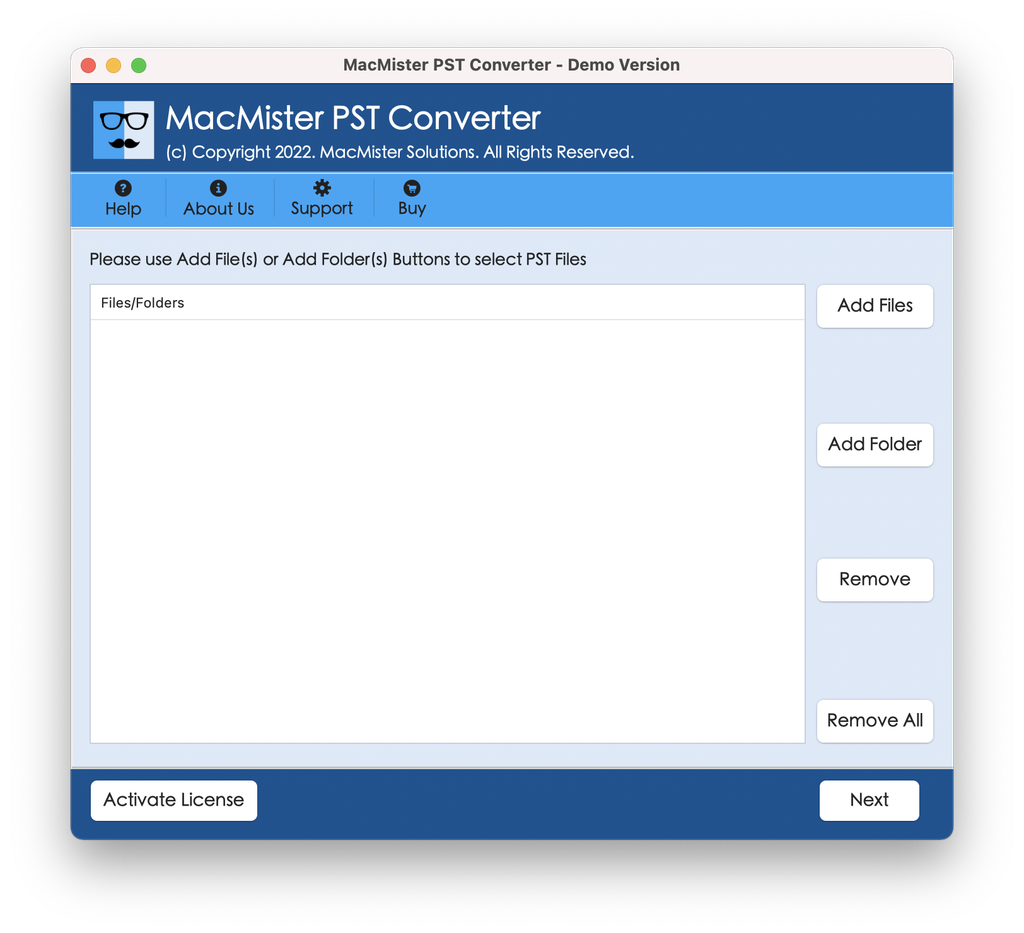
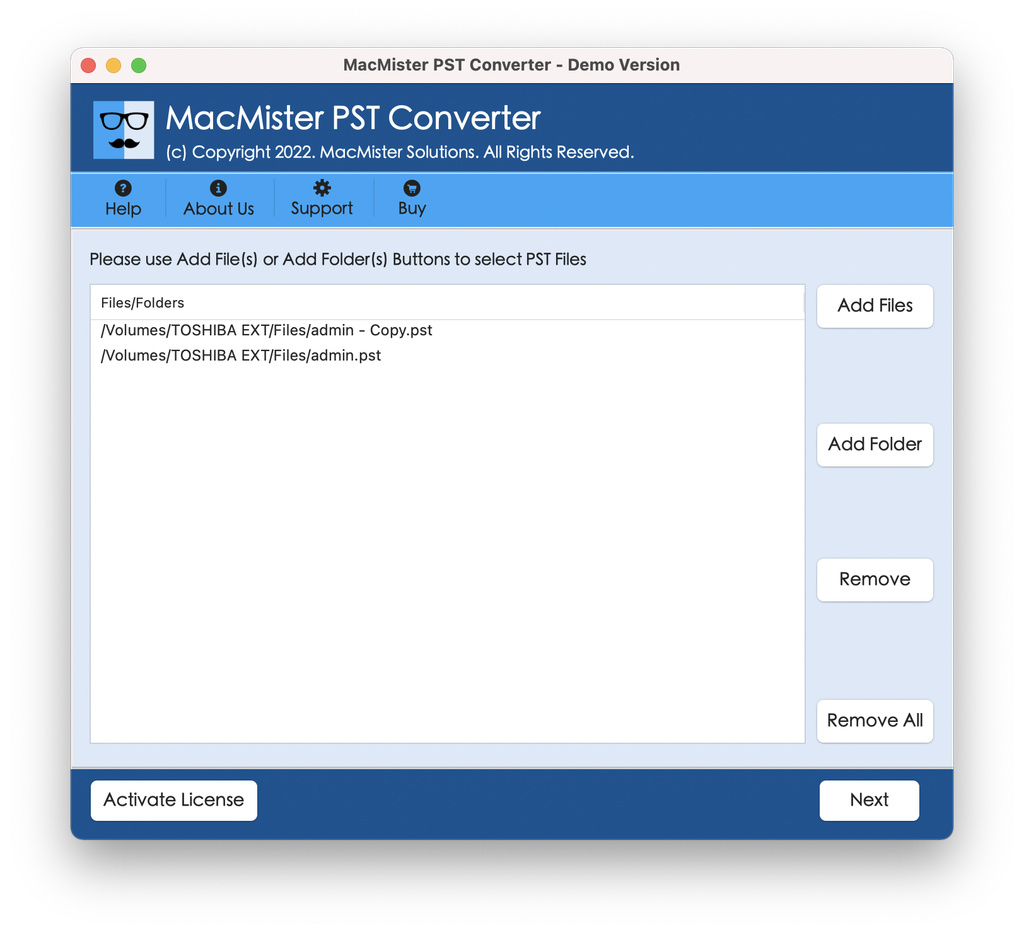
Step 2. Click Add File or Add Folder to add your PST file(s).
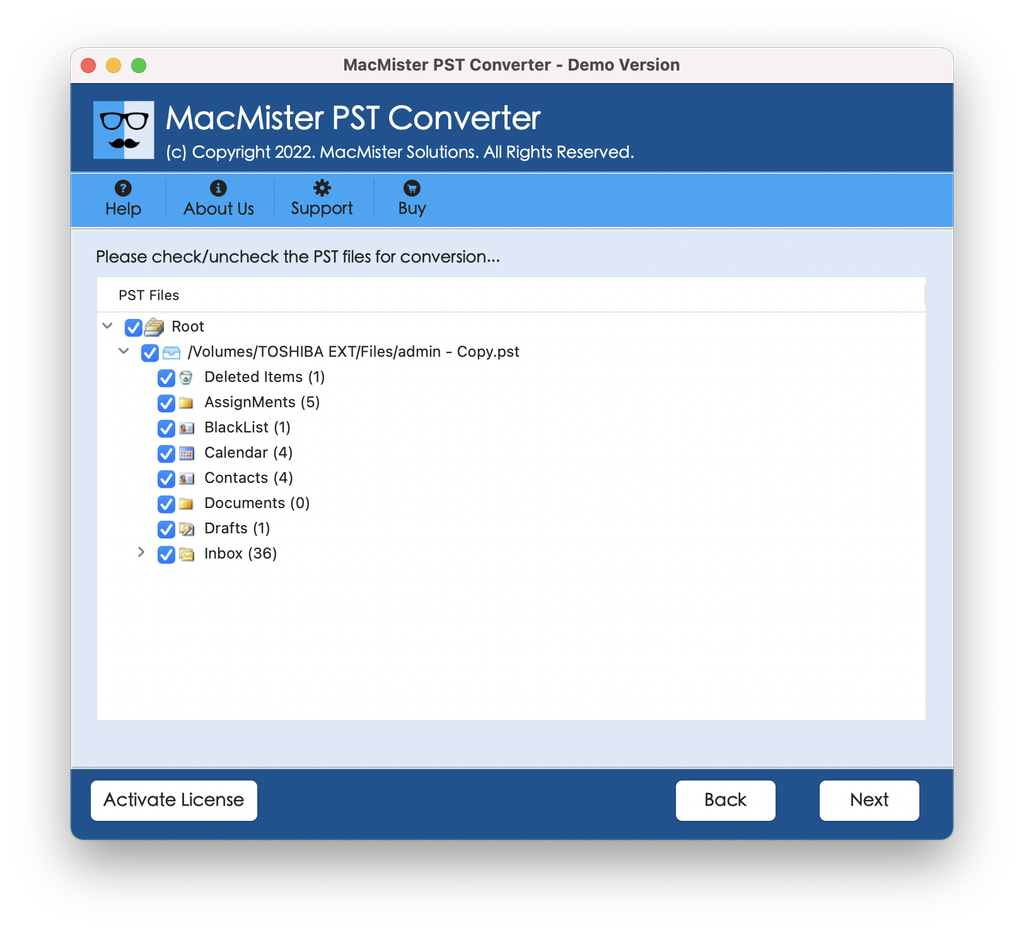
Step 3. Preview the mailbox folders of PST files appearing in hierarchical structure on the software panel. You may also performt he selection using the checkboxes available as per your requirements to execute selective conversion of PST files. When done, press Next to proceed. provided interactively by the software.
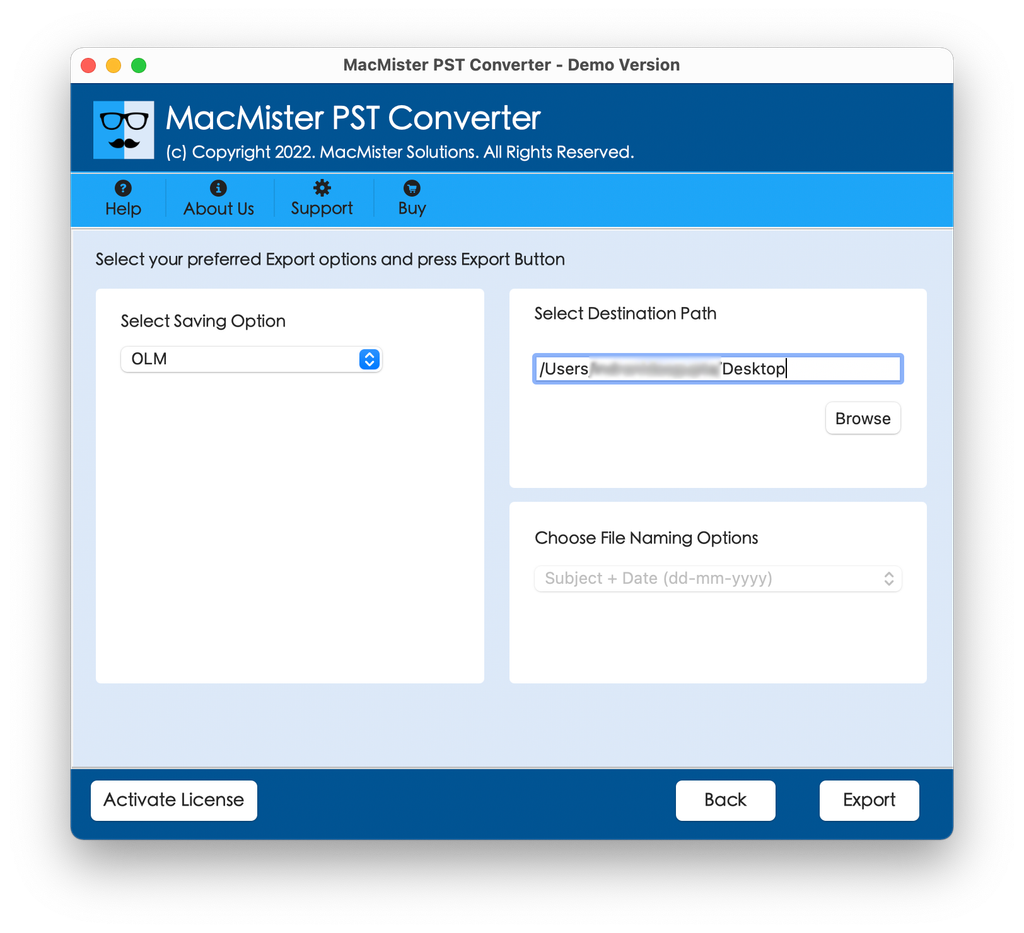
Step 4. Select OLM (Outlook for Mac) or MBOX (Apple Mail) in the Select Saving Option drop-down menu.
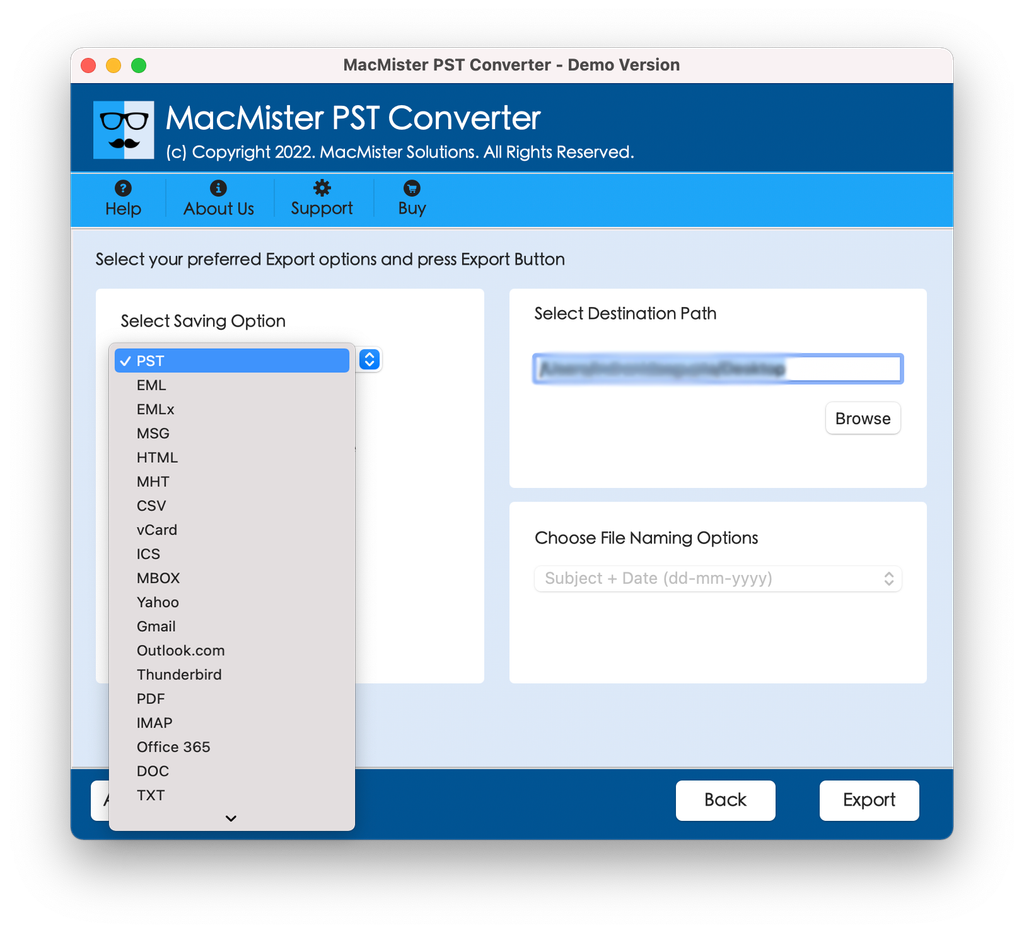
Step 5. Set sub-options as per requirements and click the Export button.
Step 6. Track the live process using Live Conversion Report window appearing after tapping Export.
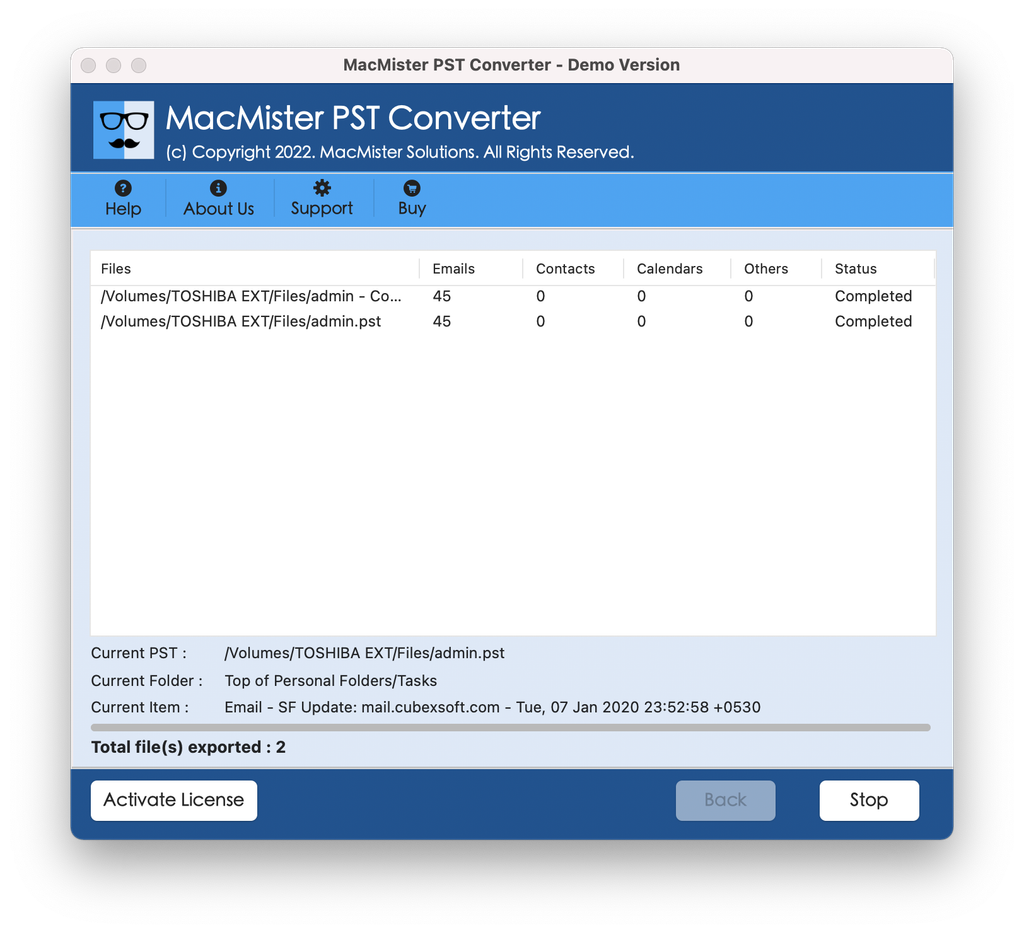
After completing the conversion process, launch Outlook for Mac, open the generated .olm file, and enjoy all your emails in their complete form.
Epilogue
The process of importing a PST file to Outlook on the Mac is very much dependent on the fact as to whether the user is using the legacy interface or the new interface. The fact is that the legacy interface still has its own native import wizard for PST files.