How to Save Emails when Outlook is full?
It is difficult to find any other administrative prompt that creates instant resistance as the unfavorable message that states, “Your mailbox is full”. Whenever Microsoft Outlook reaches the capacity level, everything goes bad immediately. The user is not able to send any emails while the received ones are automatically returned to the senders. The application performance is considerably deteriorated. Deleting all these emails is not always possible as there may be some important messages that should be presented as evidence in case of some troubles. For solving the problem of lack of space, it is required to develop a thorough plan of backup, archive, and deletion of emails.
Why Outlook Reaches Capacity Limits?
Knowing the cause of a full mailbox will prevent additional complications in the future. Outlook mailbox gets full for several reasons, including:
- Server quotas: Exchange server, Microsoft 365 plans, and IMAP hosting have strict quota limits (normally 15 – 50 Gb per mailbox).
- Attachments: Photos, PDF, zip, video files take significantly more space than text.
- System folders: Deleted items and Junk Email folders take up space if the user does not empty them regularly.
Step 1: Quick Cleanup Protocols
Before exporting or backing up a large amount of data, perform the following steps to recover emails right away.
1. Clear trash and spam email folders
Every message that is deleted is moved to the Deleted Items folder. This means that the deleted email takes up space in the quota until it is deleted.
- Empty the Deleted Items folder by right-clicking the folder and selecting Empty Folder from the context menu.
- Empty the Junk folder by right-clicking the Junk Email folder and selecting Empty Folder.
2. Find large attachments
- Use Outlook’s search folders to locate all items with large sizes.
- Find the Search option on the top menu and go to Search Tools > Advanced Find.
- Click More Choices.
- In the Filters category, choose Size (kilobytes) to the right of “greater than” and enter 5000 (emails larger than 5 MB).
- Save all the large attachments in your computer’s directory and delete the email.
Step 2: Utilize Built-In Archiving Tools
The Microsoft Outlook application provides options that will help you to move old messages from the active server to local archive files.
Using Manual Archiving (Outlook for Windows)
Manual archiving consists of moving folders and specific time frames of your mail from the online mailbox to an offline Personal Storage Table (.pst) file.
- Open Outlook, click File in the menu bar at the top of the screen, then click Info. Clicking on Cleanup Tools, next to Mailbox Cleanup, will open a menu where you can select either Archive… (or Clean Up Old Items).
- Check the box next to Archive this folder and all subfolders. To do this, click the boxes next to the desired folder(s) (e.g., Inbox or Sent Items).
- In the dialog box that opens, check off items that you want to archive. Make sure to select a date in the Archive items older than: drop-down menu in the future so that nothing is mistakenly deleted.
- Click Browse to indicate where you want to save the archive files on your local hard drive or computer, then click OK.
Step 3: Save Emails as Individual MSG or PDF Files
If all you want to do is save the threads of projects instead of all the folders, then there is an option to save each thread separately to save the space on your server and the organization of your PC.
Method A: Drag-and-Drop to Your Local Folder
- Create a specific folder on your local desktop (e.g., 2025_Client_Emails).
- Open Outlook and select the emails you want to save.
- Drag the selected messages to the folder created on your desktop. The dragged emails will be saved as separate.msg files.
- Delete the moved messages and empty the Deleted Items folder.
Method B: Print to PDF
- Open the particular email that you want to convert.
- Hit Ctrl + P (Command + P for Mac) and the print window shall open.
- Choose Printer Output as Microsoft Print to PDF (Save as PDF on Mac).
- Print it and save it in the preferred destination.
The Limitations of PST Archives
While creating PST files may be a short-term solution to the storage problem in Windows, there are also a few long-term disadvantages of PST files:
- The PST file larger than 20 GB may have a header corruption, which may lead to data loss.
- Outlook for Mac uses a different file format (olm files), and it does not support PST files.
- Once you created the archive in PST file, you will only be able to open it in Microsoft Outlook. In other case, it will be difficult to open your archives if you decided to switch to another email client, such as Thunderbird, Apple Mail, Gmail or a document management system based on PDF files.
Opt for Highly Advanced and Powerful Solution
In the case of a completely full Outlook mailbox, you need a program that will enable you to get your email out of Outlook, so that it is no longer Outlook-dependent.
MacMister PST Converter for Mac and Windows gives you everything you need to manage your emails with ease.
Main Features & Advantages
- Conversion of PST files into more than 15+ various file formats, including PDF, MBOX, EML, MSG, HTML, CSV, TXT, etc.
- Remove the hassle of local file conversion and directly upload your PST files to Gmail, Office 365, Yahoo Mail or any other custom IMAP mail server.
- Super-fast processing to extract emails effortlessly on both Windows and Mac OS.
- Maintains the integrity of all email items like inline images, original folder structure, hyperlinks, formatting, attachments, and more.
How to Use the App to Clear Outlook Space
Step 1. Export your old emails from Outlook as a standard PST file using the built-in export wizard.
Step 2. Launch the app on your Mac or Windows machine.
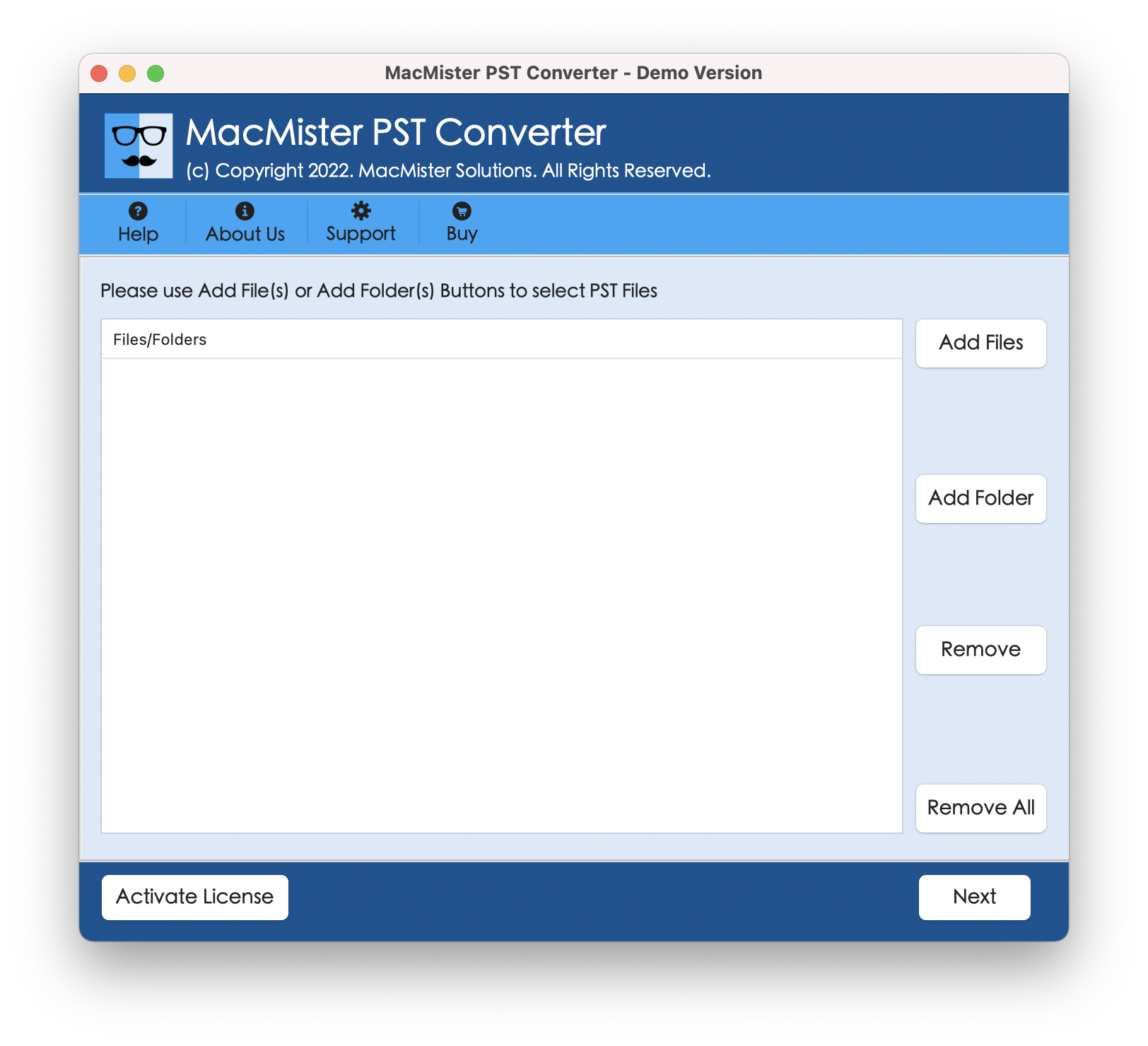
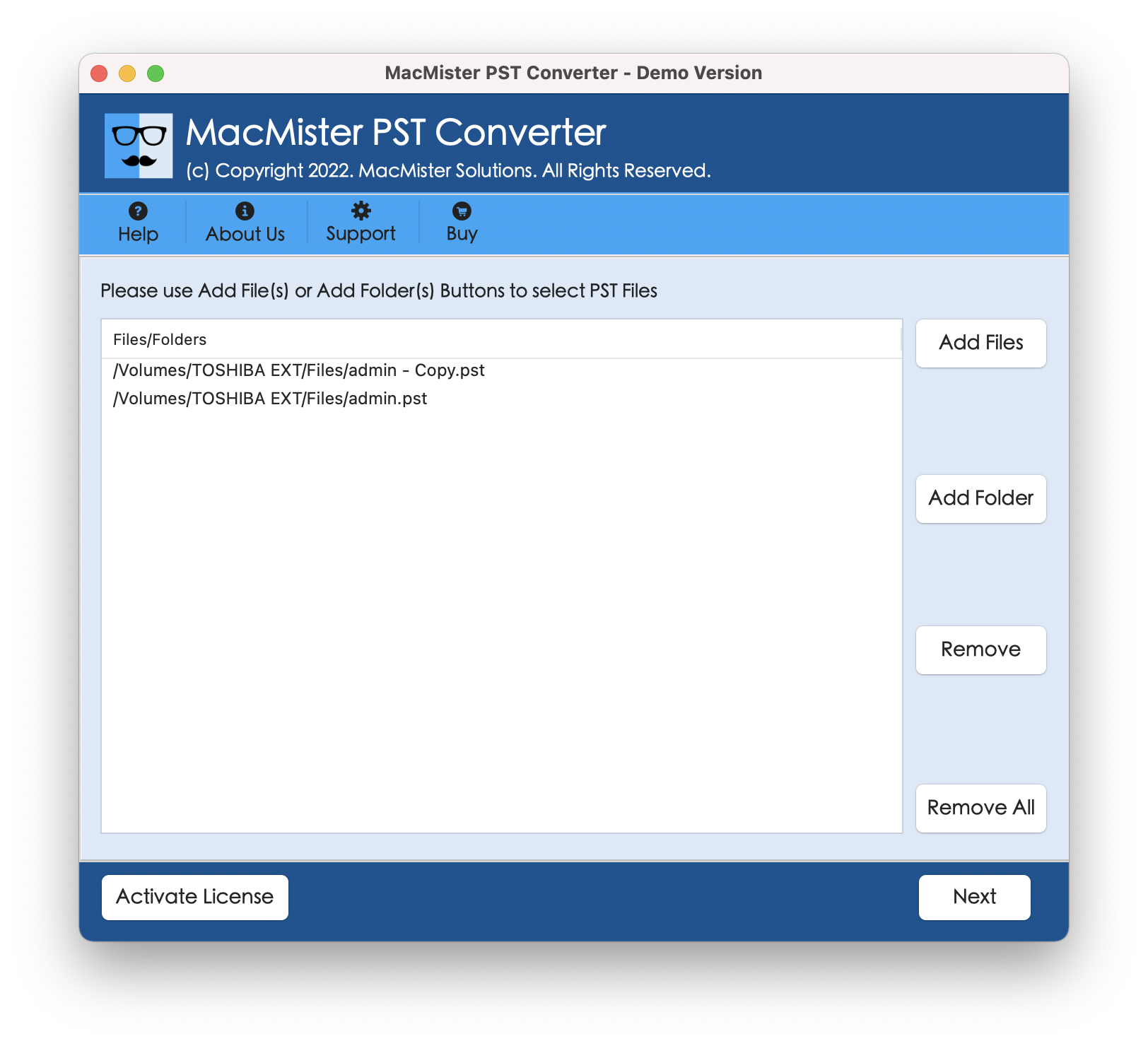
Step 3. Click Add Files or Add Folder to load the PST file containing your archived emails.
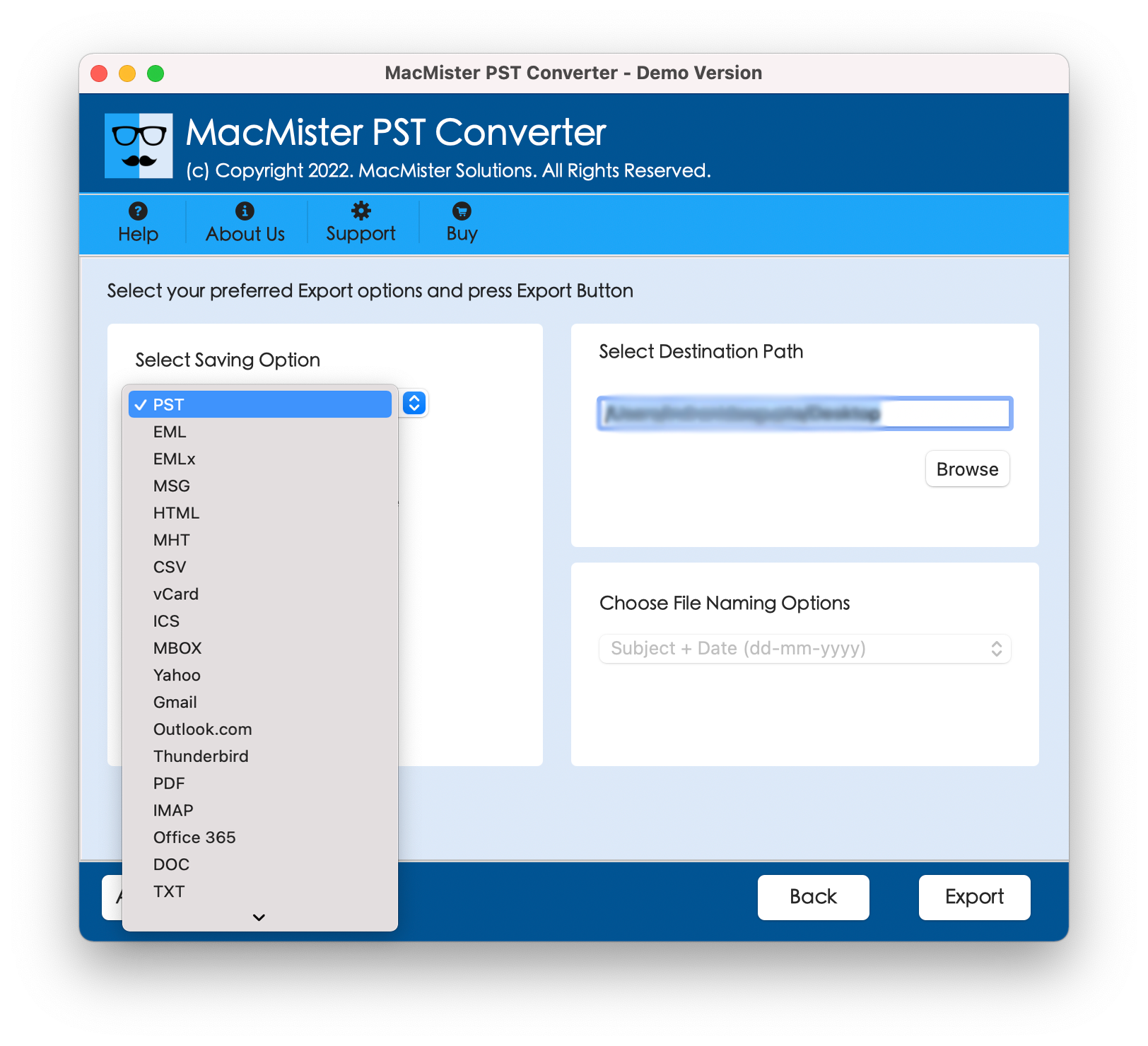
Step 4. Select your preferred output format (e.g., choose PDF for offline document storage, or MBOX to move data to Apple Mail/Thunderbird) from Select Saving Options.
Step 5. Specify sub-options to convert files according to the requirements.
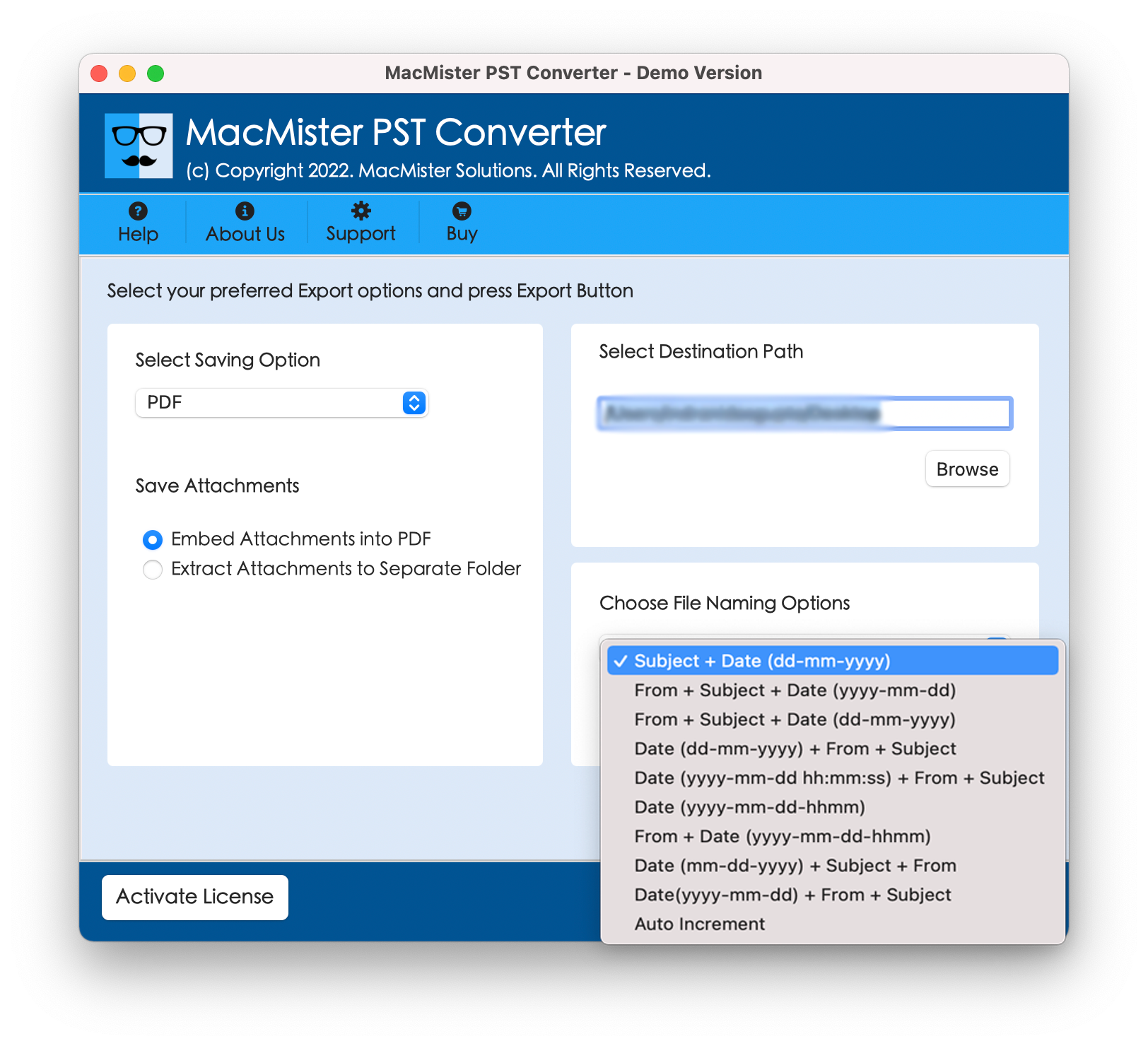
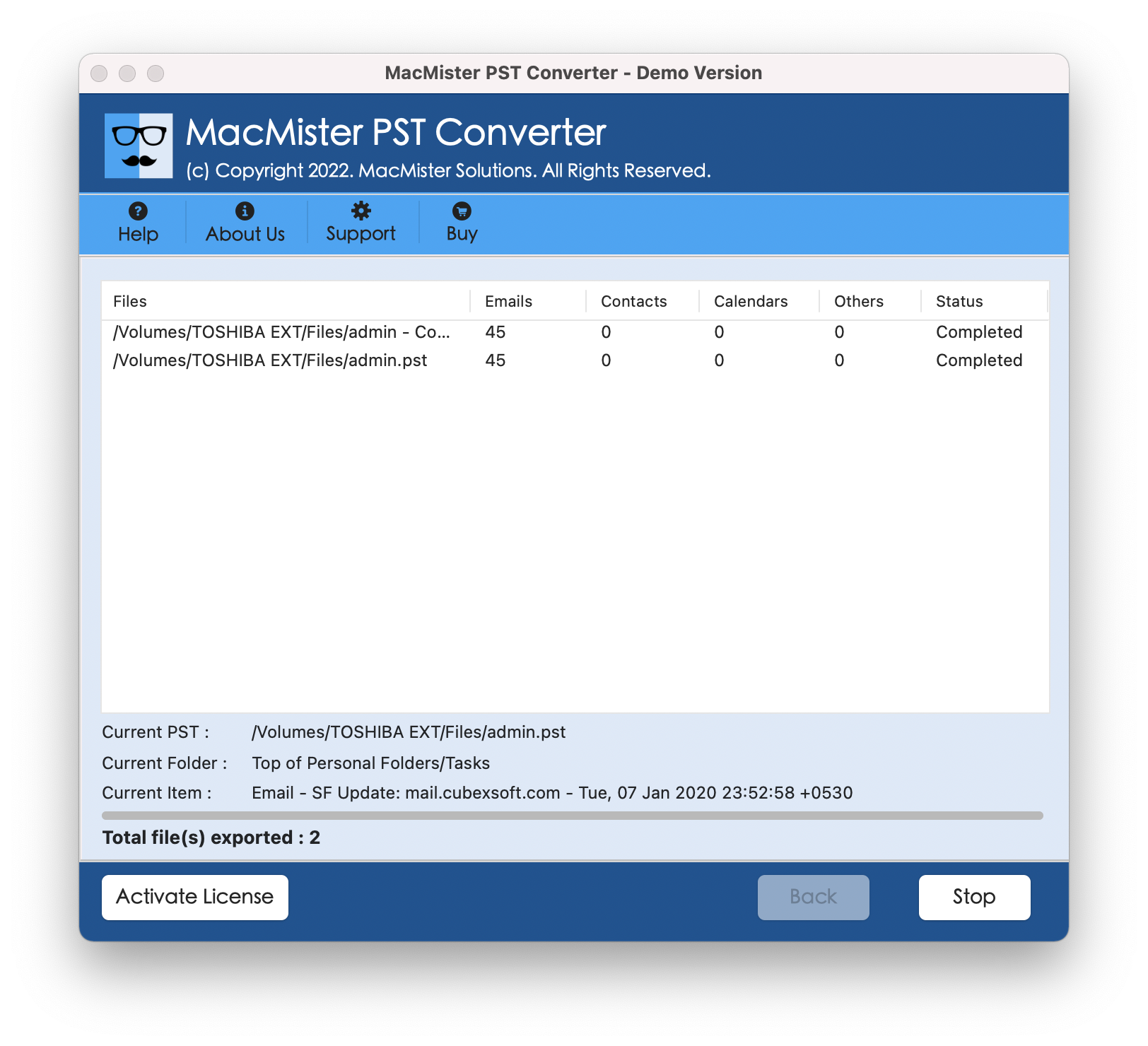
Step 6. Click Convert to finalize the process. Once complete, you can safely delete the archived emails from Outlook’s cloud server, knowing your data is permanently preserved in a flexible, accessible format.
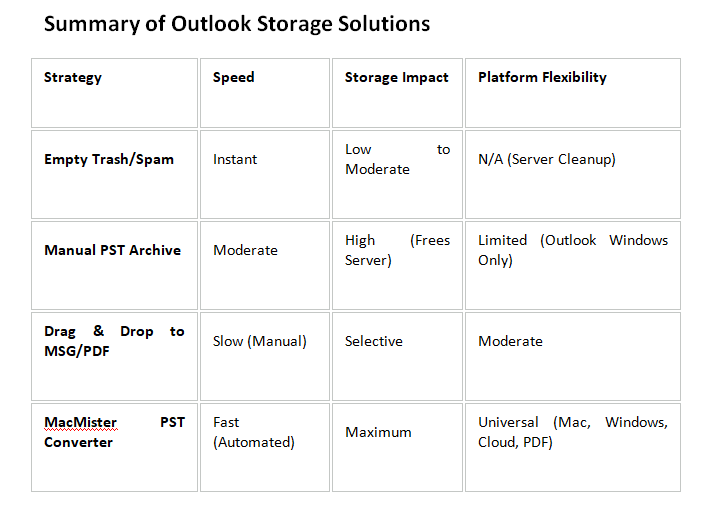
By applying fundamental email box cleaning techniques and employing advanced archive management software such as the professional approach as discussed above, one can ensure that their email box will never be full for an extended period of time.