Office 365 Doesn’t Recognize MSG Files? How to Import Them Correctly
Microsoft 365 (formerly Office 365) has become the preferred email platform for businesses and individuals because of its cloud accessibility, collaboration features, and enterprise-grade security. However, many users encounter an unexpected issue when migrating archived Outlook emails—they discover that Office 365 doesn’t recognize standalone MSG files.
This problem usually appears when users receive MSG files from colleagues, restore archived emails, or move data from an old Outlook profile to Microsoft 365. Since MSG is a proprietary Outlook file format designed to store individual email messages, it cannot be uploaded directly into an Office 365 mailbox like regular email data.
In such situations, using a reliable MacMister MSG Converter for Mac can simplify the migration by allowing you to import MSG files into Office 365 without complicated manual procedures.
If you’re facing this issue, don’t worry. In this guide, we’ll explain why Office 365 cannot recognize MSG files, discuss common causes behind the problem, and show you the correct way to import MSG emails into your Microsoft 365 account on Mac.
Why Doesn’t Office 365 Recognize MSG Files?
Many users assume they can simply upload MSG files into their Office 365 mailbox, but Microsoft 365 doesn’t provide native support for importing individual MSG files.
Unlike PST files, which Outlook can import through its Import/Export feature, MSG files are treated as standalone email documents rather than mailbox data. As a result, dragging, uploading, or copying MSG files directly into Office 365 often doesn’t work as expected.
This limitation becomes even more noticeable when you need to import dozens or hundreds of MSG files at once.
If you are unsure how MSG files differ from other Outlook email formats, read our detailed guide on MSG File vs EML File – Complete Comparison before starting your migration.
Common Reasons Office 365 Doesn’t Recognize MSG Files
Understanding the cause of the issue helps you choose the right solution.
1. Office 365 Doesn’t Support Direct MSG Import – Microsoft 365 has no built-in option to upload individual MSG files directly to an Exchange Online mailbox. Users often mistake MSG files for mailbox archives, but they’re designed differently.
2. MSG Files Are Stored Outside Outlook – If the MSG files are saved locally on your Mac, Office 365 has no way to automatically detect or synchronize them.
3. Corrupted MSG Files – Sometimes the problem isn’t Office 365 at all. Damaged or incomplete MSG files may fail to open correctly, making them impossible to import. Common reasons include –
- Interrupted downloads
- Storage device errors
- Incomplete file transfers
- Third-party software issues
4. Large Number of MSG Files – Dragging a few emails into Outlook may work, but importing hundreds or thousands of MSG files manually is slow and increases the chance of missing emails or creating duplicates.
5. Outlook Synchronization Problems – If Outlook isn’t properly synchronized with your Microsoft 365 account, imported emails may never appear in the mailbox.
Before troubleshooting MSG files, ensure Outlook is connected and syncing successfully with Office 365.
Can You Import MSG Files Manually?
Yes—but only in limited situations.
If Microsoft Outlook is already configured with your Office 365 account, you can manually drag and drop MSG files into a mailbox folder.
Steps
- Open Outlook for Mac.
- Sign in with your Microsoft 365 account.
- Create a new folder if required.
- Select the MSG files from Finder.
- Drag them into the Outlook folder.
- Wait for Outlook to synchronize with Office 365.
- For a handful of emails, this method is usually sufficient.
However, it becomes impractical when dealing with large email archives.
Limitations of the Manual Method
Although drag-and-drop is free, it comes with several drawbacks –
- Only suitable for a small number of MSG files.
- Requires Microsoft Outlook to be installed and configured.
- Manual migration is slow and repetitive.
- Higher risk of duplicate emails.
- Difficult to organize large email collections.
- No advanced filtering options.
- Time-consuming for business users and IT administrators.
Because of these limitations, many users prefer an automated solution that can import MSG files more efficiently while preserving email properties.
Best Way to Import MSG Files into Office 365
If you regularly work with Outlook MSG files or need to migrate an entire email archive, using a dedicated conversion tool is often the most efficient approach. The MSG file to O365 for Mac is designed to simplify the process by allowing users to import MSG files into Office 365 without relying on repetitive manual methods.


Whether you’re migrating a few emails or an extensive collection of MSG files, the software helps transfer email data while preserving the original message details.
Why Choose the MSG to Office 365 Tool?
- Direct Office 365 Migration – The software enables you to import MSG files directly into your Microsoft 365 mailbox, eliminating the need to drag and drop individual emails manually.
- Bulk Import Support – Instead of processing one email at a time, you can import multiple MSG files in a single operation. This is especially useful for organizations and users with large email archives.
- Preserves Email Properties – During the migration, the software maintains important email attributes, including –
Subject, Sender and recipient information, CC and BCC, Date and time, Attachments, Inline images, Internet headers, Email formatting
This helps ensure that imported emails appear as close as possible to the originals.
Besides Office 365 migration, you can also convert MSG files into other formats depending on your workflow. For example, if you need to access Outlook emails in a web browser, check out our guide on How to Save Outlook MSG Files to HTML for Web Viewing.
- Advanced Filtering Options – Need to migrate only specific emails? The software allows you to apply filters so you can import only the required MSG files instead of the entire collection.
- User-Friendly Interface – The intuitive interface makes the software suitable for both beginners and experienced IT professionals. No advanced technical knowledge is required to complete the migration.
Steps to Import MSG Files into Office 365
Follow these simple steps –
Step 1: Download and install MSG to O365 for Mac Tool.
Step 2: Launch the application and browse to add your MSG files or folders.
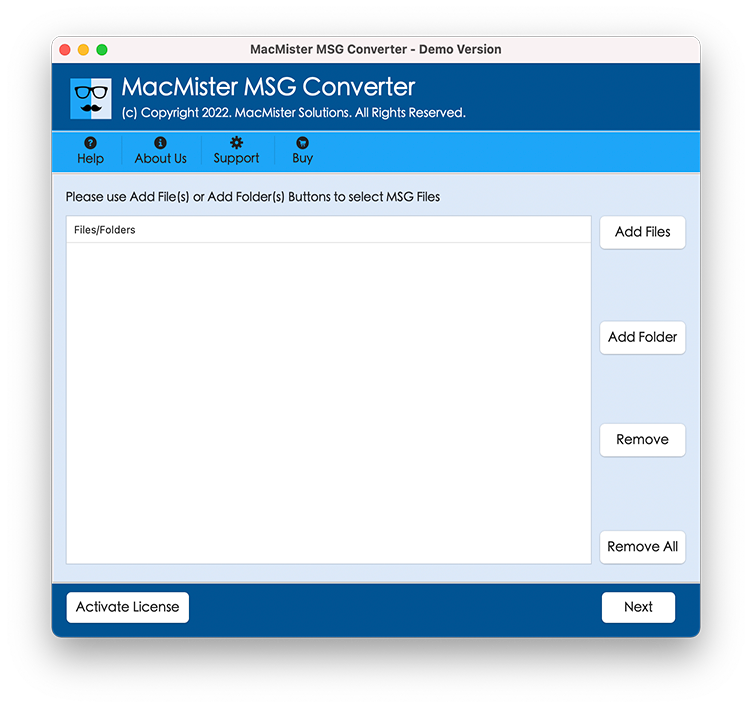
Step 3: Preview the selected emails to verify the data before migration.
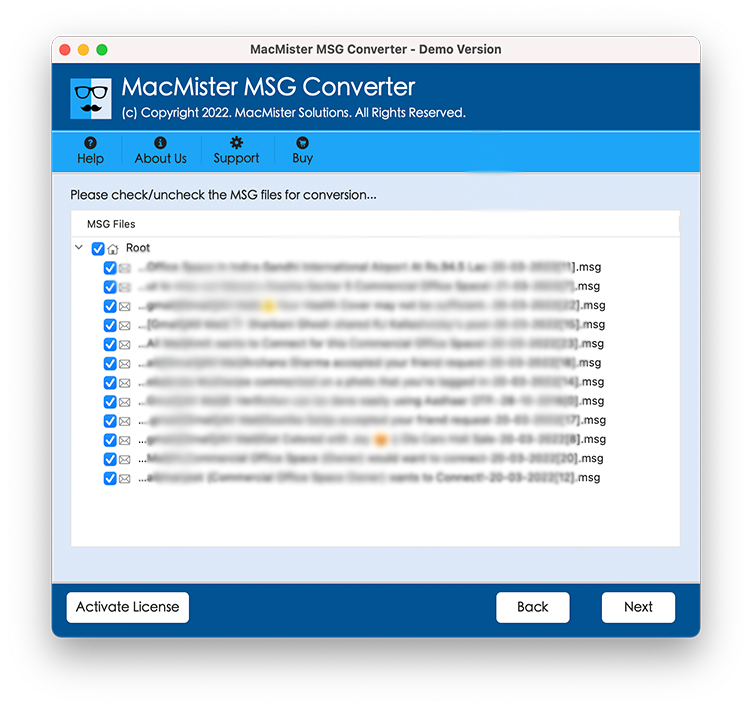
Step 4: Choose Office 365 as the destination platform.
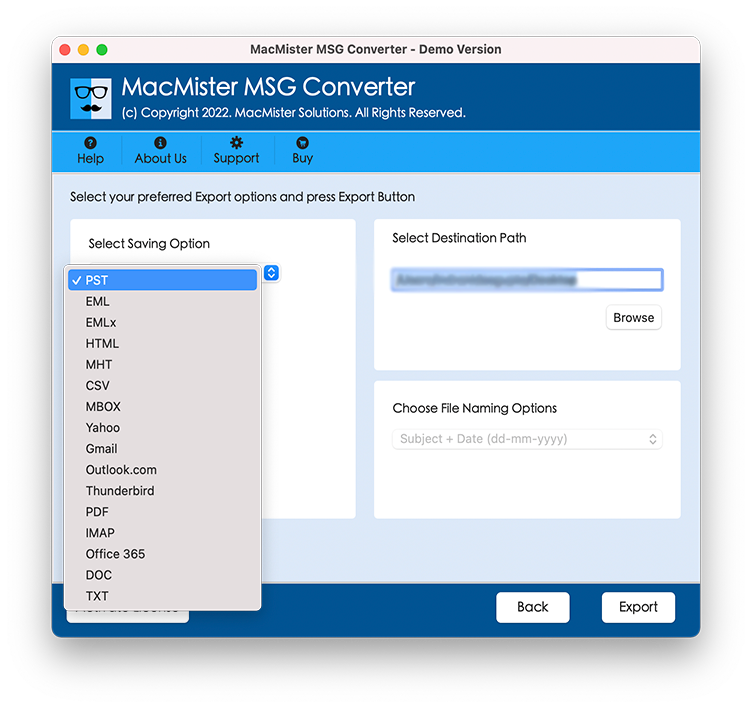
Step 5: Sign in using your Microsoft 365 account credentials.
Step 6: Apply optional filters if you want to migrate only selected emails.
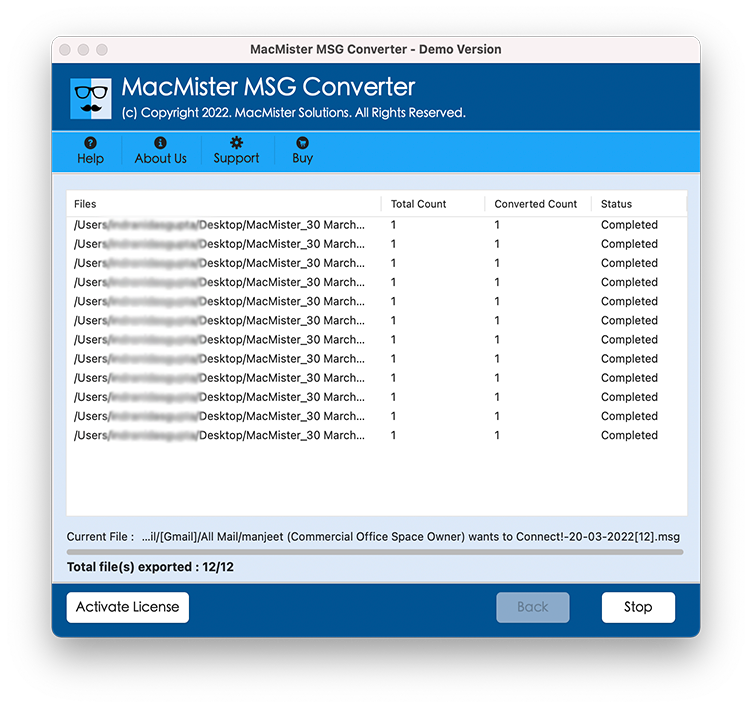
Step 7: Click the Convert button to start the import process.
Why Use a Professional Solution Instead of Manual Import?
| Feature | Manual Method | MSG to O365 Tool |
| Bulk MSG Import | ❌ No | ✅ Yes |
| Direct Office 365 Migration | ⚠️ Limited | ✅ Yes |
| Preserves Attachments | ⚠️ Depends | ✅ Yes |
| Maintains Email Formatting | ⚠️ Basic | ✅ Yes |
| Handles Large Archives | ❌ Difficult | ✅ Yes |
| Advanced Filters | ❌ No | ✅ Yes |
| Easy for Beginners | ⚠️ Moderate | ✅ Yes |
For users managing business emails, archived projects, or multiple MSG files, an automated solution saves time and reduces the chances of errors during migration.
Frequently Asked Questions
Can Office 365 open MSG files directly?
No. Microsoft 365 does not provide a native feature to import standalone MSG files directly into a mailbox.
Can I import multiple MSG files at once?
Yes. The MSG to Office 365 Tool supports bulk migration, allowing you to import multiple MSG files in a single process.
Will attachments be imported?
Yes. The software preserves attachments along with email content and other properties during the migration.
Do I need Outlook for the professional method?
The software is designed to simplify the migration process and reduce dependence on manual Outlook-based imports.
Conclusion
Office 365 is an excellent platform for managing emails, but it doesn’t natively recognize standalone MSG files. While manually dragging MSG files into Outlook may work for a few emails, it quickly becomes inefficient for larger collections and offers limited control over the migration process.
For users looking for a faster and more reliable approach, MSG to Office 365 for Mac provides an efficient solution to import MSG files into Office 365. With support for bulk migration, preservation of email formatting, attachments, and metadata, it helps streamline the migration process while reducing manual effort.
Whether you’re consolidating archived Outlook emails or moving important business communications to Microsoft 365, using the right tool can make the transition smoother and more organized.
Import MSG Files to Office 365 the Easy Way
Avoid the hassle of manually importing individual MSG files into Microsoft 365. The MSG File to O365 for Mac helps you migrate MSG files to Office 365 in bulk while preserving attachments, email formatting, metadata, and folder structure. Download the free trial today and experience a faster, more reliable MSG migration process.
| |