How to Transfer eM Client Emails To Outlook on MacBook?

Overview: Transferring emails from one email client to another is a challenging task sometimes and we don’t want to compromise or take a chance of data loss. As we have searched and found that many peoples are facing trouble while exporting data from eM Client to Outlook on Mac. So in this article, we will discuss the process of transferring emails from eM Client to Outlook in a simple and trouble-free manner.
Let’s know what people ask, before moving further with the specific solution
“Hi, I had been using HP with Windows environment. My email application was eM Client but due to a change in my professional location, I am using MacBook Pro. As I have backup all my eM Client emails data, now want to use them in Outlook on Mac. So looking for a tool that helps me use or read all my eM Client files into Outlook. Is there a solution available or any method to transfer eM Client emails to Outlook task complete data security? Need it ASAP. – Drain Brownley (California)”
Certified Solution to Export eM Client Files to Outlook
Though, there is no such manual process available that helps to transfer emails from eM Client to PST on MacBook. In that case, you are definitely in need of a professional solution, so use EML Converter for Mac application. It perfectly helps you to export eM Client files to Outlook by keeping complete email elements and attachment files safe.
It’s one of the finest email migration tool, which allows you to export eM Client files to Outlook in batch mode, this feature of the tool help users to transfer or migrate a large number of files in one go with no risk of any data loss or alteration. The software works perfectly with MacBook Pro, MacBook Air (M1 / M2), iMac, and other available Mac devices without harming any data structure or settings.
This software program also allows you to transfer emails from eM Client to Outlook and other file formats, as the software supports many more email file formats and Cloud-based email clients. So it’s a useful tool that helps you to read, view or open eM Client files in Outlook on Mac without harming any existing formatting or data types. It’s a perfect eM Client Backup tool for Mac that allows you to easily take backup or save files into multiple formats on any Mac device.
Specifications to Transfer eM Client Emails to Outlook
Easy Built GUI – This software is perfectly designed with an easy-to-use graphical interface, which let users understand the actual working functionality to complete the task of the email exporting process.
Bulk Email Transfer – It allows users to transfer emails from eM Client to Outlook in batch/bulk mode which means you are allowed to move or export a numerous number of files/tons of data at the same with no risk of any data damage.
More Transfer File Options – You are allowed to transfer files to many file formats or Web-based email clients too such as; MSG, HTML, RTF, DOC, EMLx, MBOX, PDF, Office 365, IMAP Server, Outlook.com, Exchange Server, Yahoo Mail and many other.
Add-On Choices – It provides more useful options to export eM Client files to PST such as; File Naming Filters (Form + to + Subject, Auto Increment, etc.), Saving Attachment Files Differently (Save Embedded Attachments, Save Attached Files Separately), this kind of choices help users to perform the task of email exporting more easily.
Select Resultant File Location – You can simply “Browse” and select your resultant file saving location on your own as it is not predefined. This process helps users easily locate and use their converted files on their own.
Runs on Mac Device – Now Export eM Client files to PST on macOS Ventura, macOS Catalina, macOS Big Sur, macO Mojave, OS X El Capitan, OS X Yosemite, and other available versions.
*Reminder – Trial mode is available, you may download EML Converter for Mac software and test its complete working method on your Mac devices easily. It helps you to know the software actual working probability. The free version of the tool supports transferring 20+ files at the same.
Download For Free
Steps to Transfer Emails From eM Client To PST on Mac
You simply need to download MacMister EML Converter for Mac tool and install and run the software first. After the complete installation process, follow the below steps to complete the method.
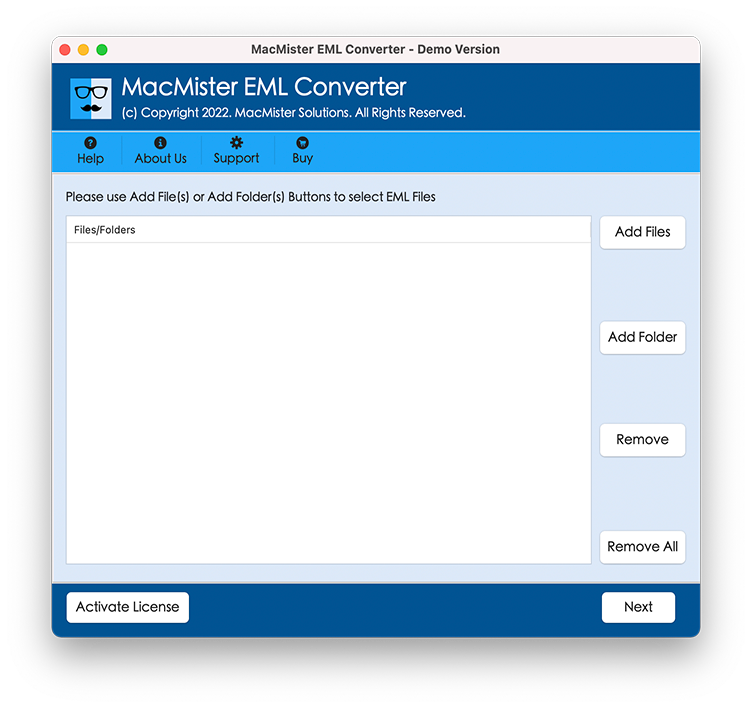
Step 1. The dual option is available, simply choose the “Add File(s)” or “Add Folder(s)” options both of which allow to import of multiple data at a time. Click the “Next” option.
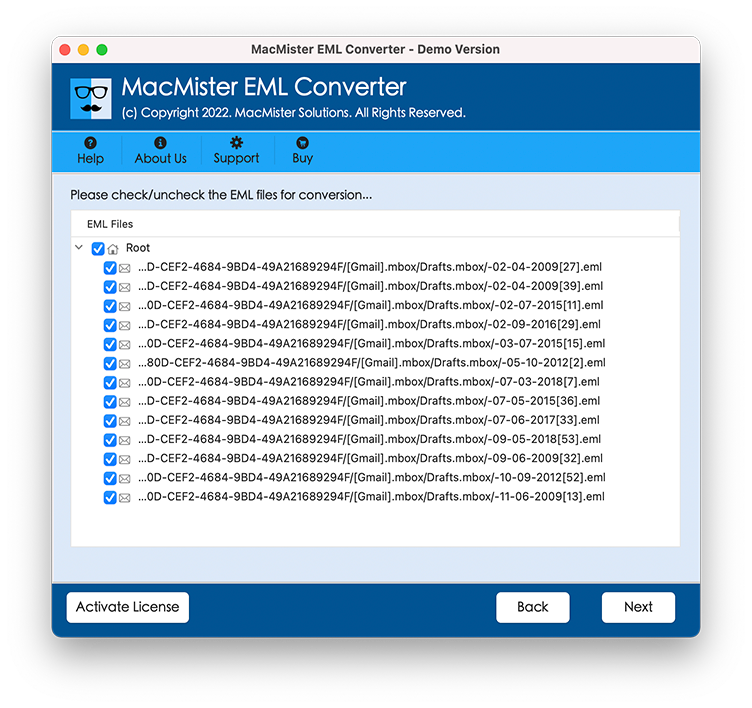
Step 2. Now the software will start listing your selected files. Checkboxes are available, use them as per your need.
Step 3. After that, select the “PST” file format from the available saving file menu and browse the saving file location.
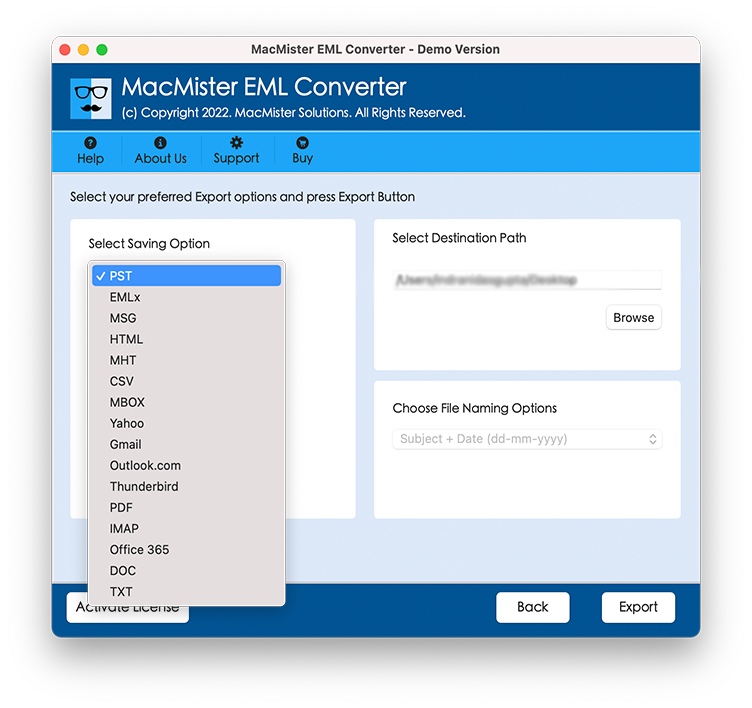
Step 4. More Sub-Options are available, set them accordingly and proceed further. Click the “Export” option.
Step 5. “Live Conversion Screen” is available, check the total email exporting process with this. See below.
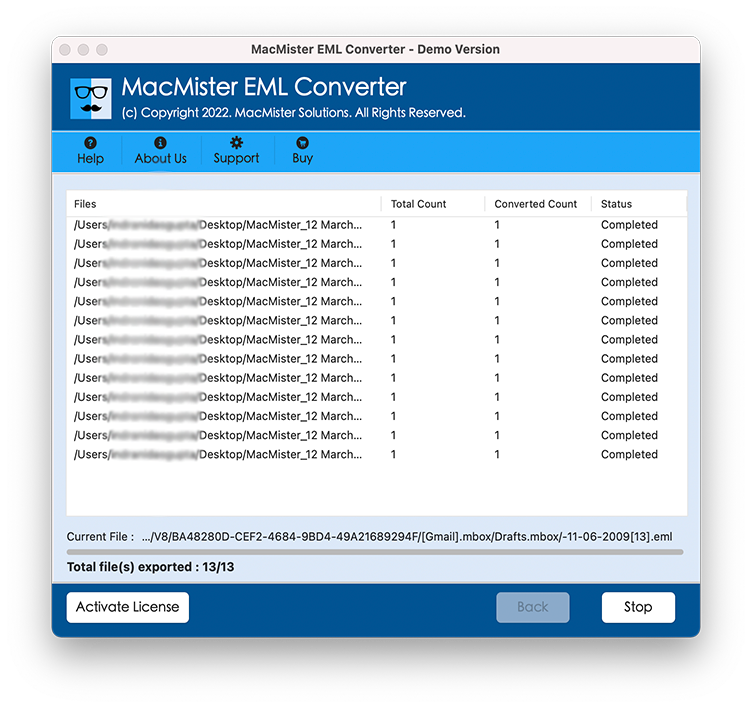
Afterward, the software will show you the “Complete Conversion” message. Click “Ok” to complete the process. Go to the resultant file location to check or view your files. Now it’s time to import PST files to Outlook for further use. We assure you that this EML Converter for Mac software keeps complete existing data safe all through the email transfer process.
Conclusion
Therefore, in this article, we have suggested the best solution to complete the task of transferring eM Client emails to Outlook. So use EML Converter for Mac software, it completely helps you to Export eM Client Files to PST by keeping complete data safe as it also supports batch file transfer method to save users time to export or move multiple emails at a time. Free Working DEMO is available, download the tool to complete the process on any Mac Devices.