How to Transfer Rogers Email to another Account?
Are you thinking about moving to a different email service from Rogers, thereby wondering how to transfer Rogers email to another account safely? Looking for a smart, secure and cost-effective solution for the same? No worries just follow the write-up and you will discover a solution that will directly transfer Rogers email to another account without losing data integrity.
Rogers is a telecommunication company based in Canada, known for delivering ISP services to users including telephone, email, TV, and more. In July 2022, Rogers Communication encountered major outage that affected more than 12 million of users worldwide in Canada.
The event introduced new government policies, asking all telecommunications providers to offer mutual assistance to each other during outage, provide emergency roaming service for rival’s affected customers and design new plans offering new ways to communicated with public about outages.
Why users suddenly start transferring Rogers email to another account?
The outage significantly impacted different information systems worldwide, much or which extended past residential and commercial Rogers customers due to the dependencies on Rogers infrastructure:
- Around 25% of Canada faces internet connectivity problems.
- Interac gone offline, preventing businesses from performing debit card transactions irrespective of internet service provider.
- Outage not allowing to call 911 from mobile phone through Rogers network which later results in 1 death.
- Canada government services were affected such as Service Canada, Passport Offices, and Canada Revenue Agency.
- Public transport agencies reported other computer system issues tied to the outage.
Overall, users have faced many challenges due to Rogers outage that pushed them to move onto a new email platform which could offer more reliability and security to users.
How to Transfer Rogers Email to another Account on Mac & Windows?
The direct and effective way to transfer Rogers email to another account on Mac & Windows is MacMister IMAP Backup Tool Mac & Windows. The tool help users connecting with required Rogers email account, then allows them to choose required saving type, and finally tap the Start Backup button to start the migration process. In just three seconds the entire emails list of Rogers will successfully transferred to a new account. The interface is simple and easy-to-operate. Both professional and non-professional users can utilize the application and perform the migration of Rogers email with ease.
However, a freeware version of the software is also available that users can download to test the working steps of the application for free.
Working Steps to Transfer Rogers Email to another Account on Mac
Step 1. Download and launch the application on your Mac.
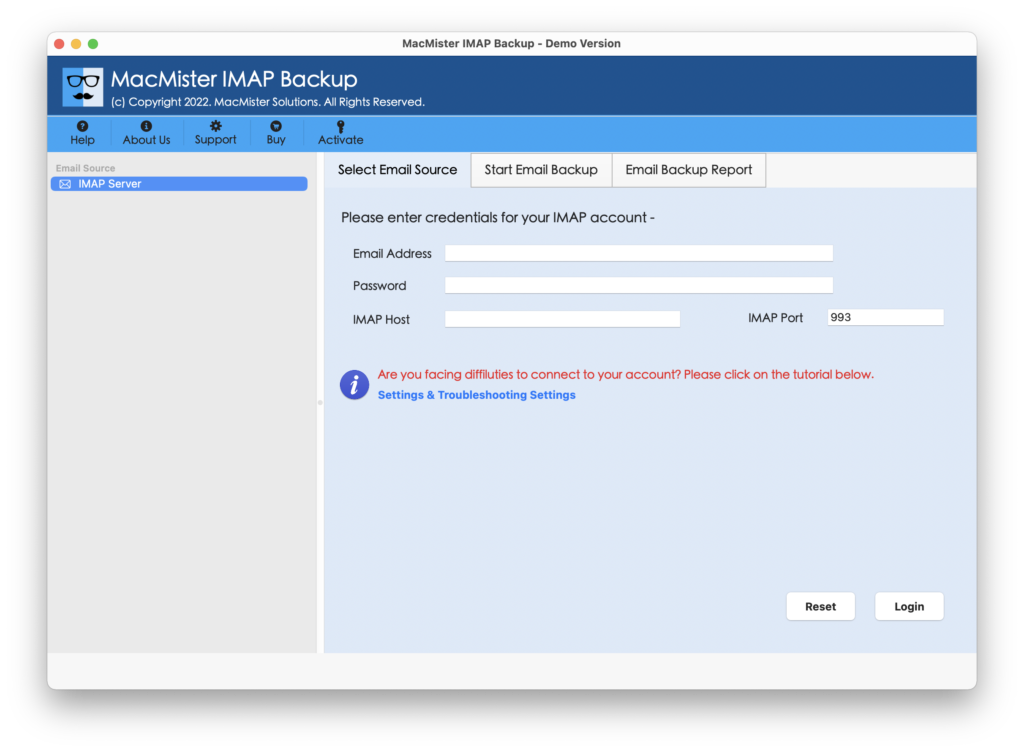
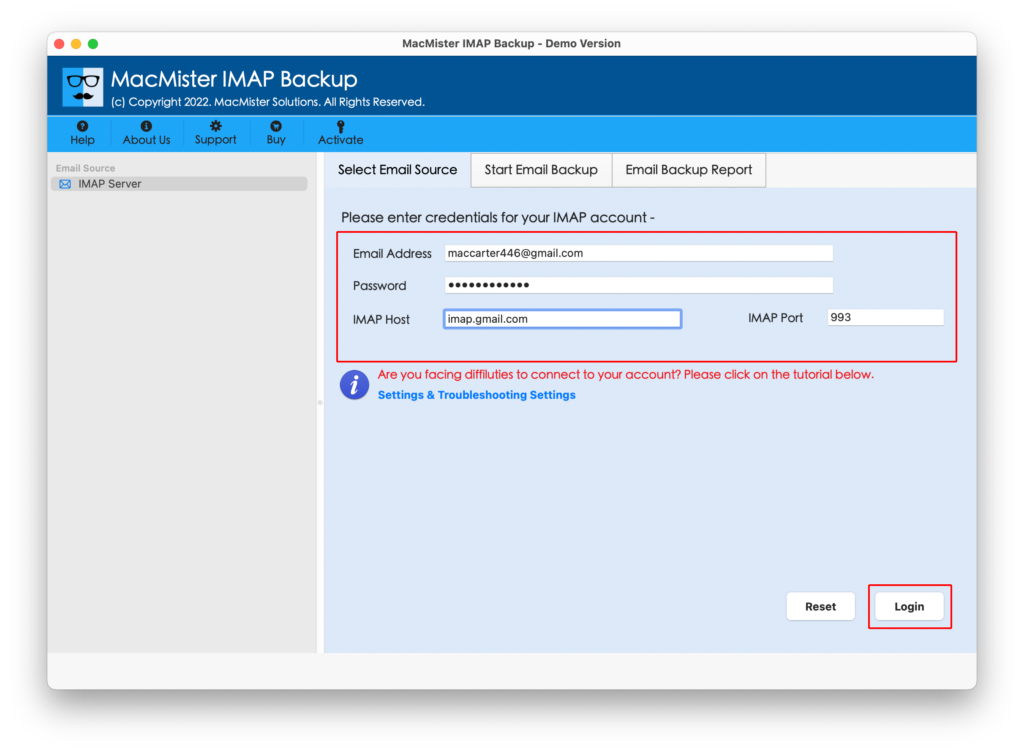
Step 2. Add Rogers credentials with IMAP Host & Port Number. Click Login button.
Step 3. The Rogers account will connect with the application and its entire mailbox folders will appear on the left pane.
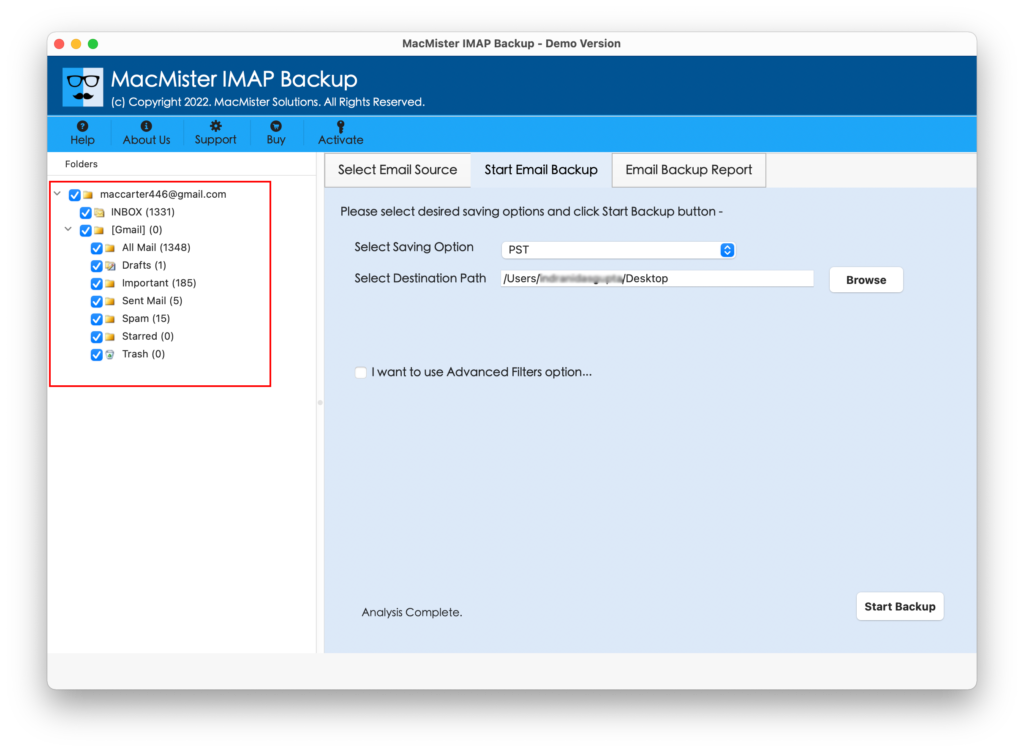
Step 4. On the right, click Select Saving Options, and choose the required saving type from the drop-down list.
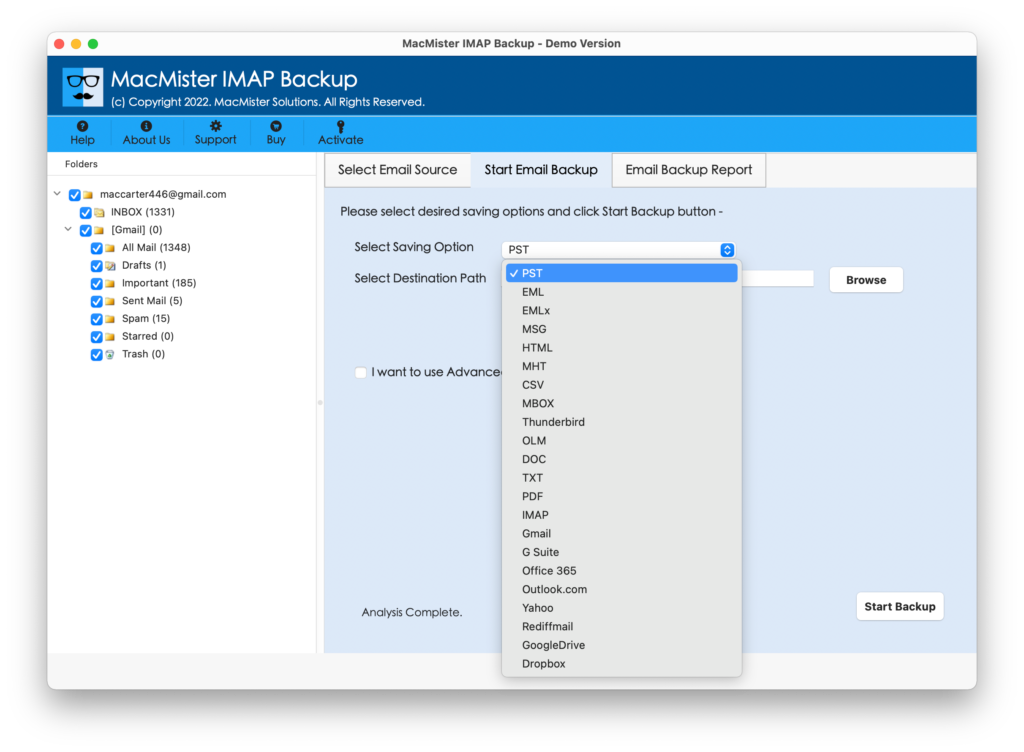
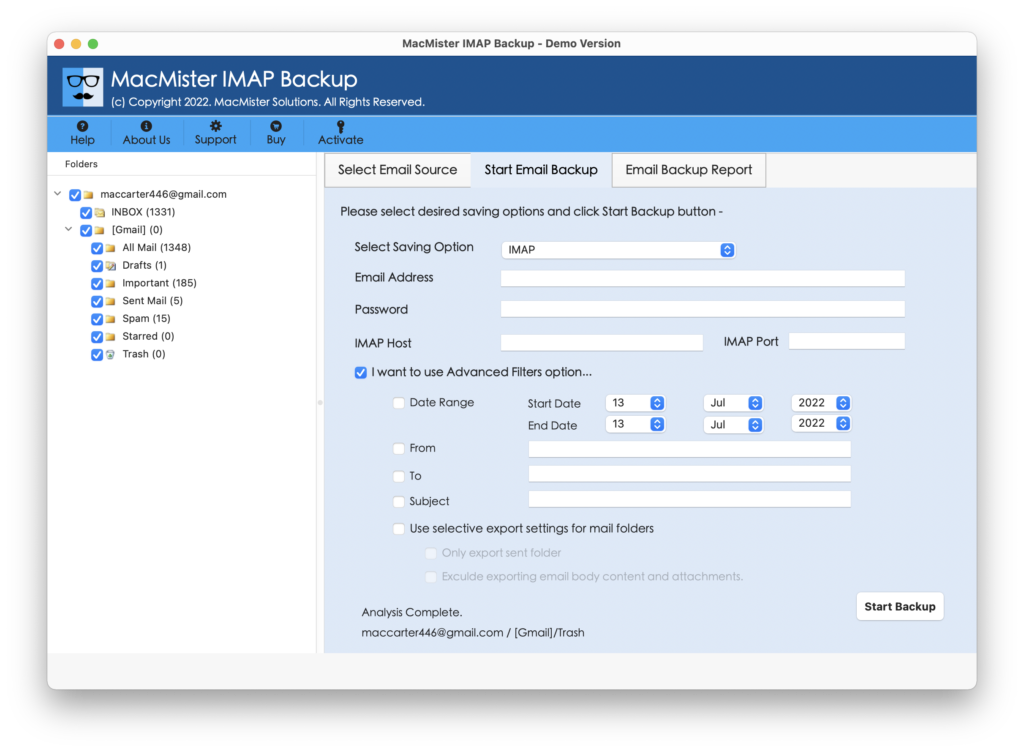
Step 5. Set the sub-options of a selected saving type according to the requirements. Apply Filter options to transfer specific Rogers emails to another account and then click Start Backup button.
Step 6. The Email Backup Report window will appear that displays the live migration progress of Rogers email to another email account.
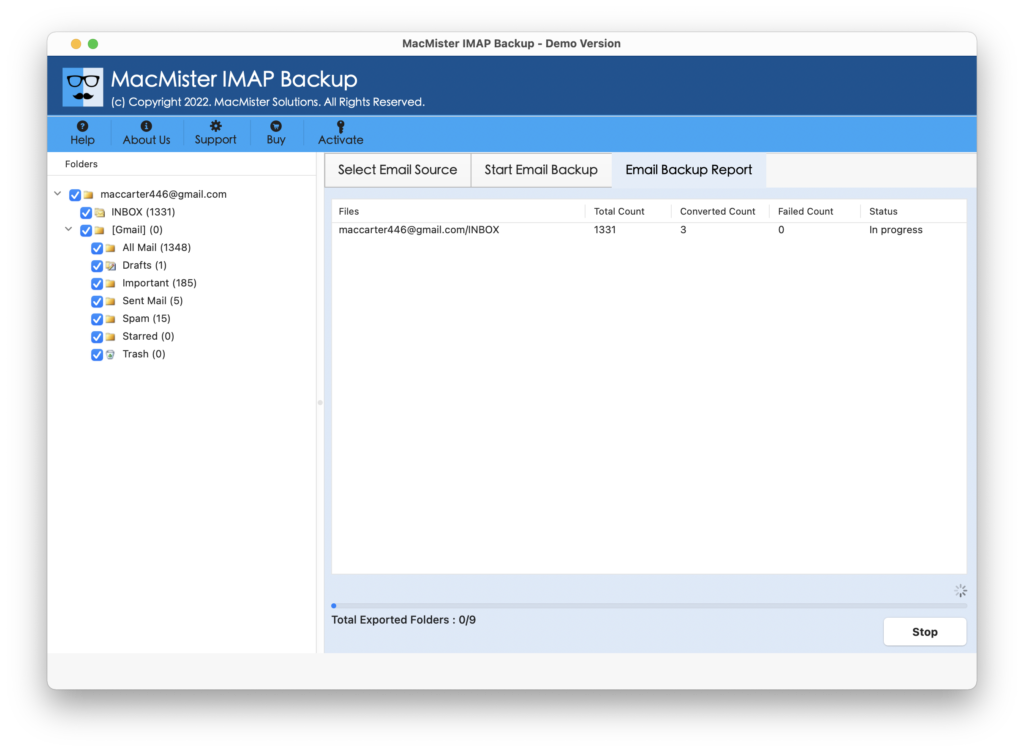
The entire task will finish the procedure by displaying the pop-up message on the screen i.e. “Process Completed”. Press the OK button and go to the destination path where Rogers’s emails are saved. Now, open the required email message to check the content. However, you will see that the tool hasn’t made any changes in the original database. The email message, layout, and metadata properties will appear without alterations.
Why Users Should Prefer MacMister Rogers Backup Tool for Mac?
The application possesses user-friendly interface which makes the process easier for all types of users. Even, its features are unique, gives the freedom to attain the resultant files as required. However, we have explained some of them here –
- Directly transfer Rogers email to another account on Mac & Windows.
- Allows exporting emails from Rogers to 15+ saving options such as PST, EML, EMLx, MBOX, OLM, MHT, HTML, DOC, IMAP, Yahoo, Office 365, Gmail, and more.
- Protects the login details of Rogers email account throughout migration.
- Provides multiple Filter options such as date range, subject, to, from, etc. to transfer specific Rogers email messages to another account.
- Preserves the folder hierarchy of Rogers account when transferring its emails into required account.
- The email content, layout, and metadata properties will also remain untouched by the tool.
- Simplified interface and self-navigational steps are accessible by anyone.
- Mac users can transfer Rogers email to another account on Mac OS Sonoma and earlier versions.
- Windows users are free to download the Windows software version on the entire range of Win OS without any issues.
Quick Note. Download the FREE DEMO of the software to explore more about the application for free.
Epilogue
In the article, we have explained the advanced methodology to resolve “how to transfer Rogers email to another account”. The solution is simple, cost-effective, and exceptionally remarkable. It has the ability to directly transfer the entire list of Rogers webmail to another account with ease. And the best part is, the output will be 100% accurate. Moreover, the features in the tool will help users to obtain the necessary results in minimum time. Download the trial edition of the software and check the migration procedure of the same by transferring first 25 Rogers email messages to another account for free. Quick Note. Try MacMister Email Backup Software Mac & Windows that includes 30+ webmail sources including IMAP. It also allows to export emails from required source into 15+ saving options.