How to Export Bluehost Webmail Emails to CSV on Mac?
Frequently, Mac users looking to export Bluehost Webmail emails to CSV need to use an intermediate process or a dedicated email conversion solution. This guide explains the available approach and how the Bluehost to CSV Tool for Mac can simplify the overall task.
Bluehost Webmail is commonly used by individuals and businesses to manage email communication through a browser. As mailbox data grows, users may need to export email information into a structured format for reporting, analysis, record keeping, or offline storage. CSV (Comma-Separated Values) is a popular choice because it stores information in rows and columns and can be opened using applications such as Microsoft Excel and Apple Numbers.
However, Bluehost Webmail does not provide a direct built-in option to export an entire mailbox straight to CSV. Bluehost’s current documentation explains that Roundcube users can download individual emails as .eml files or download selected messages and folders as ZIP archives.
Overview of Bluehost Webmail to CSV Conversion
CSV is useful when email information needs to be handled as structured data instead of individual email messages. Users may want to export details such as sender, recipient, subject, date, and other available email information into a spreadsheet-compatible format.
The basic manual approach involves downloading Bluehost emails from Webmail, obtaining them in a supported email format such as EML, and then converting or organizing the extracted information into CSV. Bluehost currently supports downloading messages from Roundcube as EML files and downloading multiple messages or complete folders as ZIP archives.
For a small number of emails, this approach may be manageable. However, processing a large mailbox manually can become repetitive and time-consuming.
Why Export Bluehost Webmail Emails to CSV?
There can be several reasons to convert Bluehost emails into CSV format –
- Structured Email Data – CSV arranges email information into rows and columns, making it easier to review.
- Spreadsheet Compatibility – CSV files can be opened and processed using Microsoft Excel, Apple Numbers, and other spreadsheet applications.
- Email Analysis – Users can analyze sender, recipient, subject, date, and other available message information.
- Record Keeping – Important email information can be maintained in a structured local file.
- Bulk Processing – CSV can be useful when working with information from a large number of emails.
- Offline Access – Once exported, the structured data can be accessed locally without repeatedly opening the webmail account.
Manual Method to Export Bluehost Webmail Emails to CSV
Bluehost Webmail does not offer a direct option to export emails into CSV format. Therefore, users need to follow an indirect approach –
- Log in to Bluehost Webmail and open the required mailbox folder.
- Select the emails you want to export.
- Download the emails as EML files or download multiple messages as a ZIP archive through Roundcube.
- Extract the downloaded files if they are saved in ZIP format.
- Extract the required email information such as sender, recipient, subject, and date.
- Arrange the information in spreadsheet columns and save the file in CSV format.
This method can work for a small number of emails, but handling a large mailbox manually can be tedious and inefficient.
Alternative – Bluehost to CSV Tool for Mac by MacMister
For Mac users who need a more convenient way to export Bluehost Webmail emails to CSV, MacMister Bluehost Email Backup Tool for Mac provides a dedicated approach. Instead of manually downloading messages and arranging their information, users can connect their Bluehost mailbox with the application and select the required data for CSV export.
|
|
|


The Bluehost Webmail backup workflow is designed around connecting the Bluehost account, displaying mailbox folders, selecting the required data, and choosing an output format.
How to Export Bluehost Emails to CSV Using Bluehost to CSV Tool?
Step1: Download and install Bluehost to CSV Tool for Mac on your Mac. Launch the application and select Bluehost from the available webmail options.
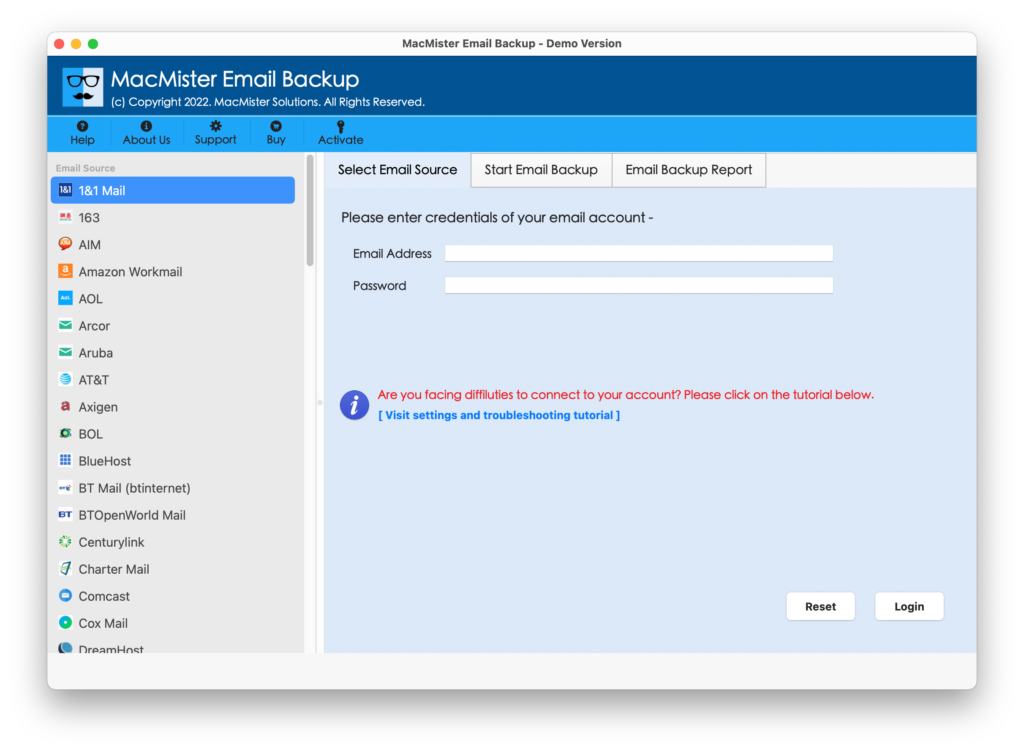
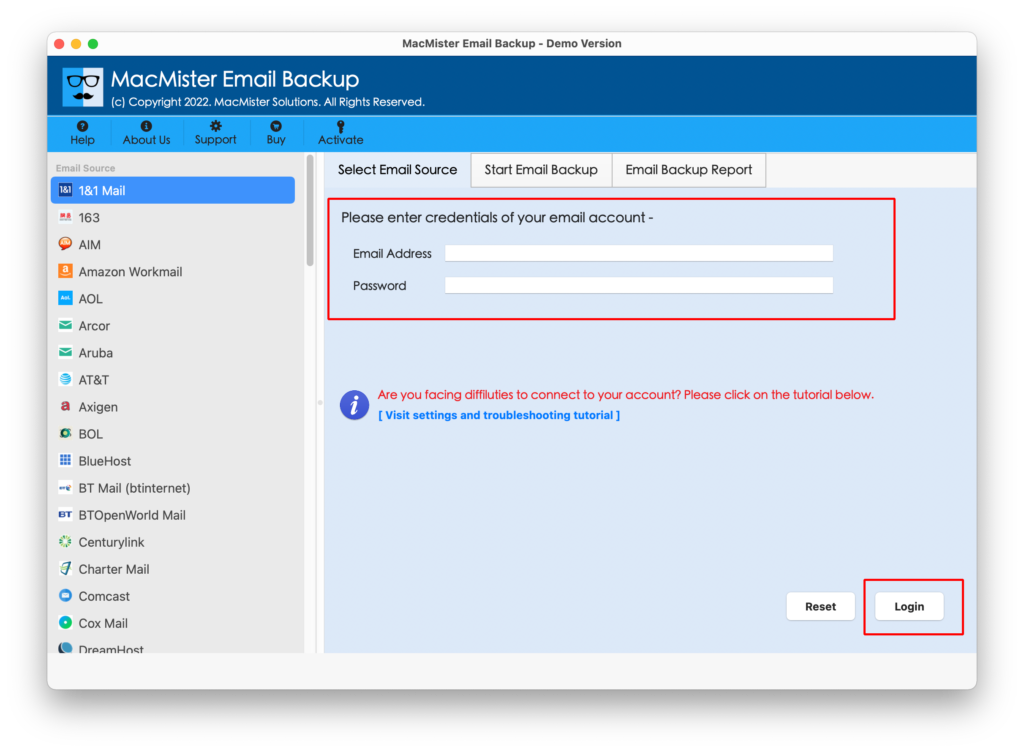
Step2: Enter the required Bluehost account credentials and connect the mailbox.
Step3: Select the folders or emails that you want to export.
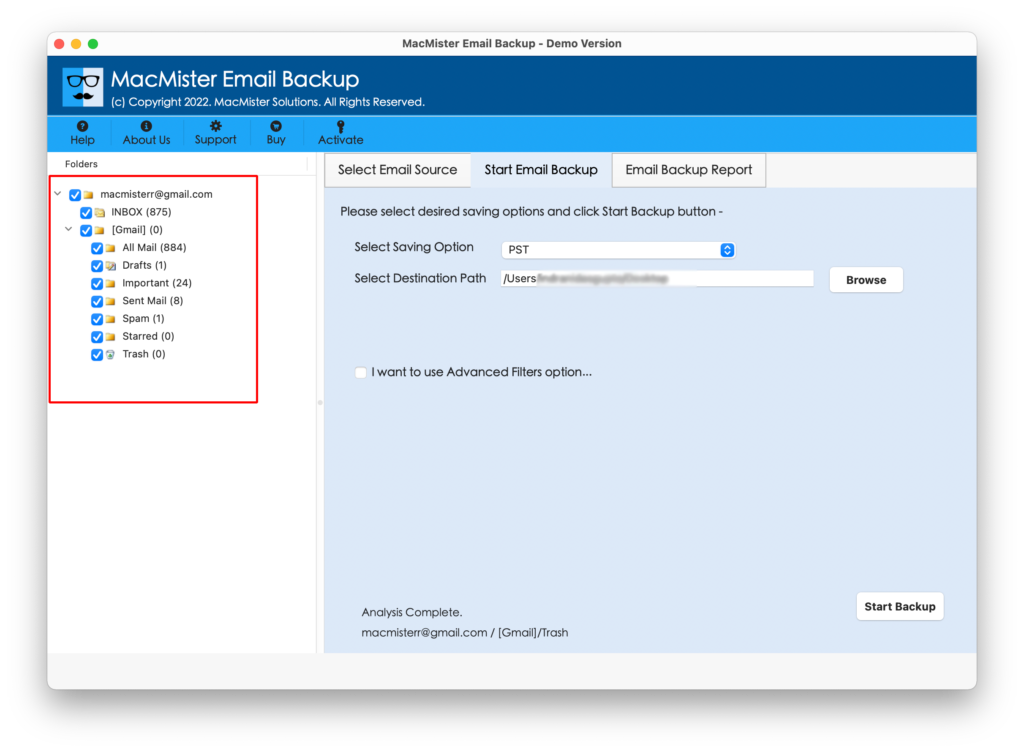
Step4: Choose CSV as the desired saving format from the available output options.
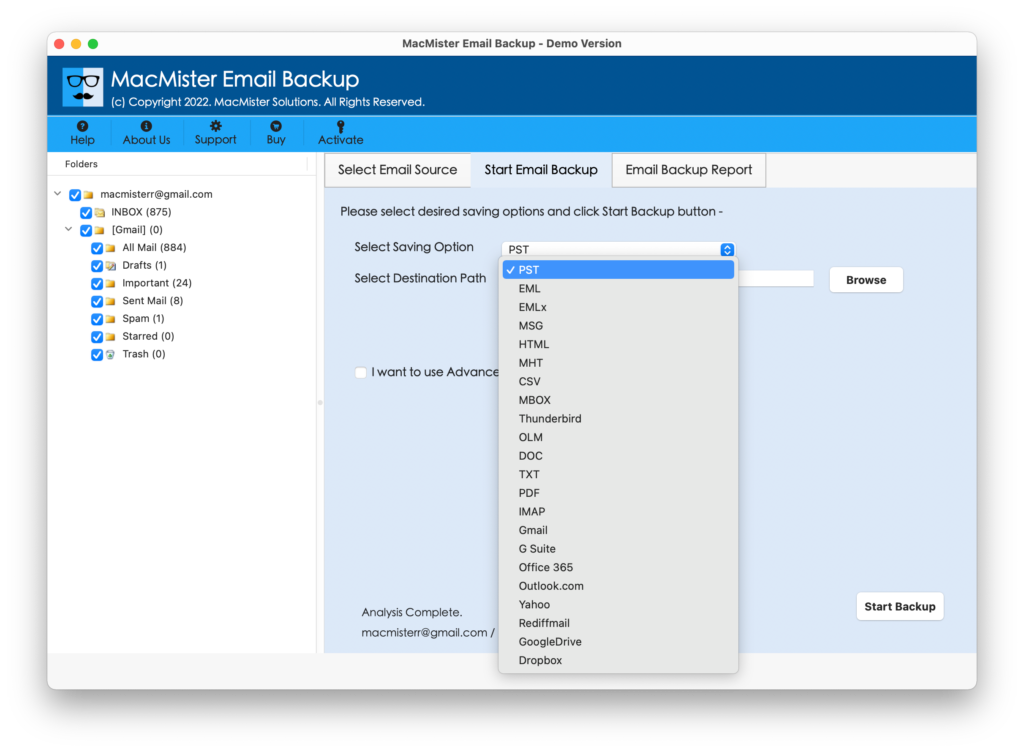
Step5: Select a destination location on your Mac for saving the resultant CSV files.
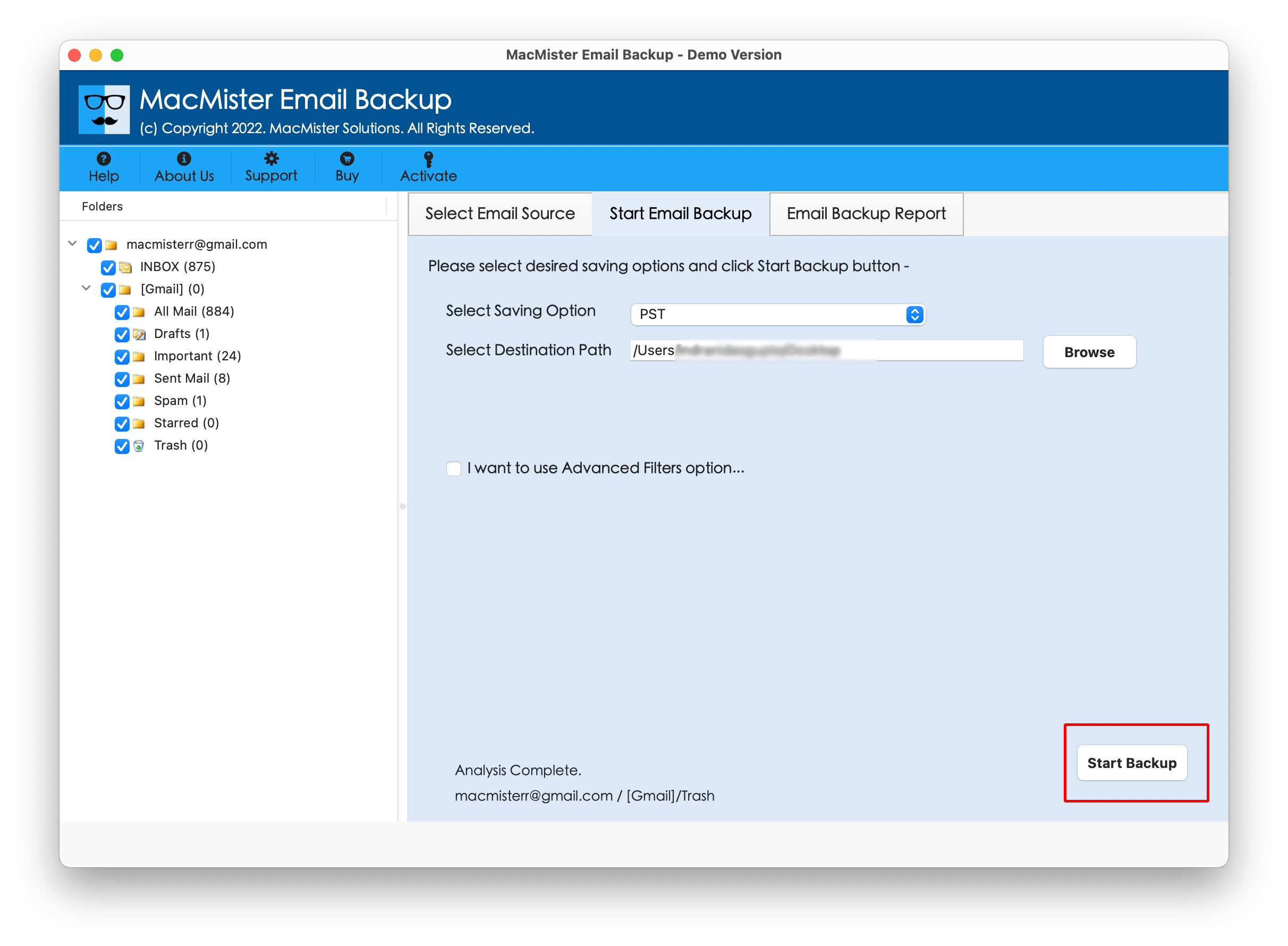
Step6: Start the export process by clicking on Start Backup button and wait for the software to complete the conversion.
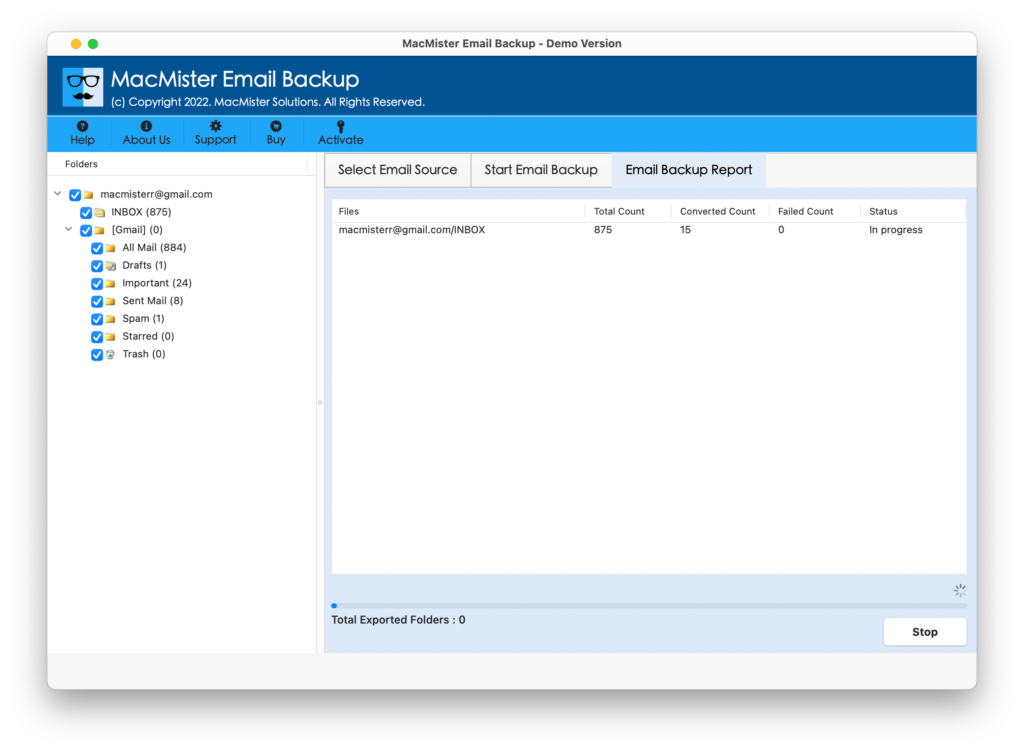
After completion, navigate to the selected destination and open the generated CSV file using Microsoft Excel, Apple Numbers, or another compatible spreadsheet application.
Why Choose the Software for Bluehost to CSV Conversion?
This converter program provides a more streamlined alternative to the multi-step manual process. It can be particularly useful when the requirement involves a large mailbox or multiple folders. Key benefits include –
- Direct Bluehost Mailbox Processing
- Bulk Email Export
- CSV Output Support
- Selective Folder or Email Selection
- Simple User Interface
- Reduced Manual Effort
- Local Saving of Exported Data
- Suitable for Mac Users
The software-based approach can save users from repeatedly downloading individual messages, extracting ZIP archives, and manually arranging email information into spreadsheet columns.
Explore More >>
How to Add BlueHost Email to Office 365
How to Import from BlueHost to Gmail
How to Save BlueHost to Thunderbird
Final Words
Exporting Bluehost Webmail emails to CSV can be useful for email analysis, documentation, reporting, and structured record keeping. While Bluehost Webmail allows users to download individual emails and folders through Roundcube, converting a large mailbox into CSV manually requires several intermediate steps.
For a few emails, the manual approach may be sufficient. However, when dealing with large or multiple Bluehost mailboxes, The Bluehost to CSV Tool for Mac offers a more convenient way to process email data and save it in CSV format. It reduces repetitive manual work and provides a practical solution for Mac users who need structured access to their Bluehost email information.