How to Migrate Gmail to Office Step-by-Step on Mac?
Are you searching for a right methodology to import Gmail to Office 365 on Mac? Not able to get the suitable solution for the same! No worries because MacMister is here to resolve all Gmail to Office 365 migration related queries. Just go through the article and you will get the appropriate technique to access Gmail emails in Office 365 account.

Gmail or Google Mail is a globally used email client that takes care of users daily sending and receiving task. By creating an email account in Gmail, users can access variety of applications which will prove useful in handling large amount of data. Moreover, the GUI designed by Google for Gmail is completely simplified. Features such as spam filtering, in-built chat, video and call chat, conversation view and many more attracts lot of users across the world.
Office 365 or Microsoft 365 is gaining popularity day-by-day. It is a cloud-based application which delivers subscription service to its users. Also, by choosing the suitable license, users and organization can manage the required local data on cloud. It is completely similar to MS Office Suite for desktop. Moreover, the advance features and services offered in Microsoft 365 are creating urge in people to switch from Gmail account.
What are various reasons to import Google Mail to Office 365 on Mac?
There are plethora of reasons to export Gmail emails to Office 365. Some are mentioned below –
- Office 365 is suitable for large organizations where managing multiple user accounts is important.
- Advance collaboration service in Microsoft 365 will help the organization team to discuss the document simultaneously and also allow to modify the same in a single time.
- Microsoft Office 365 provides the benefit of two-factor authentication that ensures the account safety of users.
- Office 365 offers the facility of Skype and Outlook that keep the communication straightforward and centralised.
- The cost of license in Microsoft 365 depends on the level of functionality. In other words, it depends on the business and individual requirements.
How to Export Gmail to Office 365 on Mac Directly?
There are multiple methods to migrate Gmail emails to Office 365. One is manual and another is recommended automated solution. If you have few files and also has a spare time, then you can opt the manual approach otherwise it is advised to go for the direct solution.
Method 1. Manual Steps to Import Google Mail Emails to Office 365
Migrating the process manually has total six steps. You need to go through each step to access Gmail account files to Office 365 environment.
Click on the link to do the same – Steps to Access Gmail Emails in Office 365 Manually
Method 2. Direct Solution to Export Gmail Emails to Office 365
Make use of Gmail Backup Tool for Mac to export emails from Gmail account to Office 365. The software has an intuitive and intelligible interface which is easy to manage by all professional and home users. The steps provided by the application saves users essential time and help them in executing the migration of unlimited Gmail emails to Office 365 in less time.

However, features introduced in the remarkable utility will help users to save Gmail emails in Microsoft 365 as per requirement. And, to check the same, you can download the trial edition and explore the entire in-built options as well as its functioning free of cost.
Steps to Migrate Gmail to Microsoft 365 with Mails and Attachments on macOS
Step 1. Run Gmail to Office 365 on Mac. Enter Gmail credentials and continue by clicking Login button.
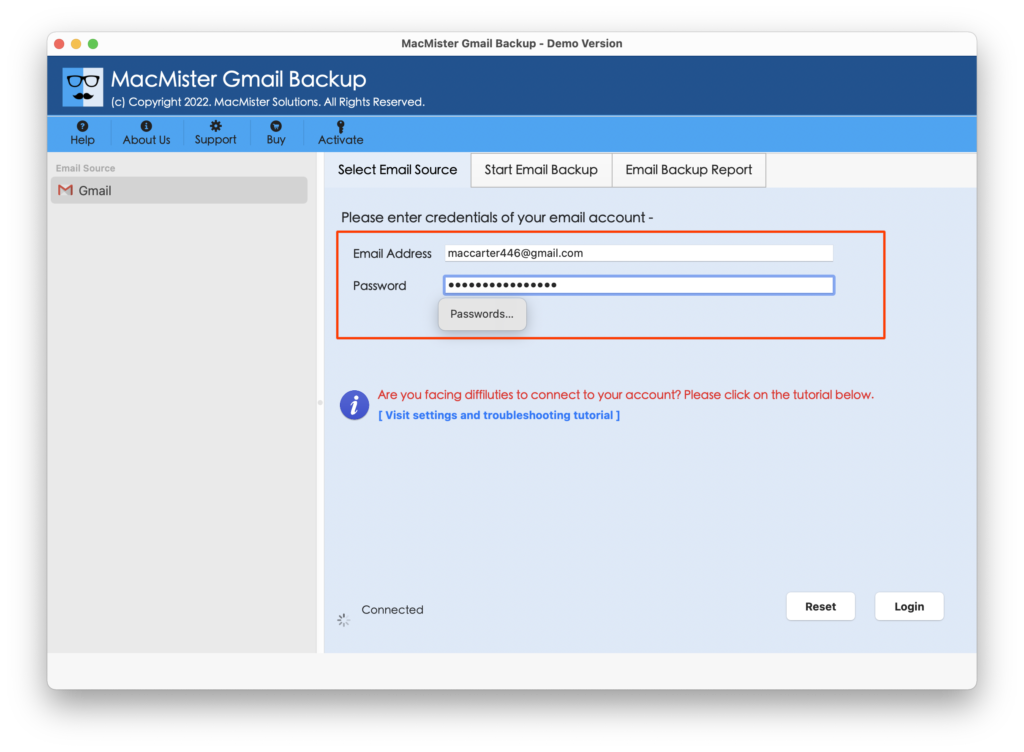
Step 2. Gmail is now connected with the software. Its files will be analysed and listed with checkboxes by the tool.
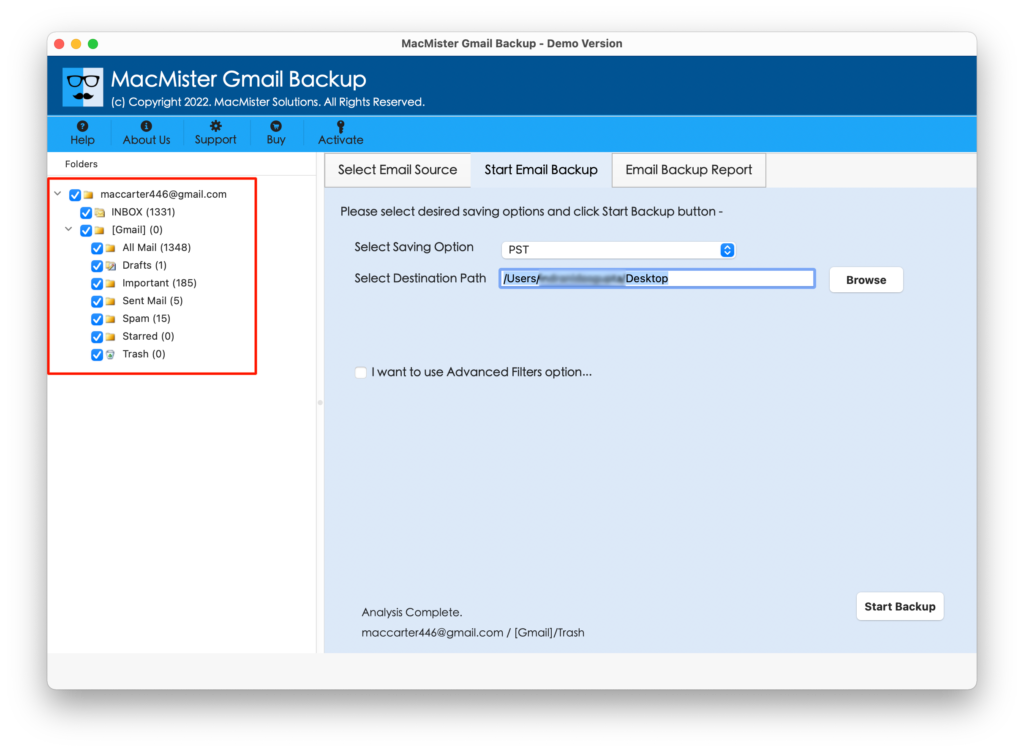
Step 3. Select Office 365 option from Select Saving Option.

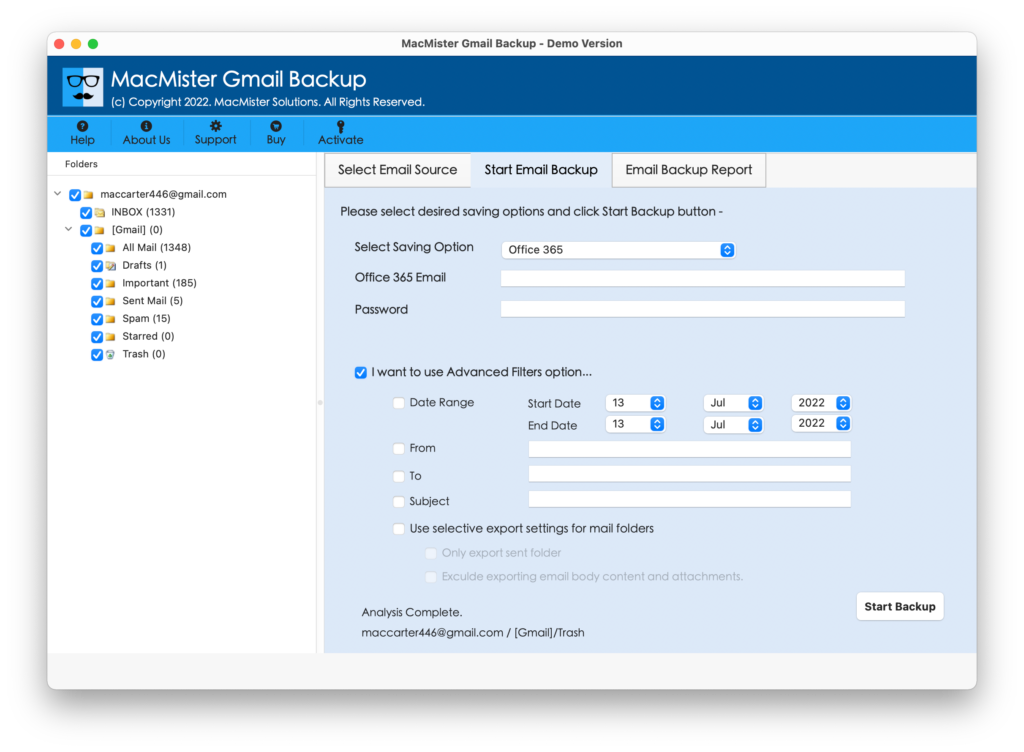
Step 4. Provide Office 365 login details as well as apply filters for specific emails, if needed. Otherwise, go ahead and click on Start Backup button.
Step 5. Preview live process through Email Backup Report as shown. You can track the total files converted, files left and status of the process.
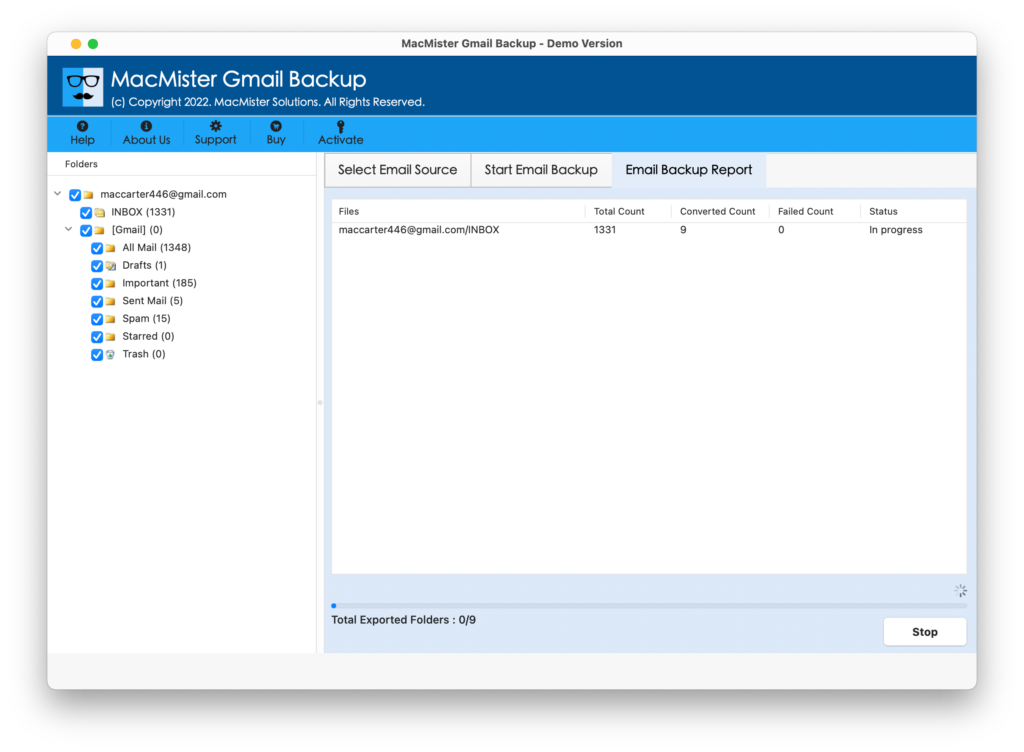
Now, you will receive “Conversion Completed” message once all the files are transferred successfully. Click on OK and you will see the log report which will be generated automatically by the application. It will show the complete migration information such as saving option, saving path, start and end time process etc. If you want, you can save the same at desired location.
Why to Choose Gmail to Microsoft 365 Tool?
Direct Export of Gmail to Office 365
Gmail to Office 365 Tool is a perfect solution that directly migrate emails from Google Mail profile to Microsoft 365. A user only need to provide login details of Gmail and Microsoft 365 and then the application will migrate list of Gmail emails to O365 account in a single time.
Include Filters for Selective Migration
Google Mail to M365 Tool delivers multiple filters that users can avail to export desired Gmail account files to Microsoft 365. By specifying date range, to, from and subject and other mentioned fields, users can import selective Gmails to MS O365 environment.
Maintains Google Mail Data Integrity
Gmail to Office 365 Tool maintains the data integrity of Google mail emails during the process. The application keeps the email structure, content, header, hyperlinks, images and other properties intact when the migration is over.
Get Log Report of Migration after Process
After the tool completes the process, it will show a pop-up on the screen displaying “Conversion Completed” with OK button. However, clicking on it will open Notepad window showing the entire export details such as files converted, start date, end date, saving option, etc.
Supports Easy and Manageable GUI
The Google Mail to Office 365 application supports flexible GUI that professionals, non-professional user and any organization can use effortlessly. Moreover, the few instant operable steps will complete the whole migration in minimal time and gives the 100% accurate output.
Run Gmail to Office 365 on all Mac OS
The process of Gmail to Office 365 can successfully accomplish on all Mac OS versions. The app has the ability to migrate Google Mail emails to Office 365 with attachments on Mac Monterey, Big Sur, Catalina, High Sierra and other previous editions.
Last Words
The complete article highlighted multiple ways to migrate Google Mail to Office 365 account. Users can perform both manual and direct methods. However, in case have urgency and need to access Gmail emails in Office 365 quickly, then it will be wise to make use of Gmail to Office 365 Backup Tool for Mac. In case you want to check its working, then you can download its free demo with the help of which you can transfer 25 Google Mail emails to Microsoft 365 free of cost.