Why Is My .MSG File Not Opening in Adobe? Causes, Fixes & Best Solution
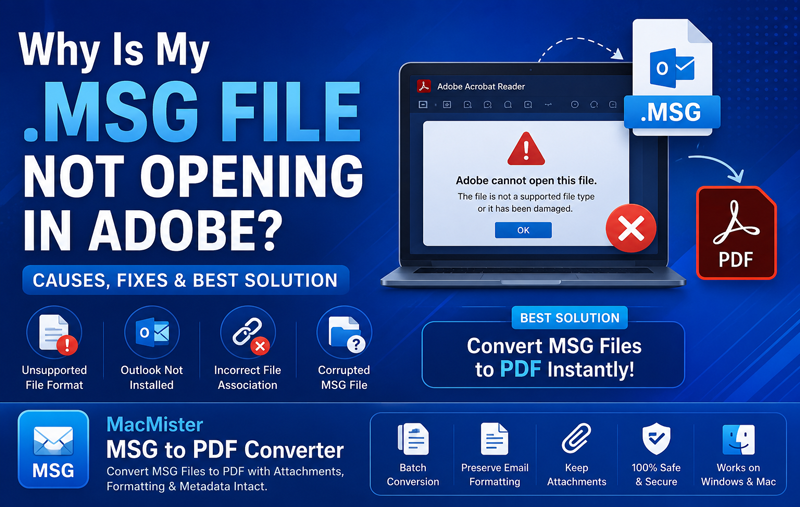
Have you ever double-clicked an Outlook .MSG file expecting Adobe Acrobat Reader to open it, only to receive an error or nothing at all? If yes, you’re not alone. Many users mistakenly assume that Adobe Acrobat can open every document or email file. However, MSG files are Microsoft Outlook email message files, while Adobe Acrobat is designed specifically for PDF documents.
As a result, attempting to open an MSG file directly in Adobe Reader or Adobe Acrobat often leads to errors such as –
- Adobe cannot open this file.
- Unsupported file format.
- There was an error opening this document.
- The file is damaged or not supported.
- Adobe Reader cannot display this file.
If you’ve encountered any of these issues, don’t worry. This guide explains why your .MSG file is not opening in Adobe, the most common causes behind the problem, practical troubleshooting methods, and the easiest way to access Outlook emails in Adobe by converting MSG files to PDF without losing formatting or attachments.
What Is an MSG File?
An MSG file is a single Outlook email saved in Microsoft’s proprietary file format. It contains much more than just the email body, including –
- Sender information
- Recipient details
- Subject line
- Date and time
- Email formatting
- Embedded images
- Attachments
- Internet headers
- Metadata
Since the MSG format is specifically designed for Microsoft Outlook, most PDF readers—including Adobe Acrobat Reader—cannot interpret its structure directly.
Why Isn’t My MSG File Opening in Adobe?
One of the biggest misconceptions among users is that Adobe Reader can open every document format. In reality, Adobe supports PDF files, not Outlook email formats.
Since Adobe Acrobat is designed to work with PDF documents, it cannot interpret the Outlook-specific format of MSG files, which often leads to compatibility errors.
Instead of being a PDF document, an MSG file contains Outlook-specific email properties that Adobe Acrobat doesn’t recognize.
Common Error Messages You May See
Depending on your Adobe version and Windows or macOS configuration, you might encounter one of the following errors –
- Adobe Reader cannot open the file because it is not a supported file type.
- There was an error opening this document.
- Unsupported file format.
- Windows cannot open this file.
- No application is associated with this file.
- The selected file cannot be opened.
- This file appears to be damaged or inaccessible.
These messages don’t always indicate that the MSG file is corrupted. In many cases, the issue is simply that Adobe isn’t designed to open Outlook email files.
Main Reasons Why MSG Files Won’t Open in Adobe
1. Adobe Doesn’t Support MSG Format
This is the most common reason. Adobe Acrobat supports formats such as PDF, but it does not include native support for Outlook’s MSG file format. Attempting to open an MSG file directly in Adobe will almost always fail.
2. Microsoft Outlook Isn’t Installed
- Many MSG files rely on Outlook components to display email content correctly.
- If Outlook is not installed on your computer, Windows may not know which application should open the file.
3. Incorrect File Association
- Sometimes Windows associates MSG files with the wrong application.
- Instead of Outlook, the operating system may try to open the file using Adobe Reader, resulting in an unsupported format error.
4. Corrupted MSG File
If the file became damaged during download, transfer, or storage, neither Outlook nor third-party applications may be able to read it correctly. Common causes include –
- Interrupted downloads
- Bad storage sectors
- Incomplete email exports
- Virus infections
5. Damaged Email Attachments
Occasionally, the email itself opens correctly in Outlook, but embedded attachments become corrupted, making it appear as though the entire MSG file is unreadable.
6. Older Adobe Reader Version
- Some users assume updating Adobe Reader will solve the issue.
- Although keeping Adobe updated is recommended, newer versions still do not provide native support for Outlook MSG files.
7. Outlook Version Compatibility
An MSG file created in a newer Outlook version may sometimes experience compatibility issues when opened with significantly older Outlook releases.
8. File Extension Changed Accidentally
Sometimes the file extension is renamed incorrectly.
For example –
email.msg.pdfor
email.pdf- even though the actual file is still an Outlook MSG file.
- This creates confusion because Adobe attempts to open an unsupported document.
How to Fix “.MSG File Not Opening in Adobe”
Solution 1 – Verify the File Extension
- Right-click the file and choose Properties.
- Ensure the extension is actually:
.msgand not:
.pdfor another renamed format.
Solution 2 – Open the File in Microsoft Outlook
Since MSG is Outlook’s native format, the easiest solution is to open it using Microsoft Outlook.
- If Outlook is installed:
- Right-click the MSG file.
- Choose Open With.
- Select Microsoft Outlook.
- Check Always use this application if desired.
Solution3 – Repair the Download
- If the file was downloaded from email or cloud storage, download it again.
- An incomplete download may result in a damaged MSG file that cannot be opened correctly.
Solution4 – Check for File Corruption
- Try opening the same MSG file on another computer with Outlook installed.
- If it fails there as well, the file itself may be corrupted rather than Adobe being the problem.
Solution 5 – Update Outlook
Using the latest version of Outlook improves compatibility with MSG files created in newer Microsoft Office releases.
Why Converting MSG Files in PDF Is the Best Solution
If your goal is simply to view, share, print, archive, or preserve Outlook emails, converting MSG files into PDF is a much more practical approach than trying to force Adobe Reader to open an unsupported file.
PDF files can be opened in Adobe Acrobat on virtually any Windows or Mac computer without requiring Microsoft Outlook. They also preserve the visual appearance of emails, making them ideal for legal documentation, business records, audits, and long-term archiving.
The Easiest Way to View MSG Files in Adobe Acrobat
Solution 6 – Repair the Outlook Data File
If your MSG file was extracted from a damaged Outlook mailbox, the problem may originate from the source rather than the individual email. Running Outlook’s Inbox Repair Tool (SCANPST.exe) can help repair damaged Outlook data files before exporting the emails again.
Solution 7 – Check File Permissions
Sometimes the MSG file itself is perfectly fine, but Windows or macOS blocks access due to insufficient permissions.
To verify this –
- Right-click the MSG file.
- Select Properties.
- Open the Security tab.
- Confirm that your user account has Read permission.
- If the file was downloaded from the internet, click Unblock (if available).
- After updating permissions, try opening the file again.
Solution 8 – Disable Security Software Temporarily
Some antivirus or endpoint protection programs prevent Outlook email files from opening because they scan email attachments for potential threats.
Temporarily disable real-time protection and test the MSG file again. If it opens successfully, add Outlook or your conversion software to the security software’s trusted list.
Solution 9 – Open the MSG File on Another Computer
Testing the same file on another Windows or Mac computer helps determine whether the issue is with the file or your current system configuration.
If the file opens elsewhere, reinstalling Outlook or correcting your local file associations may resolve the issue.
Why Converting MSG files to PDF Is the Smartest Choice
Even if you successfully open an MSG file in Microsoft Outlook, sharing it with others can still be challenging because the recipient also needs Outlook or another compatible application.
PDF files eliminate this limitation.
After adding MSG files in PDF, users can –
- Open emails directly in Adobe Acrobat Reader.
- Share emails with anyone without requiring Outlook.
- Print emails while preserving formatting.
- Archive important communications for legal or compliance purposes.
- Store email records for long-term access.
- Prevent accidental editing of email content.
- Access files on both Windows and macOS.
For businesses, legal professionals, auditors, HR teams, and individuals who frequently exchange Outlook emails, PDF is one of the most practical and universally supported formats.
Professional Solution for Mac & Windows
If you regularly receive Outlook MSG files or need to convert hundreds of emails into Adobe-compatible PDF documents, a dedicated conversion tool provides a faster and more reliable solution.
MacMister MSG Converter for Mac & Windows is designed to convert single or multiple MSG files into PDF format while preserving the original email appearance and important message properties.

Unlike manual methods, the software eliminates compatibility issues and produces PDF files that can be opened instantly in Adobe Acrobat Reader.
Key Features of MacMister MSG Files to PDF Tool
Convert Single or Bulk MSG Files
Whether you have one email or thousands of MSG files, the software processes them efficiently without compromising accuracy.
Preserve Original Email Formatting
The tool maintains –
- Email layout
- Font styles
- Hyperlinks
- Inline images
- Signature
- Header information
The resulting PDF closely matches the original Outlook email.
Keep Attachments Intact
Important attachments remain associated with the converted emails, helping preserve complete communication records.
Maintain Email Metadata
The software retains essential message information, including –
- From
- To
- CC
- BCC
- Subject
- Date
- Time
This is especially valuable for documentation and compliance requirements.
Batch Conversion
Instead of converting files one by one, users can add an entire folder containing MSG files and convert everything in a single operation.
This saves considerable time for IT administrators, businesses, and legal professionals.
Works Without Outlook Installation
One of the biggest advantages is that Microsoft Outlook is not required during the conversion process.
Users can generate Adobe-compatible PDF files even on systems where Outlook is unavailable.
Supports Windows and macOS
The application is available for both Windows and Mac, making it suitable for a wide range of users.
Steps to Convert MSG Files into PDF
Using the MSG files to PDF tool is straightforward –
Step 1 – Install and launch the application.
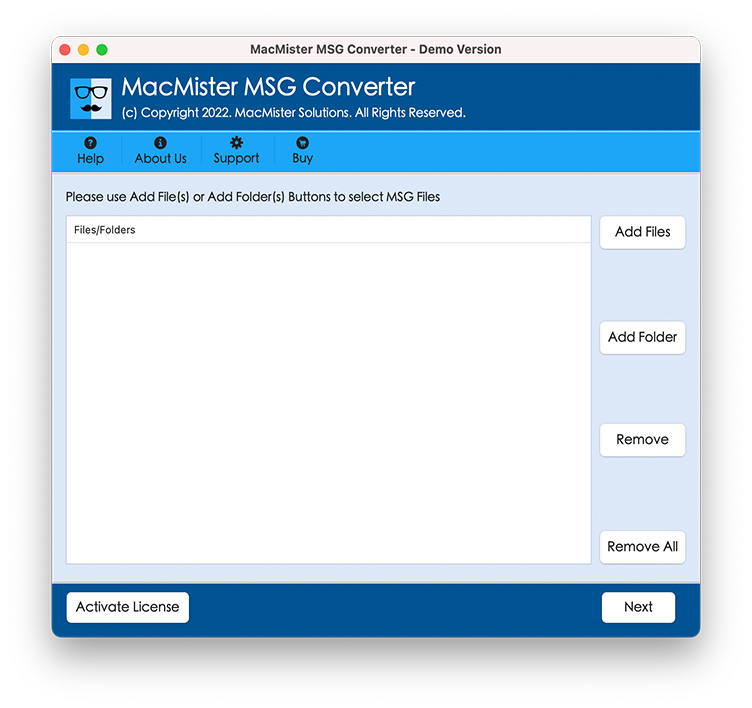
Step2 – Add individual MSG files or an entire folder.
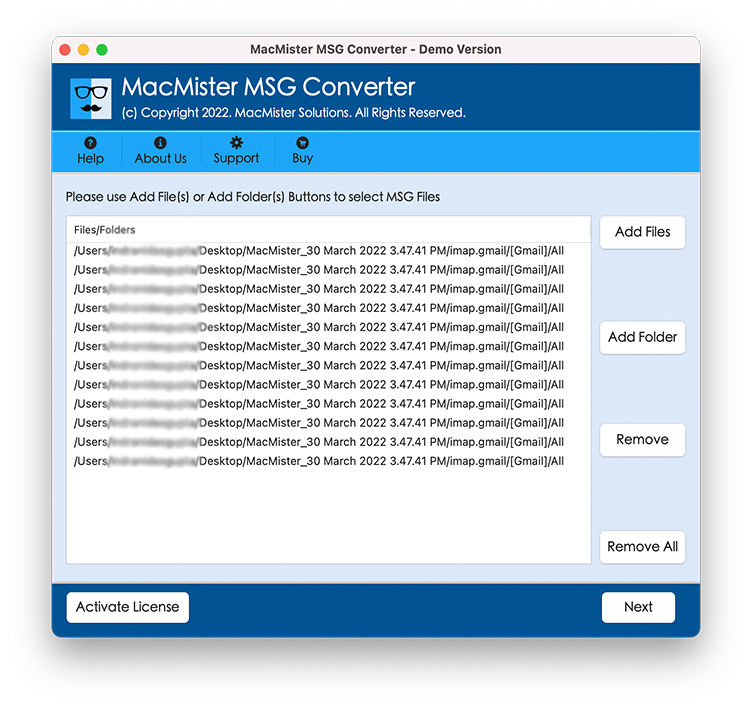
Step3 – Click on Next and Choose PDF as the output format.
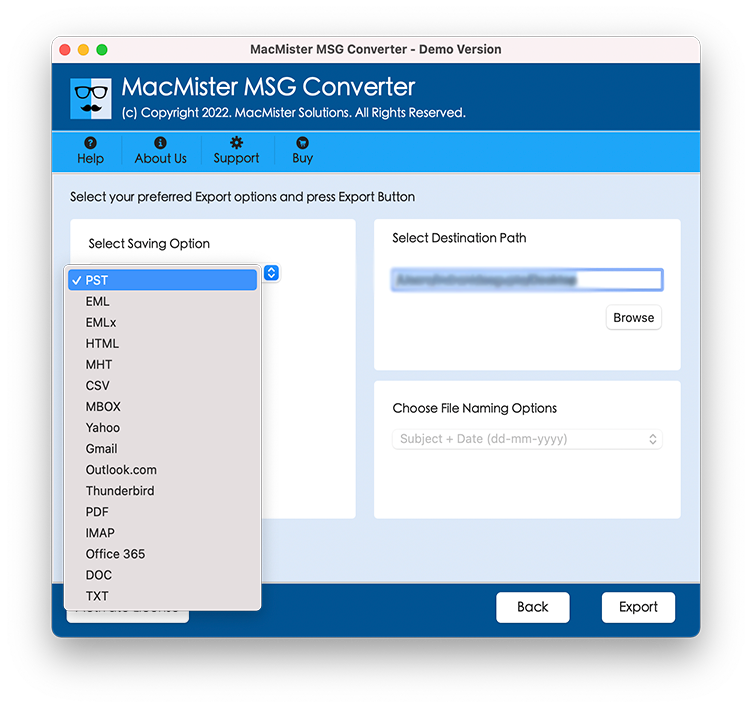
Step4 – Select the destination folder and other needed options.
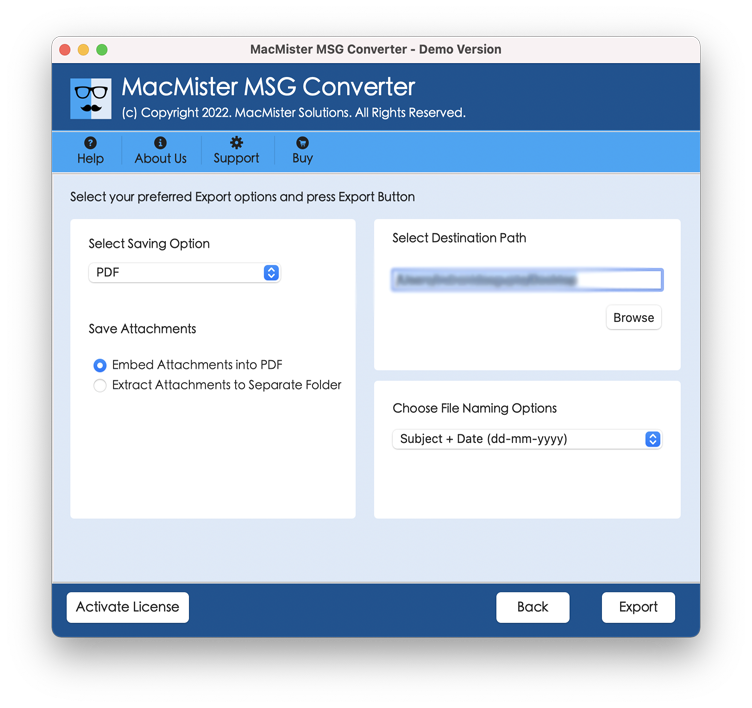
Step 5 – Click Convert.
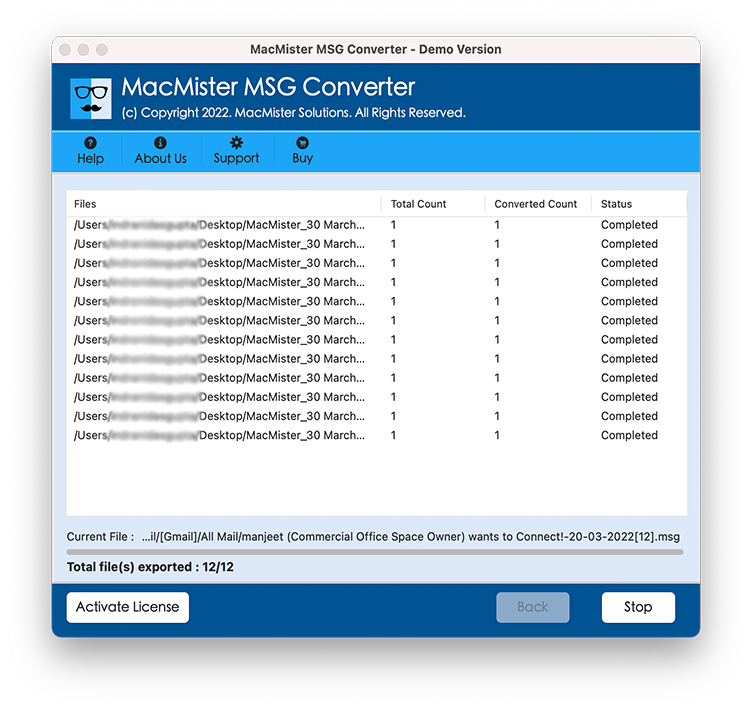
Within minutes, your Outlook emails are converted into PDF documents that can be opened directly in Adobe Acrobat Reader without compatibility issues.
Benefits of Converting MSG Files to PDF
Converting Outlook emails into PDF offers several long-term advantages –
- Easy sharing across different platforms.
- Universal compatibility with Adobe Acrobat Reader.
- Better document preservation.
- Suitable for legal and compliance documentation.
- Simplified email archiving.
- Improved accessibility without Outlook.
- Reliable long-term storage.
- For organizations handling contracts, invoices, customer communications, or compliance records, PDF is often the preferred archival format.
Frequently Asked Questions
Q.Why won’t Adobe Acrobat open an MSG file?
Ans. Adobe Acrobat is designed to open PDF documents, not Microsoft Outlook MSG files. Since MSG is a proprietary Outlook email format, Adobe cannot interpret its contents directly.
Q. Can Adobe Reader convert MSG files into PDF?
Ans. No. Adobe Reader cannot convert Outlook MSG files because it does not support the MSG format. You must first convert the file using an appropriate MSG file to PDF converter.
Q. Do I need Microsoft Outlook to view MSG files?
Ans. Normally, yes. Outlook is the default application for opening MSG files. However, after converting them to PDF, Outlook is no longer required.
Q. Will the email formatting change after conversion?
Ans. A professional converter preserves the original formatting, including sender information, subject, timestamps, images, and attachments wherever supported.
Q. Is PDF better than MSG for sharing?
Ans. Yes. PDF files can be opened on almost any device with Adobe Acrobat Reader or another PDF viewer, making them much easier to share than MSG files.
Conclusion
If you’re wondering “Why is my .MSG file not opening in Adobe?”, the answer is straightforward: Adobe Acrobat does not natively support Microsoft’s Outlook MSG format. In most cases, the file itself is not damaged—it’s simply an unsupported format for Adobe.
While checking file associations, verifying Outlook installation, and repairing corrupted files may help in certain situations, the most practical and long-term solution is to convert MSG files into PDF. PDF documents can be opened, shared, printed, and archived without relying on Microsoft Outlook.
For users looking for a reliable and efficient solution, MacMister MSG to PDF Converter for Mac & Windows simplifies the entire process by converting single or bulk MSG files into Adobe-compatible PDF documents while preserving email formatting, attachments, folder structure, and metadata. Whether you’re an individual user, IT administrator, legal professional, or business, converting MSG files to PDF ensures that your important Outlook emails remain accessible anytime, anywhere.
Need to Open MSG Files in Adobe Without Outlook?
Download MSG migration for Mac Tool to convert single or bulk Outlook MSG files into not only Adobe-compatible PDF documents but also MSG files to CSV, Gmail, Office 365, EML, MBOX, etc. while preserving email formatting, attachments, and metadata.