Opt Easy Approach to Import OST to Apple Mail in Seconds
Migrating from the Windows operating system to the macOS operating system is one of the most common tasks among computer users. This transition usually involves switching from the Microsoft Outlook email client to either Apple Mail or another native macOS email app. The major challenge during this transition is the fact that Outlook stores mailbox information in OST files while Apple Mail natively uses either MBOX or EML file formats. This implies that there is no native toolset for importing OST files into Apple Mail. This article will discuss the technical details surrounding OST file migration into Apple Mail and provide solutions.
The Details and Reasons Why Outlook OST Files Cannot Be Imported To Apple Mail
The Microsoft Outlook email client is designed to store mailbox information in OST files. On the contrary, Apple Mail does not have a concept of OST files, it supports either EML/EMLX or MBOX formats only. Therefore, while there are tools that convert OST files to EML or MBOX, there is no primary utility to import Outlook emails into Apple Mail directly. Below are some additional details explaining the limitations of converting OST files into MBOX:
Since there is no default utility within Apple Mail to import OST files, users either have to rely on the manual procedure or utilize third-party tools.
The Manual and Programmed Solutions Explained
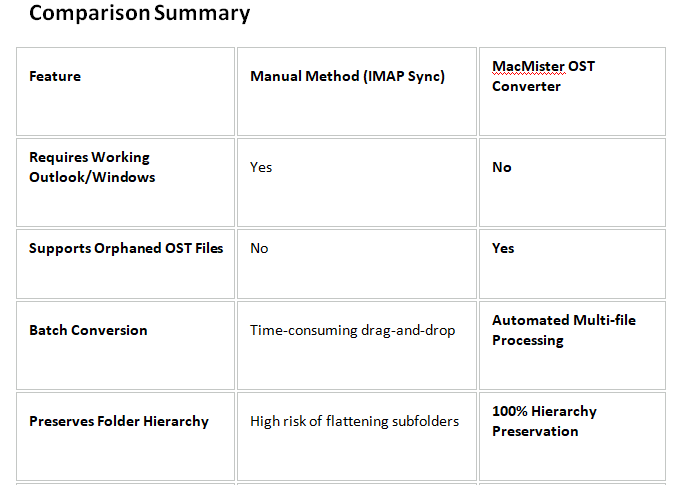
The manual procedure typically involves extracting email content from OST file and then manually copying-pasting it to Apple Mail account. In practice, however, this approach is complicated by the fact that Outlook stores emails, calendar entries, contacts, tasks, and other information within the OST container. Therefore, manual copying only works for specific email items and should not be used to migrate an entire mailbox. On the other hand, the third-party utility allows one to automate the conversion process using either professional solution or other dedicated applications designed for migrating Outlook accounts to Apple Mail.
Why Apple Mail Cannot Directly Open OST Files?
To understand the migration of OST files, let’s define what an OST file is and how MBOX/EML differs from it:
OST Files: An OST file is an Outlook offline data file created by Microsoft Outlook when it is configured to work with an Exchange, Office 365, IMAP, or Outlook.com account. It is important to note that this type of data file is tied to the specific MAPI profile and hardware of the original Windows computer it was created on. An OST file is used as an offline exchange of information rather than a transportable export file. That is why it is not possible to simply open an orphaned .ost file on a Mac natively.
MBOX/EML Files: Mailboxes are stored in MBOX archives and messages in EML files on Apple Mail. With that said, MBOX files store information in a plain text format that is readable by macOS. The same goes for EML files, which store data in a standard, non-proprietary format.
Due to the different structure of OST files and the lack of specific tools for parsing them on Mac OS, it is not possible to directly import .ost files into Apple Mail. Before importing, they must be converted into a format that is compatible with the software, such as MBOX or EML.
Method 1: Manual Import Approach
Due to the absence of the built-in “Import OST” button in Apple Mail or Outlook for Mac, it is necessary to convert data files using the intermediate account or Windows Outlook.
Step 1: Export OST Data to PST on Windows
If you have access to the computer where Outlook was previously installed, you can transfer your data to a PST file:
- Open Outlook on Windows.
- Go to the File menu, select Open & Export, then choose Import/Export.
- Select the option Export to a file and click Next.
- Choose Outlook Data File (.pst) and click Next.
- Select the folders you want to export and click Finish to save the PST file on an external storage device.
Step 2: Transfer and Upload Using IMAP Sync
As Apple Mail does not support importing PST directly, you can use an intermediate email account (Gmail or Outlook.com) configured with an IMAP protocol:
- Set up a temporary IMAP email account within Outlook on the computer;
- Drag and drop the required folders from the PST file to the destination folders in the IMAP account to sync messages via email;
- Once the emails are uploaded to the cloud, launch Mail on your Mac computer;
- Add the same IMAP email account (the one you set up in Outlook) to Apple Mail in Mail > Preferences > Accounts;
- Apple Mail will start syncing the messages transferred via Outlook, which may take some time depending on the size of the PST file. Once done, quit Apple Mail and close the Outlook application.
Limitations of the Manual Method
- This approach will fail if your original PC with Windows is unavailable or inaccessible.
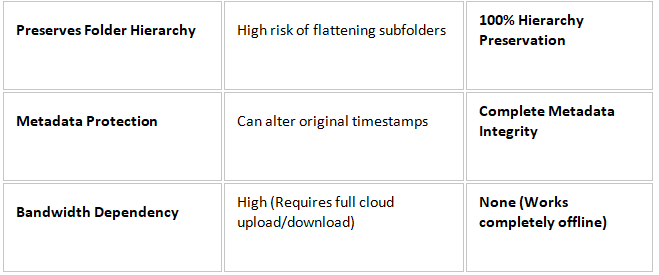
- Uploading GBs of data to an IMAP server and then downloading it on a Mac computer can be too slow even with a stable internet connection.
- There is a risk that your emails and attachments may not transfer correctly, resulting in loss or alteration of important information.
Method 2: Automated Solution using MacMister Solution
For a quick, reliable and secure migration for orphaned .ost files or large data volumes, it is best to use an automated conversion utility, optimized for mac os x.
The MacMister OST Converter for Mac offers a straightforward, native, and automated method of converting Outlook OST files to Apple Mail’s format, without the need of Windows platforms as well as an active exchange server connection.
Key Features of MacMister OST Converter
- Convert OST files to Mac Mail independent of Outlook, Exchange, and online IMAP accounts.
- Import data from inaccessible, crashed, or decommissioned Windows accounts offline.
- Batch Processing: Two-click option (Add File(s) and Add Folder(s)) to convert multiple OST files at once.
- Keep your original folders, subfolders, tags, and read/unread status intact after conversion.
- Full message headers (To, From, Subject, Date, CC/BCC) and embedded graphics preserved along with attachments.
- Optimized for fast performance on both Intel and Apple Silicon (M1/M2/M3/M4) processors.
Step-by-Step: Importing OST to Apple Mail via MacMister Utility
Step 1. Download and open the app on your system.
Step 2. Click Add File(s) to pick individual .ost archives, or click Add Folder(s) to upload an entire folder containing multiple OST files.
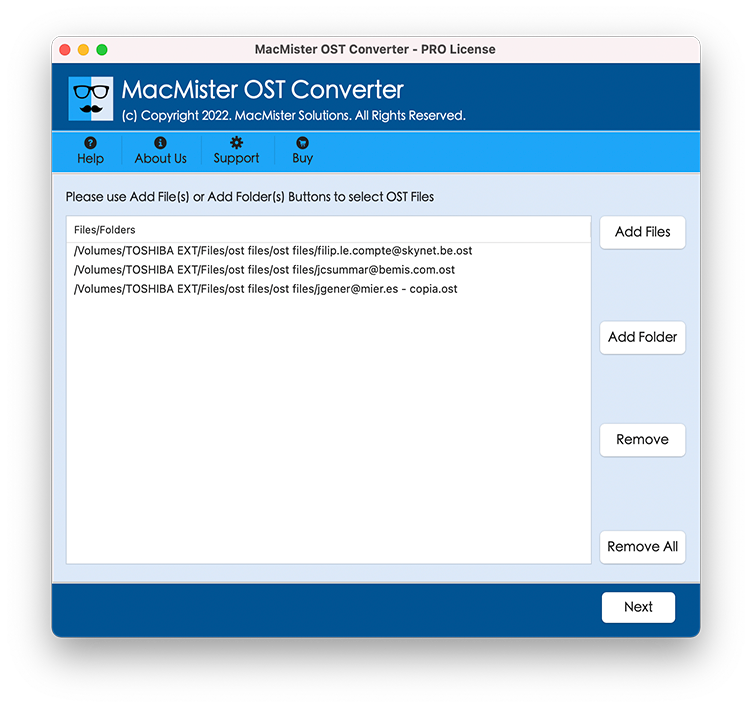
Step 3. Click Next to preview the mailbox hierarchy in the software panel.
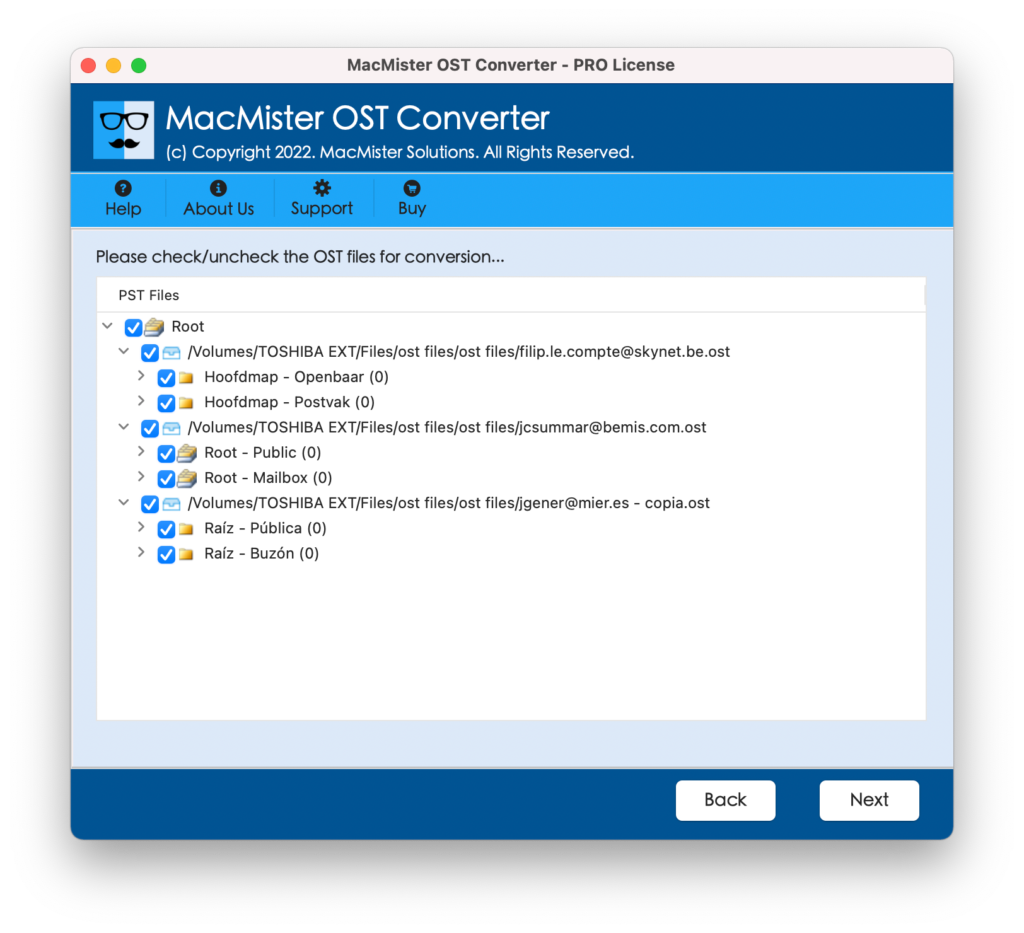
Step 4. Navigate to the Select Saving Option drop-down menu.
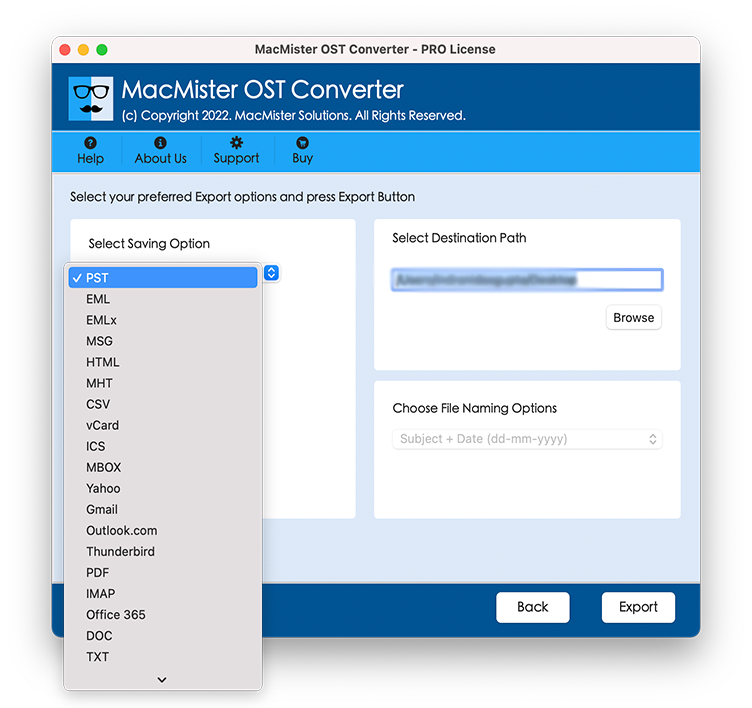
Step 5. Select required saving format for desired migration.
Step 6. Set sub-options and click the Export button to launch the conversion.
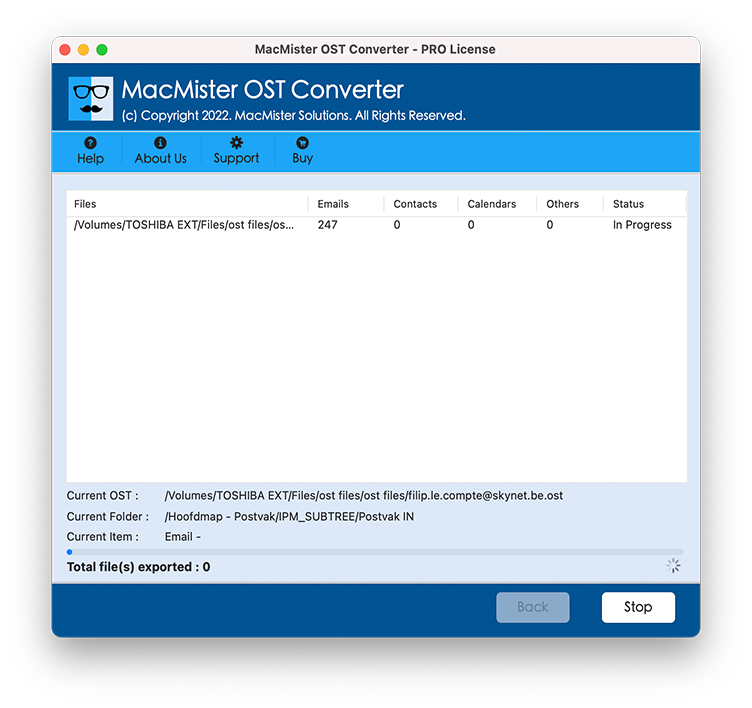
Step 8. Track real-time progress through the built-in Live Conversion window. Once finished, a log report will confirm completion.
Step 4: Import Converted File into Apple Mail
- Open Apple Mail.
- Go to File > Import Mailboxes…
- Choose Files in mbox format and click Continue.
- Select the newly created MBOX folder from MacMister and click Choose.
All converted emails, complete with original attachments and directory layouts, will now populate within Apple Mail.
Epilogue
Transferring email archives from Outlook’s OST format into Apple Mail is not as challenging as our customers often believe. Although there are solutions for manually syncing IMAP accounts if you have some current accounts with active data, it becomes unmanageable when dealing with a large amount of data or single archive files.In case you need to organize a reliable transfer of huge amounts of data or multiple orphaned OST backups, converting OST to Apple Mail with the help of a professional approach is the way to go, as it extracts all the data in full fidelity and structures it into Apple Mail folders properly.