Apple Email not downloading from Server – How to Fix?
Apple Mail is an email client that comes with both macOS and iOS operating systems. However, such issues as receiving the message “This message has not been downloaded from the server” or having Apple Mail fail to synchronize with newly received messages may arise.
With this message displayed, one may see either empty emails, partially filled message bodies or an infinite downloading process with the message “Downloading messages…”
So, in the current article, I would like to share my experience with this issue, including common troubleshooting tips and data migration service that will help in resolving the error with ease.
Common Causes of the “Email Not Downloading” Error
The key to determining the problem will indicate whether the solution will involve minor tweaks or a complete reinstallation of the mailbox:
- Unstable internet connection leads to failure of Apple Mail to establish a stable connection to the mail server
- Using POP3 protocol to setup mail accounts on multiple devices will lead to inability to download messages from the server on other devices due to emails being deleted upon download on the first device
- Corruption of Envelope Index which involves the database indexes occurs due to improper shutting down of the application or the computer itself
- In case the mailbox is full, the incoming mail servers (IMAP/POP) will be incapable of processing the request
- Updates often provide patches for certain protocols such as TLS necessary to connect to the mail server
- Security Software: Firewalls and security software can turn off ports needed for secure connection such as SSL 993 and 995.
Manual Troubleshooting Solutions
Use the below-mentioned simple manual process to rectify the problem of the inability of connection from Apple Mail to the email server.
Solution 1: Ensure Web Connectivity and Webmail Login
- Use any browser (for example, Safari) and ensure the website loads correctly
- Log in manually to your webmail (iCloud.com, Gmail, Outlook, cPanel mail, etc.)
- If you do not see new mail at the web server, then your email provider is the source of the issue.
Solution 2: Force Quit and Relaunch Apple Mail
The background process stuck sometimes prevents users from performing any fetch requests.
- Press Option + Command + Esc keys together to open the Force Quit Applications window
- Select Mail from the list of active applications and click Force Quit.
- Reopen Apple Mail utility and go to the Mailbox -> Get All New Mail option (Command + Shift + N).
Shortcut: Command + Shift + N – for Apple Mail application to fetch new messages from all accounts.
Solution 3: Rebuild the Damaged Mailbox
The rebuild operation will cause the Apple Mail program to clear the cached messages in local storage and re-download them from the mail server.
- Launch the Apple Mail application.
- Choose the mailbox that is causing the problem (e.g., Inbox for the specific email address) from the left-hand menu.
- Hover over Mailbox in the menu bar at the top of the screen.
- In the drop-down menu that appears, choose the Rebuild option.
- Wait for the rebuild process to finish.
Solution 4: Verify IMAP/POP Account & Server Port Settings
Problems with SSL/TLS configurations or incorrect port number may hinder the process of downloading emails via Apple Mail.
- Launch Apple Mail, then go to Mail and Settings.
- Go to Accounts and choose your email account.
- Pick Server Settings.
- If you have to configure your connection settings manually, uncheck the box next to Automatically manage connection settings and set:
- IMAP Port: 993 (SSL/TLS enabled)
- POP3 Port: 995 (SSL/TLS enabled)
- Double-check the domain of your incoming email server and apply changes.
Solution 5: Clear Mail Cache and Re-index Envelope Files
In the case where database files within your computer get corrupt, the manual removal of the cache makes Apple Mail recreate healthy index files.
- Close the Apple Mail program.
- Go to Finder, press Command+Shift+G and paste this directory:
~/Library/Mail/V10/MailData/ (Remember that “V10” may vary based on the macOS version).
- Identify files named “Envelope Index” (such as “Envelope Index”, “Envelope Index-shm”, “Envelope Index-wal”).
- Move them to the Desktop and then remove the original ones in the MailData directory to the Trash bin.
- Launch Apple Mail again. You will be required to rebuild your whole mailbox index.
Solution 6: Remove and Re-add the Email Account
- Click on System Preferences > Internet Accounts.
- Choose your problematic email account and select “Delete Account.”
- Reboot your Mac.
- Again go to Internet Accounts, select “Add Account” and synchronize your mail box.
When Manual Solutions Fail: The Backup & Migration Solution
When manual methods fail to recover emails and the mailbox files (.emlx, .mbox) are not damaged, further attempts to troubleshoot the issues with the Apple Mail application may result in emails loss and database damage.
If a user wants to extract emails from the Apple Mail app, repair mailbox databases, or migrate Apple Mail data to other email clients (Microsoft Outlook, webmail, pdf, etc.), specialized software is required
Professional Approach to Resolve the Issue
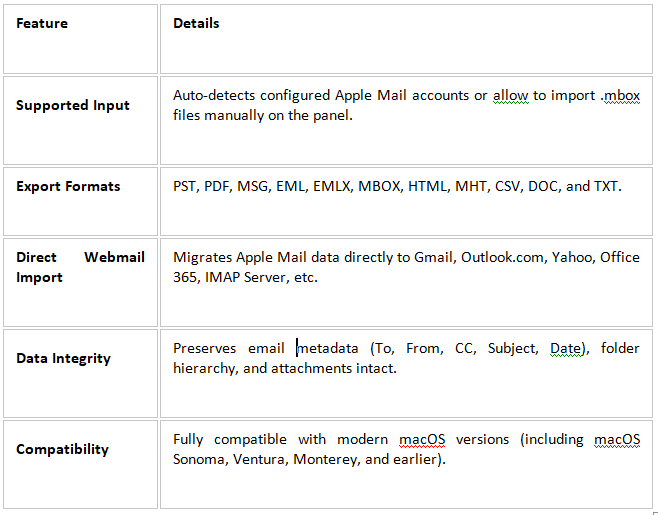
MacMister Apple Mail Converter is a dedicated utility designed to extract, convert, and repair email data stored in Apple Mail. It takes care of Apple Mail server synchronization issues by analyzing local mailbox directories directly and exporting data into universally readable file types.
Extracting and Converting Emails Through MacMister
Step 1. Install the app on your Mac system.
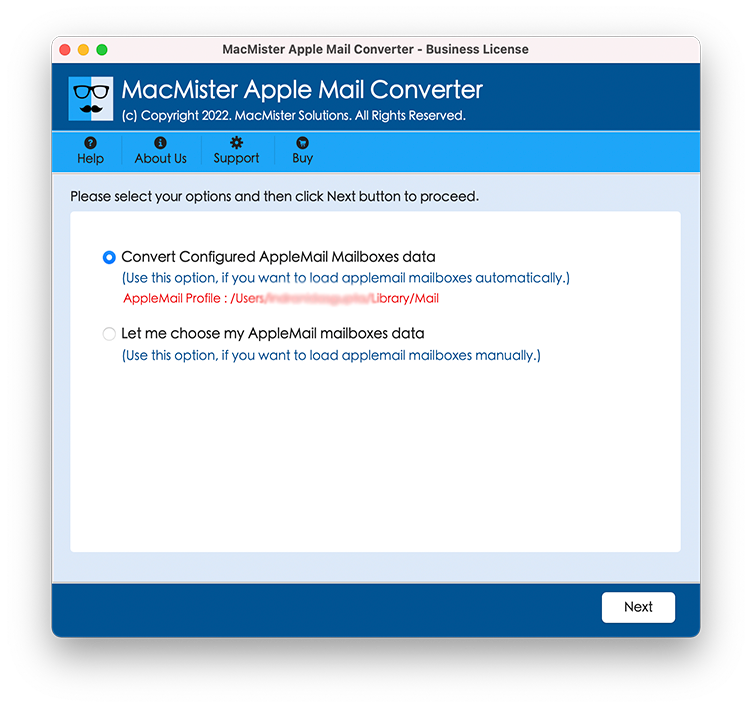
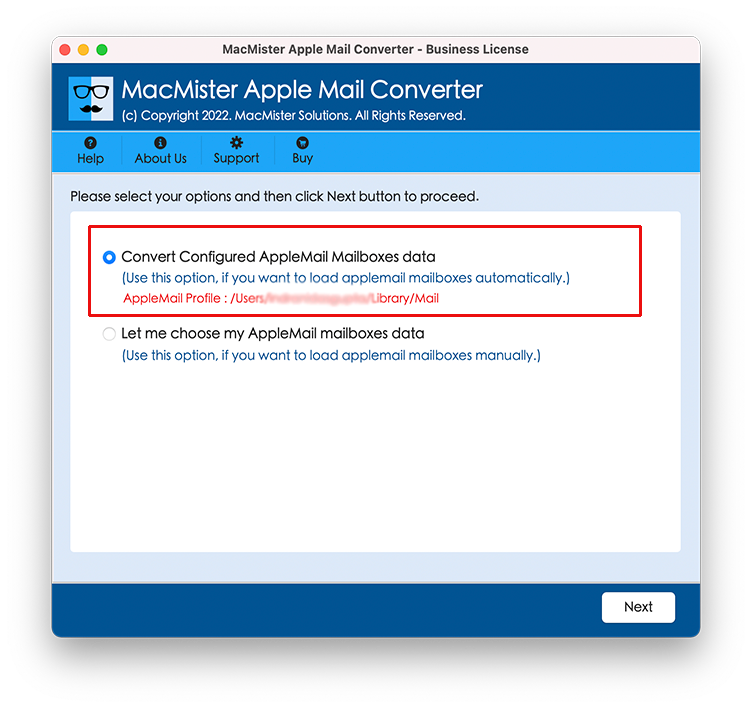
Step 2. Load Mailbox Data, click “Convert Configured Apple Mail Data” to automatically fetch your mail database. Or you can select “Let me choose my Apple Mail mailboxes data” to fetch your own .mbox files.
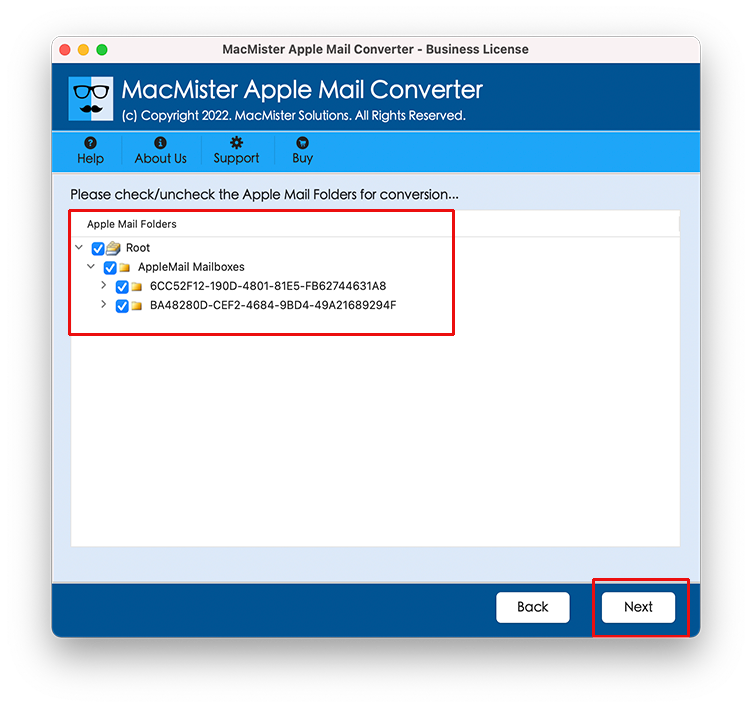
Step 3. The application will scan the files and display all subfolders of it in hierarchical structure. You need to check the folders (Inbox, Sent, Drafts, etc.) that you need to extract. Or, let all the folders selected and tap Next.
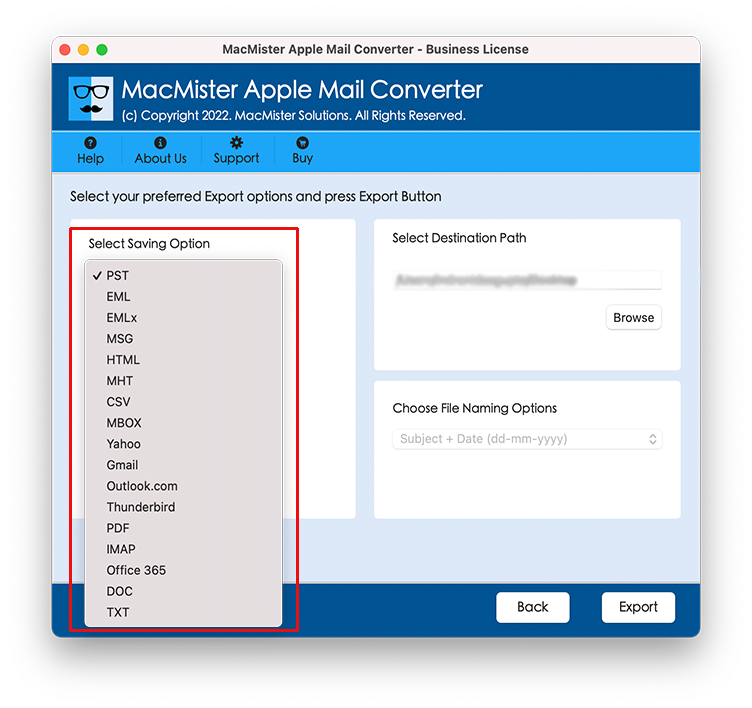
Step 4. Choose any export type for your emails from the drop-down menu (PST, PDF, IMAP, Office 365, etc.).
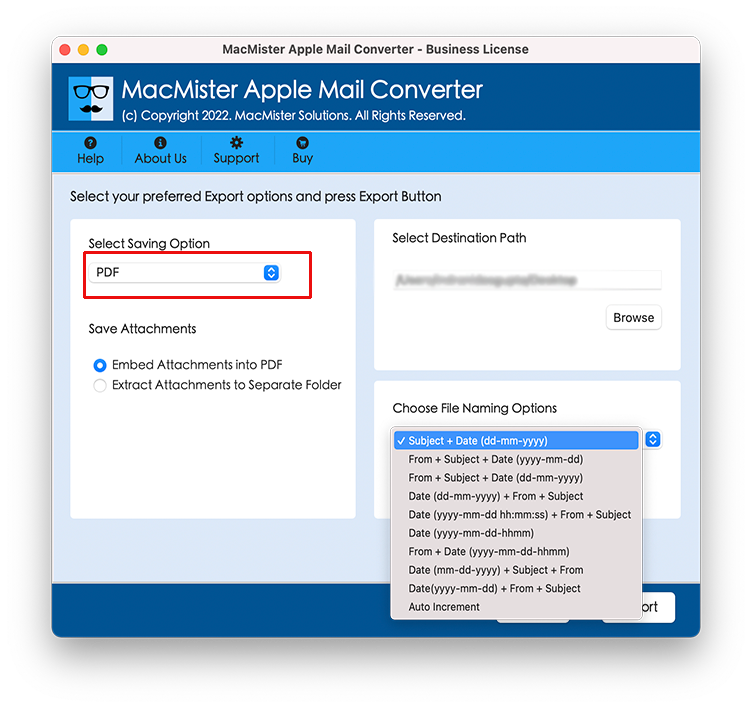
Step 5. Set sub-options of a chosen saving type according to the requirements.
Step 6. Tap Export and watch the Live Conversion Progress of Apple Mail files.
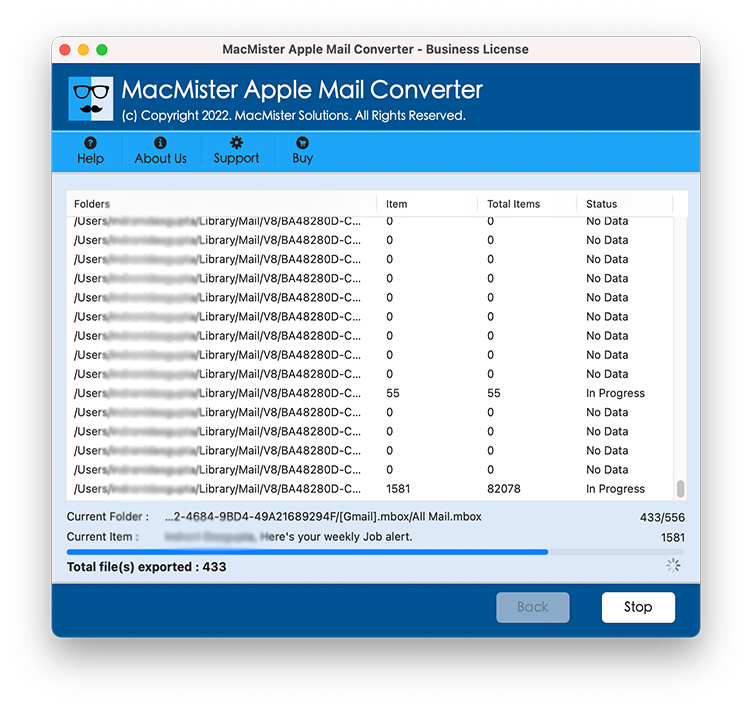
All the inaccessible or unable to download email messages will reside in a local cache that would be converted to easily accessible file type.
Epilogue
The problem of “Apple email not downloading from server” occurs due to the following reasons: server settings, network connection issues, or index file corruption. The repair process includes rebuilding of mailboxes, changing of the server port settings, and delete index files, which usually resolve most of the issues related to the absence of incoming emails.
However, if the Apple Mail application ceases to function properly and you are unable to access the mailbox database, the suggested idea is to use professional approach.