Why EML Files Lose Formatting After Email Migration? Causes & Solutions
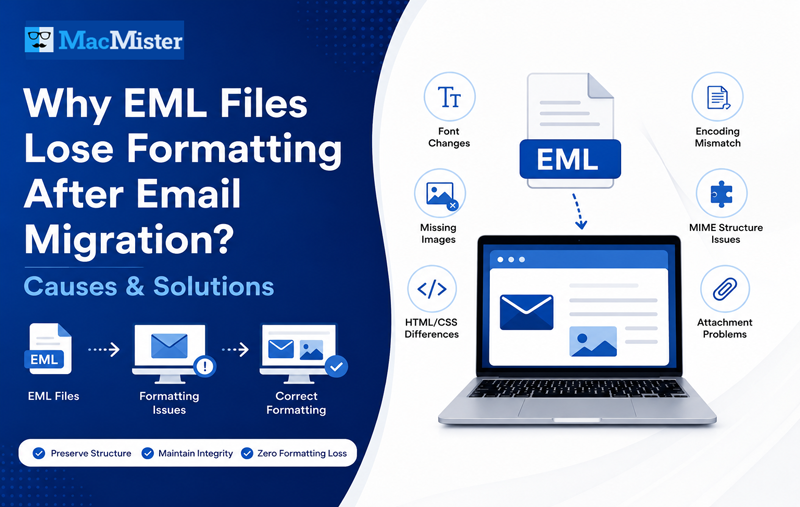
Email migration is expected to preserve every aspect of an email—from its content and attachments to its visual appearance. However, many users are surprised to find that after moving EML files to another email client or converting them into a different format, the emails no longer look the same. Fonts may change, images disappear, hyperlinks stop working, tables become misaligned, or colors and spacing are altered. These issues are commonly referred to as EML formatting loss. While they may seem like software bugs, they are often caused by differences in email standards, rendering engines, character encoding, MIME structure, or compatibility between email applications.
Whether you are migrating emails from Windows Mail EML to Outlook, Thunderbird to Apple Mail, or archiving EML files for long-term storage, understanding why formatting changes occur is essential for maintaining the integrity of your email data.
In this guide, we will explore the technical reasons behind EML formatting issues and explain how to avoid them during migration or conversion.
What Is an EML File?
An EML file is a standard email message format used by many desktop email clients. It stores a complete email in plain text while preserving all essential information required to recreate the original message. An EML file typically contains –
- Email headers (From, To, CC, Subject, Date)
- Plain text and HTML message body
- MIME structure
- Character encoding information
- Embedded images
- File attachments
- Internet message headers
Unlike proprietary formats such as PST or OST, EML is based on open Internet email standards, making it widely compatible with different operating systems and email applications. However, compatibility doesn’t always guarantee identical rendering across every email client.
How Does an EML File Store Email Formatting?
Many users believe an email is simply text displayed on the screen. In reality, modern emails are much more complex. Most business emails are created using HTML, similar to a webpage. Along with the message itself, an EML file contains –
- HTML tags
- CSS formatting
- Font definitions
- Image references
- MIME boundaries
- Character encoding
- Attachment references
When an email client opens an EML file, it interprets this information and renders the email visually.
The challenge is that different email clients use different rendering engines, meaning the same EML file may appear differently depending on the software used to open it.
Why Do EML Files Lose Formatting After Migration?
Several technical factors can affect how an email is displayed after migration. Below are the most common causes.
1. Different Email Clients Use Different Rendering Engines
This is one of the biggest reasons formatting changes occur.
Each email client has its own method of interpreting HTML and CSS.
For example –
| Email Client | Rendering Engine |
| Outlook | Microsoft Word Engine |
| Apple Mail | WebKit |
| Thunderbird | Gecko |
| Windows Mail | Edge/WebView Components |
Because these rendering engines process HTML differently, an email that looks perfect in one application may display incorrectly in another. Common symptoms include –
- Different font sizes
- Broken tables
- Misaligned content
- Incorrect spacing
- Missing background colors
The email itself hasn’t changed—only the way it’s being displayed.
2. Character Encoding Mismatch – Character encoding defines how text characters are stored and displayed. Most modern emails use UTF-8, while older systems may rely on ANSI, ISO-8859-1, or other legacy encodings. During migration, if the destination email client fails to recognize the original encoding, users may notice –
- Strange symbols
- Broken accented characters
- Question marks replacing letters
- Incorrect multilingual text
- Corrupted special characters
This issue is especially common in organizations that archive emails spanning many years or multiple regional languages.
3. Missing Embedded Images – HTML emails often include –
- Company logos
- Signature images
- Social media icons
- Marketing banners
- Product images
- These images may be stored as –
Embedded MIME parts
Linked external resources
Content-ID (CID) references
If image references are not migrated correctly, the email client cannot locate them.
Instead of displaying the original image, users may see –
- Blank spaces
- Broken image icons
- Missing company branding
- Incomplete newsletters
While the email text remains intact, the overall appearance becomes significantly different from the original.
4. CSS Compatibility Issues
Many professionally designed emails use CSS (Cascading Style Sheets) to control their appearance. CSS determines –
- Font style
- Font size
- Text color
- Margins
- Tables
- Button styling
- Responsive layouts
Not every email client supports the same CSS properties.
For example, Outlook has limited support for modern CSS because it relies on the Microsoft Word rendering engine instead of a web browser engine. As a result, migrated emails may experience –
- Incorrect spacing
- Table alignment issues
- Missing button styles
- Altered colors
- Broken responsive layouts
This explains why marketing emails often look different after migration, even though no data has been lost.
Why These Formatting Changes Matter
Formatting issues are not just cosmetic—they can affect readability, professionalism, and even business communication. For example –
- Legal notices may lose their structured layout.
- Invoices and purchase orders can become difficult to read.
- Corporate branding may disappear from email signatures.
- Hyperlinks may become less visible or harder to identify.
- Tables containing financial or technical information may no longer align correctly.
For organizations that rely on archived emails for compliance, customer communication, or documentation, preserving the original formatting is just as important as preserving the message content itself.
MIME Structure Gets Modified During Migration
Every EML file follows the Multipurpose Internet Mail Extensions (MIME) standard, which defines how different parts of an email are organized. A typical MIME message may include –
- HTML body
- Plain text version
- Embedded images
- File attachments
- Digital signatures
- Character encoding information
When an email migration tool incorrectly rebuilds or modifies the MIME structure, email clients may struggle to interpret the message correctly. Common results include –
- Images appearing as attachments
- HTML content displaying as plain text
- Duplicate attachments
- Missing inline graphics
- Broken email layouts
Maintaining the original MIME hierarchy is essential for preserving how an email was originally designed and displayed.
6. Unsupported Fonts on the Destination System
Not every computer has the same fonts installed. For example, an email created using a custom corporate font may be opened on another system where that font is unavailable. When this happens, the email client automatically replaces the missing font with a default alternative such as:
- Arial
- Calibri
- Times New Roman
- Helvetica
Although the message remains readable, the layout may shift due to differences in font width, line spacing, and character size. This can affect –
- Email signatures
- Tables
- Buttons
- Company branding
- Marketing templates
7. Plain Text and HTML Rendering Differences
Most emails contain both –
- A Plain Text version
- An HTML version
When opening an EML file, the email client decides which version to display.
Some applications prioritize HTML, while others may display the plain text version because of security settings or rendering limitations. As a result, users may notice –
- Missing colors
- No company logo
- No clickable buttons
- Missing hyperlinks
- Simplified email formatting
In many cases, the email itself isn’t damaged—the client is simply displaying a different version of the same message.
8. Attachments and CID References Break
Many HTML emails reference embedded images using Content-ID (CID) values instead of external URLs. For example –
- Company logos
- Signature images
- Product banners
- Social media icons
If these CID references are modified or removed during migration, the email client cannot associate the embedded image with its corresponding HTML tag. The result is –
- Empty image placeholders
- Broken signature graphics
- Missing branding
- Distorted newsletter layouts
Professional migration software should preserve these relationships throughout the conversion process.
Best Practices to Prevent EML Formatting Issues
While some rendering differences are unavoidable, the following practices can significantly reduce formatting problems during migration.
Use a Reliable EML Conversion Tool
Choose software that preserves –
- Original HTML structure
- MIME hierarchy
- Attachments
- Embedded images
- Internet headers
- Character encoding
- Metadata
Avoid Repeated File Conversions
Every additional conversion introduces the possibility of structural changes. For example –
EML → MBOX → PST → PDF
may produce more formatting inconsistencies than a direct:
EML → PST
conversion.
Verify Email Rendering After Migration
Always open a sample of migrated emails in the destination email client. Check –
- Images
- Fonts
- Tables
- Attachments
- Hyperlinks
- Email signatures
This helps identify any rendering issues before migrating your complete mailbox.
Keep Original EML Files
Before performing any conversion, maintain an untouched copy of your source EML files. This provides a reliable backup in case the migration needs to be repeated using different settings or software.
How EML Migration for Mac Helps Preserve Email Integrity
When converting EML files, preserving the original appearance of each email is just as important as transferring the message itself.


MacMister EML Converter for Mac is designed to minimize formatting changes by maintaining the core structure of every email throughout the conversion process. Some notable capabilities include –
- Preserves HTML formatting during conversion.
- Maintains original MIME structure.
- Keeps email headers and metadata intact.
- Converts embedded attachments without data loss.
- Supports multiple output formats such as PST, PDF, MBOX, MSG, EMLX, HTML, and more.
- Performs bulk conversion while maintaining folder hierarchy.
- Compatible with the latest macOS versions.
By preserving these technical components, the software helps ensure that migrated emails remain as close as possible to their original appearance.
Common Formatting Issues and Their Causes
| Formatting Issue | Possible Cause |
| Font changed | Missing fonts or rendering engine differences |
| Images missing | Broken CID references or embedded images not migrated |
| HTML appears as plain text | Email client rendering settings |
| Tables misaligned | CSS compatibility limitations |
| Broken hyperlinks | HTML code modified during conversion |
| Strange characters | Character encoding mismatch |
| Signature layout changed | HTML rendering differences |
| Missing colors | Unsupported CSS styles |
Frequently Asked Questions
Can EML files become corrupted during migration?
Yes. If the migration process alters the MIME structure, encoding, or attachment references, the email may display incorrectly even though the message content remains intact.
Why does Outlook display EML emails differently than Apple Mail?
Outlook uses the Microsoft Word rendering engine, while Apple Mail relies on WebKit. Because each application interprets HTML and CSS differently, visual differences are common.
Does converting EML always change formatting?
Not necessarily. When the conversion process preserves HTML, MIME structure, character encoding, and embedded resources, formatting changes can be minimized significantly.
Can embedded images be preserved during conversion?
Yes. If the converter correctly maintains Content-ID (CID) references and MIME relationships, embedded images remain part of the email.
Is HTML email better than plain text?
HTML emails support formatting, images, tables, buttons, and branding, while plain text emails prioritize simplicity and compatibility. Both versions often coexist within the same EML file.
Conclusion
Formatting issues after EML migration are rarely caused by damaged email files. More often, they result from differences in rendering engines, MIME handling, character encoding, CSS support, font availability, or how individual email clients interpret HTML content.
Understanding these technical factors makes it easier to choose the right migration approach and avoid unnecessary formatting inconsistencies.
Whether you’re archiving important business emails, migrating to a new email client, or converting EML files into another format, preserving the original email structure should always be a priority. Using a dependable conversion solution helps retain HTML formatting, embedded images, attachments, metadata, and folder hierarchy, ensuring your emails remain accurate and professional after migration.
Planning to migrate or convert EML files without compromising email formatting? Try EML Migration for Mac tool to securely convert EML emails into multiple formats while preserving HTML formatting, attachments, metadata, MIME structure, and folder organization for a reliable and hassle-free migration experience.
| |