MSG File Unreadable? Fix Strange Characters in Outlook MSG Files
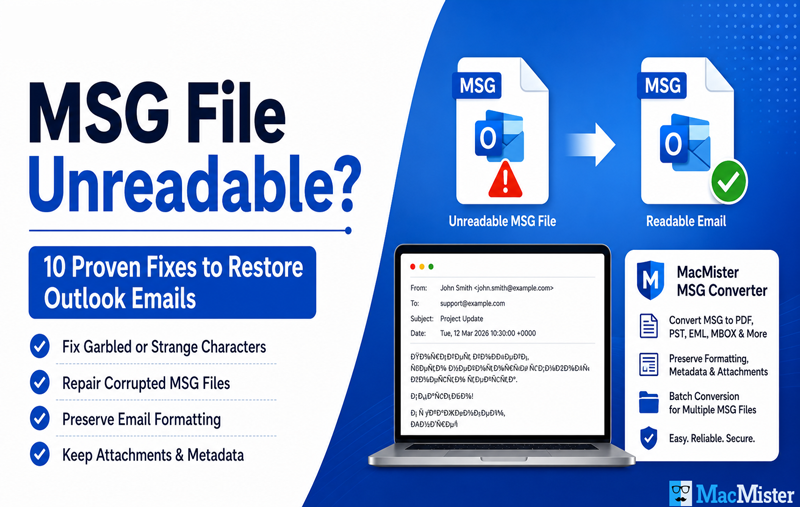
MSG File Unreadable? 10 Proven Ways to Fix Strange Characters in Outlook MSG Files
Have you ever opened an MSG file only to find random symbols, unreadable text, or a blank email instead of the actual message? This issue is more common than many Outlook users realize. Whether you’re accessing archived emails, sharing MSG files with colleagues, or reviewing important business communications, an unreadable MSG file can interrupt your workflow and put valuable information at risk.
MSG is Microsoft’s proprietary email file format used by Outlook to store individual email messages. Along with the email body, an MSG file contains metadata such as the sender, recipient, subject, date, attachments, formatting, and message properties. When any part of this structure becomes damaged or incompatible, Outlook may fail to display the email correctly, resulting in strange characters, broken formatting, or missing content.
Fortunately, an unreadable MSG file doesn’t always mean your email is permanently lost. In many cases, the issue is caused by file corruption, character encoding mismatches, software compatibility problems, or incomplete file transfers—all of which can often be resolved with the right troubleshooting steps.
With this guide, you will learn the most common reasons why MSG files become unreadable, how to identify the underlying problem, and five proven solutions to restore access to your email data. In the second part, we’ll explore additional fixes, preventive measures, and a reliable way to preserve important MSG emails.
Why Does an MSG File Become Unreadable?
Understanding the root cause is the first step toward resolving the issue. Below are the most common reasons why Outlook may display strange characters or fail to read an MSG file properly.
1. File Corruption – Corruption is one of the leading causes of unreadable MSG files. A file may become damaged because of –
- Interrupted downloads
- Unexpected system shutdowns
- Hard drive errors
- Faulty USB storage devices
- Network interruptions during file transfer
Even minor corruption can prevent Outlook from interpreting the email correctly.
2. Character Encoding Issues – Every email uses a character encoding standard to display text properly. If Outlook interprets the encoding incorrectly, readable text may appear as random symbols, question marks, or garbled characters.
Encoding problems are more common when –
- Emails contain multiple languages
- Special symbols are used
- The email was exported from another application
- Older Outlook versions open newer MSG files
3. Outlook Compatibility Problems – MSG files created in one version of Outlook may occasionally behave differently in another version.
Compatibility issues can affect –
- HTML formatting
- Attachments
- Embedded images
- Unicode characters
- Rich text formatting
- Keeping Outlook updated reduces compatibility-related problems.
4. Incomplete File Transfer – If the MSG file wasn’t copied correctly, Outlook may only receive part of the file.
Common causes include –
- Interrupted downloads
- Email attachment errors
- Cloud synchronization failures
- Network disconnects
- An incomplete MSG file often opens with missing content or unreadable text.
5. Damaged Email Properties – MSG files store more than just the email body. They also contain message headers, metadata, sender information, and attachment references.
If these properties become damaged, Outlook may display the email incorrectly even though parts of the message still exist.
6. Malware or Security Software – Some antivirus programs modify or quarantine suspicious email components during scanning.
Although this improves security, it can occasionally affect legitimate MSG files, making them appear incomplete or unreadable.
7. Storage Device Errors – Saving MSG files on failing hard drives, damaged SSDs, or unreliable USB devices increases the risk of corruption.
Bad sectors can damage portions of the file, preventing Outlook from reading the email correctly.
Signs Your MSG File Is Corrupted or Unreadable
Before attempting repairs, look for these common symptoms –
- The email body displays random characters.
- Strange symbols replace normal text.
- Outlook freezes while opening the file.
- The message appears completely blank.
- Attachments are missing.
- Embedded images fail to load.
- Outlook reports an error while opening the file. Email formatting appears broken.
- Subjects or sender information are missing.
- Hyperlinks don’t display correctly.
If you are experiencing one or more of these issues, continue with the troubleshooting methods below.
Fix 1 – Open the MSG File in Another Outlook Version
Compatibility differences between Outlook releases can sometimes cause rendering issues.
If possible –
- Open the MSG file on another computer.
- Test it in a newer Outlook version.
- Compare the results.
If the email displays normally elsewhere, the issue is likely related to your Outlook installation rather than the file itself.
Fix 2 – Copy the MSG File to Your Local Drive
Many users attempt to open MSG files directly from –
- USB drives
- External hard disks
- Shared network folders
- Cloud storage
This can occasionally create read errors.
Instead –
- Copy the MSG file to your desktop or Documents folder.
- Open the local copy.
- Check whether the text displays correctly.
- Opening the file locally eliminates network latency and storage-related access problems.
Fix 3 – Download or Export the Email Again
If you originally received the MSG file by email or downloaded it from cloud storage, the transfer may not have completed successfully.
Try obtaining a fresh copy by –
- Downloading the file again.
- Exporting the email directly from Outlook.
- Requesting the sender to resend the original MSG file.
- A clean copy often resolves corruption caused during transfer.
Fix 4 – Update Microsoft Outlook
Older Outlook versions may not fully support newer email formatting standards or Unicode character sets.
- Check for available updates and install the latest version.
- Updating Outlook can fix –
- Garbled text
- Formatting problems
- Attachment display issues
- Rendering bugs
- Compatibility errors
- Restart Outlook after installing updates and reopen the MSG file.
Fix 5 – Check the Character Encoding
Incorrect encoding is one of the most overlooked reasons for unreadable email content.
If the email contains international characters, symbols, or multilingual text, Outlook may display unreadable characters when the wrong encoding is applied.
If possible –
- Open the original email.
- Verify its encoding settings.
- Save the message again using the correct encoding.
- Export a fresh MSG file.
This is especially helpful when dealing with emails created by third-party applications or older email systems.
Prevent Further Damage While Troubleshooting
While trying different repair methods, avoid making changes directly to the original MSG file.
Instead –
- Create a backup copy first.
- Perform troubleshooting on the duplicate.
- Avoid repeatedly saving over the original file.
- Store backup copies on reliable storage media.
Following these precautions ensures that you always have an untouched copy available if additional recovery methods become necessary.
Fix 6 – Scan the MSG File for Malware
Although uncommon, malware infections can affect email files and prevent Outlook from displaying their contents correctly. Some malicious programs modify file structures, while certain antivirus applications may quarantine suspicious sections of an email, making the MSG file appear incomplete or unreadable. Before assuming the file is corrupted –
- Scan the MSG file using updated antivirus software.
- Ensure your security application is running the latest virus definitions.
- Check the quarantine folder for blocked email components.
- If the file comes from an unknown source, verify its authenticity before opening it.
If the scan reports the file as safe but Outlook still cannot display it correctly, proceed with the next troubleshooting step.
Fix 7 – Verify File Permissions
Sometimes an MSG file is perfectly healthy, but Windows restricts access because of file permission settings.
To check this –
- Right-click the MSG file and select Properties.
- Open the Security tab.
- Confirm that your user account has permission to read the file.
- If the file was copied from another computer, take ownership if necessary.
- Try opening the file again.
Permission-related issues are especially common when MSG files are transferred from company servers or shared network locations.
Fix 8 – Restore the Original Email from a Backup
If the unreadable MSG file is part of an archived mailbox, restoring the original email from a backup is often the safest solution.
Possible backup sources include –
- Outlook PST archives
- Exchange Server backups
- Microsoft 365 mailboxes
- Cloud backup services
- External storage devices
Replacing a damaged MSG file with a clean copy is usually faster than attempting extensive repairs.
Fix 9 – Open the File on Another Computer
Testing the same MSG file on another system helps identify whether the issue is related to the file or your current environment.
If the file opens correctly on another computer, the problem may involve –
- Outlook configuration
- Windows settings
- Installed add-ins
- Security software
- User profile corruption
This simple test can save significant troubleshooting time.
Fix 10 – Convert the MSG File into an Accessible Format
If Outlook continues to display unreadable characters or fails to open the file correctly, converting the email into another widely supported format may be the most practical option.
Converting MSG files allows you to preserve valuable email content while reducing dependency on a specific Outlook configuration. Depending on your requirements, you may choose formats such as PDF for document sharing, PST for Outlook import, EML for compatibility with multiple email clients, MBOX for mailbox migration, or HTML for web viewing. This approach is particularly useful when –
- Outlook refuses to open the MSG file.
- The email contains important business information.
- You need to archive messages for compliance.
- The original Outlook installation is unavailable.
- You want to migrate emails to another platform.
Access and Convert MSG Files with MSG Converter for Mac & Windows
When troubleshooting doesn’t fully resolve the problem, using a professional conversion solution can help preserve important email data without altering the original MSG files.
The MacMister MSG Converter for Mac & Windows enables users to convert MSG files into multiple standard formats while maintaining the integrity of the original email. Whether you’re handling a few messages or an entire archive, the software simplifies the conversion process and helps make email data more accessible across different platforms.

Key Features
- Batch Conversion – Convert multiple MSG files or complete folders in a single operation, eliminating the need to process emails individually.
- Multiple Export Formats – Export MSG files into formats such as PDF, PST, EML, MBOX, HTML, TXT, and several other commonly used file types based on your workflow requirements.
- Preserves Email Formatting – The software retains the original structure of each email, including fonts, colors, hyperlinks, inline images, and message formatting.
- Maintains Email Properties – Important metadata—including sender, recipient, subject, date, CC, BCC, and other header information—is preserved throughout the conversion process.
- Keeps Attachments Intact – Attachments associated with MSG files remain linked with the converted email, helping preserve the completeness of important communications.
- User-Friendly Interface – The intuitive interface allows both technical and non-technical users to convert email files with minimal effort.
- Compatible with macOS and Windows – Designed to work on both major desktop operating systems, the software offers a consistent conversion experience regardless of your preferred platform.
Best Practices to Prevent Unreadable MSG Files
Following a few preventive measures can significantly reduce the risk of future file corruption.
- Keep Outlook updated with the latest patches.
- Always copy MSG files safely before disconnecting storage devices.
- Avoid interrupting downloads or file transfers.
- Store archived emails on reliable storage media.
- Maintain regular email backups.
- Verify exported MSG files before deleting the originals.
- Scan downloaded email files using trusted security software.
- Avoid editing the internal structure of MSG files manually.
Developing these habits helps protect important business and personal communications from unexpected data loss.
Final Thoughts
Unreadable MSG files are commonly caused by corruption, encoding mismatches, incomplete transfers, Outlook compatibility issues, damaged metadata, or permission conflicts. Fortunately, many of these problems can be resolved by updating Outlook, verifying file permissions, restoring backup copies, checking encoding settings, or opening the file on another system.
If the email still cannot be accessed after troubleshooting, converting the MSG file into a more widely supported format can help preserve valuable information and improve accessibility. A reliable solution such as the MSG Converter makes it easier to convert MSG files to PDF, EML, PST, DOC, HTML, Gmail, Office 365, Exchange Server, etc while maintaining their formatting, metadata, and attachments, ensuring your important emails remain available whenever you need them.