How to Add Amazon WorkMail to Outlook Without Sync Errors
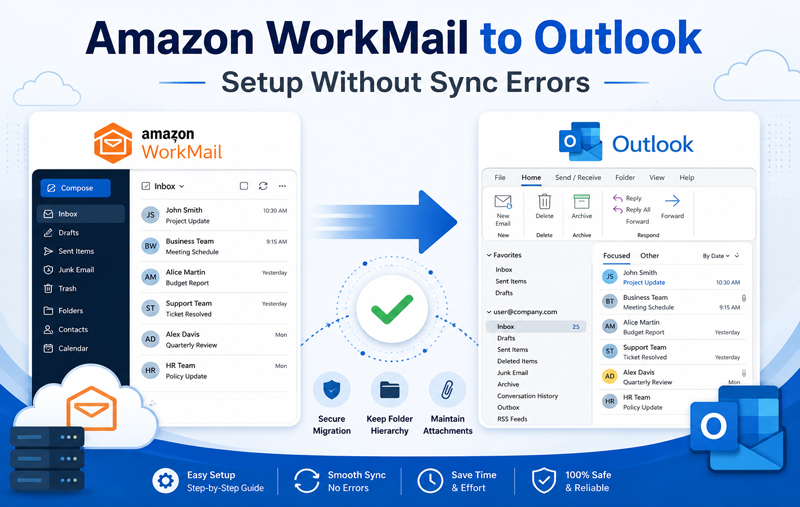
Managing business emails becomes much easier when you connect your Amazon WorkMail account with Microsoft Outlook. Outlook offers a familiar interface, offline email access, advanced search capabilities, calendar management, and seamless integration with other Microsoft applications. However, many users encounter synchronization issues during the setup process, preventing Outlook from receiving or sending emails correctly.
Common problems include Outlook repeatedly asking for passwords, emails not syncing, IMAP connection failures, missing folders, delayed message delivery, or calendar synchronization issues. These errors are often caused by incorrect account settings, outdated Outlook versions, unstable internet connections, firewall restrictions, or server configuration problems.
If you are wondering how to add Amazon WorkMail to Outlook without sync errors, this guide explains the correct configuration process, common causes of synchronization failures, practical troubleshooting methods, and an easier alternative for users who want a hassle-free migration.
If you are migrating multiple Amazon WorkMail accounts or need to move emails to Outlook PST without configuration issues, a professional Amazon WorkMail migration solution can save significant time while preserving emails, folders, attachments, and metadata.
If you are looking for a quicker way to move Amazon WorkMail emails into Outlook without dealing with sync issues, try the MacMister Amazon WorkMail Email Backup Tool for Mac. It securely transfers emails while preserving folder hierarchy, attachments, and metadata.
 |  |
What is Amazon WorkMail?
Amazon WorkMail is a secure, managed business email and calendar service provided by Amazon Web Services (AWS). It supports standard email protocols such as IMAP, SMTP, and Exchange Web Services (EWS), allowing users to access their mailboxes from desktop clients like Microsoft Outlook, mobile devices, and web browsers. Organizations often choose Amazon WorkMail because it offers –
- Secure business email hosting
- Shared calendars and contacts
- Integration with Microsoft Outlook
- Enterprise-grade security
- Flexible cloud-based infrastructure
- Easy user management through AWS
Since Outlook is widely used in business environments, connecting Amazon WorkMail ensures users can continue working with a familiar email client.
Why Do Users Connect Amazon WorkMail to Outlook?
Businesses configure Outlook with Amazon WorkMail for several reasons –
- Access emails without opening the web interface
- Manage multiple email accounts from one application
- Work offline using Outlook’s cached mode
- Organize emails with folders, rules, and categories
- Sync calendars and contacts
- Archive important business emails
- Improve productivity with Outlook’s advanced features
Although the process is straightforward, incorrect settings frequently lead to synchronization problems.
Common Sync Errors While Adding Amazon WorkMail to Outlook
Before configuring your account, it’s helpful to understand the issues users commonly experience.
1. Outlook Keeps Asking for Password
One of the most frequent problems occurs when Outlook repeatedly prompts for credentials even after entering the correct password. Possible reasons include –
- Incorrect username
- Wrong password
- Authentication failure
- Cached credentials
- Old Outlook profile
2. Emails Are Not Syncing
Sometimes Outlook connects successfully but fails to download new emails. This usually happens because of –
- Incorrect IMAP settings
- Poor internet connectivity
- Sync conflicts
- Corrupted OST file
- Firewall interference
3. Cannot Connect to Server
Many users receive connection timeout or server unavailable errors. Possible causes include –
- Wrong server address
- Incorrect port numbers
- SSL configuration problems
- Temporary AWS connectivity issues
After setup, users may notice only Inbox appears while other folders remain empty.
4. Missing Email Folders
Possible reasons –
- Folder subscription problems
- Incomplete synchronization
- Cached Exchange issues
- IMAP folder mapping errors
5. Send/Receive Errors
Outlook may display Send/Receive errors during synchronization. These errors may result from –
- SMTP authentication failure
- Incorrect outgoing server settings
- Network restrictions
- Antivirus scanning email traffic
Many synchronization problems are caused by incorrect IMAP settings or authentication failures. Understanding common IMAP connection issues can help resolve these errors more quickly.
How to Add Amazon WorkMail to Outlook Correctly
Following the proper configuration steps significantly reduces synchronization problems.
Step 1: Open Outlook
- Launch Microsoft Outlook.
- Go to – File → Add Account
Step 2: Enter Your Email Address
- Type your complete Amazon WorkMail email address.
Example –
john@company.com- Click Connect.
Step 3: Choose Manual Setup (If Required)
If Outlook cannot automatically detect server settings, choose manual configuration.
- Select – IMAP
Step 4: Enter Incoming Server Settings
Configure the incoming mail server provided by your Amazon WorkMail administrator. Typically you will need –
- IMAP server
- Port number
- SSL encryption enabled
Avoid guessing these values. Incorrect server information is the most common reason for synchronization failures.
Step 5: Configure SMTP Settings
Enter the outgoing mail server information. Ensure –
- SMTP authentication is enabled
- Correct port number is used
- SSL or TLS is enabled
- Username matches your email address
Step 6: Verify Login Credentials
- Enter – Full email address
- Password
- Double-check for typing errors before continuing.
Step 7: Complete Setup
- Once Outlook verifies the account, it begins downloading mailbox data.
- Depending on mailbox size, synchronization may take several minutes.
Tips to Prevent Sync Errors During Setup
Before adding your account, perform these checks –
- Use a stable internet connection.
- Update Outlook to the latest version.
- Verify your Amazon WorkMail credentials.
- Confirm server settings with your administrator.
- Enable SSL/TLS encryption.
- Disable VPN temporarily if connection issues occur.
- Ensure firewall settings are not blocking Outlook.
- Restart Outlook after configuration.
These simple precautions prevent many common synchronization problems.
Why Does Outlook Still Fail to Sync After Correct Configuration?
Even after entering the correct settings, synchronization may still fail due to hidden issues such as –
- Corrupted Outlook profile
- Damaged OST file
- Large mailbox size
- Cached credential conflicts
- Antivirus interference
- Windows credential manager issues
- Outdated Office installation
- Server-side synchronization delays
In such cases, advanced troubleshooting or a dedicated migration solution may be required.
10 Proven Fixes for Amazon WorkMail Outlook Sync Errors
If Outlook is still not syncing your Amazon WorkMail mailbox, try the following troubleshooting methods before reconfiguring your account.
Fix 1: Verify Amazon WorkMail Server Settings
Incorrect server information is one of the biggest reasons Outlook cannot synchronize emails. Check the following with your Amazon WorkMail administrator –
- Incoming IMAP server
- Outgoing SMTP server
- Port numbers
- SSL/TLS encryption
- Username format
- Authentication method
Even a small typo in the server name can prevent Outlook from connecting.
Fix 2: Update Microsoft Outlook
Older Outlook versions may have compatibility issues with newer authentication methods used by Amazon WorkMail. To update Outlook –
- Open Outlook.
- Click File > Office Account.
- Select Update Options.
- Click Update Now.
After installing updates, restart Outlook and check whether synchronization resumes.
Fix 3: Repair Your Outlook Profile
A damaged Outlook profile often causes repeated sync failures. To create a new profile –
- Open Control Panel.
- Select Mail.
- Click Show Profiles.
- Choose Add.
- Create a new Outlook profile.
- Configure your Amazon WorkMail account again.
Many users find this resolves password prompts and send/receive errors.
Fix 4: Rebuild the Outlook Data File
If Outlook’s offline cache becomes corrupted, emails may stop syncing correctly. For IMAP accounts, Outlook automatically recreates the OST file. Steps –
- Close Outlook.
- Locate the OST file.
- Rename or delete it.
- Restart Outlook.
Outlook will create a fresh cache and begin downloading mailbox data again.
Fix 5: Check Internet Connectivity
Synchronization requires a stable internet connection. Test your connection by –
- Opening several websites
- Running a speed test
- Switching to another network
- Restarting your router
Even intermittent packet loss can interrupt Outlook synchronization.
Fix 6: Disable Antivirus Email Scanning Temporarily
Some antivirus programs inspect incoming and outgoing email traffic. This may block –
- IMAP connections
- SMTP authentication
- SSL certificates
- Temporarily disable email scanning and check whether Outlook starts syncing.
If it does, add Outlook as a trusted application before enabling protection again.
Fix 7: Review Firewall Settings
Corporate firewalls sometimes block Outlook from reaching Amazon WorkMail servers. Ensure the required IMAP and SMTP ports are allowed. If you are on a business network, contact your IT administrator to verify firewall policies.
Fix 8: Clear Cached Credentials
Windows Credential Manager may store outdated passwords. To remove saved credentials –
- Open Credential Manager.
- Locate Outlook or Office-related credentials.
- Remove the stored entries.
- Restart Outlook.
- Sign in again using your current password.
- This often fixes repeated password prompts.
Fix 9: Reduce Mailbox Synchronization Load
Very large mailboxes can take considerable time to synchronize. Consider –
- Archiving older emails
- Removing unnecessary attachments
- Cleaning deleted items
- Reducing cached mail duration
A smaller mailbox generally synchronizes faster and with fewer interruptions.
Fix 10: Re-add the Amazon WorkMail Account
If nothing else works, remove the account and configure it again using verified settings. Before removing the account –
- Backup important emails if needed.
- Confirm your login credentials.
- Verify server settings.
A fresh configuration can eliminate issues caused by incomplete account setup.
An Easier Way to Access Amazon WorkMail Emails in Outlook
Manual configuration works well for many users, but it also has several limitations. For example –
- Incorrect IMAP settings can prevent synchronization.
- Large mailboxes take hours to download.
- Internet interruptions may stop synchronization midway.
- Outlook profiles can become corrupted.
- Shared folders may not sync correctly.
- Reconfiguring multiple user accounts is time-consuming.
If you are migrating business mailboxes, handling multiple users, or want to avoid manual configuration altogether, using a professional migration tool is often the more efficient approach.
Advanced Solution for Amazon WorkMail to Outlook Migration
A dedicated Amazon WorkMail Email Backup tool for Mac allows you to transfer mailbox data directly into Outlook-compatible PST files without dealing with complex IMAP settings or synchronization issues.
| |
A reliable solution typically provides features such as –
- Export Amazon WorkMail emails to PST.
- Preserve folder hierarchy throughout the migration.
- Maintain email metadata such as sender, recipient, subject, and timestamps.
- Keep attachments intact.
- Migrate large mailboxes without size restrictions.
- Support batch migration of multiple accounts.
- Work with the latest Outlook versions.
- Minimize the risk of data loss during migration.
Try a Professional Amazon WorkMail Migration Tool
If you are looking for a faster and more reliable way to move Amazon WorkMail emails into Outlook, a professional migration utility can simplify the process. It helps export mailbox data to Outlook PST while preserving email folders, attachments, formatting, and metadata—making it an ideal option for business users and IT administrators managing multiple accounts.
Frequently Asked Questions (FAQs)
Q. Can I add Amazon WorkMail to Microsoft Outlook?
Ans. Yes. Amazon WorkMail supports Outlook through IMAP, SMTP, and Exchange Web Services (EWS), allowing you to access your business emails directly from the Outlook desktop application.
Q. Why is Amazon WorkMail not syncing with Outlook?
Ans. Common reasons include incorrect server settings, authentication failures, outdated Outlook versions, corrupted Outlook profiles, firewall restrictions, unstable internet connections, or cached credential issues.
Q. Does Amazon WorkMail support IMAP?
Ans. Yes. Amazon WorkMail supports IMAP, enabling users to access their mailbox from Outlook and other compatible email clients.
Q. Why does Outlook keep asking for my Amazon WorkMail password?
Ans. This usually happens because of incorrect credentials, outdated cached passwords, authentication problems, or a damaged Outlook profile.
Q. Can I export Amazon WorkMail emails to Outlook PST?
Ans. Yes. You can export mailbox data to PST using a professional migration tool that supports Amazon WorkMail, making it easier to access emails in Microsoft Outlook and maintain a local backup.
Conclusion
Adding Amazon WorkMail to Outlook is generally a straightforward process when the correct account settings are used. However, synchronization issues can occur due to incorrect server configuration, outdated Outlook versions, corrupted profiles, firewall restrictions, cached credentials, or network interruptions.
By following the setup instructions and applying the troubleshooting methods covered in this guide, you can resolve most Outlook sync errors and maintain reliable access to your Amazon WorkMail mailbox.
For organizations migrating multiple accounts or users who want to avoid manual setup and synchronization challenges, a professional migration solution offers a quicker, more dependable way to move Amazon WorkMail emails into Outlook while preserving important mailbox data.
| |