Home » Blog » Gmail » Outlook MSG Files Not Importing to Gmail? Causes, Fixes & Best Migration Method
Outlook MSG Files Not Importing to Gmail? Causes, Fixes & Best Migration Method
admin | Gmail msg file | 9 minutes read | Last updated on September 5th, 2026,
Outlook MSG files are commonly used to store individual email messages along with their attachments, metadata, and formatting. They are useful for archiving important conversations, sharing specific emails, or maintaining records outside the Outlook mailbox. However, when users switch to Gmail or Google Workspace, they often discover that Gmail doesn’t provide a direct option to import MSG files.
As a result, many users encounter problems such as failed imports, missing attachments, unsupported file formats, duplicate emails, or incomplete migrations. These issues can become even more frustrating when dealing with hundreds or thousands of MSG files that need to be transferred quickly and accurately.
If you are searching for a solution because your Outlook MSG files are not importing to Gmail, this guide explains the most common reasons behind the problem, practical troubleshooting methods, and the best way to migrate MSG emails to Gmail without losing valuable data.
Quick Solution – If you have a large collection of MSG files or need a reliable migration without manual configuration, a professional MacMister MSG Converter for Mac can directly import MSG emails into Gmail while preserving attachments, folder hierarchy, email formatting, and metadata.
Why Won’t Outlook MSG Files Import into Gmail?
Several technical reasons can prevent MSG files from being imported successfully.
1. Gmail Doesn’t Support MSG Files Directly
Since Gmail works better with standard email formats than proprietary Outlook files, understanding the difference between MSG and EML files can help you choose the right migration approach. Unlike EML files, Gmail has no built-in feature that allows users to upload or import Outlook MSG files. Instead, Gmail accepts emails through –
IMAP synchronization
POP
Email forwarding
Third-party migration utilities
Since MSG is a proprietary Outlook format, Gmail cannot read it natively.
If your goal is simply to make MSG emails accessible to recipients who don’t use Outlook, you can also explore how to share Outlook MSG files with non-Outlook users before starting the migration process.
2. Incorrect Migration Method
Many users try to upload MSG files directly through Gmail’s web interface by dragging and dropping them. Unfortunately, Gmail treats them as ordinary file attachments rather than actual email messages. As a result –
Emails don’t appear in the Inbox.
Folder structure isn’t created.
Metadata isn’t preserved.
3. Corrupted MSG Files
Damaged or partially downloaded MSG files can also cause import failures. Common causes include –
Hard drive corruption
Interrupted file transfers
Virus infections
Incomplete Outlook exports
Corrupted emails may fail to open or import correctly.
4. Large Number of MSG Files
Importing hundreds or thousands of MSG files manually is extremely time-consuming. Users often experience –
Import interruptions
Performance issues
Missing emails
Duplicate uploads
Manual methods are not designed for bulk migration.
5. Attachment Compatibility Issues –
Attachments are one of the most valuable parts of business emails. Improper migration may cause –
Missing attachments
Broken attachment links
Unsupported attachment names
Incomplete downloads
Recovering missing attachments after migration can be difficult.
6. Metadata Loss
Every email contains important metadata such as –
Sender, Recipient, Subject, Date, Time, CC, BCC, Read status
Using unreliable conversion methods may modify or remove this information, making email records less useful for business, legal, or compliance purposes.
7. Folder Hierarchy Is Lost
MSG files are usually organized into folders based on projects, departments, or clients. When imported manually –
Folder names disappear.
Emails become disorganized.
Important conversations are difficult to locate.
Maintaining folder hierarchy is essential for preserving mailbox structure.
Common Errors Users Experience
During migration, users frequently report errors such as –
MSG files won’t upload to Gmail.
Gmail imports only a few emails.
Attachments are missing after import.
Imported emails appear blank.
Duplicate emails are created.
Gmail skips some MSG files.
Folder structure disappears.
Import process gets stuck midway.
Gmail displays unsupported file errors.
Large MSG collections take several hours to process.
Understanding these problems helps identify the right migration approach.
Can You Import MSG Files into Gmail Manually?
Technically, there is no direct manual method provided by Gmail for importing MSG files. Some users attempt workarounds, such as –
Opening each MSG file in Outlook and forwarding it to Gmail.
Dragging MSG files into Gmail through the browser.
Converting MSG files to another format before uploading.
Syncing Outlook with Gmail using IMAP.
While these approaches may work for a few emails, they become impractical for larger migrations.
Limitations of Manual Methods
Before choosing a manual approach, it’s important to understand its drawbacks. Some major limitations include –
No direct MSG support in Gmail.
Extremely slow for bulk imports.
High chance of duplicate emails.
Folder hierarchy may not be maintained.
Attachments can be lost.
Formatting may change.
Metadata may not remain intact.
Requires Outlook installation in many cases.
Increased risk of accidental data loss.
For organizations, IT administrators, or users with large email archives, manual migration is rarely the most efficient option. If your objective is only to access email content without importing it into Gmail, you can also convert MSG files to HTML for web viewing.
Migrate MSG Files to Gmail More Efficiently
If you need to import hundreds or thousands of Outlook MSG files into Gmail, relying on manual workarounds can consume significant time and increase the risk of missing emails or attachments.
A dedicated migration solution, such as MacMister MSG to Gmail Converter for Mac, simplifies the process by allowing you to import MSG files directly into Gmail while preserving folder hierarchy, attachments, email formatting, and metadata. It also supports bulk migration, making it an ideal choice for business users, professionals, and IT administrators managing large email archives.
10 Proven Fixes for Outlook MSG Files Not Importing to Gmail
If your MSG files are failing to import into Gmail, the following troubleshooting methods can help resolve the issue before attempting the migration again.
Fix 1: Verify the MSG Files Are Healthy
Before starting the import process, make sure your MSG files are not corrupted. You can verify this by –
Opening several MSG files in Microsoft Outlook.
Checking whether the email body displays correctly.
Confirming that attachments open without errors.
Ensuring sender, recipient, and subject information is intact.
If an MSG file cannot be opened in Outlook, it may need to be recovered before migration.
Fix 2: Check Your Gmail Storage
A Gmail account with insufficient storage may stop accepting new emails during migration. Before importing –
Uploading large batches of MSG files requires a reliable internet connection. An unstable network can cause –
Interrupted uploads
Incomplete synchronization
Missing emails
Timeout errors
Whenever possible, use a stable broadband connection during migration.
Fix 4: Import MSG Files in Smaller Batches
Very large email collections may overwhelm manual migration methods. Instead of importing everything at once –
Divide emails into smaller folders.
Import one batch at a time.
Verify successful upload before continuing.
This approach reduces the chance of skipped or duplicated emails.
Fix 5: Update Microsoft Outlook
If Outlook is involved in your migration workflow, make sure you’re using the latest version. Updates often resolve –
Compatibility issues
Export errors
Attachment problems
Performance bugs
Restart Outlook after updating before beginning the migration.
Fix 6: Verify Gmail Account Credentials
Authentication failures are another common reason migrations stop unexpectedly. Confirm that –
You are signing in with the correct Gmail account.
The password is accurate.
Two-factor authentication requirements are handled properly, if applicable.
Your account has permission to receive imported emails.
Fix 7: Preserve Folder Organization
If your MSG files are stored in multiple folders, maintain that organization throughout the migration process. A structured folder layout makes it much easier to –
Locate archived emails
Preserve project organization
Reduce confusion after migration
Professional migration tools typically retain the original folder hierarchy automatically.
Fix 8: Avoid Interrupting the Migration
Closing Outlook, disconnecting the internet, or shutting down your computer during migration can leave the process incomplete. Allow the migration to finish before –
Restarting your device
Closing the migration software
Logging out of Gmail
Patience is especially important when migrating large archives.
Fix 9: Check Attachments After Migration
Once the migration is complete, review several imported emails to confirm that –
Attachments are present
File names remain unchanged
Embedded images display correctly
Email formatting is preserved
Verifying a sample of emails helps identify issues before deleting the original MSG files.
Fix 10: Use advanced Migration Tool
If manual methods continue to fail, switching to a dedicated migration utility is the fastest and most reliable solution. This perfect solution minimizes manual work while significantly reducing the chances of –
Data loss
Missing attachments
Duplicate emails
Folder structure changes
Metadata modifications
Best Migration Method for Importing MSG Files into Gmail
When dealing with hundreds or thousands of Outlook MSG files, manual techniques quickly become inefficient. They require considerable time, repeated monitoring, and often fail to preserve important email information.
A more reliable approach is to use the MSG Files to Gmail for Mac Tool. The software is designed to migrate Outlook MSG files directly to Gmail while maintaining the integrity of your mailbox data.
Whether you are an individual user, an IT administrator, or a business migrating archived emails, the tool simplifies the entire process without requiring complex manual configuration.
Why Choose MSG files to Gmail for Mac?
The software offers several advantages over manual migration methods.
Key Features
Import MSG files directly into Gmail.
Support bulk migration of multiple MSG files.
Preserve folder hierarchy.
Maintain sender, recipient, CC, BCC, subject, and timestamps.
Keep email formatting unchanged.
Transfer attachments without modification.
Eliminate duplicate migration issues.
Simple and user-friendly interface.
Compatible with the latest macOS versions.
Suitable for both personal and business email migrations.
These features help ensure a smooth migration while reducing the risk of errors commonly associated with manual methods.
Simple Steps to Import MSG Files into Gmail
Using MSG data to Gmail for Mac tool is straightforward –
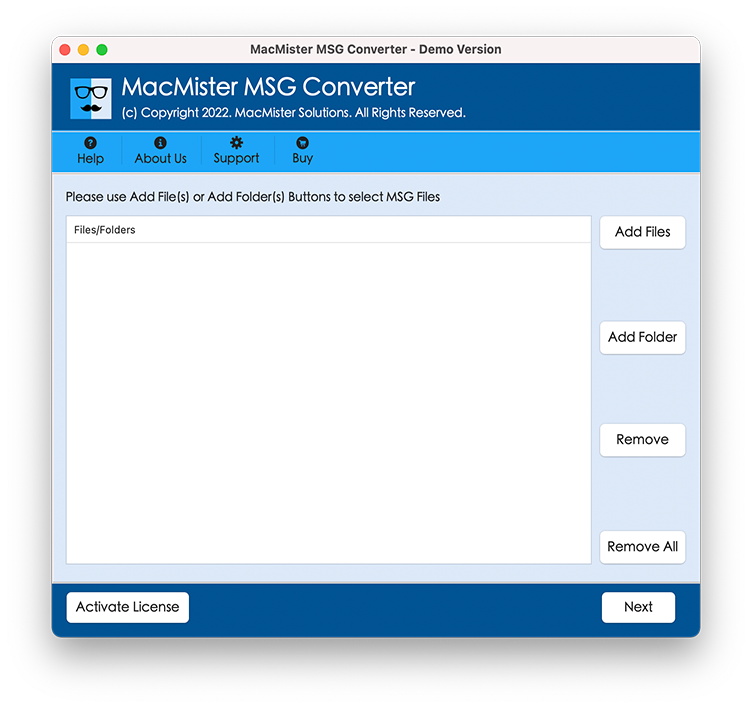
Install and launch the software on your Mac.
Add the Outlook MSG files or folders you want to migrate.
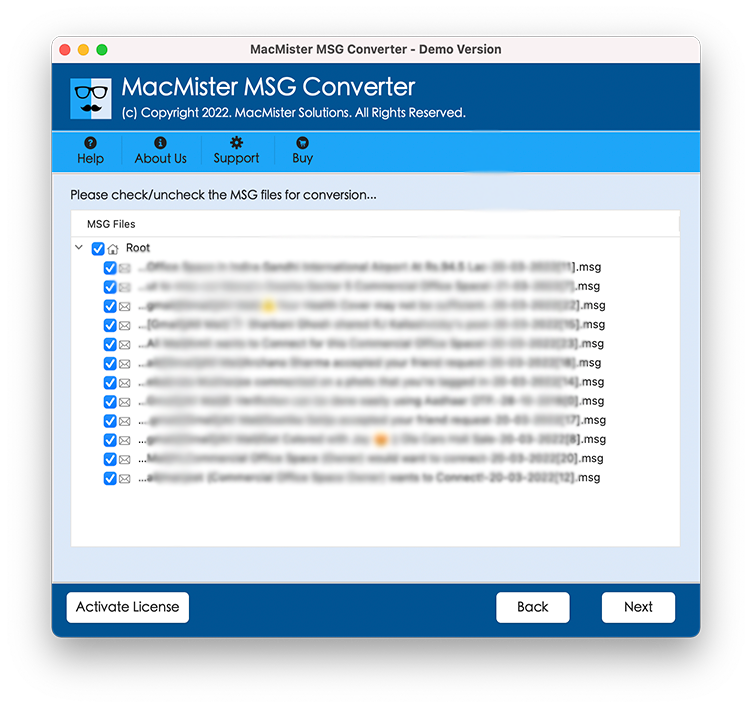
Preview the selected emails before migration.
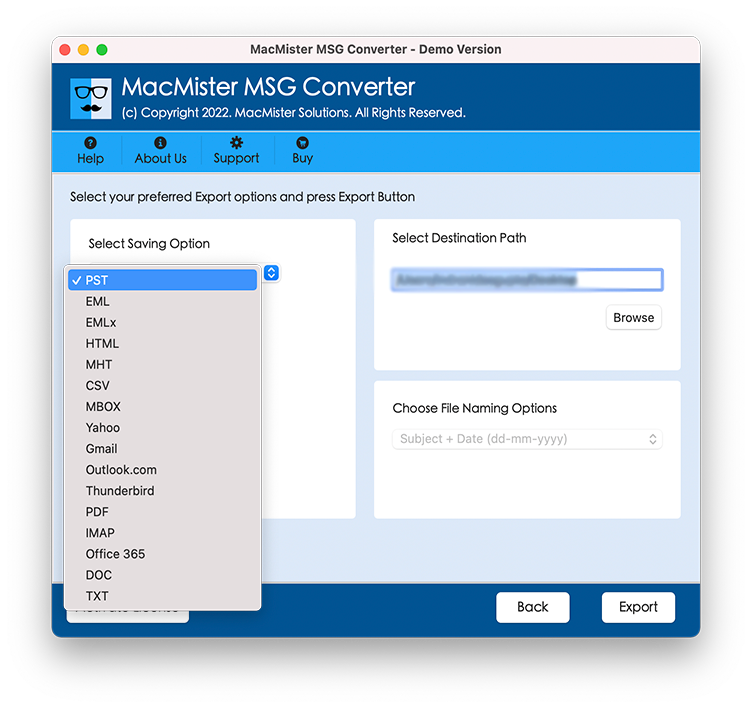
Choose Gmail as the destination email service.
Sign in securely to your Gmail account.
Apply optional filters if needed (such as date range or specific folders).
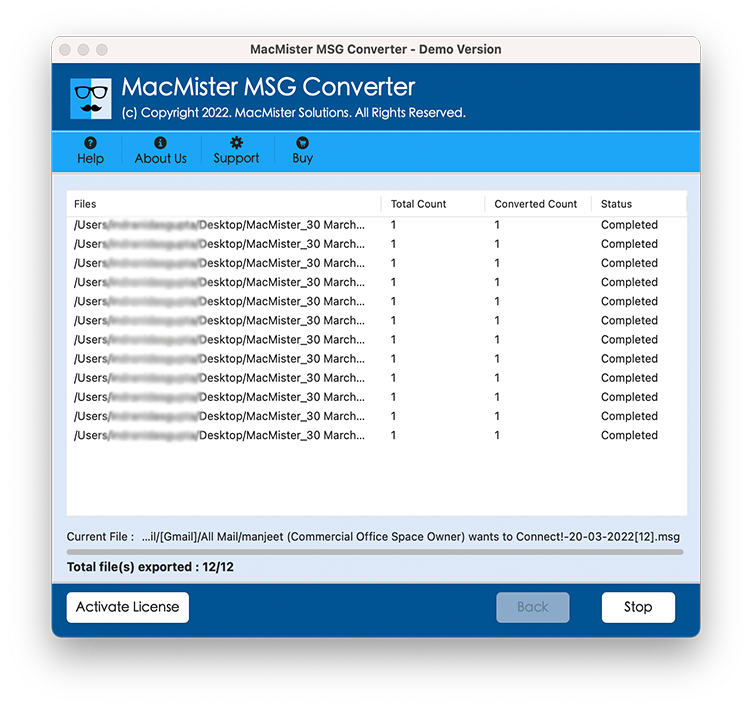
Start the migration process.
The software imports your emails while preserving attachments, formatting, metadata, and folder structure.
Frequently Asked Questions (FAQs)
Q. Can Gmail import Outlook MSG files directly?
Ans. No. Gmail does not natively support importing Outlook MSG files. You need Outlook-based workarounds or a dedicated migration tool.
Q. Why are my MSG files not uploading to Gmail?
Ans. Possible reasons include unsupported file format, corrupted MSG files, insufficient Gmail storage, interrupted internet connectivity, or incorrect migration methods.
Q. Will attachments be preserved during MSG-to-Gmail migration?
Ans. Yes. A reliable migration solution preserves attachments, email formatting, metadata, and folder hierarchy throughout the import process.
Q. Can I import multiple MSG files into Gmail at once?
Ans. Yes. Professional migration software supports bulk importing, making it much easier to migrate hundreds or thousands of MSG files efficiently.Q. Is there a risk of duplicate emails during migration?
Ans. Manual methods can create duplicate emails. Using a dedicated migration tool helps minimize or eliminate duplicate imports.Q. Do I need Microsoft Outlook to migrate MSG files?
Ans. Some manual methods require Outlook. However, many professional migration tools can process MSG files without relying on complex Outlook configurations.Q. What is the easiest way to move MSG files to Gmail?
Ans. The easiest and most reliable method is to use a professional migration solution that imports MSG files directly into Gmail while preserving attachments, metadata, and folder hierarchy.
Conclusion
Although Outlook MSG files are widely used for storing individual email messages, Gmail does not support importing them directly. As a result, users often encounter issues such as failed imports, missing attachments, unsupported file formats, duplicate emails, and lost folder hierarchy.
By understanding the common causes behind these problems and applying the troubleshooting methods discussed in this guide, you can avoid many migration errors.
For users handling a small number of emails, manual workarounds may be sufficient. However, for large archives or business migrations, advanced MSG files in Gmail for Mac tool provides a faster, more accurate, and more reliable way to import Outlook MSG files into Gmail while preserving your complete email data.