How to Fix IMAP Connection Failed While Backing Up Emails
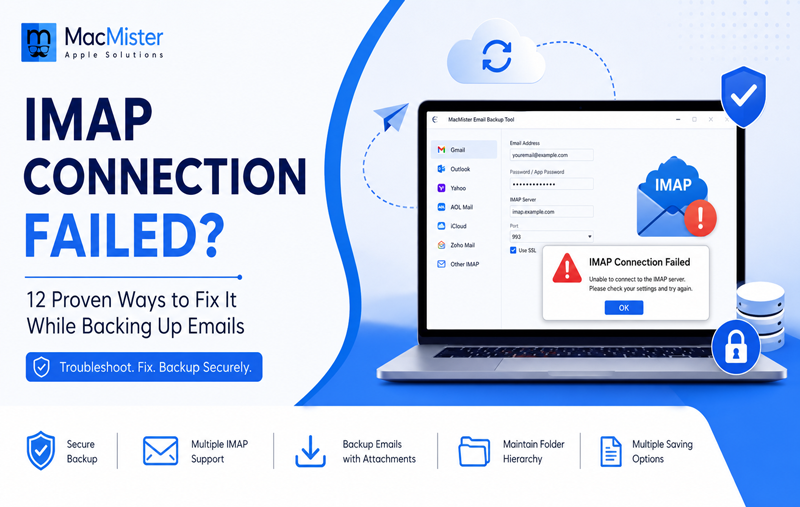
IMAP Connection Failed While Backing Up Emails? 12 Proven Ways to Fix It
Receiving the “IMAP Connection Failed” error while backing up emails can be frustrating, especially when you need a secure copy of important mailbox data. Whether you’re backing up Gmail, Outlook.com, Yahoo Mail, AOL, Zoho Mail, iCloud, or any other IMAP-enabled account, this error can interrupt the entire backup process.
The good news is that this issue is usually caused by configuration problems, authentication errors, network restrictions, or temporary server issues—all of which can be resolved with the right troubleshooting steps.
In this guide, you will learn why the IMAP connection failed while backing up emails error occurs, how to fix it, and how to ensure successful email backups on both Mac and Windows.
What Does “IMAP Connection Failed” Mean?
IMAP (Internet Message Access Protocol) is the standard protocol that allows email backup software to connect to your mailbox and download emails from the server.
When an application displays IMAP Connection Failed, it means the software was unable to establish a secure connection with your email server.
Without a successful IMAP connection, your emails cannot be accessed or backed up.
Common Reasons Why IMAP Connection Failed While Backing Up Emails
Several factors can prevent a successful IMAP connection.
1. Incorrect Email Credentials
- One of the most common causes is entering an incorrect email address or password.
- Even a small typing mistake can prevent authentication.
2. IMAP Is Disabled
- Many email providers allow users to disable IMAP access.
- If IMAP isn’t enabled, backup software cannot connect to your mailbox.
3. Two-Factor Authentication (2FA)
If your email account uses two-factor authentication, your regular password may not work for third-party applications. Most providers require either –
- OAuth authentication
- App Password
4. Wrong IMAP Server Settings
Using an incorrect –
- IMAP Host
- Port Number
- SSL/TLS Encryption
can immediately trigger connection failures.
5. Firewall or Antivirus Blocking Connection
- Security software sometimes blocks outbound IMAP connections because it mistakes them for suspicious activity.
6. Poor Internet Connection
- A slow or unstable internet connection may interrupt communication between the backup application and the email server.
7. Temporary Mail Server Downtime
- Sometimes the problem isn’t on your computer.
- The email provider’s IMAP server may be temporarily unavailable due to maintenance or an outage.
8. Expired OAuth Token
- Modern email providers like Gmail and Microsoft 365 use OAuth authentication.
- If the authorization token expires, the software must reconnect before continuing.
9. Too Many Simultaneous Connections
- Some email providers limit the number of active IMAP connections.
- If multiple devices are connected, new connections may be rejected temporarily.
10. Outdated Backup Software
- Older versions of email backup software may not support the latest security standards required by modern email providers.
12 Proven Ways to Fix IMAP Connection Failed While Backing Up Emails
Solution 1 – Verify Your Login Credentials
Double-check –
- Email address
- Password
- Username format
- If necessary, sign in through your webmail account first to verify the credentials.
Solution 2 – Enable IMAP
For many email services, IMAP must be enabled manually.
For Gmail –
- Open Gmail Settings.
- Go to Forwarding and POP/IMAP.
- Enable IMAP.
- Save Changes.
Solution 3 – Use an App Password
- If two-factor authentication is enabled –
- Generate an App Password.
- Replace your normal password with the App Password inside the backup software.
This is required by several providers that no longer allow basic authentication.
Solution 4 – Check IMAP Server Details
Always verify –
- IMAP Server
- Port
- Encryption Type
- Incorrect server information is one of the biggest causes of connection failures.
Solution 5 – Check Internet Connectivity
Ensure that –
- Wi-Fi is stable
- VPN isn’t interfering
- No proxy restrictions exist
A reliable internet connection is essential for uninterrupted email backup.
Solution 6 – Disable Firewall Temporarily
Temporarily disable –
- Windows Firewall
- Third-party antivirus
- Internet security software
If the backup works afterward, whitelist the backup application.
Solution 7 – Update the Backup Software
Install the latest version of your email backup application.
Updates often include –
- Improved authentication
- Better IMAP compatibility
- Security enhancements
- Bug fixes
Solution 8 – Reduce Simultaneous Connections
- Disconnect unused devices or email applications that are actively connected to the same mailbox.
- Then retry the backup.
Solution 9 – Check Email Provider Status
- Visit your email provider’s status page to confirm there isn’t an ongoing service outage.
- If the server is down, wait until normal service resumes.
Solution 10 – Retry After Some Time
- Sometimes temporary server restrictions automatically disappear after a few minutes.
- Waiting 15–30 minutes before retrying often resolves the issue.
Solution 11 – Re-authorize Your Email Account
If OAuth authentication has expired –
- Remove the connected account.
- Add it again.
- Complete the authorization process.
Solution 12 – Restart Your Computer
Although simple, restarting clears temporary network and application issues that may interfere with secure IMAP connections.
Recommended IMAP Server Settings
| Email Provider | IMAP Server | Port | Encryption |
| Gmail | imap.gmail.com | 993 | SSL |
| Outlook.com | outlook.office365.com | 993 | SSL |
| Yahoo Mail | imap.mail.yahoo.com | 993 | SSL |
| AOL Mail | imap.aol.com | 993 | SSL |
| Zoho Mail | imap.zoho.com | 993 | SSL |
| iCloud Mail | imap.mail.me.com | 993 | SSL |
Always verify these settings with your email provider if connection issues continue.
Protect Your Emails Before It’s Too Late
Avoid losing important emails due to IMAP errors, server outages, or accidental deletion. MacMister IMAP Backup Tool helps you securely back up Gmail, Outlook, Yahoo, AOL, Zoho, Office 365, and other IMAP accounts while preserving folder hierarchy, attachments, and metadata.

How to Prevent IMAP Connection Errors in the Future
Following best practices can significantly reduce future backup interruptions.
- Keep your backup software updated.
- Enable IMAP before starting backups.
- Use OAuth or App Passwords whenever supported.
- Avoid unstable internet connections.
- Perform backups regularly instead of waiting months.
- Store backups on local and external drives.
- Check mailbox storage limits periodically.
A Reliable Way to Backup IMAP Emails
If you’re looking for a secure and dependable solution, MacMister IMAP Backup Tool for Mac & Windows offers a straightforward way to download and archive emails from multiple IMAP-supported email services.
The software is designed to simplify the backup process while maintaining email integrity throughout the operation.
Key Features
- Backup multiple IMAP email accounts
- Supports Gmail, Yahoo, AOL, Outlook, Zoho, iCloud, Office 365, and more
- Secure OAuth authentication support
- Preserve folder hierarchy
- Maintain email metadata
- Backup emails with attachments
- Save emails into multiple file formats
- Selective backup using filters
- Compatible with both Windows and macOS
Using a reliable backup solution minimizes authentication problems and ensures your mailbox data remains protected even if your email account becomes inaccessible.
Frequently Asked Questions
Q. Why does my email backup say IMAP connection failed?
Ans. This usually occurs because of incorrect login credentials, disabled IMAP access, authentication issues, firewall restrictions, incorrect server settings, or temporary server outages.
Q. Does enabling IMAP delete my emails?
Ans.No. Enabling IMAP only allows applications to access your mailbox. Your existing emails remain unchanged.
Q. Can antivirus software block IMAP connections?
Ans. Yes. Some antivirus or firewall programs may block secure IMAP communication. Adding the backup software to the allowed list usually resolves the issue.
Q. What is an App Password?
Ans. An App Password is a special password generated for third-party applications when two-factor authentication is enabled.
Q.Which port should IMAP use?
Ans. Most secure IMAP connections use Port 993 with SSL encryption.
Q. Can I backup Gmail using IMAP?
Ans. Yes. Gmail supports IMAP after it has been enabled in Gmail settings and proper authentication has been configured.
Q. Will updating backup software fix IMAP errors?
Ans. In many cases, yes. Software updates often include compatibility improvements for newer authentication methods and email provider security changes.
Final Thoughts
The IMAP Connection Failed While Backing Up Emails error is usually the result of authentication problems, incorrect server settings, disabled IMAP access, network restrictions, or outdated software. Fortunately, most issues can be resolved by verifying account credentials, enabling IMAP, using modern authentication methods, checking server settings, and ensuring your internet connection is stable.
Regular email backups are essential for protecting valuable communications from accidental deletion, account compromise, hardware failure, or unexpected service interruptions. With the help of given technical methods outlined above and by a reliable MacMister Email Backup Tool for Mac & Windows, you can create reliable backups of your mailbox while saving emails, folder structure, attachments, and metadata. Establishing a consistent backup routine helps ensure that your important email data remains secure and accessible whenever you need it.