Bluehost to Outlook for Mac Not Working? Fix Import, Sync & Migration Errors Easily
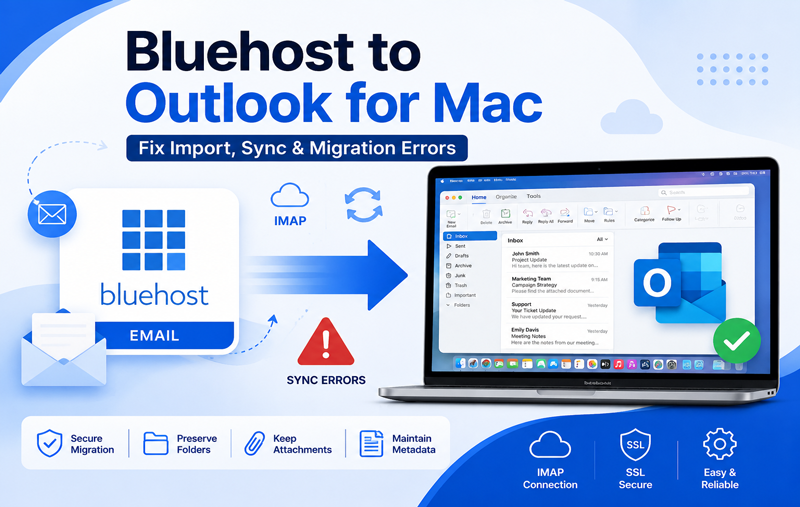
Managing business emails through Outlook for Mac offers better organization, offline access, and advanced productivity features. However, many users encounter problems when trying to transfer or configure their Bluehost email account in Outlook for Mac. Common issues include failed account setup, emails not syncing, authentication errors, missing folders, or Outlook repeatedly asking for passwords.
If you are searching for the best way to perform Bluehost to Outlook migration without errors, you’re not alone. Migration errors are often caused by misconfigured email settings, SSL/TLS conflicts, Outlook profile issues, or synchronization delays between Bluehost and Outlook.
Whether you’re moving from Bluehost Webmail to Outlook for Mac for better productivity or simply want to keep a local copy of your emails, it’s important to understand why these issues occur before attempting a migration.
Need a quicker and more reliable solution?
Instead of spending hours troubleshooting Outlook configuration errors, you can use the MacMister Email Backup Tool for Mac to transfer Bluehost emails directly into Outlook-supported formats while preserving emails, attachments, folder hierarchy, metadata, and formatting.
 |  |
Why Users Transfer Bluehost Emails to Outlook for Mac
There are several reasons why professionals and businesses prefer Outlook for Mac over Bluehost Webmail.
- Offline email access
- Better email organization
- Advanced search filters
- Calendar integration
- Contact management
- Large mailbox management
- Faster email backup
- Improved productivity
However, while Outlook is powerful, migrating Bluehost emails isn’t always straightforward.
Common Bluehost to Outlook for Mac Errors
Below are the most common issues users experience.
1. Outlook Cannot Connect to Bluehost Server
One of the most frequent problems is Outlook displaying –
- Unable to connect to server
- Connection timed out
- Server unavailable
Possible reasons include –
- Wrong IMAP hostname
- Incorrect SMTP settings
- Firewall restrictions
- Temporary Bluehost server issues
2. Bluehost Email Not Syncing with Outlook for Mac
Sometimes the account is added successfully, but Outlook doesn’t download new emails. This usually happens because of –
- Poor internet connection
- Large mailbox size
- Corrupted Outlook cache
- IMAP synchronization delays
- Folder subscription problems
As a result, users may believe recent emails have disappeared even though they remain available in Bluehost Webmail.
3. Outlook Keeps Asking for Bluehost Password
Another common error is Outlook repeatedly requesting your Bluehost login credentials. Possible causes include –
- Incorrect password
- Authentication failure
- Cached credentials
- SSL mismatch
- Two-factor authentication requirements
- Password recently changed
Repeated login prompts interrupt productivity and prevent Outlook from synchronizing properly.
4. Incorrect IMAP or SMTP Settings
Many migration failures happen because users manually enter incorrect server settings. Typical mistakes include –
- Wrong incoming server
- Wrong outgoing server
- Incorrect port numbers
- Disabled SSL encryption
- Authentication disabled
Even a small configuration mistake can stop Outlook from connecting to Bluehost successfully.
5. Missing Emails After Setup
Some users notice that only recent emails appear after configuring Bluehost in Outlook for Mac. Common reasons include –
- Folder mapping issues
- IMAP synchronization limits
- Archived folders not subscribed
- Outlook cache not fully downloaded
- Large mailbox synchronization delays
Fortunately, these issues can often be resolved without risking data loss.
Manual Methods to Fix Bluehost to Outlook for Mac Migration Errors
If you’re facing problems while transferring Bluehost emails to Outlook for Mac, try the following troubleshooting methods before attempting the migration again.
1. Verify Bluehost IMAP Settings
Incorrect server settings are one of the biggest reasons Outlook fails to connect with Bluehost. Double-check the following –
- Incoming mail server (IMAP)
- Outgoing mail server (SMTP)
- SSL/TLS encryption
- Port numbers
- Authentication settings
Even one incorrect value can prevent Outlook from syncing emails properly.
2. Check Your Internet Connection
A slow or unstable network may interrupt mailbox synchronization. Before configuring Outlook –
- Ensure your internet connection is stable.
- Disable VPN temporarily if you’re using one.
- Restart your router if needed.
Try accessing Bluehost Webmail in a browser to confirm the mail server is reachable.
3. Update Outlook for Mac
Running an outdated Outlook version may lead to compatibility issues with newer email server security protocols. Updating Outlook can help resolve –
- Authentication failures
- Sync delays
- SSL certificate errors
- Unexpected connection issues
4. Remove and Re-add the Bluehost Account
Sometimes Outlook stores incorrect configuration data. Removing the account and adding it again refreshes the connection. Before removing the account –
- Ensure your mailbox is fully backed up.
- Verify your Bluehost credentials.
- Keep your server settings ready for reconfiguration.
5. Check Folder Subscription
Many users think their emails are missing when Outlook simply isn’t subscribed to all IMAP folders. Verify that folders such as –
Inbox, Sent, Drafts, Archive, Custom folders
are included in Outlook’s synchronization settings.
6. Clear Outlook Cache
Corrupted cache files can stop Outlook from downloading the latest emails. Symptoms include –
- Old emails only
- Missing folders
- Duplicate messages
- Endless syncing
- Outlook freezing during synchronization
Refreshing the cache often restores proper synchronization.
Why Manual Bluehost to Outlook for Mac Migration Often Fails
Although manual configuration is free, it has several limitations that make it unreliable for large or business mailboxes. Some common drawbacks include –
- Time-consuming account setup
- Multiple configuration steps
- Higher risk of incorrect settings
- Possible synchronization failures
- Large mailbox performance issues
- Missing folders after migration
- Attachments not downloading properly
- No option to export emails for backup
- Risk of incomplete mailbox transfer
If you have years of important business emails, relying solely on manual methods may not provide the accuracy or reliability you need.
Advanceed Solution to Transfer Bluehost Emails to Outlook for Mac
If manual troubleshooting doesn’t resolve the issue, a dedicated migration solution can save time and help avoid data loss. MacMister Bluehost Backup Tool for Mac is a professional application designed to export Bluehost emails directly into Outlook-supported formats. Instead of depending on IMAP synchronization, the software securely downloads mailbox data while preserving the original structure. The tool maintains –
- Complete folder hierarchy
- Email formatting
- Attachments
- Inline images
- Metadata (To, From, Subject, Date, CC, BCC)
- Read and unread status
It also supports exporting Bluehost emails to PST, making them easy to import into Outlook on both Windows and Mac environments when required.
| |
Steps to Transfer Bluehost Emails to Outlook for Mac
Using the software is straightforward –
Step 1 – Download and install MacMister Email Backup Tool for Mac.
Step 2 – Launch the software and choose the Bluehost from the given webmail list.
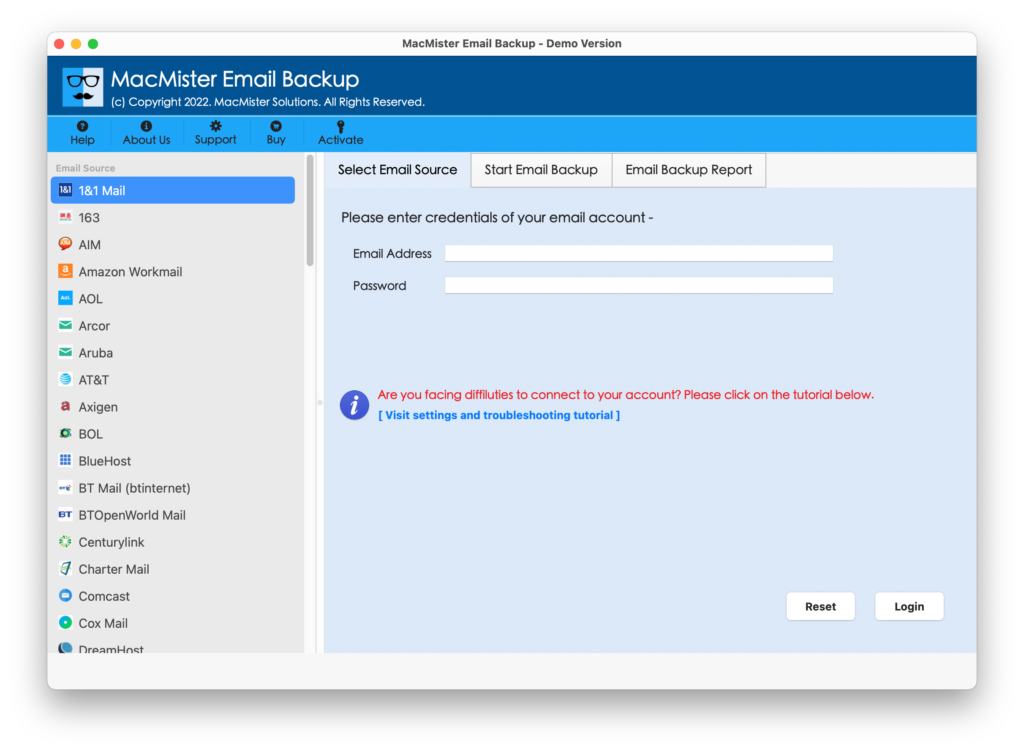
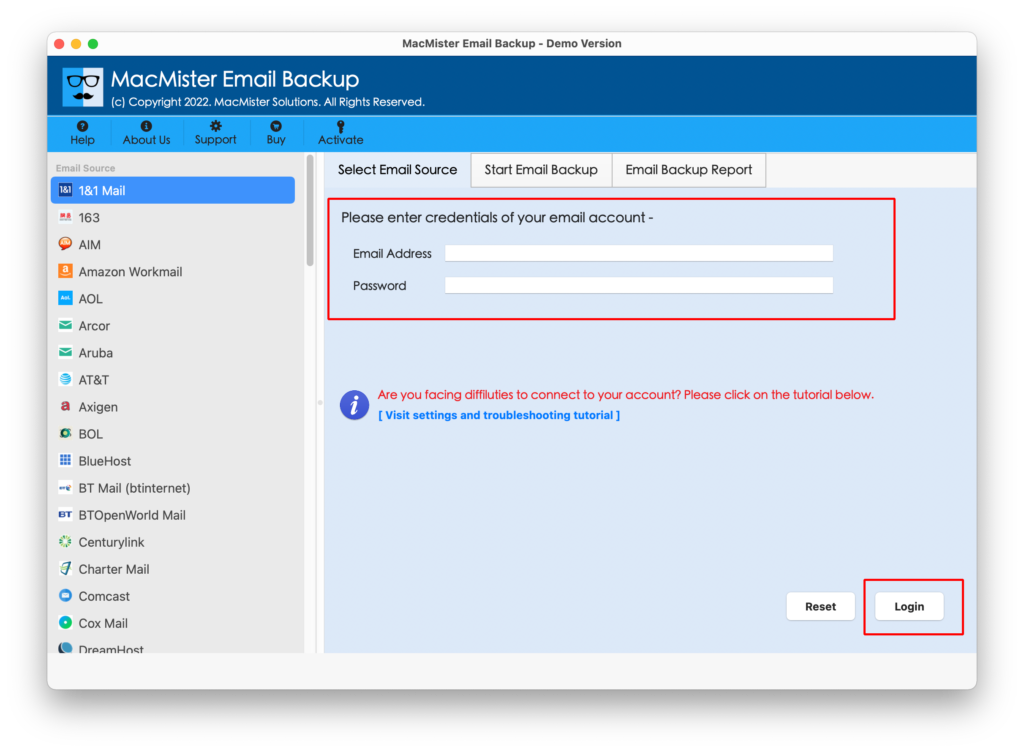
Step 3 – Sign in with your Bluehost email credentials.
Step 4 – The software will load your mailbox automatically.
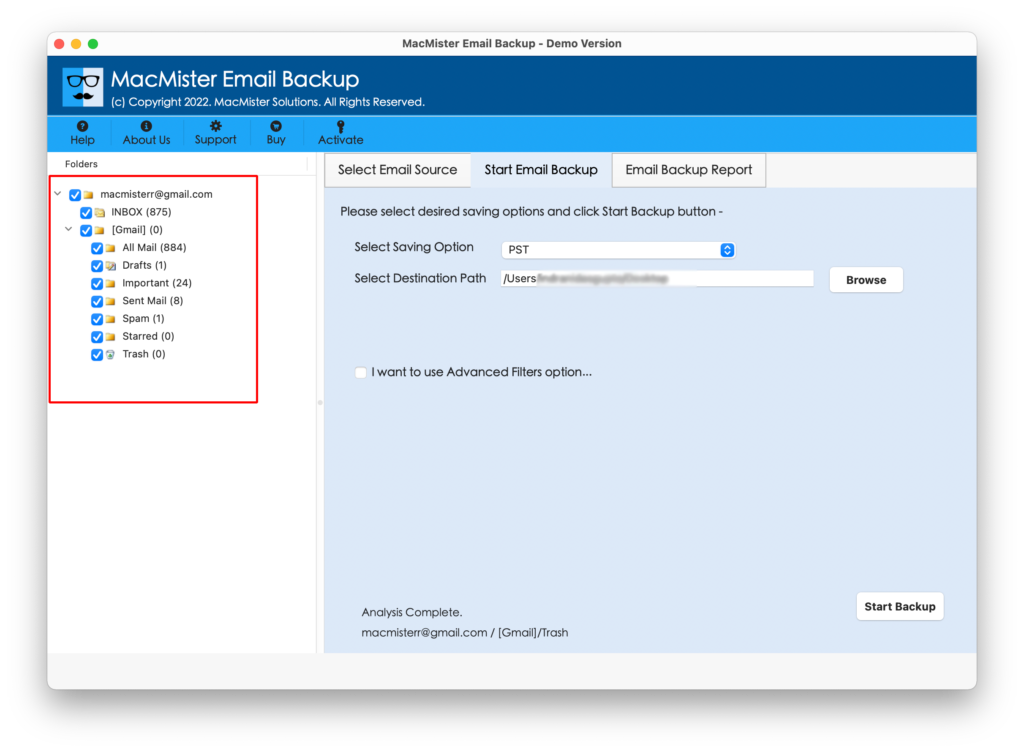
Step 6 – Choose PST as the export format (or another Outlook-compatible option if available).
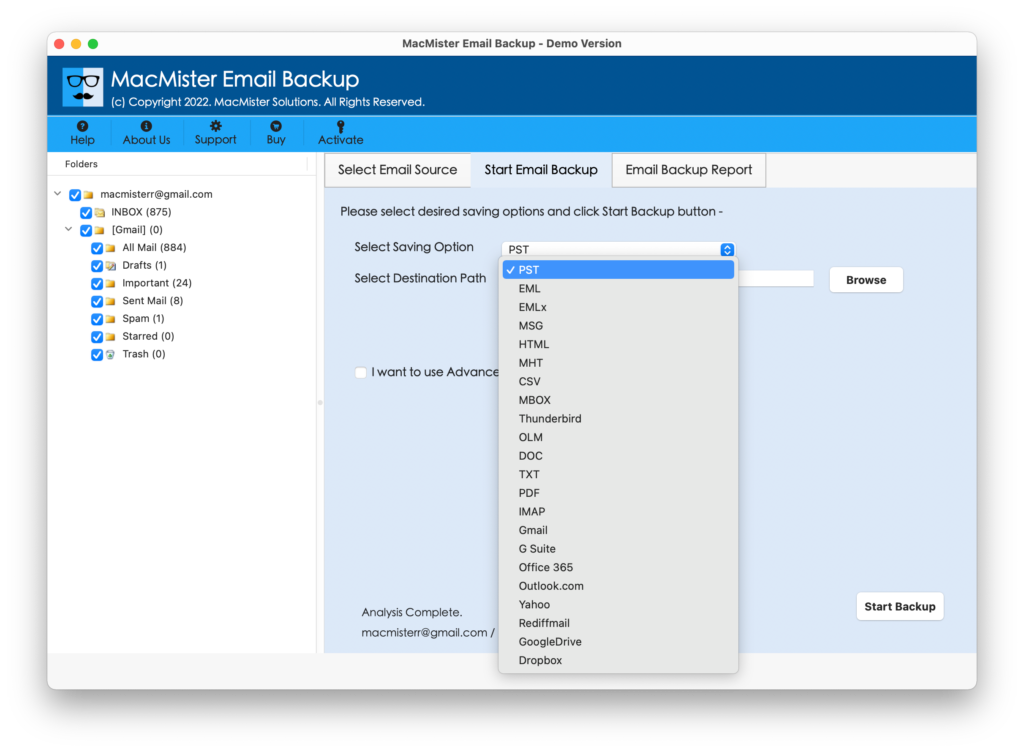
Step 7 – Select the destination folder.
Step 8 – Click Start Backup to begin exporting your Bluehost mailbox.
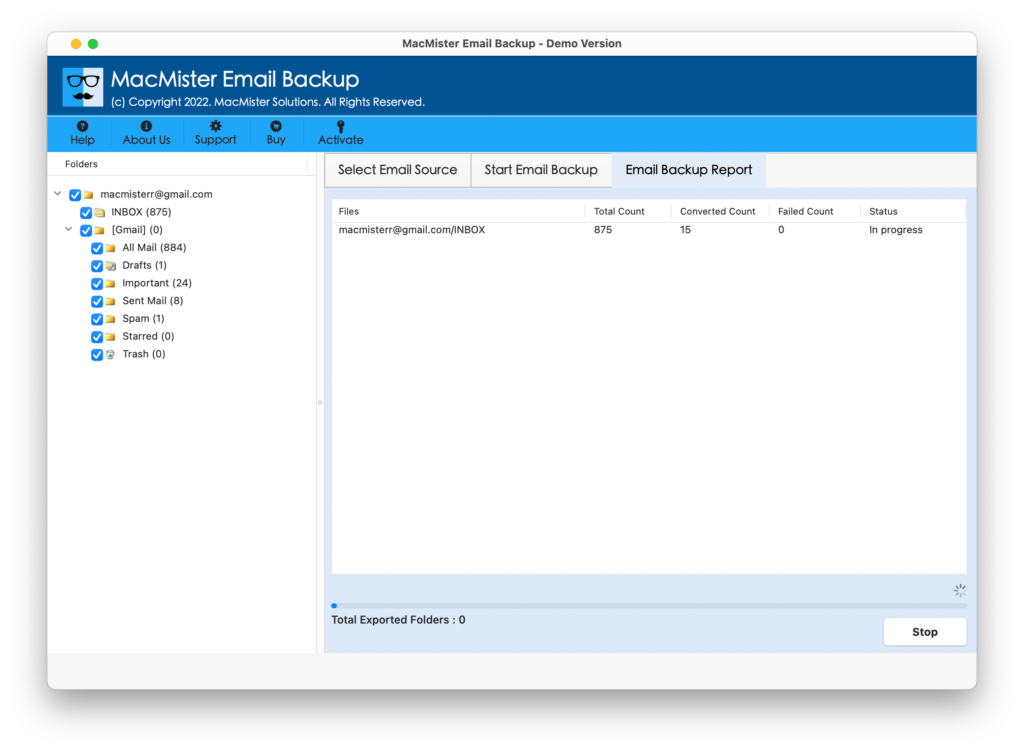
After the process is complete, your exported data can be opened or imported into Outlook without the common synchronization issues associated with manual configuration.
Why Choose Email Backup Tool for Mac?
Compared to manual migration, the software offers several advantages –
- Direct Bluehost mailbox export
- Preserves complete folder hierarchy
- Maintains email formatting
- Keeps attachments intact
- Supports selective email backup
- Date-filter option for exporting specific emails
- Handles large mailboxes efficiently
- User-friendly interface
- No technical expertise required
- Secure and reliable migration process
These features make it suitable for both individual users and businesses looking for a dependable Bluehost to Outlook for Mac solution.
Frequently Asked Questions
Can I transfer Bluehost emails to Outlook for Mac without losing attachments?
Yes. A professional migration tool preserves attachments, inline images, and email formatting during the export process.
Why is Outlook for Mac not syncing with Bluehost?
This can happen because of incorrect IMAP settings, authentication issues, outdated Outlook versions, network interruptions, or corrupted cache files.
Does Outlook automatically import old Bluehost emails?
Not always. Depending on synchronization settings and mailbox size, Outlook may initially download only part of the mailbox.
Is manual Bluehost email migration reliable for large mailboxes? Manual methods work for some users but often become slow or incomplete when handling large mailboxes or years of email history.
Which format should I use for Outlook?
PST is commonly used for importing mailbox data into Outlook and is a preferred choice when creating a local archive of Bluehost emails.
Conclusion
Migrating Bluehost to Outlook for Mac can become challenging when sync failures, authentication problems, incorrect server settings, or missing folders interrupt the process. While manual troubleshooting may resolve basic configuration issues, it often falls short for users with large or business-critical mailboxes.
If you want a faster and more reliable approach, Bluehost to Outlook Tool for Mac simplifies the migration process by securely exporting Bluehost emails to Gmail, Office 365, Exchange Server, Outlook, Yahoo Mail, PDF, EML, MBOX, and many more options while preserving attachments, folder hierarchy, formatting, and metadata. This helps you move your mailbox to Outlook with greater confidence and significantly reduces the chances of errors or incomplete data transfer.
| |