How to Add MSG Files to Zoho Mail on Mac? – Working Guide
MSG files store individual email messages along with their associated information, including sender and recipient details, subject, date, message body, and attachments. These files are commonly created by Microsoft Outlook users who save emails individually for future reference or sharing. However, accessing MSG files through a web-based email service such as Zoho Mail requires an appropriate migration approach.
Zoho Mail provides a cloud-based platform for managing professional and personal email communication. Users who want to move their existing Outlook MSG messages to Zoho Mail need a method that transfers email content without losing important information. This guide explains the manual approach, its limitations, and an advanced solution using MacMister MSG to Zoho Mail Tool on Mac.
What Are MSG Files?
MSG is a proprietary email message format associated with Microsoft Outlook. It stores individual email messages in a structured format and retains essential email properties such as sender, recipient, subject, timestamps, message body, and attachments. MSG files are useful for archiving important conversations, maintaining business records, and sharing individual email messages.
What Is Zoho Mail?
Zoho Mail is a cloud-based email hosting service designed for individual users and businesses. It offers features such as email management, custom domain hosting, folder organization, spam protection, and integration with other Zoho applications. Its web-based interface allows users to access their email accounts from different devices without depending on a particular desktop email client.
Why Add MSG Files to Zoho Mail?
- Centralized Email Management – Store existing Outlook messages alongside regular Zoho Mail conversations.
- Cloud Accessibility – Access important email information through a web browser from different locations.
- Business Communication – Maintain previous customer conversations and professional correspondence in one account.
- Email Organization – Manage transferred messages using Zoho Mail folders and labels.
- Long-Term Availability – Keep important email records accessible without depending entirely on local MSG files.
How to Import Add MSG Files to Zoho Mail Manually
Zoho Mail does not provide a direct option to upload individual MSG files into an existing mailbox as regular emails. However, users can use a compatible email application as an intermediate step to transfer the messages. Follow these steps –
Step1 – Install and open a desktop email application that supports MSG files.
Step2 – Open the required MSG files in the compatible application.
Step3 – Configure your Zoho Mail account in the same email application using the supported IMAP settings.
Step4 – Sign in to your Zoho Mail account and access the mailbox folders.
Step5 – Select the email messages imported from the MSG files.
Step6 – Copy or move the selected messages into the required Zoho Mail folder.
Step7 – Allow the email application to synchronize the messages with the Zoho Mail server.
Step8 – Open Zoho Mail through a web browser and verify the transferred emails.
Risks and Limitations of the Manual Method
Although the manual approach can help transfer a small number of messages, it has several limitations when handling large MSG collections.
- Application Dependency – Users need a compatible desktop email application to open MSG files and configure Zoho Mail.
- Time-Consuming Process – Importing and transferring multiple MSG files individually requires additional effort.
- Attachment Issues – Attachments may not transfer correctly if the intermediate application does not handle them properly.
- Formatting Changes – Email layouts, hyperlinks, images, and other formatting elements may not remain identical.
- Configuration Errors – Incorrect IMAP settings or authentication problems can interrupt synchronization.
- Limited Batch Processing – Managing a large collection of MSG files manually makes the migration process difficult.
These limitations make the manual approach less convenient for users who need to transfer multiple Outlook messages to Zoho Mail.
How to Import MSG Files to Zoho Mail – Advanced Solution
For users who want advanced direct approach, MacMister MSG Converter for Mac Tool provides perfect way for transferring Outlook MSG files into Zoho Mail account. It allows users to add multiple MSG files and migrate MSG data without depending on a lengthy manual process.
 |  |
The software provides a straightforward interface for selecting MSG files, configuring the destination account, and starting the migration. It is suitable for users who need to process multiple email messages from their Mac.
Steps to Add MSG Files to Zoho Mail by MSG to Zoho Tool on Mac
Step 1 – Download and install & launch the MacMister MSG to IMAP Tool on Mac.
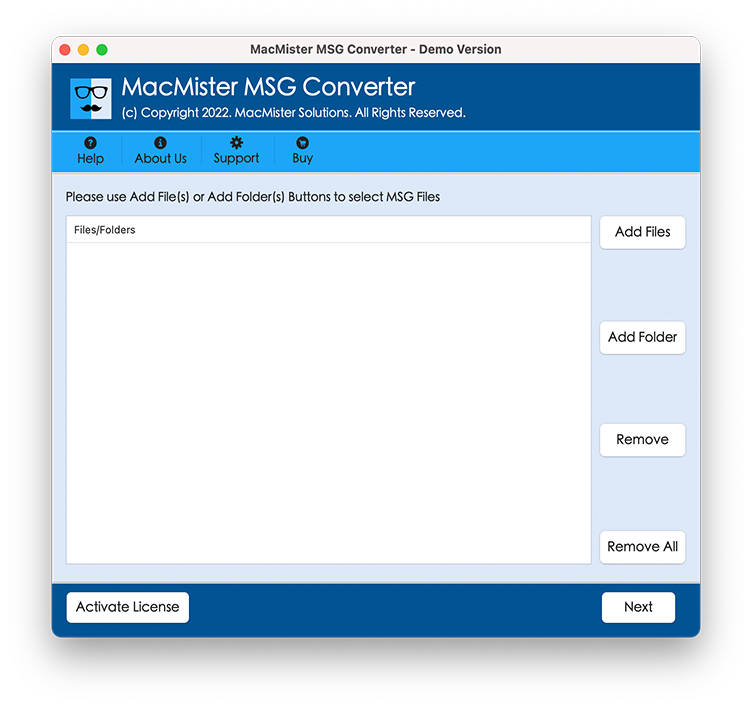
Step 2 – Use the Add Files or Add Folder option to load the required MSG files.
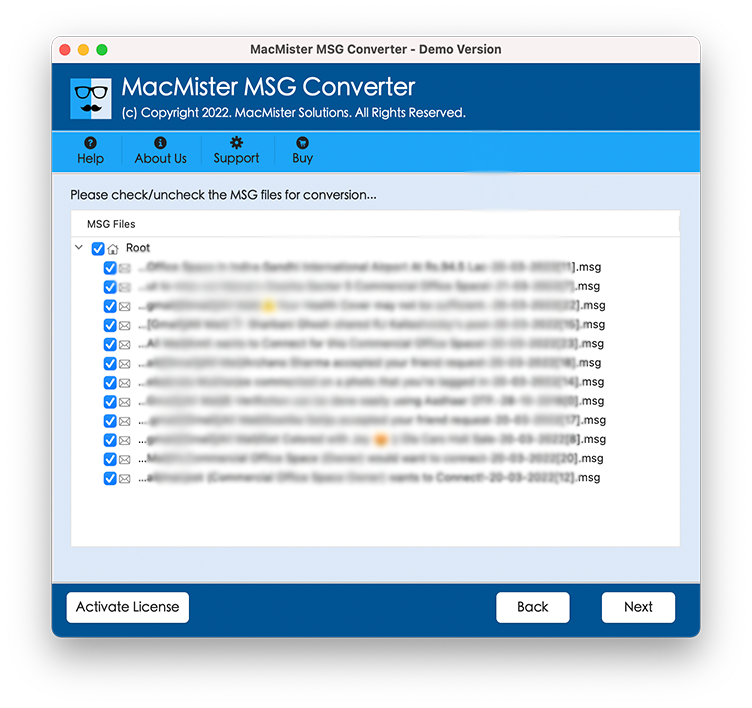
Step 3 – Select the loaded files you want to transfer.
Step 4 – Choose IMAP as the destination platform for migration to Zoho Mail account.
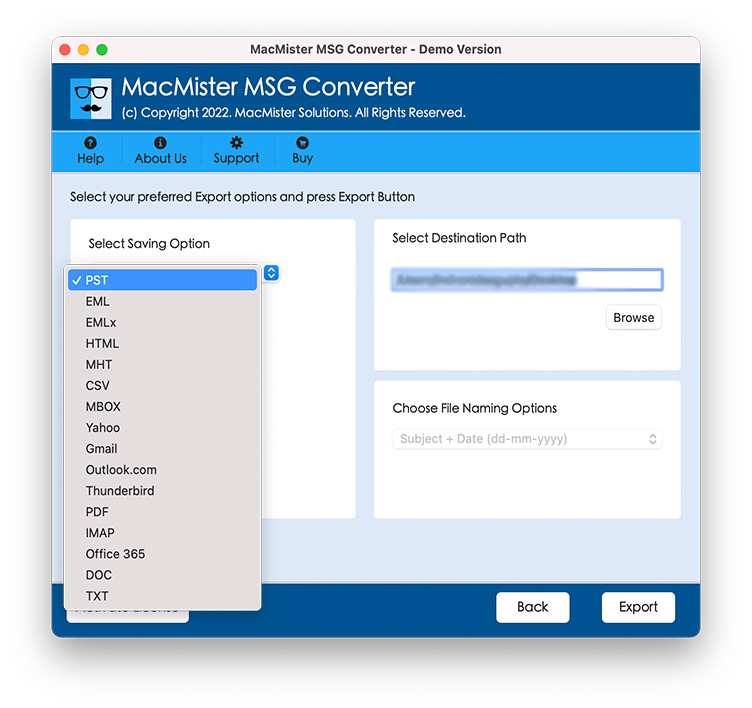
Step 5 – Enter your Zoho Mail account credentials with IMAP port & server and complete the required authentication.
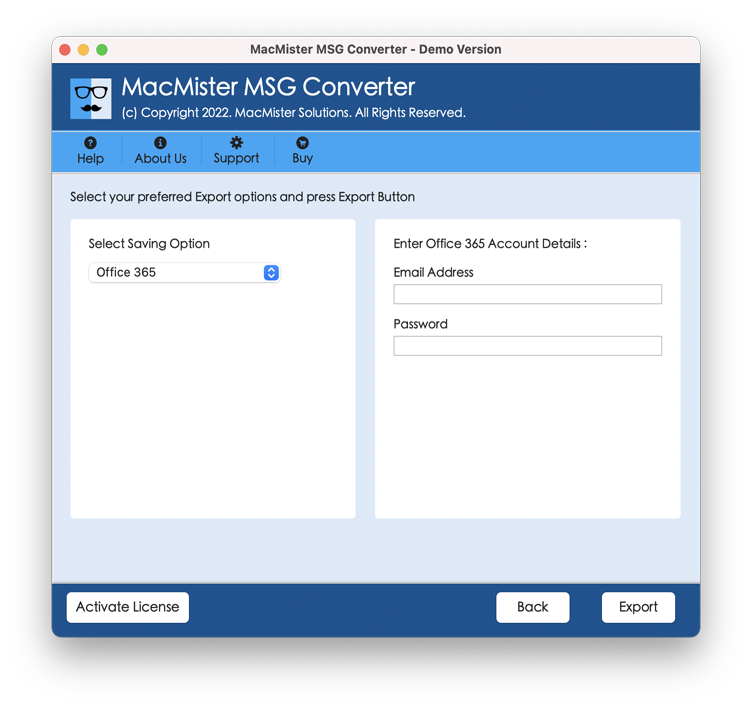
Step 6 – Click the export button to begin transferring the selected MSG files.
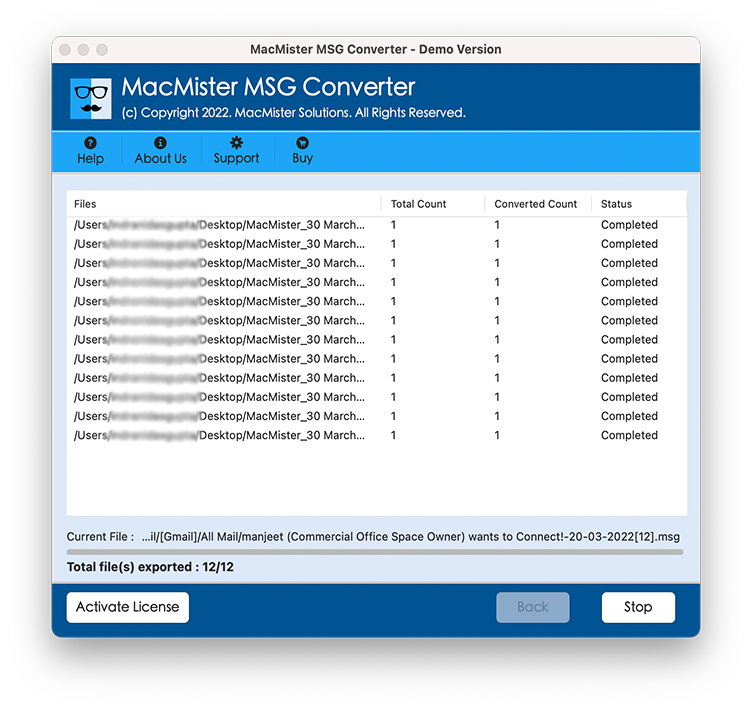
Why Choose the MSG to Zoho Mail on Mac Tool
- Batch Migration – Add multiple MSG files or folders for processing in a single operation.
- Attachment Support – Transfer email messages along with their associated attachments.
- Email Information – Retain important message properties, including sender, recipient, subject, and date.
- Folder Selection – Add MSG files from different folders for organized migration.
- Simple Interface – Provides an easy-to-use environment for Mac users.
- Selective Migration – Choose the required MSG files instead of processing the entire collection.
- Mac Compatibility – Supports migration on compatible all macOS versions.
Conclusion
Adding MSG files to Zoho Mail requires an appropriate method because the platform does not directly support importing individual MSG files through its web interface. The manual approach involves using a compatible desktop email application and configuring Zoho Mail through IMAP, which can become time-consuming for larger collections. The MSG to Zoho Mail Tool on Mac offers smart way for users who want to transfer multiple MSG messages to Zoho Mail account.