How to Migrate Network Solutions Email to Outlook for Mac?
This guide explains manual method & Network Solutions to Outlook Tool for transferring Network Solutions emails to Outlook so read it till the end and know about complete working guide of how to migrate Network Solutions Email to Outlook for Mac.
Network Solutions is a popular email hosting service used by individuals and businesses to manage professional email communication. However, users may want to move their existing Network Solutions mailbox to Microsoft Outlook for Mac to manage multiple email accounts through a single application. Outlook offers a familiar interface, calendar integration, email organization, and other productivity features that make it a preferred choice for professional communication.
Migrating emails from Network Solutions to Outlook for Mac requires a suitable approach to ensure that important messages, attachments, and email properties remain accessible. Users can perform the migration manually by configuring their accounts in an email application or use a dedicated solution for a more convenient process.
What Is Network Solutions?
Network Solutions is a web hosting and domain registration provider that also offers professional email hosting services. It allows users to create custom-domain email addresses and manage business communication. Its email service provides features such as spam filtering, mailbox management, and email access through supported applications and webmail.
Users can access their Network Solutions emails through a browser or configure their accounts in compatible desktop email clients using supported email protocols.
What Is Microsoft Outlook for Mac?
Microsoft Outlook for Mac is an email management application designed for macOS users. It allows users to manage multiple email accounts, organize messages, search conversations, and handle professional communication from one interface. Outlook also integrates with other Microsoft 365 applications and services.
By moving Network Solutions emails to Outlook, users can manage their existing correspondence through a familiar desktop environment.
Why Migrate Network Solutions Email to Outlook for Mac?
- Centralized Email Management – Manage Network Solutions messages alongside other email accounts in Outlook.
- Better Organization – Use folders, categories, and search options to organize important conversations.
- Professional Communication – Access business correspondence through a widely used desktop email application.
- Convenient Accessibility – Manage emails directly from a Mac without repeatedly opening webmail.
- Microsoft 365 Integration – Work with other Microsoft productivity applications through the Outlook environment.
- Email Consolidation – Keep messages from different email services accessible through a single application.
How to Transfer Network Solutions Email to Outlook for Mac Manually
Users can migrate Network Solutions emails manually by configuring their source account in an email application and copying messages into Outlook. This approach requires supported IMAP access and proper account configuration. Follow these steps –
Step1 – Open Microsoft Outlook on your Mac.
Step2 – Navigate to the account settings and select the option to add an email account.
Step3 – Enter your Network Solutions email address and password.
Step4 – Configure the incoming and outgoing server settings using the IMAP and SMTP details provided by Network Solutions.
Step5 – Complete the authentication process and allow Outlook to synchronize the Network Solutions mailbox.
Step6 – Open Outlook account settings and add the destination Outlook or Microsoft 365 account.
Step7 – Allow both accounts to synchronize successfully.
Step8 – Select the required emails or folders from the Network Solutions account.
Step9 – Copy or move the selected messages into the appropriate destination account folders.
Step10 – Wait for synchronization to finish and verify the transferred emails in the destination mailbox.
Risks and Limitations of the Manual Method
- Time-Consuming Process – Copying multiple email folders manually requires additional time and effort.
- Configuration Issues – Incorrect IMAP or SMTP settings can prevent successful account synchronization.
- Internet Dependency – The process relies on a stable internet connection throughout mailbox synchronization.
- Attachment Problems – Large attachments may take longer to synchronize or encounter transfer interruptions.
- Incomplete Migration – Users may accidentally miss important folders or email messages during manual selection.
- Duplicate Emails – Repeated copying or restarting interrupted transfers can create duplicate messages.
- Storage Limitations – The destination mailbox must have sufficient storage space for the incoming emails.
How to Import Emails from Network Solutions to Outlook on Mac by Advanced Way
MacMister Email Backup Tool for Mac provides advanced way for users who want to transfer Network Solutions emails to Outlook without relying entirely on manual mailbox operations. The software offers an organized interface for connecting email accounts, selecting mailbox data, and performing the required email migration.
Steps to Migrate Network Solutions Email to Outlook – Step by Step Guide
Step 1 – Download, install and launch Network Solution to Outlook Tool on Mac.

Step 2 – Select Network Solutions or the supported source email account option. Enter your Network Solutions email address and the required authentication details.

Step3 – Select the mailbox folders or specific emails you want to migrate.

Step4 – Choose PST for Windows Outlook & OLM for Mac Outlook as the destination, according to the available software options.

Step5 – Configure the available migration settings, including filters and folder selection.
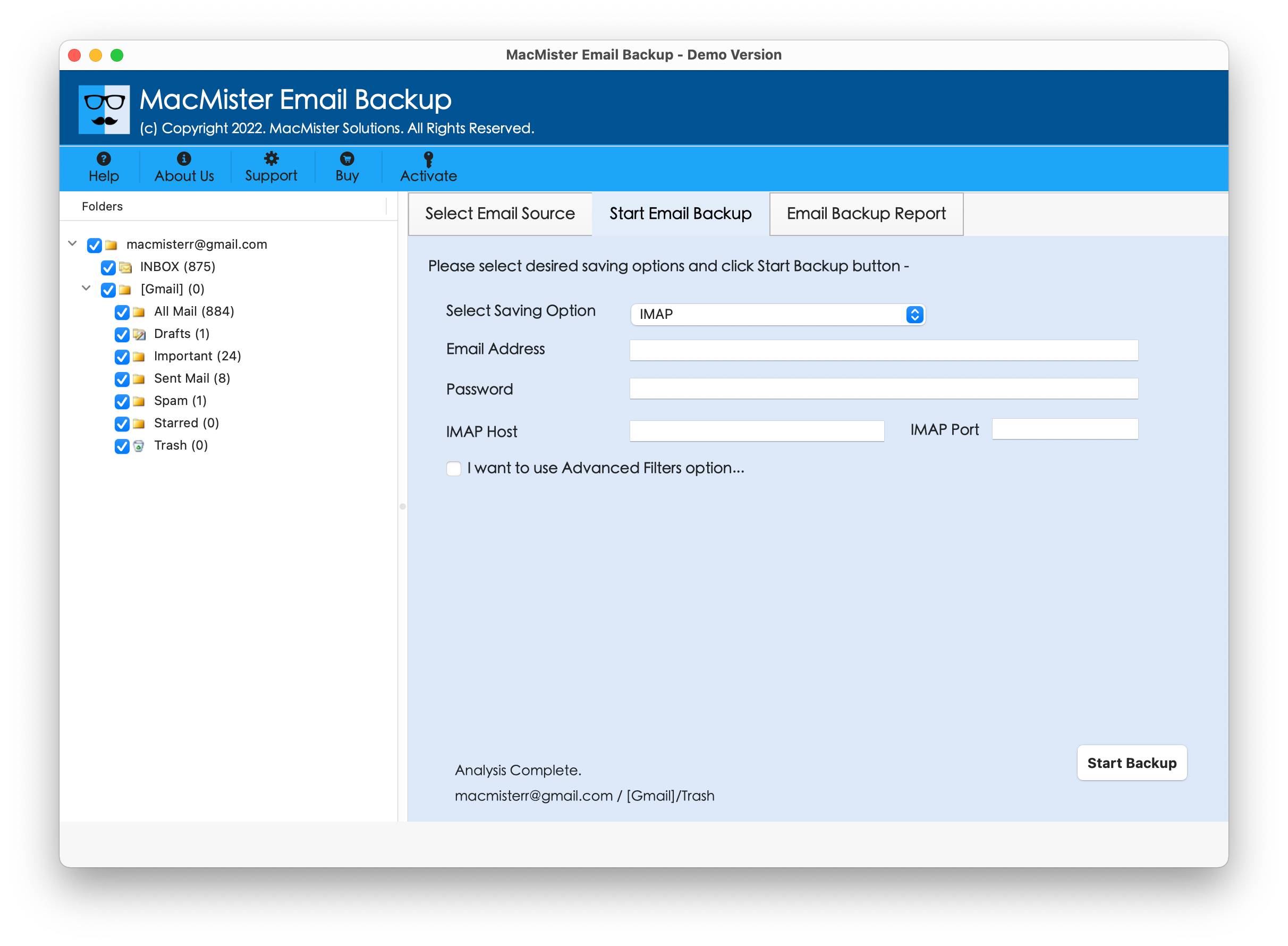
Step6 – Click on the Export option to start the migration process and allow the software to transfer the selected email data.

Why Choose Network Solutions to Outlook for Mac Tool
- Batch Processing – Process multiple emails and mailbox folders in a single operation.
- Attachment Support – Transfer email messages along with their associated attachments.
- Email Filters – Apply available filtering options to select the required email data.
- Metadata Preservation – Retain important email properties, including sender, recipient, subject, and date.
- Folder Management – Select the required mailbox folders for organized migration.
- Direct Migration – Supports account-to-account migration through the available destination options.
- Simple Interface – Provides an easy-to-use environment for Mac users.
- Free Trial – Evaluate the software through its available trial version before completing the migration.
Conclusion
Migrating Network Solutions emails to Outlook Converter for Mac helps users manage professional correspondence through a centralized desktop application. The manual method involves configuring email accounts and copying messages between mailboxes, but it can become time-consuming when transferring large amounts of data. The Network Solutions to Outlook for Mac tool offers advanced way with batch processing, attachment support, email filters, and direct migration options. Users can choose the method that best matches their mailbox size and migration requirements.