Gmail Storage Full? How to Backup Emails to Free Up Google Storage on Mac
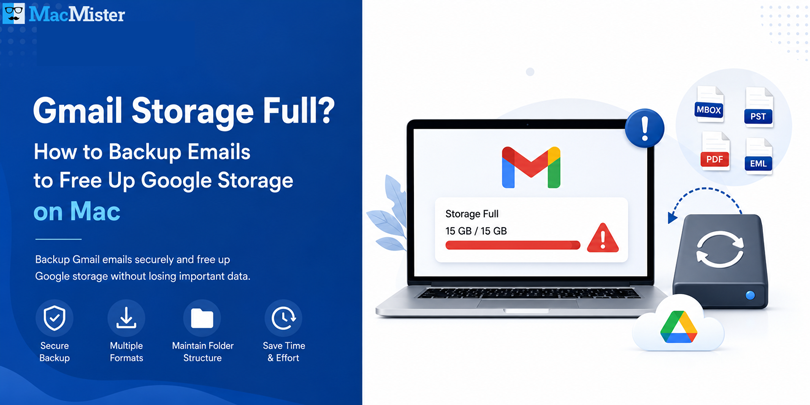
Have you ever tried to receive an important email only to discover that your Gmail account is running out of storage? If your inbox is full, new messages may stop arriving, large attachments become difficult to send, and managing your mailbox becomes increasingly frustrating.
Google provides 15 GB of free cloud storage, which is shared across Gmail, Google Drive, and Google Photos. At first, this storage feels more than enough. However, years of emails, large attachments, photos, videos, and documents gradually consume the available space. Eventually, many users encounter the dreaded “Storage Full” notification.
Deleting emails may seem like the quickest solution, but removing messages without a backup can permanently erase valuable conversations, invoices, receipts, legal documents, and business records. Once deleted and removed from Trash, recovering them may not always be possible.
A much safer approach is to backup your Gmail emails on your Mac before cleaning your mailbox. By keeping a local copy, you can confidently free up Google storage while ensuring your important data remains accessible whenever you need it.
In this guide, you will learn why Gmail storage fills up, how to identify what’s consuming space, and why backing up your mailbox is the smartest first step before deleting anything.
Why Your Available Gmail Storage Keeps Shrinking
Many users believe Gmail alone uses the entire storage quota, but that’s not actually the case. Google combines storage across several services into one shared limit. Here are the biggest reasons your storage fills up faster than expected –
1. Large Email Attachments – Attachments consume significantly more space than regular text emails. Files such as PDFs, presentations, spreadsheets, ZIP archives, videos, and high-resolution images can quickly occupy several gigabytes over time.
If you’ve been using Gmail for years, thousands of attachment-heavy emails may be sitting in your inbox without you realizing how much storage they’re consuming.
2. Promotional and Newsletter Emails – Online shopping websites, travel agencies, subscription services, and marketing platforms send promotional emails almost every day. While each email is relatively small, thousands of them accumulate over months and years. Many users never open these emails, yet they continue occupying valuable Gmail storage.
3. Google Drive Files – Remember that Google Drive shares the same storage limit as Gmail.
- Large PDFs
- Video files
- Project folders
- Presentations
- Shared documents
- Old backups
Although they don’t appear in Gmail, these files still count toward your overall Google storage quota.
4. Google Photos – If your photos and videos are stored in their original quality, they can quickly consume the majority of your Google storage.
High-resolution smartphone photos and 4K videos are among the largest contributors to storage usage today.
5. Spam and Trash – Many people assume emails inside Spam or Trash don’t count toward storage. Unfortunately, they do. Even deleted emails continue using storage until they are permanently removed.
How to Check Your Gmail Storage Usage
Before deleting anything, it’s important to identify what’s actually consuming your available space.
You can review your storage usage by visiting your Google Account’s storage dashboard. It displays how much space is being used by –
- Gmail
- Google Drive
- Google Photos
Checking this breakdown helps you avoid deleting emails unnecessarily when another Google service may actually be responsible for most of the storage usage.
What Happens When Gmail Storage Is Full?
Running out of storage affects much more than your inbox. You may experience problems such as –
- Unable to Receive New Emails – Perhaps the biggest issue is that incoming emails may stop arriving. This can cause you to miss important business messages, customer inquiries, invoices, password reset links, or personal communications.
- Sending Emails Becomes Difficult – Large attachments may fail to upload, and email delivery can become unreliable if your storage is completely exhausted.
- Google Services Stop Syncing Properly – Because storage is shared across Google services, insufficient space can interrupt synchronization between Gmail, Google Drive, and Google Photos.
- Increased Risk of Losing Important Data – When users panic after seeing a storage warning, they often start deleting emails in bulk without checking their contents.
Unfortunately, this can result in the accidental removal of valuable documents that are difficult—or even impossible—to recover later.
Should You Delete Emails Immediately?
- Deleting emails should never be your first response to a storage warning.
- Do these emails contain financial records?
- Are there client conversations I may need later?
- Will I require these attachments for future reference?
- Are there legal or tax documents stored in my inbox?
If the answer to any of these questions is yes, creating a backup first is the safest option.
Once your Gmail emails are securely saved on your Mac, you can organize or delete older messages with much greater confidence.
Why Backing Up Gmail Is Better Than Simply Deleting Emails
A backup gives you complete control over your email data. Instead of relying entirely on cloud storage, you keep an independent copy that remains available even if emails are deleted from Gmail. Some key benefits include –
- Protect important emails before cleaning your mailbox.
- Free up Google storage without worrying about permanent data loss.
- Access archived emails even when you’re offline.
- Preserve attachments, timestamps, sender information, and folder structure.
- Keep records for business, legal, or personal purposes.
Backing up your Gmail account also provides peace of mind. Whether you are upgrading your Mac, switching email services, or simply reducing cloud storage usage, having a local archive ensures your important communications remain safe.
How to Backup Gmail Emails on Mac Safely
Once you have decided to free up your Gmail storage, the most important step is creating a complete backup of your mailbox. While Google offers basic export options, many users prefer a dedicated backup solution that provides greater flexibility, multiple export formats, and selective backup options.
A professional Gmail backup solution allows you to archive your emails locally without deleting them permanently. This means you can access important messages anytime, even without an internet connection.
If you’re looking for a reliable solution, MacMister Gmail Backup Tool for Mac offers an efficient way to save Gmail emails to your Mac while preserving email properties, attachments, and folder hierarchy.
 |  |
Why Choose MacMister Gmail Backup Tool for Mac?
Handling a large Gmail mailbox manually often requires considerable time and effort. MacMister simplifies the entire process by allowing you to download and store your Gmail mailbox securely in just a few steps. The software is designed for both personal and business users who want to maintain a local copy of their Gmail account before cleaning up cloud storage. Some of its key advantages include –
- Backup Gmail Emails into Multiple Formats – The software lets you export Gmail emails into several popular formats, including –
PST, MBOX, EML, EMLX, PDF, MSG, HTML, MHT,
This flexibility allows you to choose the format that best fits your future needs.
- Preserve Complete Email Information – Every Mac Email backup retains essential mailbox information, including:
Subject, Sender, Recipient, Date & Time, Attachments, Email formatting, Internet headers, Metadata
Your exported emails remain well-organized and easy to access later.
- Selective Gmail Backup – Instead of downloading your entire mailbox, you can back up only the emails you actually need. Useful filters include –
Date Range, Folder Selection, Specific Mail Categories
This saves both time and disk space.
- Maintain Folder Structure – The software preserves your mailbox organization during backup, making it easier to browse archived emails later.
- Batch Backup Support – If you manage multiple Gmail accounts for your business or clients, you can efficiently back them up without repeating the entire process manually.
Steps to Backup Gmail Emails on Mac
Backing up Gmail using MacMister is straightforward.
Step 1 – Install the Software
Download and install Gmail Backup Tool for Mac on your Mac.
Step 2 – Sign In to Your Gmail Account
Enter your Gmail account credentials or App Password (if required) to establish a secure connection.
Step 3 – Choose Export Format
Select the desired output format based on your requirements.
For example –
- Gmail to PST for Outlook
- MBOX for Apple Mail or Thunderbird
- PDF for legal documentation
- EML for individual email storage
Step 4 – Apply Filters (Optional)
- Use available filters to export:
- Specific date ranges
- Selected folders
- Particular email categories
Step 5 – Select Destination
- Choose the folder on your Mac where you want to save the backup.
Step 6 – Start Backup
- Click the Backup button.
- The software will begin downloading your Gmail emails while maintaining their original properties.
Once the process is complete, you can safely remove unnecessary emails from Gmail to reclaim cloud storage.
Best Practices Before Deleting Gmail Emails
After successfully backing up your mailbox, follow these recommendations to maximize your available storage.
- Delete Large Attachments First – Search for emails with large attachments before removing regular messages. These usually consume the most storage.
- Empty Spam and Trash – Remember that emails stored inside Spam and Trash continue using storage until they’re permanently deleted.
- Remove Old Promotional Emails – Marketing newsletters and promotional emails often accumulate into thousands of unnecessary messages. Deleting them can quickly recover significant storage.
- Organize Emails into Labels – Keeping your inbox organized makes future cleanups much easier.
- Schedule Regular Backups – Instead of waiting until your storage becomes full, create Gmail backups periodically. Monthly or quarterly backups help protect your data while keeping storage under control.
Benefits of Keeping a Local Gmail Backup
Creating a local archive offers advantages beyond freeing up storage. It also helps you –
- Protect emails against accidental deletion.
- Access important messages offline.
- Keep long-term business records.
- Preserve invoices, contracts, and receipts.
- Migrate emails to another email client when needed.
- Reduce dependence on cloud storage.
For professionals, freelancers, and businesses, maintaining a secure local backup is considered a best practice for email management.
Frequently Asked Questions
Q. Does deleting Gmail emails free up Google storage?
Ans. Yes. Once emails are permanently deleted from Trash, the occupied storage becomes available again. However, creating a backup before deletion is highly recommended.
Q. Is Gmail storage shared with Google Drive?
Ans. Yes. Gmail, Google Drive, and Google Photos all use the same Google storage quota.
Q. Can I access backed-up Gmail emails without the internet?
Ans. Yes. Once your emails are saved locally on your Mac, you can access them anytime without an internet connection, depending on the chosen export format.
Q. Does MacGmail Backup Tool download attachments?
Ans. Yes. The software exports emails along with their attachments while preserving the original email structure.
Q. Which format is best for Gmail backup?
Ans. The ideal format depends on your needs –
PST – Microsoft Outlook
MBOX – Apple Mail & Thunderbird
PDF – Printing and legal documentation
EML – Individual email storage
MSG – Outlook message format
Q. What’s the ideal schedule for backing up Gmail emails?
Ans. If you receive important emails regularly, creating a backup every month is a good practice. Business users may prefer weekly backups.
Final Thoughts
A full Gmail storage notification doesn’t necessarily mean you should immediately start deleting emails. Your inbox may contain valuable conversations, financial documents, project files, or personal memories that deserve to be preserved.
The smarter approach is to back up your Gmail emails first, verify that your important data has been saved successfully, and then remove unnecessary emails to recover storage space.
With Gmail Backup for Mac, you can securely archive your Gmail mailbox, preserve attachments and metadata, export emails into multiple file formats, and maintain an organized backup for future access. Whether you’re freeing up Google storage, preparing for a new Mac, or simply following good data management practices, keeping a local Gmail backup gives you greater flexibility and peace of mind.
Running out of Gmail storage? Don’t risk losing important emails. Download the MacMister Gmail Backup Tool for Mac today and create a secure local backup before cleaning your Gmail account. Archive your emails in multiple formats, preserve attachments and metadata, and free up Google storage with confidence.
| |