How to Transfer AT&T Email to Office 365 on Mac?
Moving emails from one email service to another is common when organizations change their communication platforms or migrate to a more centralized environment. Migrating an AT&T mailbox to Office 365 can help Mac users bring their existing email data into the Microsoft 365 environment. The move can be useful for managing messages, attachments, and mailbox folders from a centralized platform.
However, transferring a large AT&T mailbox manually can become complicated, especially when the mailbox contains years of emails, attachments, folders, and other important information. Mac users can choose between manual configuration methods and dedicated email migration software depending on the amount of data and migration requirements.
This article covers the available ways to move AT&T emails into Office 365, from a basic manual process to a dedicated Mac-based migration solution for handling extensive mailbox data.
Overview of AT&T to Office 365 Migration
AT&T email accounts are commonly accessed through webmail or supported email applications. Office 365, now part of Microsoft 365, provides a broader environment for email, calendars, contacts, cloud storage, and collaboration.
During the migration, users may need to preserve essential mailbox elements, including emails, attachments, sender and recipient details, dates, subjects, and folder organization.
- Emails and message content
- Attachments
- Sender and recipient details
- Email dates and subjects
- Existing folder organization
- Other relevant mailbox information
For a small mailbox, manual configuration may be sufficient. However, when the mailbox contains a large number of messages, a more structured migration approach can make the process easier to manage.
Why Transfer AT&T Emails to Office 365?
- Centralized Email Management – Office 365 allows users to manage business email within a centralized Microsoft environment. This can make mailbox administration more convenient.
- Access Emails Across Devices – After migration, users can access their Office 365 mailbox through Outlook and other supported Microsoft services across different devices.
- Better Collaboration – Microsoft 365 integrates email with services used for communication, document sharing, meetings, and collaboration, making it useful for organizations moving toward a unified platform.
- Maintain Important Email Records – Emails may contain business conversations, invoices, attachments, customer communication, or other information that users need for future reference. Migrating the mailbox helps move these records into the new environment.
- Suitable for Organizational Migration – Businesses changing their email infrastructure may prefer Office 365 as their centralized email platform. In such situations, transferring existing AT&T mailbox data becomes an important part of the migration process.
How to Transfer AT&T Email to Office 365 on Mac Manually?
One manual option is to add both the source AT&T account and the destination Office 365 account to a compatible email application. Once both accounts are accessible, the required messages can be copied or moved between them.
Step1: Add the AT&T Account – Launch a supported email application on your Mac and configure the AT&T mailbox with the necessary login credentials and server information.
Step2: Add the Office 365 Account – Add the destination Microsoft 365/Office 365 account to the same email application and complete the authentication process.
Step3: Select AT&T Emails – Access the configured AT&T mailbox. It mark the individual messages or folders you want to move to the Office 365 account.
Step4: Move or Copy the Emails – Drag or copy the selected emails from AT&T mailbox in the Office 365 account.
Step5: Verify the Migration – After the transfer, open the Office 365 mailbox. Then check whether the required emails, folders, and attachments are available.
Risks and Limitations of the Manual Method
- Time-consuming – Moving a large mailbox manually can require considerable time and effort.
- Large mailbox handling – Thousands of emails can make manual selection and transfer difficult.
- Folder management – Maintaining the original folder structure may require additional manual work.
- Attachment issues – Large or numerous attachments can make transfers slower.
- Internet dependency – The process generally relies on stable connectivity and account access.
- Human errors – Incorrect selection or movement of messages can result in missing data.
- Repeated work – Multiple folders may need to be transferred separately.
- Migration monitoring – It can be difficult to track the progress of a large manual transfer.
For a small mailbox, these limitations may not be significant. For larger AT&T mailboxes, however, an automated approach can provide a more organized way to complete the migration.
Advanced AT&T Webmail to Office 365 Tool for Mac
The MacMister AT&T Email Backup Tool for Mac offers a purpose-built method for moving mailbox data from AT&T Webmail into an Office 365 account without relying on repeated manual transfers.
|
|
|


Instead of manually moving individual messages between folders, the software provides a dedicated environment where users can select the required AT&T mailbox data and migrate it to the desired Office 365 account. The tool can be useful when working with multiple emails, folders, and attachments that would otherwise require repetitive manual handling.
Key Features of AT&T to Office 365 Tool for Mac
- Direct AT&T to Office 365 Migration – The utility provides a dedicated option for transferring AT&T Webmail data directly to an Office 365 account, reducing the need for intermediate conversion steps.
- Supports Bulk Email Migration – Users can process multiple emails together instead of transferring messages individually. It is for quick and single migration process of all data emails.
- Selective Data Transfer – Users can choose the required mailbox data instead of migrating everything. This can help when only particular folders or messages need to be moved.
- Preserves Email Information – During migration, important email properties such as message content, sender and recipient information, dates, subjects, and attachments can be retained.
- Maintains Folder Organization – The software is designed to maintain mailbox organization during migration, helping users work with the transferred data in a more structured manner.
- Mac-Compatible Interface – The tool is developed for Mac users and provides an interface intended to make the migration process manageable for both technical and non-technical users. It works on all editions of macOS – Tahoe, Sequoia, Sonoma, Ventura, Monterey, Big Sur, etc.
How Does the AT&T to Office 365 Tool Work?
The migration process can generally be completed through a few straightforward stages –
Step 1 – Launch the AT&T email to Office 365 Tool on your Mac.
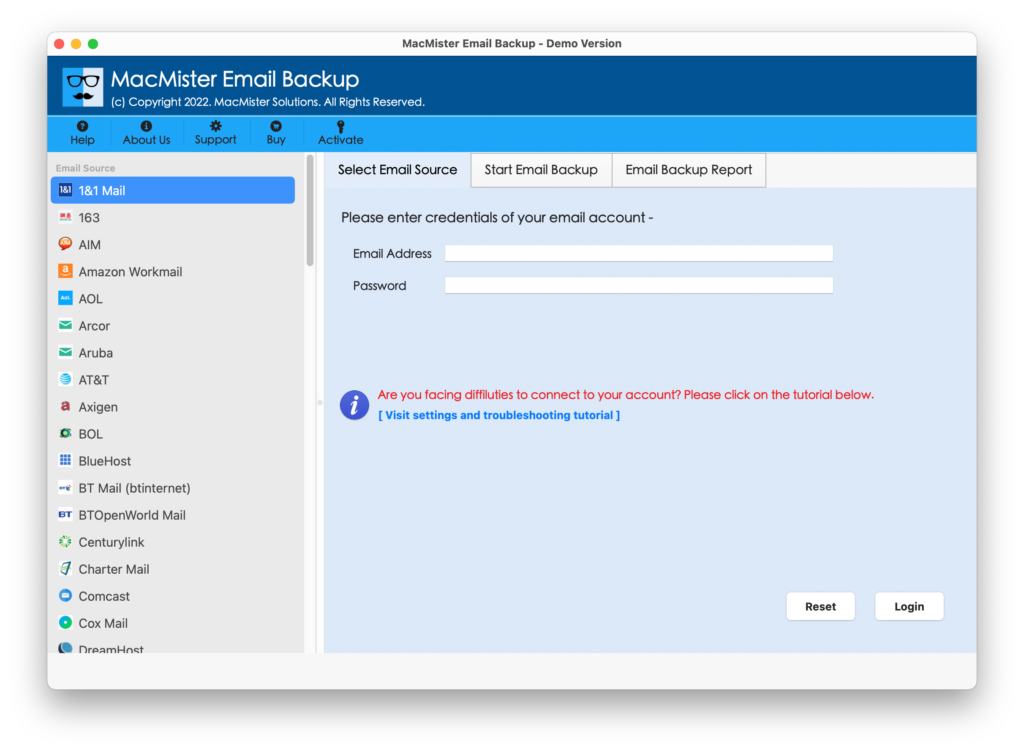
Step 2 – Select AT&T option from the provided webmail options. Enter the required AT&T account credentials.
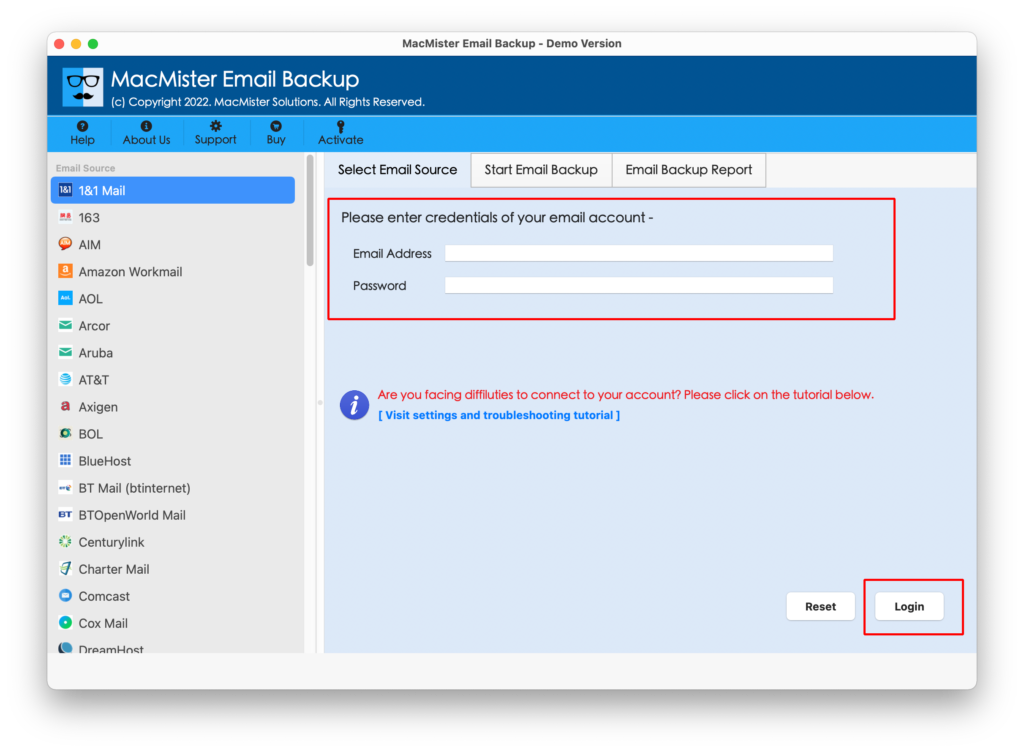
Step 3 – Select the required mailbox folders or email data for migration.
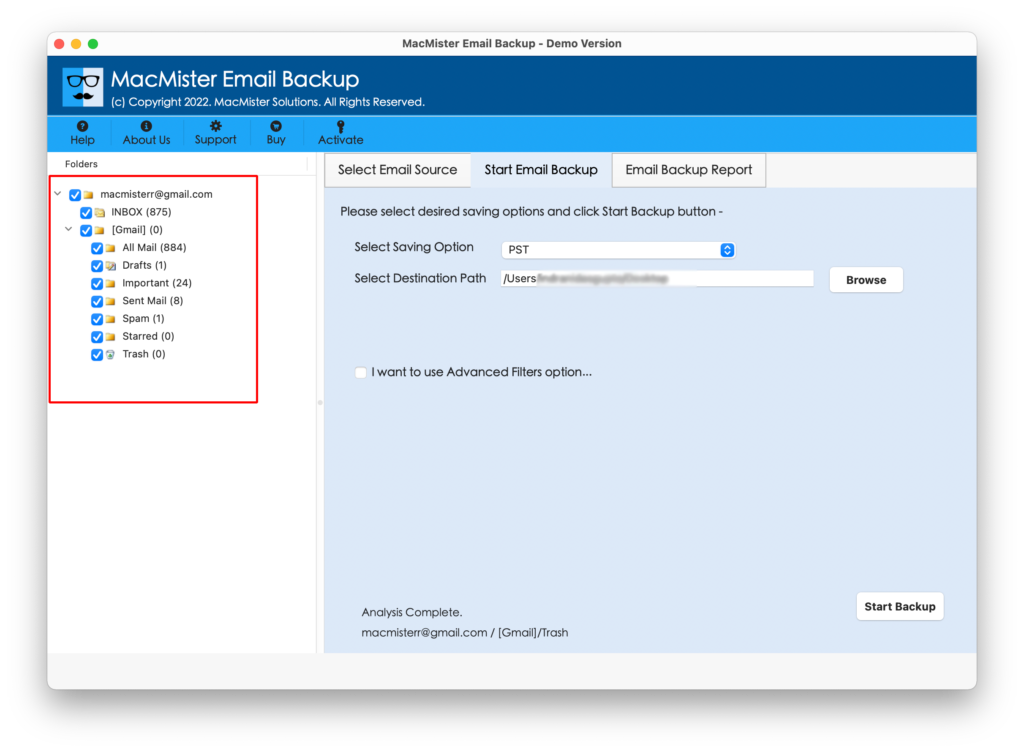
Step 4 – Choose the Office 365 for AT&T to Office 365 migration.
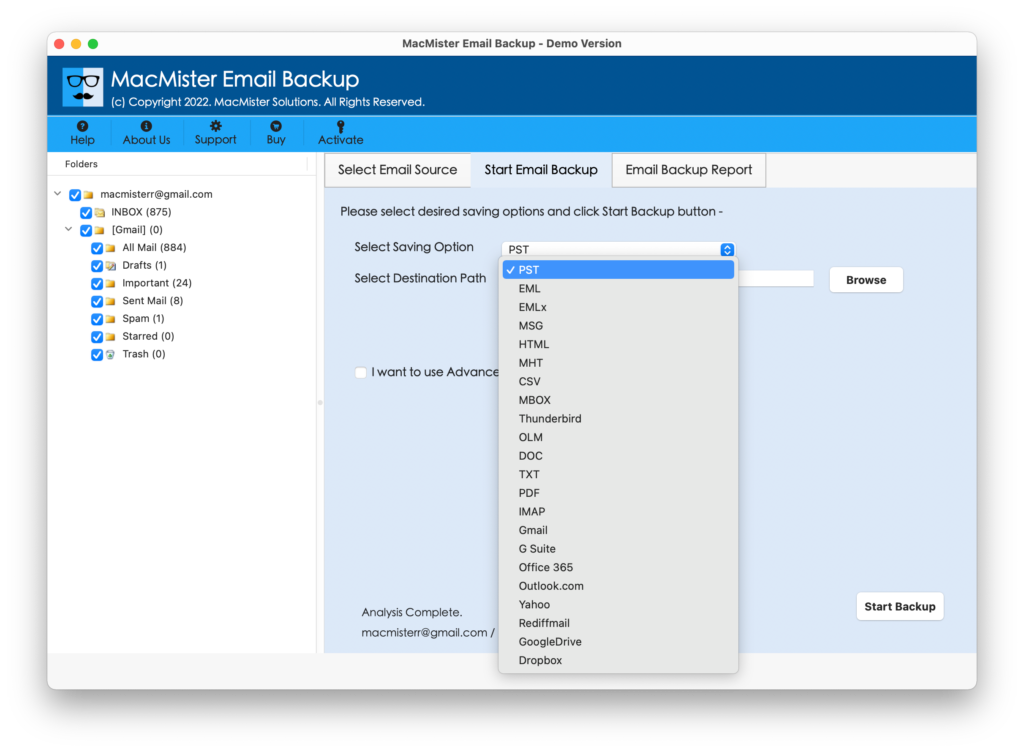
Step 5 – Sign in to the Office 365 account after completion and verify the transferred emails and folders. Click on Start Backup button for migration.

This approach can be particularly useful when manual email movement becomes difficult because of mailbox size or the number of folders involved.
Final Thoughts
Transferring AT&T email to Office 365 on Mac can be completed manually when only a small amount of mailbox data is involved. However, manually moving a large collection of emails can take considerable time and may introduce problems related to folder organization, attachments, and incomplete transfers.
For larger mailbox migrations, advanced AT&T Webmail to Office 365 Tool for Mac can provide a more structured way to move mailbox data to Office 365. It allows users to process emails in bulk while reducing repetitive manual work.
Before beginning the migration, it is recommended to verify the destination Office 365 account, confirm the required AT&T mailbox data, and check the transferred emails after completion. This helps ensure that important messages and attachments are available in the new Office 365 environment.
|
|
|