How to Migrate SpaceMail Emails to Office 365 on Mac?
Email migration becomes important when individuals or organizations decide to move their existing mailbox data to a different email platform. Users may switch services to simplify email management, improve collaboration, or bring business communication under a centralized system. SpaceMail users who want to move their existing correspondence to Microsoft Office 365 need a suitable migration approach that transfers their mailbox data without unnecessary complications.
Microsoft Office 365 offers an integrated environment for managing emails, calendars, contacts, and other productivity tasks. Moving SpaceMail emails to this platform allows users to access their correspondence through Microsoft’s email services. Mac users can perform this migration through an IMAP-supported email application or use a dedicated migration utility. This guide explains the available approaches, their limitations, and how MacMister IMAP Backup Tool for Mac helps transfer SpaceMail mailbox data to Office 365.
What is SpaceMail?
SpaceMail is an email service that provides users with an online platform for sending, receiving, and organizing email messages. Depending on the service configuration, users can access their mailboxes through webmail or compatible email applications. It allows users to manage incoming and outgoing correspondence, maintain folders, and exchange messages with other email accounts.
What is Microsoft Office 365?
Microsoft Office 365, now part of Microsoft 365, is a cloud-based productivity platform that includes Outlook and other Microsoft applications. Outlook provides email management features along with calendar scheduling, contact organization, and mailbox synchronization. Its integration with Microsoft services makes it a suitable destination for users who want to manage their professional communication within one environment.
Why Migrate SpaceMail to Office 365?
- Centralized Communication – Manage existing SpaceMail correspondence through an Office 365 mailbox alongside other business emails.
- Microsoft Application Integration – Use Outlook with applications such as Word, Excel, Teams, and other Microsoft services.
- Convenient Email Access – Access migrated messages through supported Outlook applications and web interfaces.
- Business Email Management – Organize important conversations within a centralized email environment.
- Mailbox Organization – Maintain email folders and manage older correspondence more conveniently.
- Long-Term Accessibility – Keep important SpaceMail messages available within the Microsoft 365 account.
How to Migrate SpaceMail Emails to Office 365 Manually
Users can transfer SpaceMail emails to Office 365 by configuring both accounts in an IMAP-compatible email application. This approach allows users to access messages from the source mailbox and move them into the destination account.
Before starting, make sure that IMAP access is enabled for your SpaceMail account and that you have the correct incoming and outgoing server details. You should also have the necessary Microsoft 365 account credentials. Follow these steps –
- Open a compatible IMAP email application on your Mac.
- Navigate to the account settings and select the option to add a new email account.
- Enter your SpaceMail email address and password.
- Choose the manual configuration option and select IMAP as the account type.
- Enter the incoming IMAP server address, port number, and security settings provided by your SpaceMail service.
- Configure the outgoing SMTP server details if required.
- Complete the authentication process and allow the application to synchronize the SpaceMail mailbox.
- Add your Microsoft 365 account to the same email application.
- Enter the Microsoft 365 login details and complete the required authentication.
- Wait until both accounts and their mailbox folders become accessible.
- Select the required SpaceMail messages or folders and copy them into the corresponding Microsoft 365 mailbox folders.
- Allow the application to upload and synchronize the transferred messages.
- Open Outlook 365 and verify that the selected emails are available in the destination mailbox.
Important – The exact server addresses, port numbers, and authentication requirements depend on your SpaceMail provider. Confirm the current IMAP configuration before proceeding.
Risks and Limitations of the Manual Method
Although the IMAP approach provides a way to move emails between accounts, it can become difficult when handling large mailboxes or multiple folders. Some common limitations include:
- Configuration Difficulties – Incorrect server details, port numbers, or security settings can prevent successful account connections.
- Slow Synchronization – Large email collections may take considerable time to download and upload.
- Internet Dependency – An unstable internet connection can interrupt the migration process.
- Folder Management Issues – Maintaining the original mailbox structure may require additional attention during manual transfers.
- Incomplete Migration – Users may accidentally overlook certain folders or messages while selecting emails.
- Authentication Errors – Security restrictions or account verification requirements can interrupt mailbox synchronization.
- Storage Limitations – Insufficient destination mailbox storage can prevent all selected emails from being transferred.
These challenges make the manual approach less convenient for users who need to migrate extensive SpaceMail mailbox data.
Advanced SpaceMail to Office 365 Migration Solution on Mac
MacMister IMAP Backup Tool for Mac provides powerful program for users who want to transfer SpaceMail emails to Office 365 through a simple user interface. The software supports SpaceMail to Office 365 migration, allowing users to connect their source mailbox, select the required folders, and choose Microsoft 365 as the destination.
 |  |
Instead of manually moving individual messages between accounts, users can process their mailbox data through the available migration options. The software is designed to safely open emails from SpaceMail account to O365 with all data details.
Why Choose the SpaceMail to Office 365 Tool on Mac
1. Direct Office 365 Migration – Transfer emails from the connected SpaceMail account to Office 365 mailbox using the destination migration option.
2. Batch Processing – Process multiple mailbox folders and email messages together without repeating the same operations individually.
3. Folder Selection – Select specific folders from the SpaceMail mailbox to migration requirements.
4. Attachment Support – Transfer email messages with their associated attachments.
5. Email Filters – Use available filtering options to select messages based on supported criteria, such as date range and other email properties.
6. Email Property Retention – Maintain important email information, including sender, recipient, subject, date, and message content.
7. Simple Interface – The software provides a straightforward workflow for connecting an IMAP account and selecting the required destination.
8. Mac Compatibility – Supports multiple macOS versions, making it suitable for users working with different Mac systems.
Steps to Migrate SpaceMail to Office 365 Using MacMister
Download and install MacMister SpaceMail IMAP Backup Tool on Mac. Launch the application.

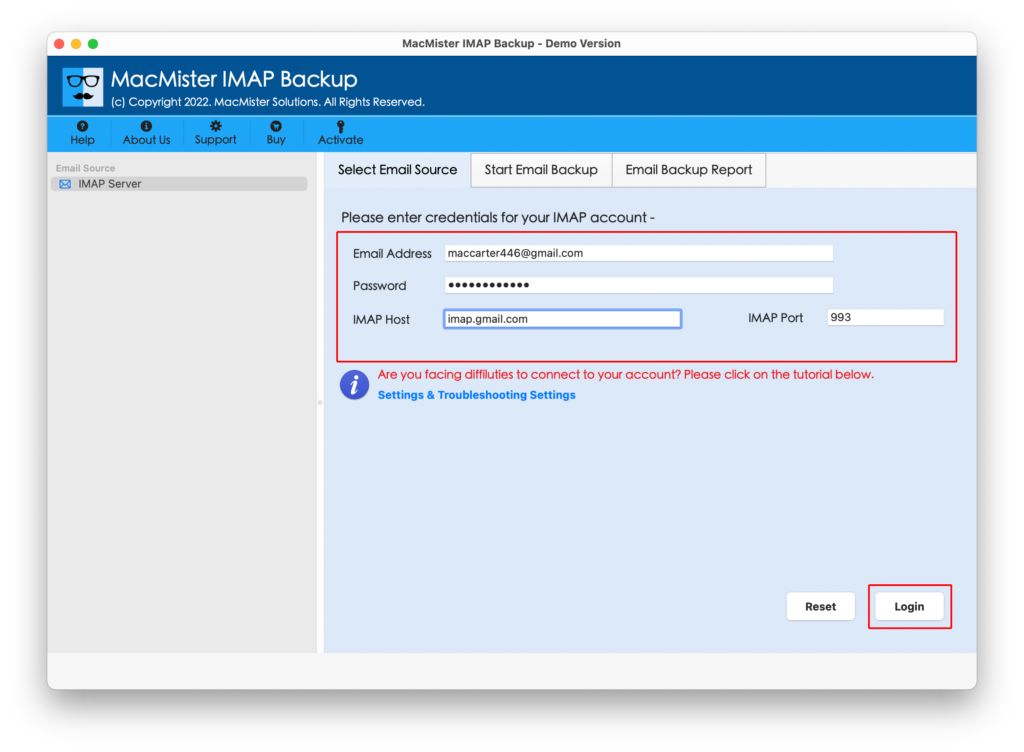
Enter your SpaceMail email address and the required account credentials. Provide the incoming IMAP server information and complete the connection process.
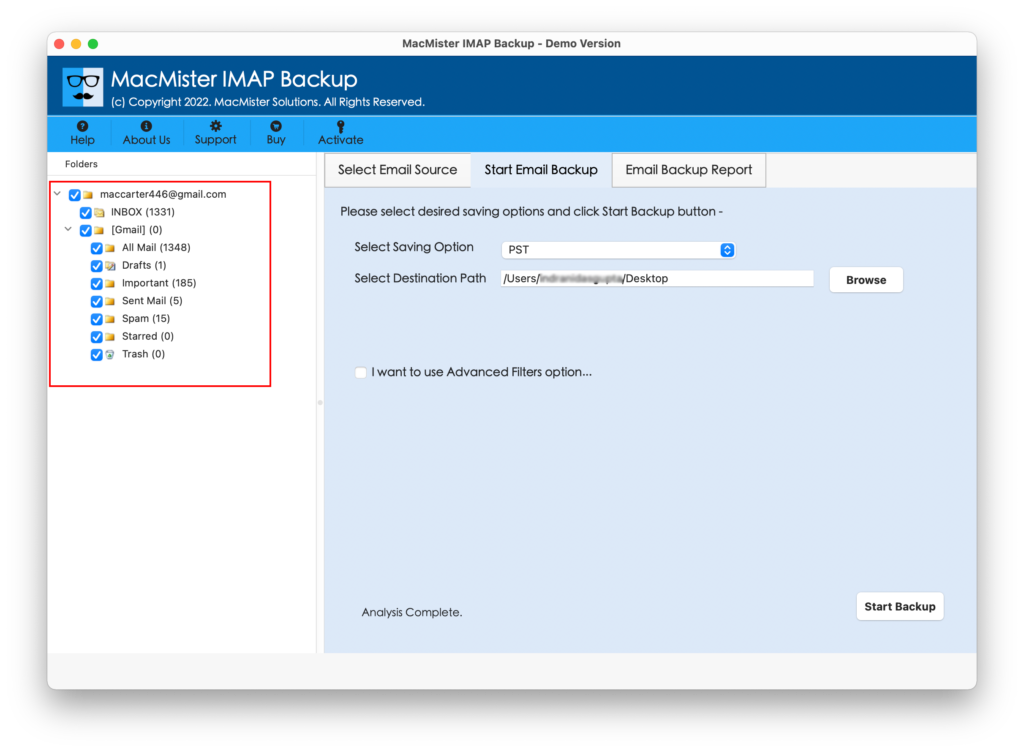
Allow the software to load the available mailbox folders. Select the folders or individual emails you want to migrate.
Choose Office 365 as the destination platform.
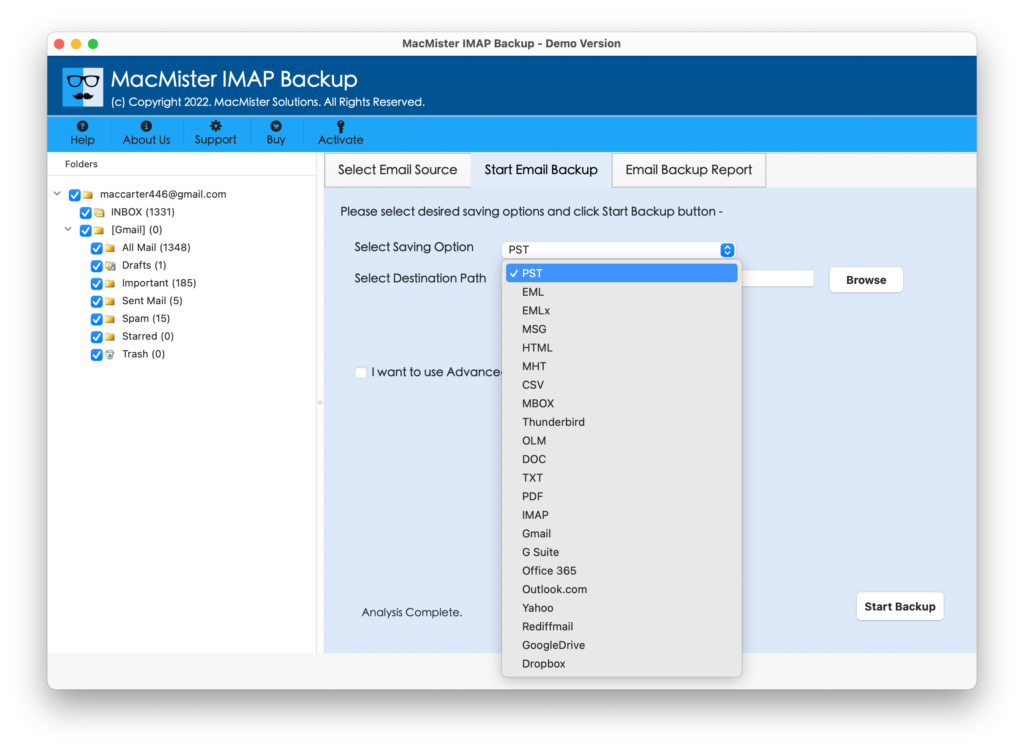
Enter your Microsoft 365 account credentials and complete authentication. Configure the available filters and migration settings.
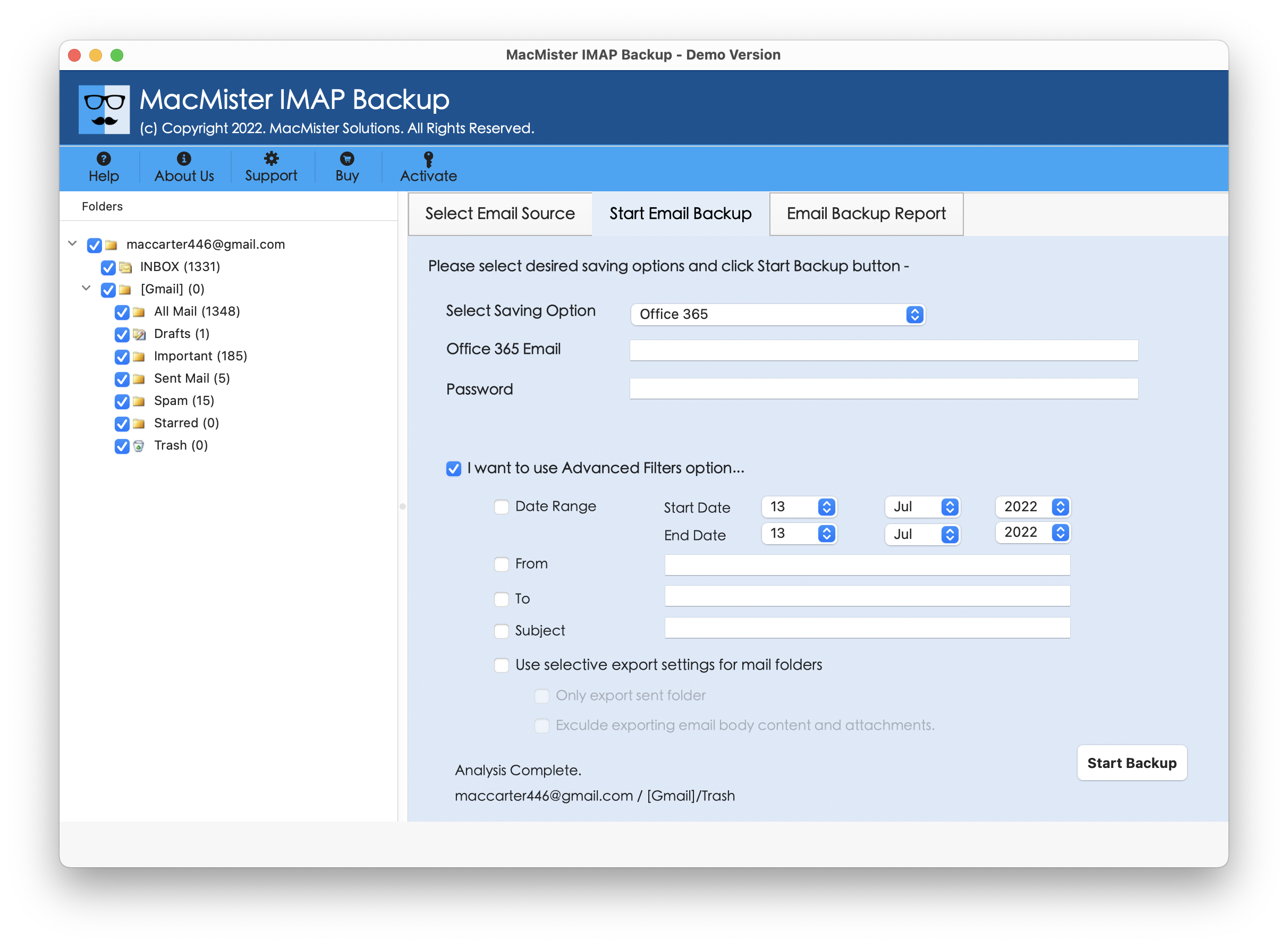
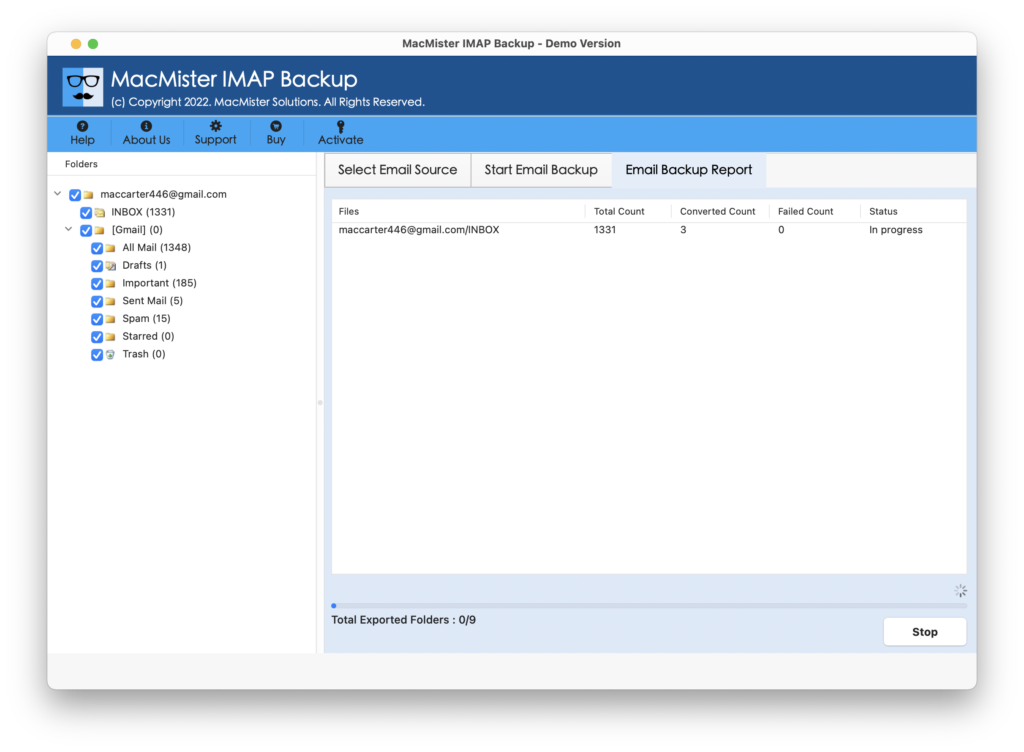
Start the migration and wait for the selected SpaceMail emails to transfer.
Conclusion
Migrating SpaceMail IMAP to Office 365 on Mac helps users bring their existing correspondence into Microsoft’s email management environment. The manual IMAP method allows users to transfer messages through an email application, but configuration requirements, synchronization delays, and folder management can make the process complicated. The SpaceMail Email Backup Tool for Mac offers powerfull solution with direct Office 365 migration, batch processing, attachment support, and email filtering capabilities. Users can select the required mailbox folders and transfer their SpaceMail correspondence through a structured migration process.