How to Read PST File Attachments on MacBook without Microsoft Office?
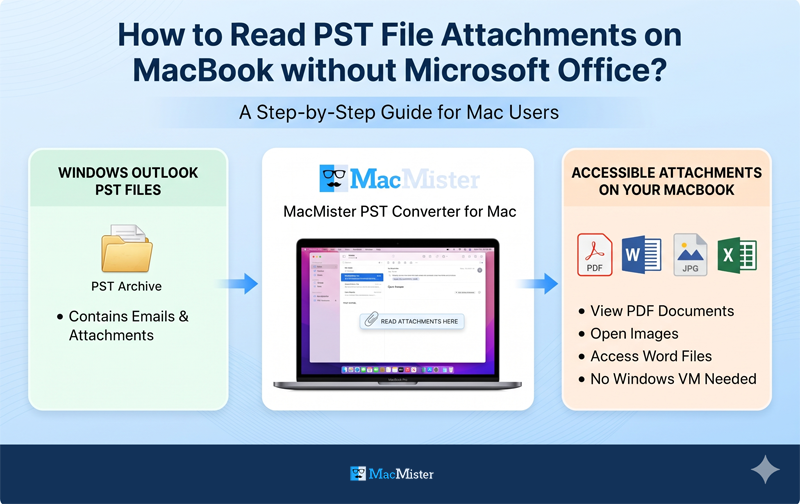
The migration from Windows systems to macOS is likely to come across several challenges related to compatibility, especially concerning proprietary file formats. The most common challenge that system administrators, professionals, and regular users face in this context relates to the Personal Storage Table (.pst) file format. It was invented by Microsoft as a way to store emails, calendar events, tasks, and most importantly, attachments within Outlook.
Unfortunately, the macOS operating system does not support .pst files. They cannot be viewed using Apple Mail, Finder, and even basic text tools. Moreover, most MacBook users lack Microsoft Office and Outlook for Mac, and this makes the process of extracting information extremely difficult.
This guide discusses the various ways to view PST file attachments on a MacBook without Microsoft Office, using special utilities and automated programs such as MacMister PST Converter Tool.
Why macOS not able to Open PST Files?
In Windows, the .pst format represents a local store for all emails that come into Outlook. In switching to a MacBook, the problem is that macOS has an entirely different structure of email architecture, which includes .mbox (Apple Mail, Thunderbird) and .olm (Outlook for Mac) containers.
If you try opening the PST file in macOS but have no working Microsoft environment, then macOS will throw an error that “an application cannot be found” or even won’t be able to interpret the container at all. For people who do not need to check more than several emails or download urgent documents without buying an expensive license for Microsoft 365, these options are unfeasible.
Method 1: Using PST Viewers for Quick Access
When all you need to do is browse through the archives, check the emails, and extract any file attachments, without having to install Microsoft Office or convert the entire database, then there is nothing better than a PST Viewer for Mac.
How Free Viewers Work?
Third-party lightweight tools can directly access or interpret PST header files under macOS. Using these tools, you will be able to:
- Browse folder structures (Inbox, Sent, custom folders).
- Read message content, meta-information (To, From, Date), and attachments.
- Extract individual attachments to a folder on your MacBook desktop or downloads folder without making changes to the original file.
Limitations of Free Viewers
Although freeware and simple PST readers are very good for one-time use or small PSTs, they can face some problems due to bottlenecks when reading huge corporate PSTs (for example, archives more than 10GB or 20GB). In such cases, you will not be able to export messages in batches or filter them in any way.
Method 2: Read PST File Attachments on MacBook without Microsoft Office using Professional Solution
When the scenario involves large migration tasks, corrupt directory tree structures, or the task of converting Windows Outlook archives to default Mac-supported formats permanently, then such viewer applications may not be appropriate. In such instances, one can rely on special utility software, such as MacMister Mac PST Converter Tool.
Why to Choose Professional Solution?
The application programmed particularly for macOS environments (fully optimized for modern versions including macOS Sonoma, Sequoia, and Apple Silicon M1/M2/M3/M4 architectures). It skip the need for Microsoft Outlook entirely, operating as a standalone utility.
Key technical advantages include:
- There is no need for Outlook or any Windows virtual machine to be present on your computer for reading or converting the data.
- It includes “Add Files” and “Add Folders” modes to add PST archives, enabling processing of several PSTs at once.
- Not only can you view, but also convert PST archive into default formats of Mac (.olm for Outlook for Mac, .mbox/.eml for Apple Mail, Thunderbird, or Entourage) or universal format (PDF, MSG, HTML).
- As comparison to basic programs that remove file attachments during extraction, MacMister leaves all your documents, images, archives untouched and retains original filenames and folder relations.
- It carefully preserves your hierarchical folder structure and ensures that your archive structure stays the same after conversion process.
Step-by-Step Guide to Extract Attachments and Reading PST Files on Mac using Advanced Solution
Step 1. Download the software on your MacBook and open the application.
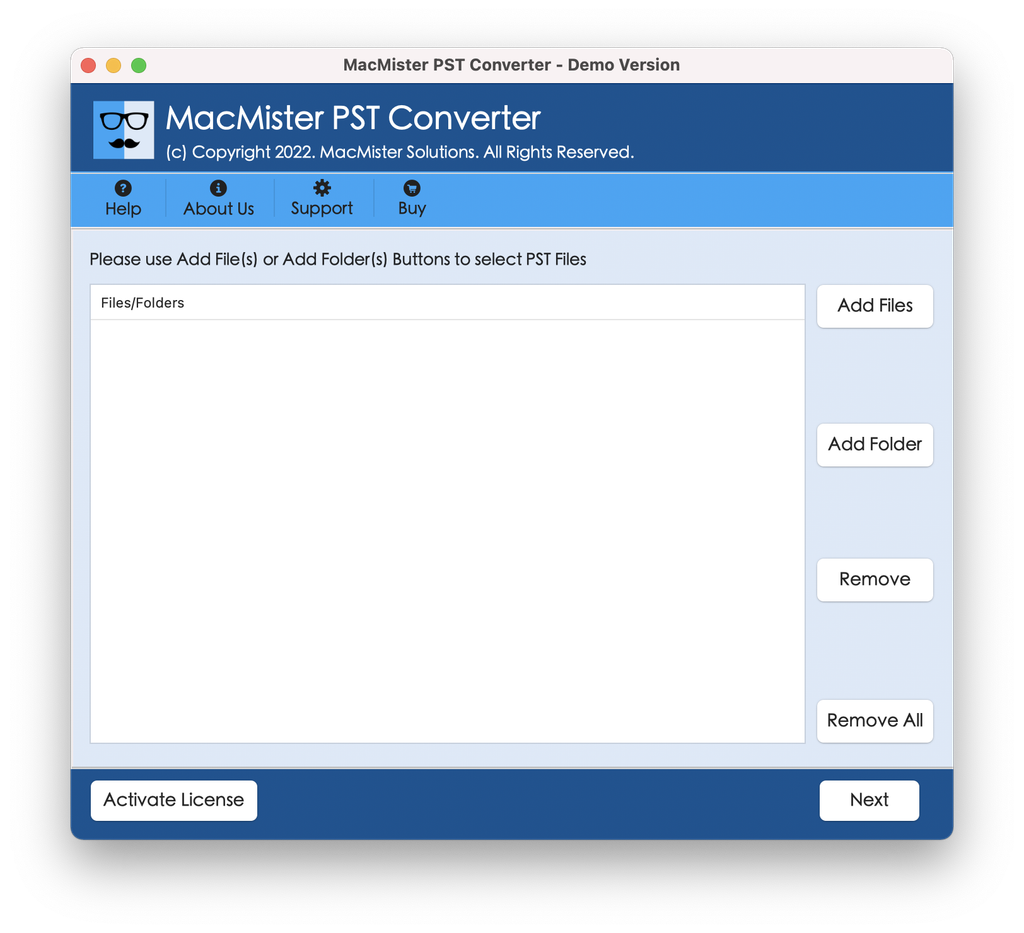
Step 2. Click on the Add File or Add Folder button to select and upload the necessary .pst file.
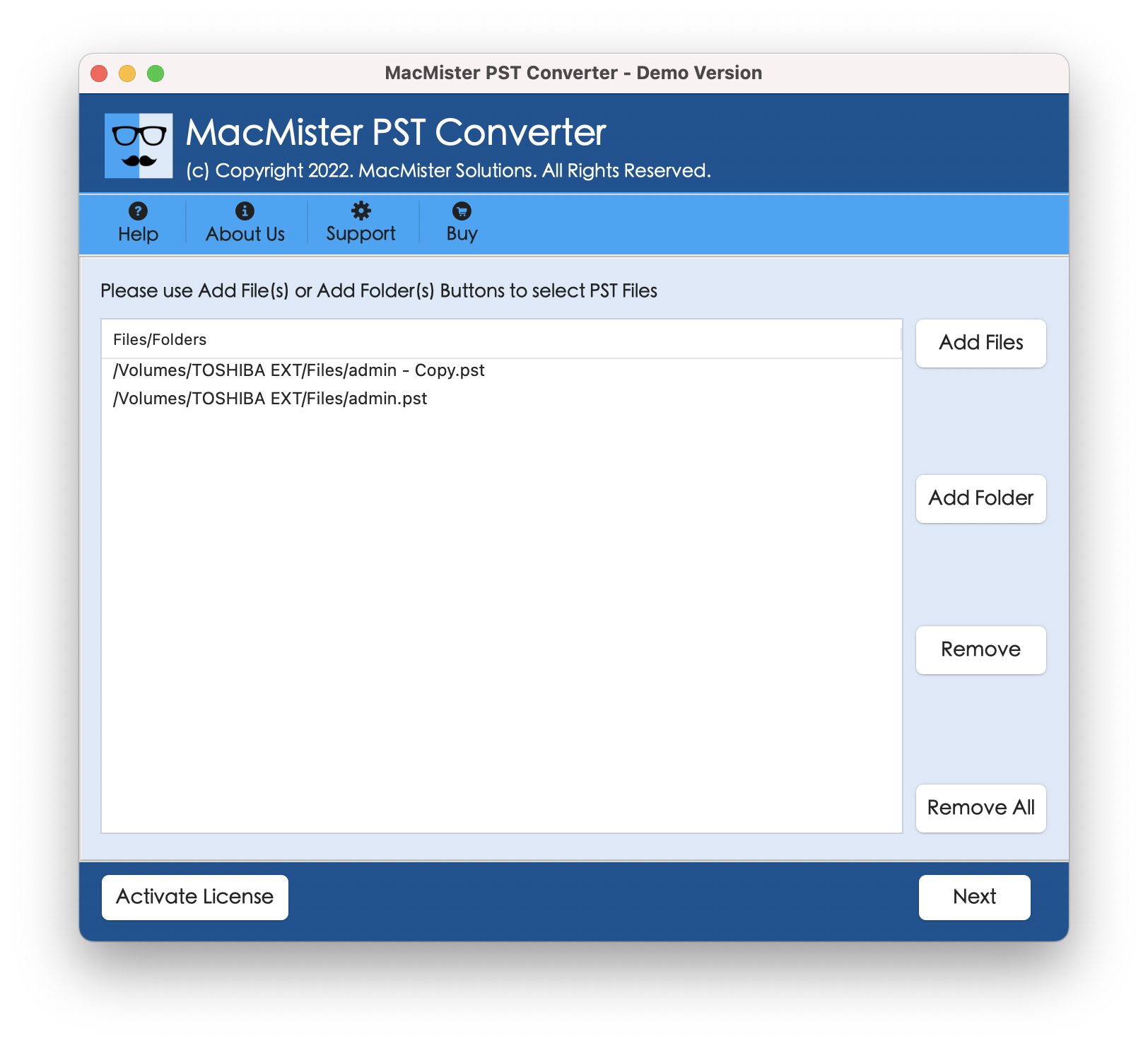
Step 3. Use the built-in preview pane to inspect emails, read message bodies, and check associated attachments before initiating any conversion.
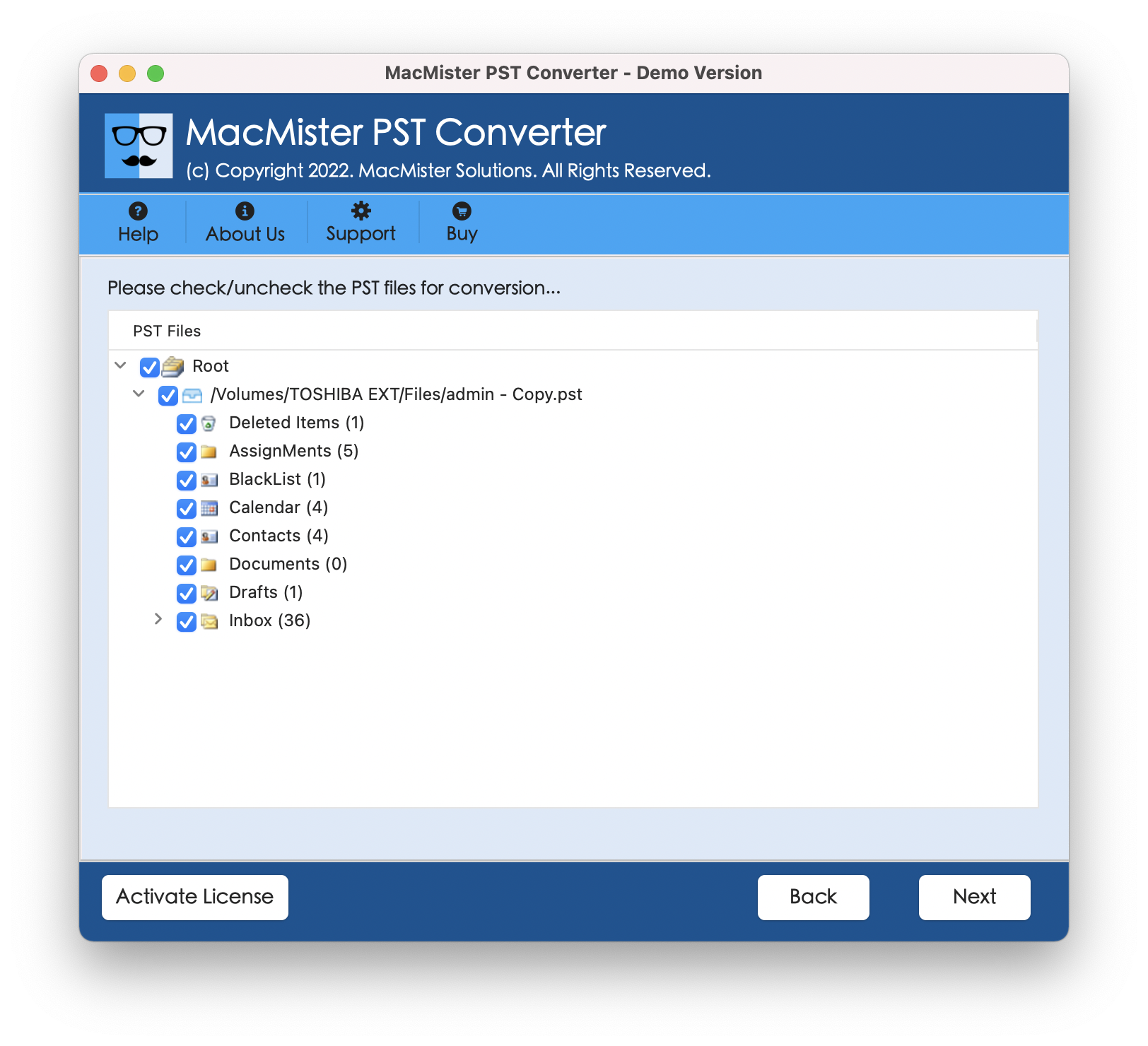
Step 4. Choose the desired format from the Select Saving Options menu.
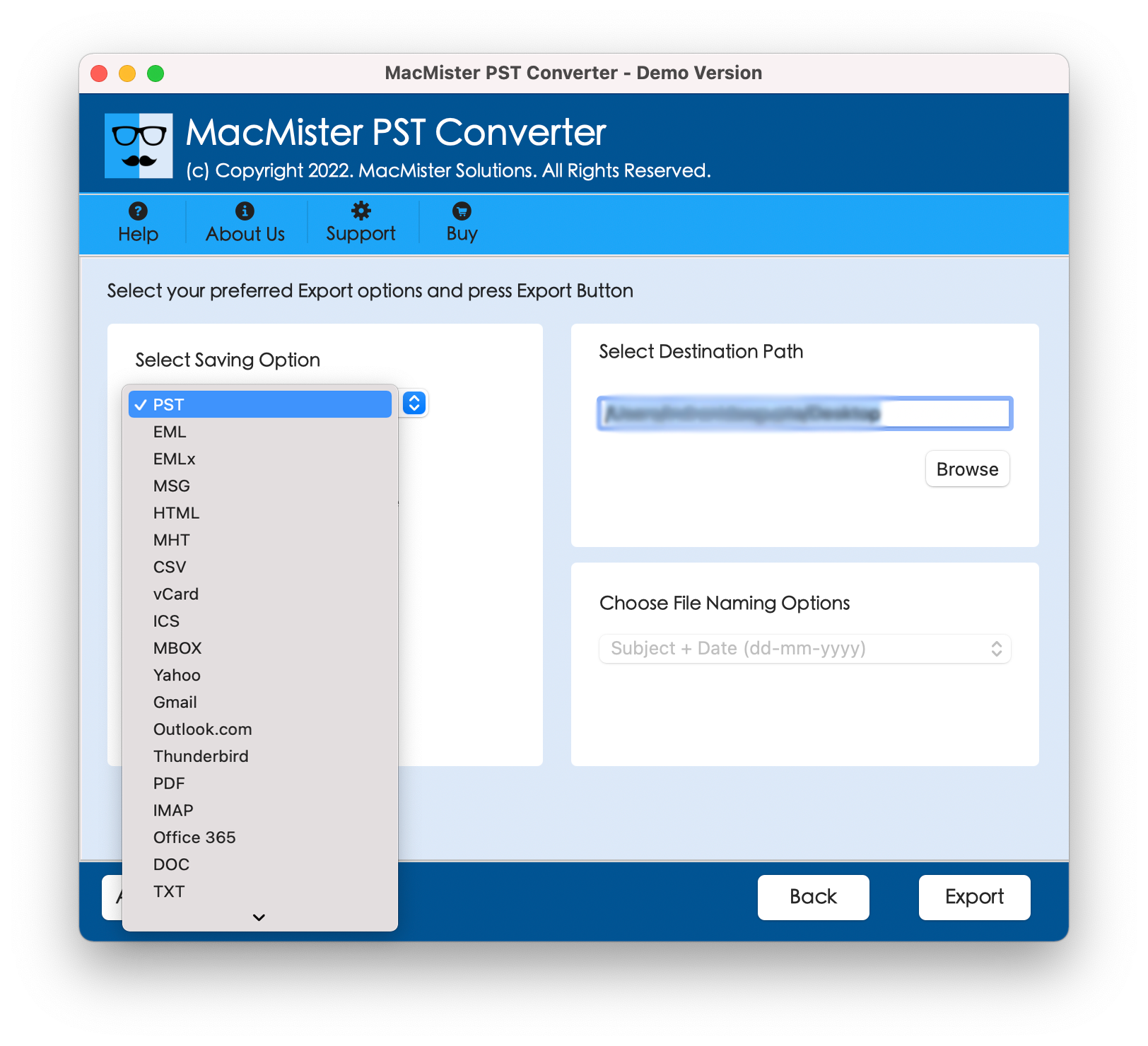
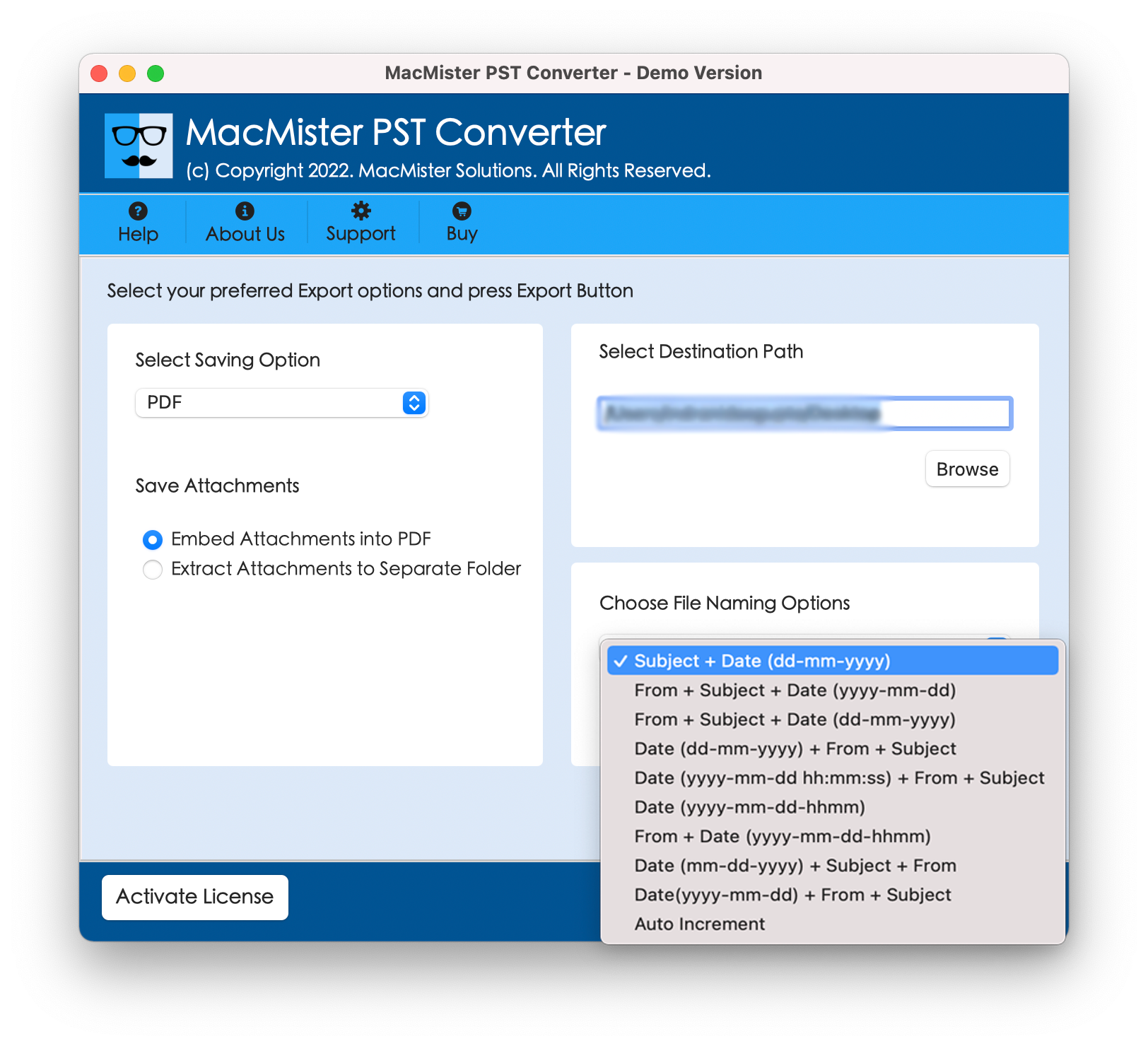
Step 5. Set sub-options of a chosen saving type as per requirements and tap Export.
Step 6. Check the process using Live Conversion Report that appears right after clicking Export. It will help in tracking the live import process of PST file data.
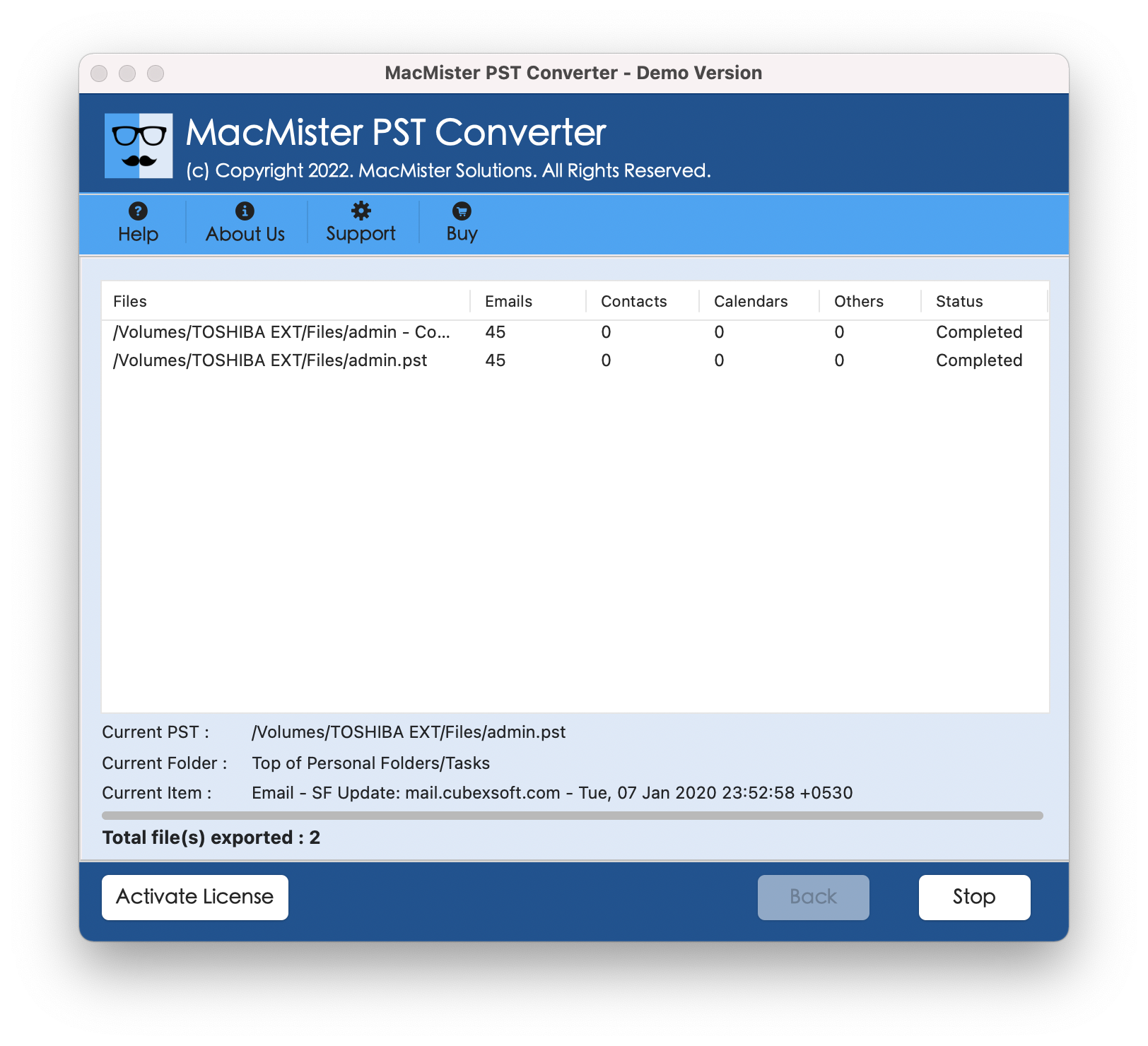
In fraction of seconds, the tool will complete the whole process and display “Conversion Completed” message on the screen. Tap OK to close the same.
Method 3: Converting PST to MBOX for Default Apple Mail Viewer
In the case of users who would like to import their archived emails directly into Apple Mail, not using any viewer software, conversion of the PST file into .mbox format proves to be quite a good solution.
Having converted the files using MacMister, one should start Apple Mail, go to File > Import Mailboxes, choose Files in MBOX format, and indicate the location of your converted files. In this way, you will have your Windows archive imported into the sidebar of Apple Mail.
Epilogue
The reading of PST file attachments from MacBook computers without access to Microsoft Office software is no longer an issue that entails a lot of effort or even running of a Windows virtual machine. Depending on your choice of whether to use a light reader for one-time file opening or MacMister PST Conversion Tool for batch conversion and extraction of attachments, the process of handling PST files on a macOS platform is made easy.