How to Open Charter Email in Office 365 on Mac?
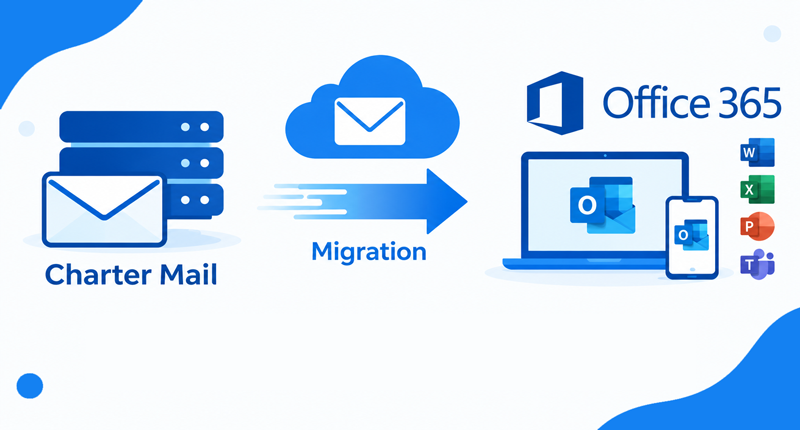
Charter email users may need to access their existing mailbox data through Microsoft Office 365 for different reasons. Office 365 provides a centralized environment for managing email along with other Microsoft services, making it a common choice for users and organizations moving from older or hosted email platforms.
Charter email accounts are associated with Charter Communications and the Spectrum brand, and users may still have older Charter email addresses such as @charter.net. When moving to Office 365, the main requirement is to transfer or migrate the existing mailbox data so that important emails remain accessible.
For Mac users, this process can involve configuring account settings, exporting mailbox data, or using a dedicated email backup solution. This guide explains how to open Charter email in Office 365 on Mac, including the manual approach, its limitations, and an alternative email backup tool.
Overview of Charter Webmail to Office 365 Migration
Opening Charter email data in Office 365 generally involves moving existing emails from the Charter mailbox into a Microsoft 365 environment. Depending on the mailbox configuration and migration requirements, users may either configure the account directly or first create a backup of their emails.
Before starting the process, users should check their Charter email credentials, mailbox size, available Office 365 storage, and the type of data that needs to be transferred. It is also important to identify important folders and emails before beginning the migration.
For larger mailboxes, creating a backup before migration can provide an additional copy of the original email data and make the overall process easier to manage.
Why Open Charter Email in Office 365?
There are several reasons users may want to move their Charter email data to Office 365 –
- Office 365 provides a centralized platform for email management.
- Users can access their mailbox through Microsoft Outlook and other supported applications.
- Organizations may be standardizing their email accounts on Microsoft 365.
- Office 365 integrates email with other Microsoft productivity services.
- A separate mailbox backup can provide an additional copy of important correspondence.
- Migrating older Charter emails can make them easier to organize and manage in a modern email environment.
How to Open Charter Mail Account in Office 365 Manually?
Users can try configuring their Charter email account in a compatible email client on Mac and then access the mailbox data from there. The account needs to be configured using the appropriate incoming and outgoing mail server information provided for the Charter/Spectrum email service.
Once the account is successfully configured, users can access their existing messages and, depending on the email application’s capabilities, move or copy required messages to the Office 365 mailbox.
The exact configuration can vary depending on the account and current service settings. Therefore, users should verify the latest server and authentication requirements before beginning the process.
For a small number of emails, manually copying messages may be manageable. However, this approach becomes less convenient when the mailbox contains a large amount of data or multiple folders need to be transferred.
Limitations of the Manual Method
- Manual configuration can require several account and server settings.
- Moving a large number of emails can take considerable time.
- Multiple folders may need to be handled separately.
- Authentication or connection problems can interrupt the process.
- Maintaining an additional local backup may require separate steps.
- Large-scale mailbox transfers can become difficult to manage manually.
- Users may need technical knowledge to troubleshoot configuration issues.
Advanced Charter Mail to Office 365 for Mac
For Mac users who need to directly move emails from Charter Mail to Office 365, MacMister Email Backup Tool for Mac is designed to transfer mailbox data to Office 365 account without requiring an intermediate local backup file. This makes it suitable for users who want to move Charter Mail data to Microsoft 365 account effortlessly.
|
|
|


The software supports the transfer of emails along with their associated attachments and other important mailbox information. It can maintain the existing folder structure during migration, helping users keep Inbox, Sent, Drafts, and other folders organized after the transfer. Email properties such as subject, sender, recipient, date, formatting, and attachments can also be retained to keep the migrated mailbox closer to its original structure.
The tool also provides options for handling mailbox data according to specific migration requirements. Users can select the required Charter Mail mailbox data instead of unnecessarily transferring unrelated items. Its support for bulk email migration can be useful when dealing with larger mailboxes or multiple email items. The software is developed for Mac systems and supports all macOS editions, making it suitable for users performing Charter Mail to Office 365 migration on Mac.
Also Explore >>
Conclusion
Moving Charter Mail emails to Office 365 on Mac can be handled manually, but the process may become difficult when the mailbox contains a large volume of messages or multiple folders and attachments. A direct migration approach provides an alternative for users who want to transfer Charter Mail data to Office 365. The Charter Mail to Office 365 for Mac tool is designed for this purpose, with support for email data, attachments, folder organization, and direct mailbox migration. The appropriate method ultimately depends on the mailbox size, migration requirements, and the level of control needed during the transfer.
|
|
|