How to Open Old Outlook PST Archive Files on Mac?
Data transfer from one operating system to another or even an upgrade of your computer give rise to problems with data transfer. And one of the major problems that Mac users may encounter when switching from a PC running on Windows OS or recovering their previous data from work backups is trouble with accessing PST archives.
The .pst archive file is a default format for Microsoft Outlook for Windows, so it isn’t easy to open it on macOS. As far as Apple’s default email client is Apple Mail that supports other file formats (.mbox and .eml), while the modern versions of Outlook for Mac have certain restrictions while working with PST archives.
If you need to get any crucial data out of business communication, to open old contacts or convert PST archive files for saving, this guide will tell you how to do it using different techniques.
Understanding the PST Compatibility Challenge on macOS
PST file is a proprietary database file format used by Microsoft Outlook in Windows OS. This type of file contains emails, folders, contacts, calendar items, tasks, notes, attachments and other data in a single file.
If you try to migrate your .pst file to a Mac device, there will be three main challenges to overcome:
- Format Incompatibility – Apple Mail, Thunderbird and Spark cannot work directly with .pst files.
- “New Outlook for Mac” – Microsoft has transformed the user interface of the app to simplify the synchronization process. As a result, the latest version of Outlook lost its ability to import PST files natively.
- Licensing Issues and File Corruption Risk – By default, .pst file can be imported using licensed Microsoft 365 or Office software. Older PST files are usually corrupted when being opened in other systems due to file header corruption and/or size limits bugs.
Method 1: The Main Solution with Legacy Outlook for Mac
In case you have Microsoft Outlook on Mac along with an active subscription, then importing PST files can be done with the help of Legacy Outlook for Mac.
Step-by-Step Process
- Open the Outlook for Mac program on your macOS-based computer.
- Uncheck the New Outlook option in the Outlook menu in case you are using the new interface version of the program.
- Select File > Import… from the top menu panel.
- Choose Outlook for Windows archive file (.pst), then click on Continue.
- Specify the location of your .pst file on your Mac computer, and then click Import.
The imported mailbox will be visible in the On My Computer area of the left navigation panel after completion of the import process.
Limitations of the Manual Approach
- This technique cannot be used by anyone who does not possess a valid subscription of either Microsoft 365 or Office for Mac.
- It is impossible to export your emails to .mbox for importing into Apple Mail or convert them to readable PDF.
- Larger PST files (greater than 10-15 GB) or corrupt PST files can easily cause problems when importing into Outlook for Mac.
Method 2: Apply Recommended Solution
For those people who wish to access PST files without using Outlook, or those who want to transfer their archives to Apple Mail, PDF files, or any cloud accounts, MacMister PST Converter for Mac can be considered as a specific professional application.
This utility is specifically developed for operating systems like macOS and converts PST archive files to more than 15 different formats.
How to Convert & Open PST Files using MacMister – Step by Step Process
Here is how you can use MacMister PST Converter for Mac to convert your outdated PST file archive to either Apple Mail .mbox or PDF format:
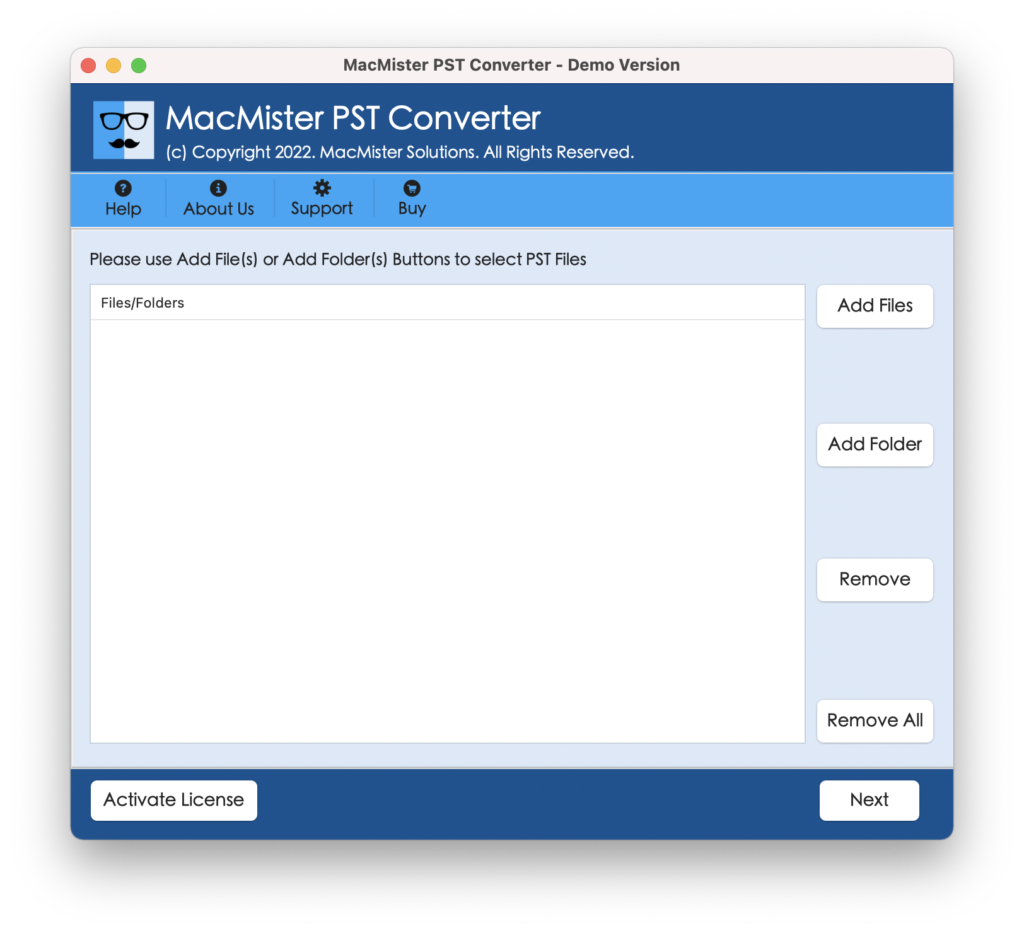
Step 1: Install the app on your Mac. Start the program and press Add File(s) or Add Folder button to add your .pst files.
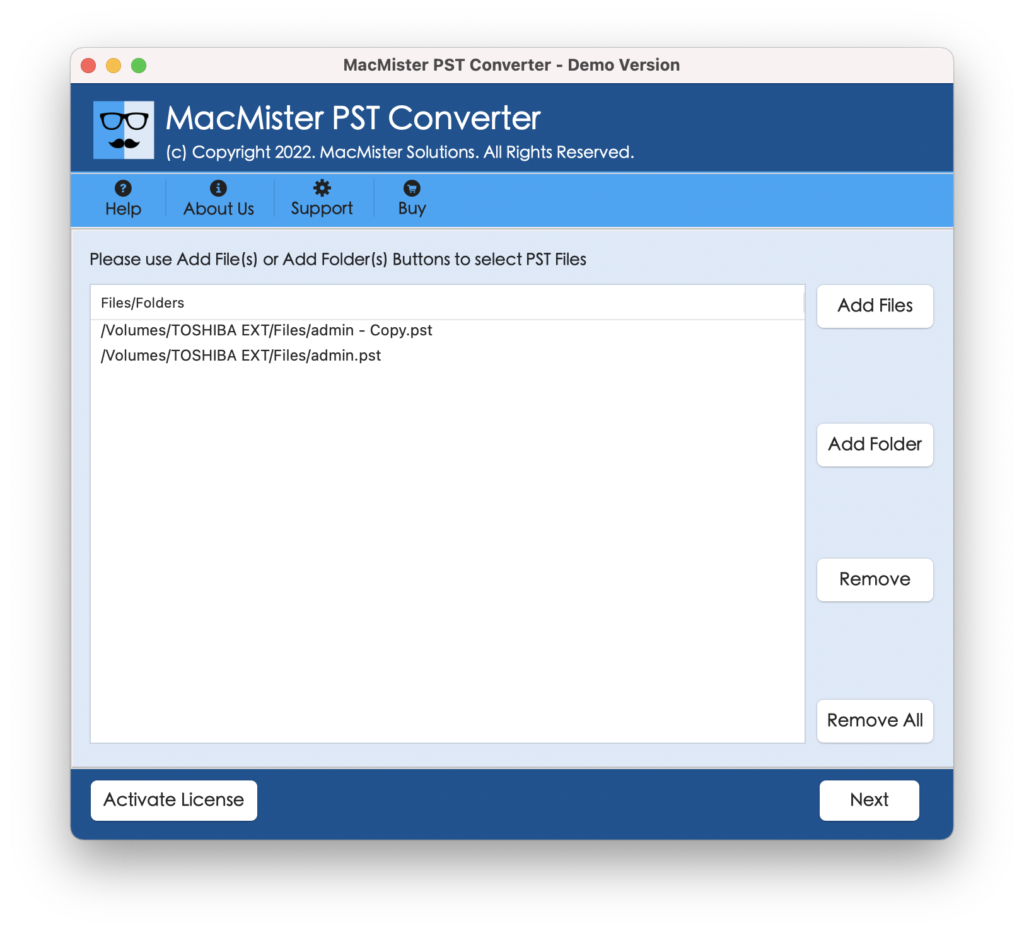
Step 2: The utility scans the PST file and shows you all folders (Inbox, Sent Items, Contacts, Calendar, etc.). Select the folders you would like to convert.
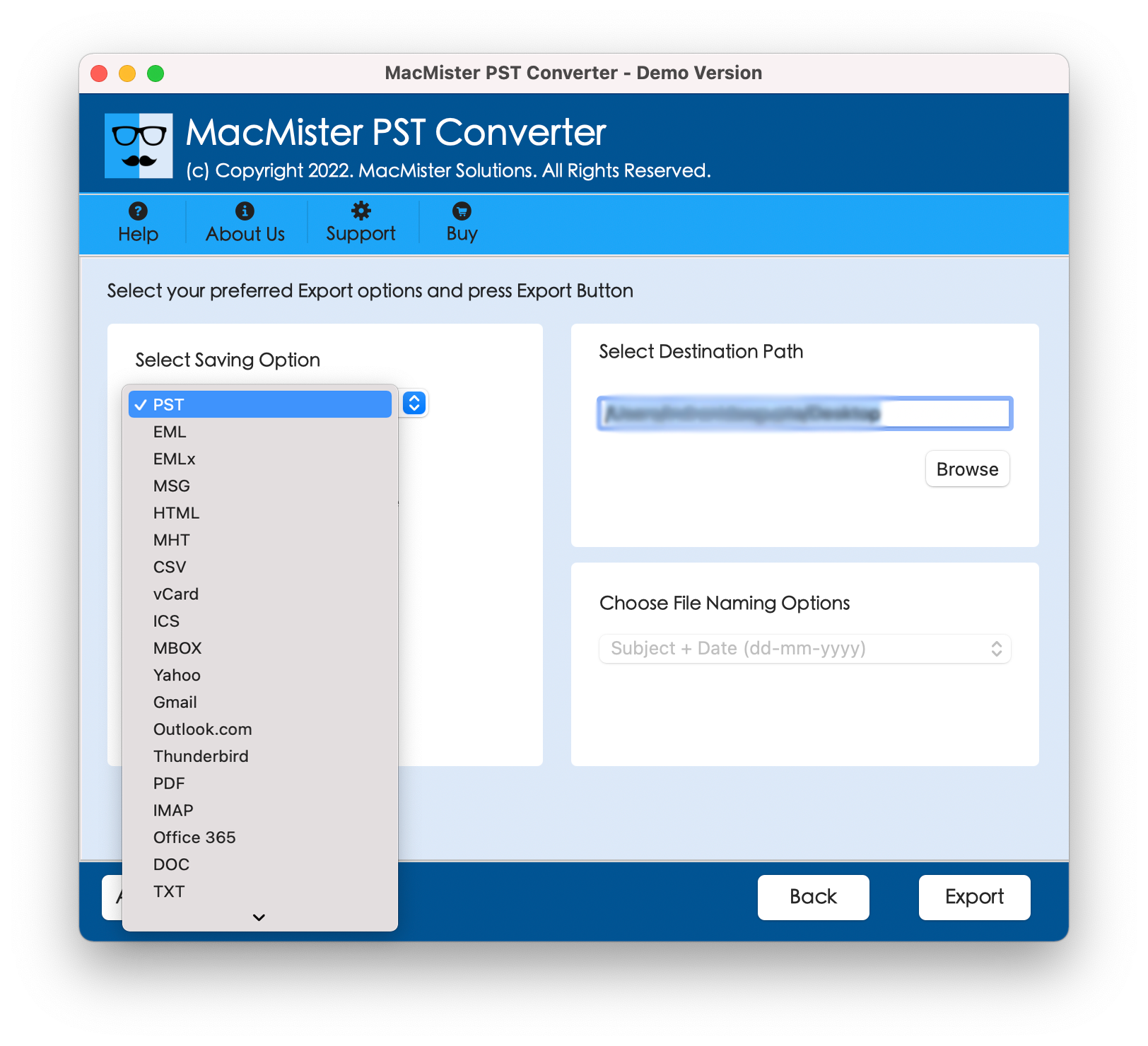
Step 3: Open the menu of Select Saving Option:
- Select MBOX in order to open the messages in Apple Mail or Mozilla Thunderbird.
- Select PDF for making a document screenshot of your message.
- Select OLM to import the emails into Outlook for Mac.
- Select Office 365 / Gmail / IMAP for uploading to the cloud.
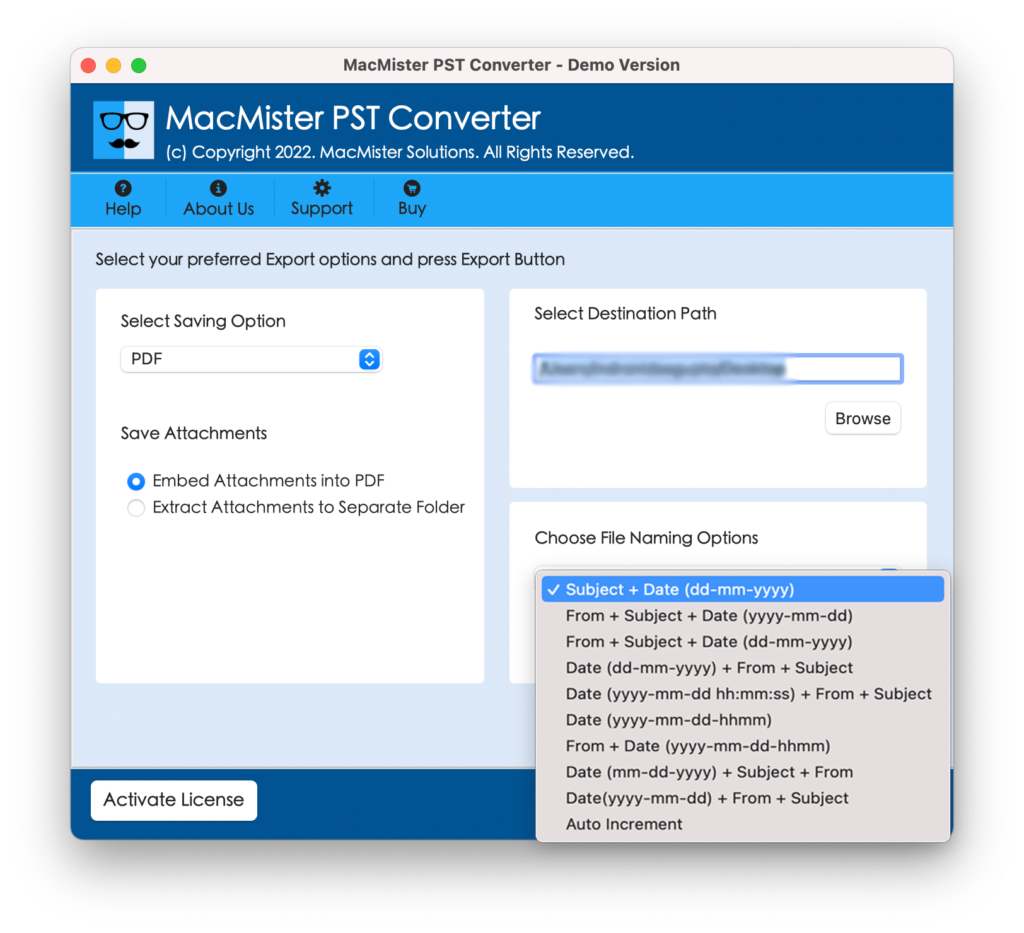
Step 4: Choose your preferred target folder for your Mac desktop or external hard disk. For saving files in individual formats such as PDF or EML, choose your preferred naming convention for the file.
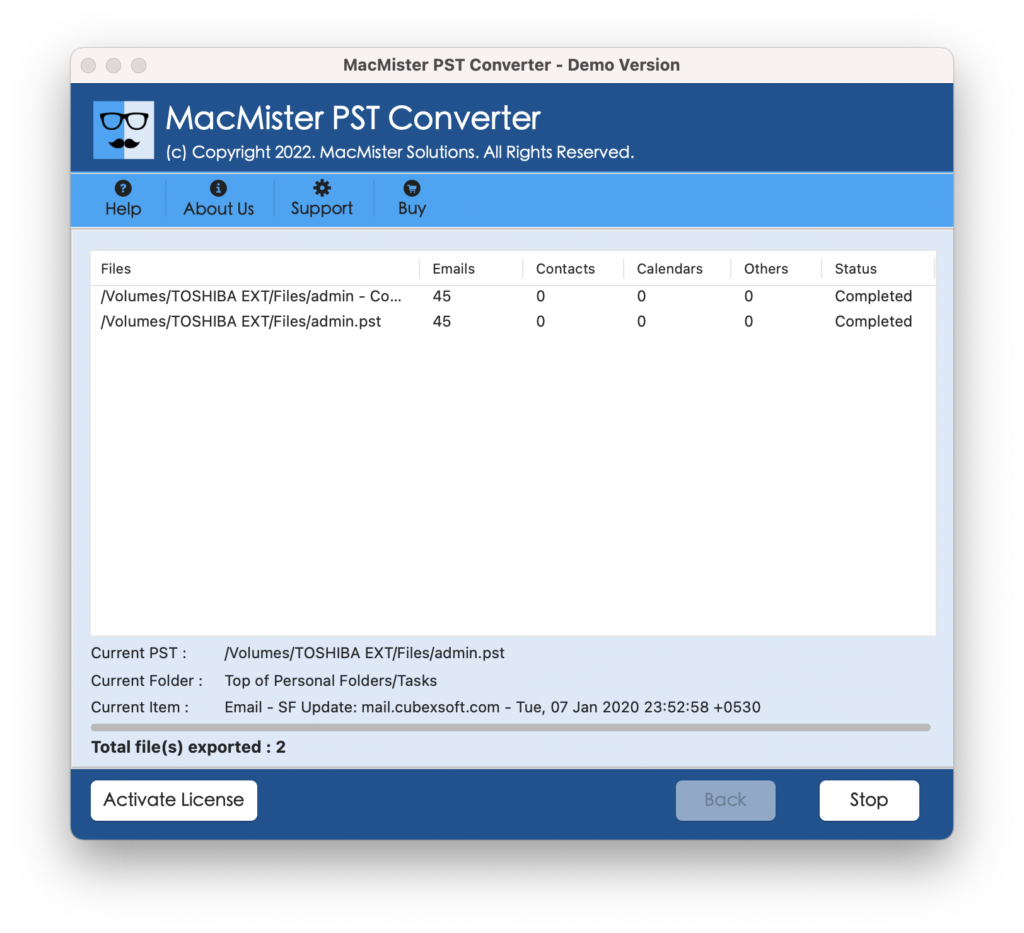
Step 5: Click on the Export button. The software will perform the batch conversion and present the status of the operation. Once completed, a dialog box will appear.
Key Features of the Application
- Supports conversion of .pst files to MBOX, OLM, PDF, MSG, EML, EMLX, HTML, MHT, DOC, CSV, and TXT file formats.
- Helps in importing data from PST archives directly to cloud-based mail servers such as Gmail, G Suite, Office 365, Yahoo Mail, and custom IMAP accounts.
- Helps to load multiple PST files or folders in bulk to save time.
- Provides support to retain original folder structure and email properties such as To, From, CC, BCC, Subject, Date, Inline Images, and Attachments.
- The tool can be used as a stand-alone application without installing Microsoft Outlook on macOS.
- Provides options to name files based on customized names such as Subject + Date and From + Subject.
Important Tips to Manage Old Email Archives on Mac
1. First, make a copy of your original .pst file onto another disk or online before making any conversions or native imports to avoid losing data.
2. If you want to preserve your email archive for legal or compliance reasons, convert it to PDF or MBOX format. This will help you keep the data readable many years down the line, since they are both open standards.
3. Make sure your time stamps, attachments, and senders stay intact in the new imported or converted version of your emails.
Epilogue
Opening old Outlook PST archive files on macOS doesn’t have to be a frustrating process. While Microsoft’s default Legacy Outlook import serves basic needs for current Office subscribers, but it lacks flexibility and cross-app compatibility.
For a permanent, hassle-free solution, choose the recommended solution that provides the appropriate balance of speed, versatility, and precision. By converting legacy PST archives into universal formats like MBOX, PDF, or OLM, you can easily view your historical emails in Apple Mail, archive them for the future, or move them directly to the cloud.