How to Open Outlook PST File in Thunderbird on Mac?
Email client conversion and migration from a Windows environment to macOS frequently result in such problems. The problem that Macintosh users frequently encounter is the inability to open the Personal Storage Table (PST) files, which constitute the proprietary database created by Microsoft Outlook, in Mozilla Thunderbird.
Since macOS does not allow the opening of PST files directly, there needs to be an effective method of dealing with the problem. Here is a detailed guide to explain the issue, how to resolve it, and the process of converting PST files using professional approach.
Challenges Encountered
It is essential to understand how these systems work with data. This will however explain why PST files cannot be imported into Thunderbird on a Mac or opened after a simple double-clicking:
- PST format: The format is introduced only by Microsoft for Windows Outlook. And PST files organize their data (emails, contacts, calendar events, tasks) via closed complex data format system intended mainly for Windows Outlook.
- MBOX Format: MBOX and EML files format is widely used in Mozilla Thunderbird to control mailboxes.
Thunderbird on a Mac does not have built-in Windows API necessary to read PST files. Although some manual approaches exist (IMAP/Gmail synchronization, etc.), they usually take too much time, can result in data loss and require a working Outlook environment.
Manual Way to Open PST Files in Thunderbird on Mac
In case you prefer graphical method of converting Outlook emails to Thunderbird that does not involve usage of command line tool, the best way would be to upload the PST files to cloud email account (Gmail or Outlook.com) and then synchronize it back to Thunderbird.
Step 1: Synchronize PST Emails to a Webmail Account
- Launch Microsoft Outlook (if available on Windows or Mac).
- Add webmail account (e.g., Gmail) configured by IMAP.
- Open the .pst file within Outlook (File -> Open Outlook Data File).
- Drag & Drop the PST email folders to your webmail account’s folders in Outlook. Give time to complete the synchronization process.
Step 2: Synchronize the Webmail to Thunderbird
- Launch Thunderbird on your Mac.
- Go to Tools -> Account Settings -> Account Actions -> Add Mail Account.
- Log into your webmail account via IMAP protocol.
After synchronization is done, drag the folders you imported to Thunderbird’s Local Folders if you wish to keep the offline copy of them on your Mac.
Tip: If you often have to use .mbox files, then you can download the free plug-in called ImportExportTools NG in Thunderbird (Tools > Add-ons and Themes > search for ImportExportTools NG). You will have an additional right-click possibility in each folder to import MBOX or EML files.
Try Professional Automated Approach
In order to avoid the trouble of configuring things manually, there is a special conversion method provided by MacMister i.e. PST Converter for Mac. It has been tailored especially for Mac operating system.
Main Features of the App:
- The tool will convert PST files into MBOX, EML, PDF, OLM, and more than 10 other formats.
- Keep inbox structures and other customized subfolders safe after migration.
- Enables user to import multiple PST files and folders at a time for batch conversion.
- Ensures that all the attachments are intact along with inline graphics and original meta-headers (To, From, Cc, Bcc, Subject, Time stamp) without any modification.
- Works completely offline thus keeping your email data confidential and secure in your mac only.
Step-by-Step Guide: Importing PST to Thunderbird on macOS
Converting your PST files and reading them in Thunderbird using professional approachinvolves two main phases: converting the PST data to MBOX or Thunderbird, and then importing that MBOX file into Thunderbird.
Phase 1: Transform PST Format into .mbox File Using MacMister
Step 1. Download the app from its official site and open the program on your computer.
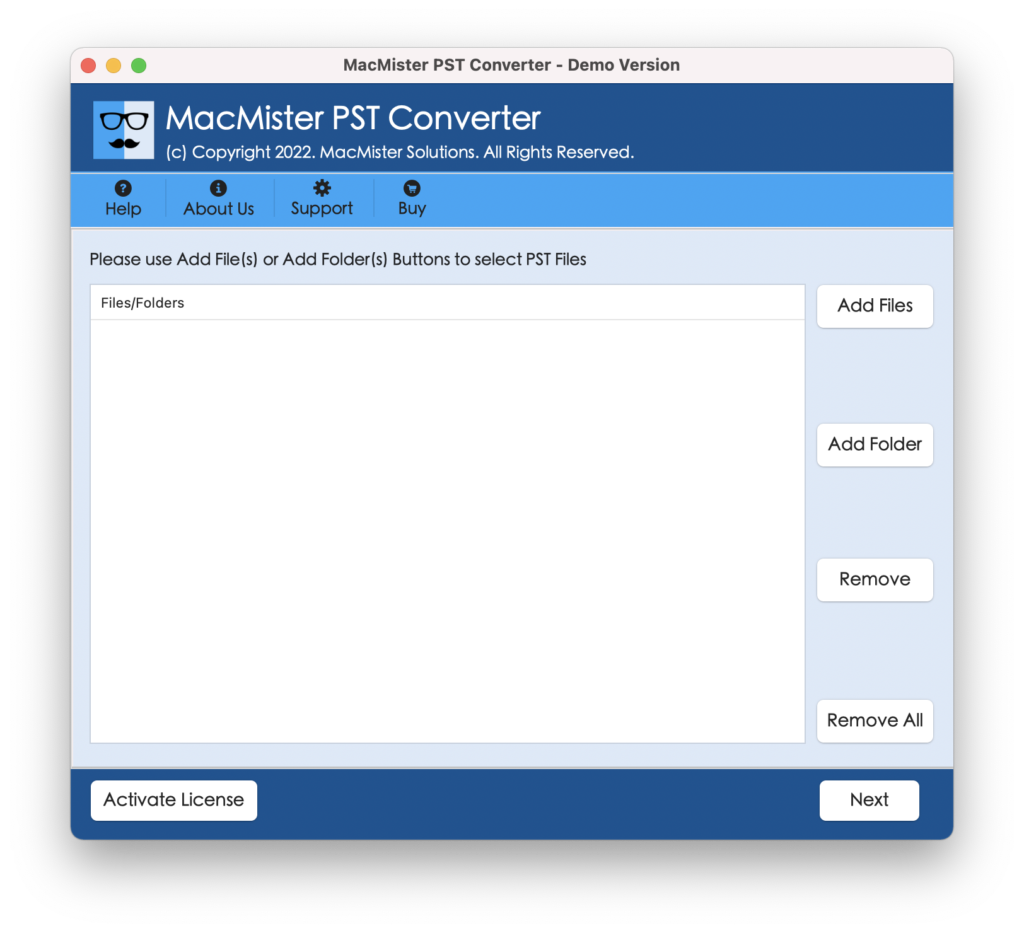
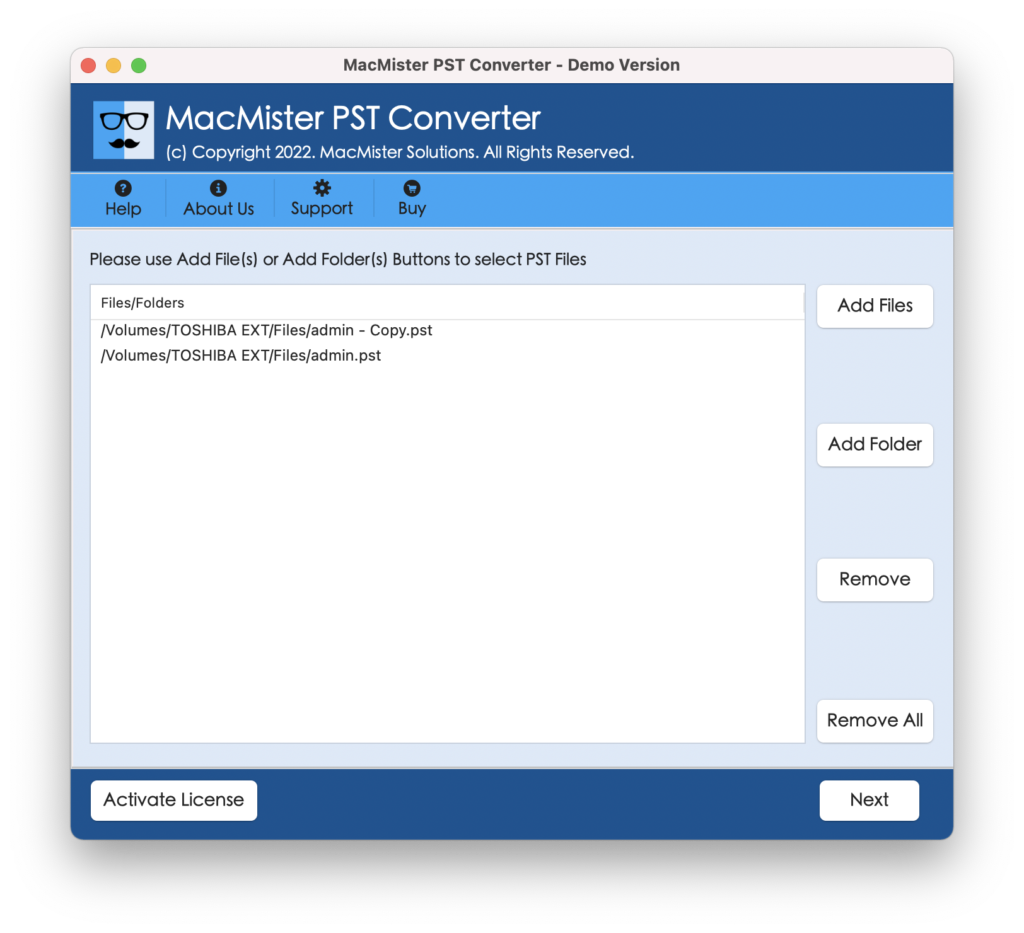
Step 2. Click the Add File(s) or Add Folder(s) option to add the PST files that you want to convert.
Step 3. Select saving type from the drop-down menu available and select MBOX (Thunderbird if direct profile conversion is opted).
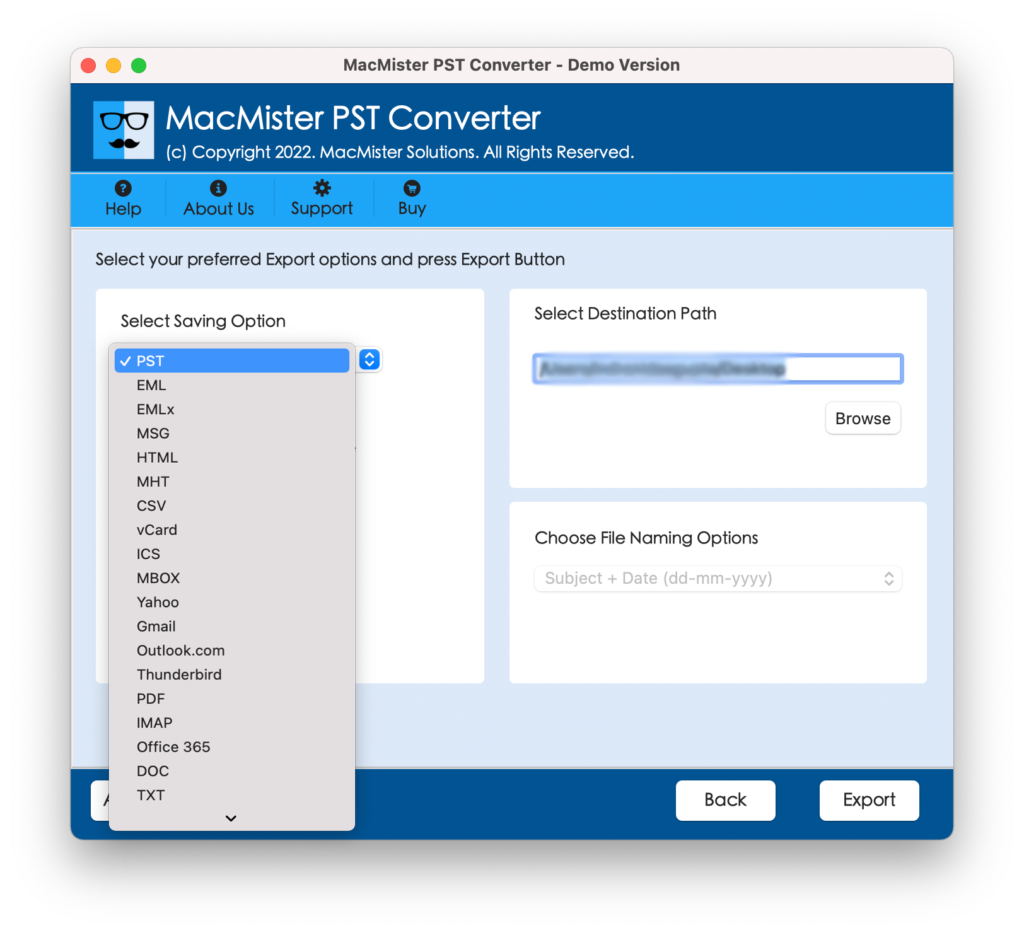
Step 4. Set sub-options according to the requirements and tap Export.
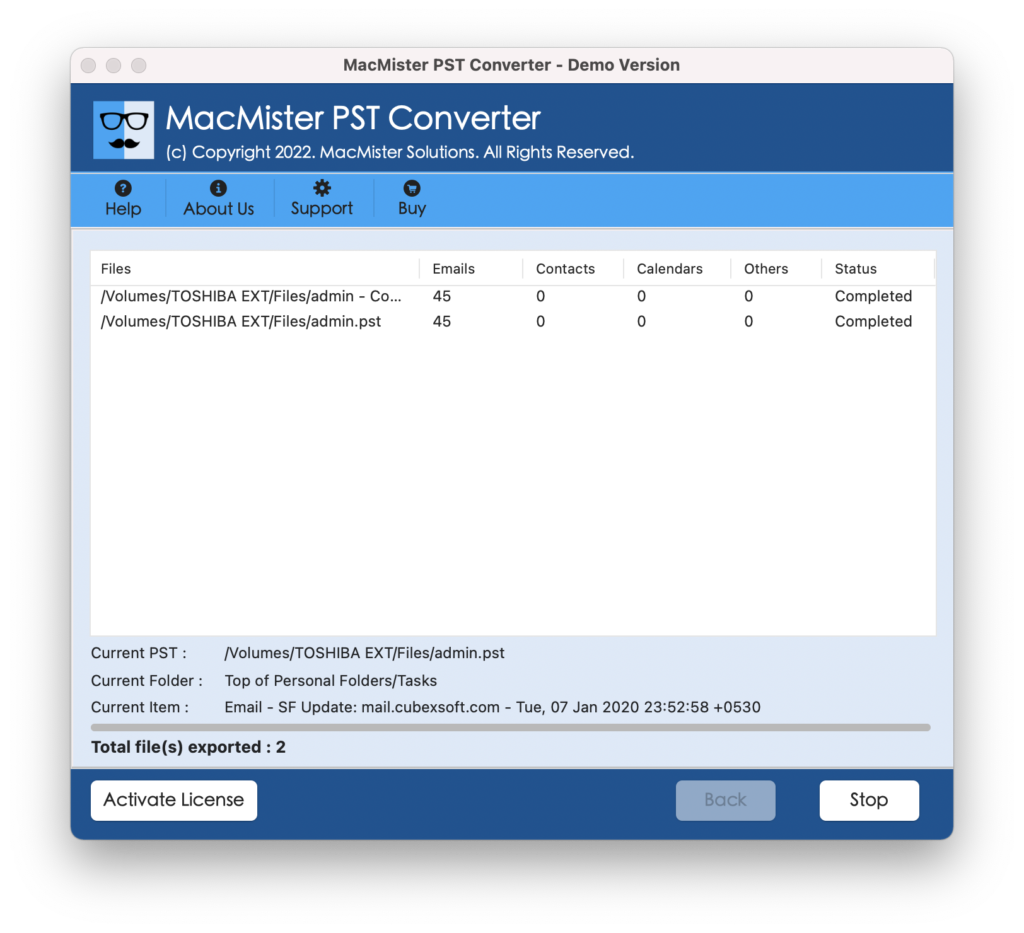
Step 5. The software will show a live progress bar.
Phase 2: Load the Converted Data into Mozilla Thunderbird
Once you’ve created your MBOX file, you will find it easy to import into Thunderbird on your Mac through these steps:
- Open Mozilla Thunderbird on your Mac.
- Suppose that you already have a plug-in installed in Thunderbird called ImportExportTools NG, which can be accessed from Tools > Add-ons and Themes within Thunderbird.
- Locate Local Folders in the left pane of Thunderbird and right-click on it.
- Select ImportExportTools NG $\rightarrow$ Import MBOX file.
- Click on Directly import one or more mbox files and then click OK.
- Go to the location where your converted file was saved by MacMister and choose your MBOX file.
Your Outlook emails, folder hierarchy, and attachments will be instantly available in your Thunderbird Local Folders for normal view.
Manual Methods vs. Automated Solution
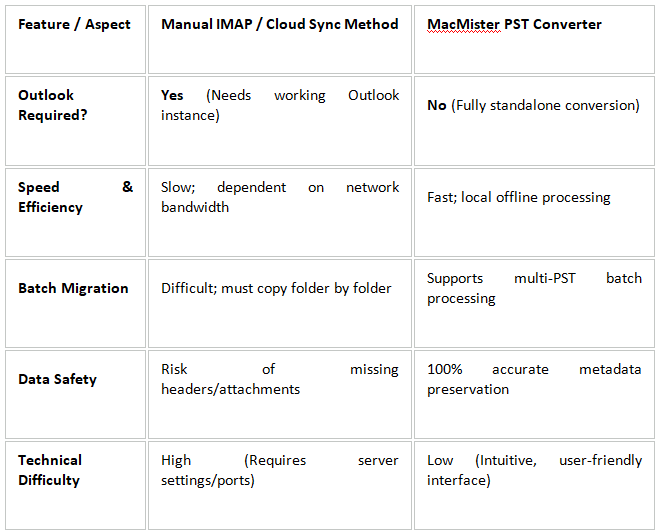
Epilogue
In the write-up we have discussed different ways to fix “how to open PST file in Thunderbird on Mac”. Although one can take help of manual approach if there are less files for import or if a user has good technical knowledge. Using MacMister Solutions utility help avoiding any technical difficulties, save the properties of your emails, and ensure that you do not have to keep Microsoft Outlook open on your Mac computer. Going through the simple steps above, you can easily move all your PST files into Thunderbird.