Large MSG Files Not Converting to CSV? Causes & Solutions
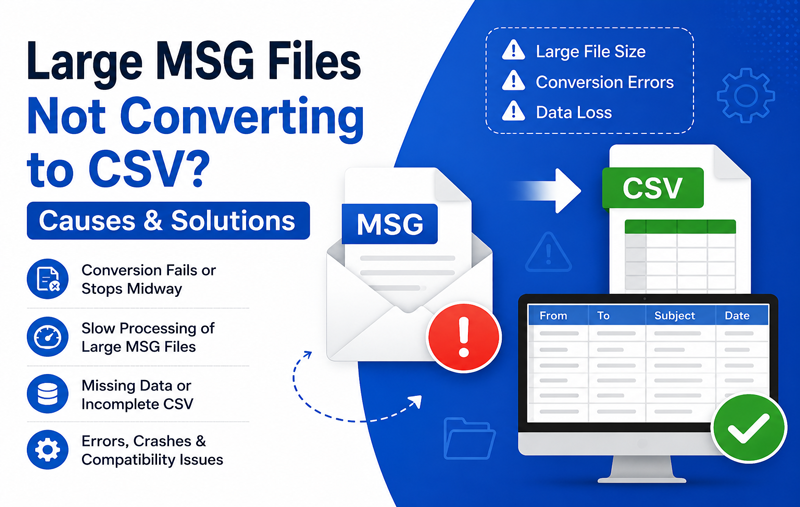
Outlook MSG files are widely used to store individual email messages, including their subject, sender, recipients, attachments, and other important metadata. While these files work well for email storage, many users eventually need to convert them into CSV format for reporting, data analysis, CRM imports, compliance audits, or record management. So large MSG files not converting to CSV so If you are looking for a reliable MSG to CSV Converter, choosing the right solution can simplify the export process and reduce conversion errors.
However, the conversion process doesn’t always go as planned—especially when dealing with large MSG files or thousands of email messages. Users often encounter issues such as incomplete exports, software crashes, blank CSV fields, missing email details, or conversion failures. These problems can delay important business tasks and raise concerns about data integrity.
The good news is that most MSG-to-CSV conversion issues have identifiable causes and practical solutions. In this guide, we will explain why large MSG files fail to convert to CSV and how you can successfully export your email data without losing valuable information.
Why Large MSG Files Fail to Convert to CSV
Large MSG files contain significantly more data than standard email messages. Besides the email content itself, they may include attachments, embedded images, lengthy conversations, internet headers, and detailed metadata. Processing such files requires more system resources, and if the conversion method isn’t designed for large datasets, failures can occur. Below are the most common reasons.
1. Insufficient System Memory (RAM)
One of the leading causes of conversion failures is limited available memory.
During MSG to CSV conversion, the software must read every email property, extract the required fields, and write them into a CSV file. When processing hundreds or thousands of large MSG files simultaneously, memory usage increases rapidly. If your Mac doesn’t have enough free RAM, the conversion may –
- Freeze unexpectedly
- Become extremely slow
- Stop midway
- Generate incomplete CSV files
- Display application errors
Solution
- Before starting the conversion:
- Close unnecessary applications.
- Free up system memory.
- Restart your Mac if it has been running for a long time.
- Convert files in smaller batches if your mailbox is exceptionally large.
This helps allocate more resources to the conversion process.
2. Oversized Attachments Increase Processing Time
Many MSG files contain –
- PDF documents
- ZIP archives
- Images
- Videos
- Large Office documents
Although CSV files don’t store attachments, the converter still has to scan the MSG file structure to retrieve email information. Extremely large attachments increase processing time and may cause slower performance.
Solution
If attachment information isn’t required –
- Export only email properties.
- Exclude unnecessary attachment-related fields (if supported).
- Convert emails in multiple smaller batches.
This reduces processing load and speeds up conversion.
3. Corrupted MSG Files
Not every MSG file is perfectly healthy. Files may become corrupted because of –
- Interrupted downloads
- Storage device failures
- Improper Outlook exports
- File transfer errors
- Sudden system shutdowns
A damaged MSG file can interrupt the entire conversion process if the software cannot read its contents correctly.
Signs of Corruption
- MSG file won’t open in Outlook.
- Conversion stops on one specific file.
- Blank rows appear in CSV.
- Missing subject or sender information.
- Software displays read errors.
Solution
Identify the problematic MSG file and test it individually. If only one file fails while others convert successfully, corruption is the likely cause. Remove or repair the damaged file before running the conversion again.
If Outlook cannot open your email files before conversion, read our guide on MSG Files Not Opening to identify and resolve the issue.
4. Converting Too Many MSG Files at Once
Users often select an entire folder containing several thousand MSG files and expect the conversion to finish quickly.
While this approach seems convenient, processing a massive number of files simultaneously can overload the application, especially on systems with limited resources. Large batch conversions may result in –
- Application crashes
- Long waiting times
- Partial exports
- Missing records
- Temporary system freezing
Solution
Instead of converting everything at once –
- Divide files into smaller batches.
- Export folder by folder.
- Verify each CSV before moving to the next batch.
This approach improves stability and makes it easier to identify problematic files.
5. Unsupported or Outdated Conversion Software
- Not every MSG converter is optimized for handling large mailboxes.
- Older or basic utilities may struggle with:
- Thousands of emails
- Long email threads
- Unicode characters
- Large metadata fields
- Modern Outlook message formats
As a result, the software may fail before completing the conversion.
Solution
Always use an updated converter that supports –
- Bulk MSG conversion
- Large mailbox processing
- Complete email property extraction
- Modern Outlook MSG formats
- Stable performance with large datasets
Using reliable software significantly reduces the risk of conversion failures.
6. Missing Read Permissions
Sometimes the problem isn’t the MSG file itself but the folder where it’s stored.
If macOS doesn’t allow the application to read certain folders, the converter won’t be able to access the files. Common examples include –
- External drives
- Network folders
- Protected directories
- Read-only folders
Solution
Ensure the application has permission to access the folder containing the MSG files. You can also –
- Copy the files to a local folder.
- Verify folder permissions.
Avoid converting directly from removable storage devices.
7. CSV File Is Already Open
This issue is surprisingly common. If the destination CSV file is currently open in Microsoft Excel, Apple Numbers, or another spreadsheet application, the converter cannot overwrite or update it. The conversion may fail with an access error or produce an incomplete file.
Solution
Before exporting –
- Close Excel or any spreadsheet software.
- Delete the partially created CSV file if necessary.
- Choose a new destination folder.
- Run the conversion again.
8. Storage Space Is Running Low
Large mailbox exports can generate sizeable CSV files, especially when thousands of emails are involved.
If your Mac doesn’t have sufficient free storage, the conversion process may stop unexpectedly before the CSV is fully written.
Solution
Check available disk space before starting the export. It’s also a good idea to –
- Delete unnecessary temporary files.
- Empty the Trash.
- Save the CSV output to a drive with enough free space.
Advanced Troubleshooting Tips for Large MSG to CSV Conversion
If you’ve addressed the common causes but the conversion still fails, try these advanced troubleshooting techniques before attempting the process again.
9. Check the File Size and Email Count
Converting an extensive collection of MSG files can take considerably longer, as larger email archives demand more system resources than smaller batches. Before starting the conversion, review the total number of MSG files and estimate the output size.
If the folder contains thousands of files, divide them into smaller groups based on –
- Year
- Project
- Department
- Client
- Month
Processing emails in smaller groups enhances overall efficiency and simplifies identifying any files that may cause conversion issues.
10. Verify Email Encoding
Some MSG files contain multilingual text, special characters, or Unicode symbols. If the conversion utility doesn’t properly support these character sets, the exported CSV may display unreadable or garbled text.
Solution
Choose a converter that supports Unicode encoding to preserve –
- Sender names
- Email subjects
- Message body text
- International characters
- Special symbols
How to Verify That the Conversion Was Successful
Completing the export doesn’t necessarily mean every email was converted correctly. After generating the CSV file, perform a few checks to ensure the data is complete and accurate.
- Compare Email Counts – Count the number of MSG files in the source folder and compare it with the number of records in the CSV file. If there’s a significant difference, some emails may have been skipped.
- Review Important Fields– Open the CSV file in Excel or another spreadsheet application and verify that essential information is present, such as –
Subject, Sender, Recipient, Date, Time, CC/BCC (if required), Message ID
Blank columns may indicate a conversion issue.
- Check Random Records – Instead of reviewing every row, randomly compare a few MSG files with their corresponding CSV entries to ensure that the exported information matches the original emails.
Best Practices for Converting Large MSG Files to CSV
Following these best practices can help ensure a smooth and reliable conversion process.
- Organize MSG Files Before Conversion – Keep related MSG files in separate folders. Organized data is easier to process and reduces the risk of errors during batch conversion.
- Keep a Backup of Original Files – Always preserve the original MSG files until you’ve verified the exported CSV. This ensures you can repeat the conversion if needed.
- Avoid Interrupting the Process – Don’t close the converter, restart your Mac, or disconnect external drives while the conversion is running.
- Export in Smaller Batches – Instead of converting thousands of emails at once, process them in manageable batches. This improves stability and makes troubleshooting easier.
- Verify the CSV Output – After every conversion, review the generated CSV to confirm that all required email details have been exported correctly.
Why Use MacMister MSG Converter for Mac?
Manual methods and basic conversion utilities often struggle with large MSG files, resulting in incomplete exports, missing email properties, or application crashes. A dedicated solution is a better choice when accuracy and efficiency are important.


MacMister MSG Converter for Mac is designed to simplify bulk MSG conversions while maintaining the integrity of your email data. The software converts Outlook MSG files to CSV while preserving the integrity of the original email data.
Key Features
- Convert multiple Outlook MSG files simultaneously, eliminating the need to process each email individually.
- Export large MSG collections without data loss.
- Preserves email metadata, including sender, recipients, subject, and date.
- Maintains email formatting during conversion.
- Supports selective file and folder conversion.
- Designed with an intuitive interface, the software is easy to navigate for beginners as well as experienced professionals.
- Compatible with the latest macOS versions.
Whether you are preparing email records for reporting, audits, legal documentation, or CRM imports, using a reliable converter can save time and reduce the risk of conversion failures.
Besides converting MSG files into CSV, there are situations where users simply need to share Outlook MSG files with non-Outlook users. In such cases, exploring alternative sharing methods can be equally helpful.
Frequently Asked Questions
Q. Why won’t my large MSG files convert to CSV?
Ans. Common reasons include insufficient system memory, corrupted MSG files, oversized attachments, limited storage space, permission issues, or unsupported conversion software.
Q. Can I convert multiple MSG files to one CSV file?
Ans. Yes. Most professional MSG converters support batch conversion, allowing you to export multiple MSG files into a single CSV file.
Q. Will attachments be included in the CSV file?
Ans. No. CSV files store structured text data rather than attachments. However, attachment-related information, such as attachment names, may be included if supported by the converter.
Q. Can corrupted MSG files be converted?
Ans. It depends on the level of corruption. Minor issues may still allow successful conversion, while severely damaged files may need to be repaired or replaced before export.
Q. Is there any file size limit for MSG to CSV conversion?
Ans. There is no fixed limit, but extremely large files or mailboxes require more memory and processing time. Converting them in smaller batches is generally recommended.
Conclusion
Large MSG files may fail to convert to CSV for several reasons, including insufficient memory, oversized attachments, corrupted files, storage limitations, permission issues, or outdated conversion software. Fortunately, these problems can usually be resolved by organizing your files, ensuring adequate system resources, verifying permissions, and using a reliable conversion method.
If you frequently work with large Outlook MSG archives, choosing a professional solution can simplify the process and help preserve essential email details. MacMister MSG Converter for Mac provides an efficient way to convert bulk MSG files into CSV format while maintaining important metadata and minimizing the risk of incomplete or failed exports.
By following the troubleshooting steps and best practices outlined in this guide, you can confidently convert even large MSG collections into CSV files for reporting, analysis, compliance, or business record management.