How to Remove Files from MacBook Desktop without Deleting?
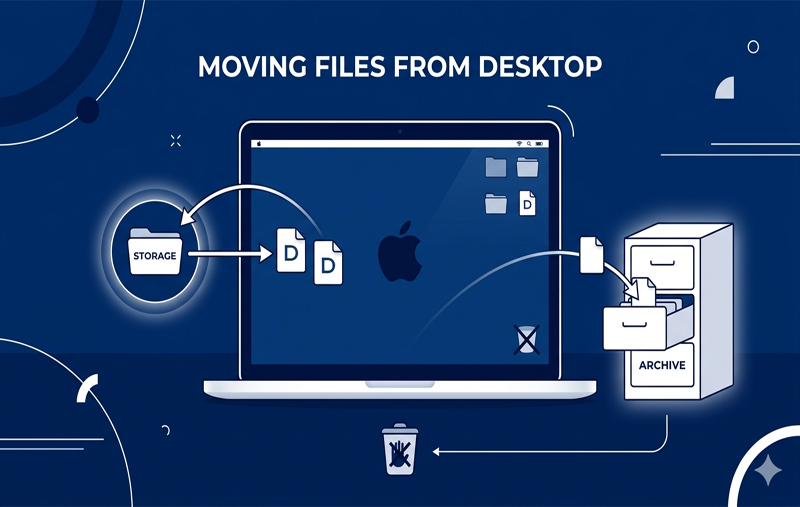
Not only does it look unpleasant, but a cluttered desktop on your Mac can significantly affect its overall speed and negatively impact your productivity. All the icons that are on your desktop are treated as opened windows, and, thus, require some of your computer’s precious RAM resources.
What if the icons that are crowding up your desk actually are useful documents, ongoing work projects, and irreplaceable memories? You won’t want to risk losing any of these just because the computer looks messy, right?
However, you still need to keep your desk free of chaos, as it may seriously hamper your work. Luckily, there are ways to do so without touching a single file. Continue reading to find out how to declutter your Macbook desktop without deleting anything.
Use macOS Stacks for Instant Organization
For getting rid of clutter and organizing your desktop without really shifting any files, Stacks is here to help. Available in the latest version of macOS Mojave, this handy tool sorts all your files into organized stacks on the right side of your screen.
Here’s how to activate Stacks:
- Head over to your desktop
- Right-click (or use two fingers for clicking) at an empty place on the screen.
- Select Use Stacks from the options.
[Desktop]>> Right-Click >> Select “Use Stacks”
This will automatically arrange your files by type such as images, PDF, documents, and screenshots. You may further arrange the stacks by Date Last Opened or Tags by using the same process.
Hide Desktop Icons Completely via Terminal
Perhaps you love keeping files on your desktop for quick access, but you need a completely clean screen for a presentation, a screenshot, or just peace of mind. You can hide your desktop icons entirely without moving or deleting them.
To do this, you will use the Mac Terminal:
Step 1. Launch Finder and then navigate towards Applications > Utilities > Terminal (or press Command + Space and type “Terminal”)
Step 2. Copy the following command into Terminal exactly as it appears and press Enter:
defaults write com.apple.finder CreateDesktop false
Step 3. To apply the modifications, restart Finder by entering the below command and tap Enter –
killall Finder
Now your desktop is totally blank. But don’t get scared! All of your data is absolutely fine. Just go to Finder and click on Desktop from the side menu.
Note. To restore your icons: Repeat the exact steps, except replace false with true in the first command (defaults write com.apple.finder CreateDesktop true), and then use killall Finder again.
Move Files to the Archive Folder (The “Sweeping” Method)
The quickest way to organize your desktop manually is to set up an archive system. Instead of having fifty individual files on your desktop, you’ll have them all together in one place.
- Right-click your desktop and select New Folder.
- Label your folder clearly, e.g., Desktop Archive [Month/Year] or Files to Organize.
- Cmd + A will highlight everything on your desktop; Cmd while clicking the newly created folder will de-select it.
- Drag all highlighted items onto the folder.
For even greater organization, drag this folder off your desktop and into your Documents/Home folder. You can drag the folder to your Finder sidebar/Dock bar for convenient, one-click access without filling up your screen real estate.
Take Advantage of iCloud Drive for Your Desktop Documents
In case you run out of local storage on your MacBook and want to have your desktop documents accessible to you, you may want to have them stored in the cloud automatically by macOS.
Once you activate this option, the documents stored on your desktop will be moved to iCloud. Though they will still appear on your desktop, they will only be loaded onto your local hard drive once you decide to open them, thus freeing up a lot of disk space.
How to activate iCloud Desktop & Documents:
- Go to the Apple menu located in the top left-hand corner and open System Settings.
- Tap on your Apple ID (Name) found in the sidebar.
- Tap on iCloud and then tap iCloud Drive.
- Tick the checkbox beside Desktop & Documents Folders.
- Click Done.
Moving to Strategic File Management
The best way you can make sure that all of your files do not clutter your computer desktop would be to stop saving any files to the desktop altogether.
- Browser Downloads Settings Change: Many people tend to allow the web browsers to save all downloaded files to the desktop. Open your browser settings on Safari, Chrome, or Firefox, and make sure to move all saved files to the standard Downloads Folder.
- Screenshot Destination Change: Every time a user takes a screenshot using the Command + Shift + 3 or 4, the saved file lands on your desktop by default. Just use Command + Shift + 5, select “Options,” and choose a different folder for saving the files.
Make Use of MacMister Data Wipe to Manage Data Securely
Whereas the above strategies can help you to restructure and hide those documents that you need to protect, file organization may expose other documents that you finally end up deleting because they contain very sensitive information, financials, or information about your clients.
Moving those files to the Trash and deleting them is not really deleting the data; it only conceals them and exposes them to be retrieved through data recovery tools. When organizing your desk top before you give out your Mac either for repairs, reselling, or even lending to other family members, just moving files to the Trash is not enough.
MacMister Data Wipe for Mac helps you out here.
Why Do You Need MacMister Data Wipe?
This is a highly professional program which provides a secure file deletion, guaranteeing that your files will be shredded and won’t ever be recovered. During your computer cleanup, you may apply this program to wipe selective files from your desktop. It means that your essential files will remain unharmed.
- As compared to factory resetting of your computer, you’ll be able to get rid of certain files or folders on your desktop without compromising your essential documents.
- The program make use of military-grade data shredding methods (for example, DoD 5220.22-M and Peter Gutmann) allowing for several times wiping the data from your device.
- Internet history, computer system logs, application cache can all be wiped by this program together with your essential files from your desktop.
- The combination of MacMister Data Wipe into your regular maintenance procedure helps ensure a clean, optimized, and secure MacBook desktop forever.
Epilogue
Clear desktop = Clear mind = Faster Mac. No matter whether you opt for the immediate pleasure provided by macOS Stacks or the invisible magic trick of the Terminal command or an archive-based folder, you have numerous options available at hand to quickly get rid of the clutter without deleting even a single file that is essential for your work. For the rest of the data that doesn’t deserve a place on your desktop, there’s always MacMister Data Wipe Software for Mac & Windows.