How to Resolve Apple Cannot Check It for Malicious Software?
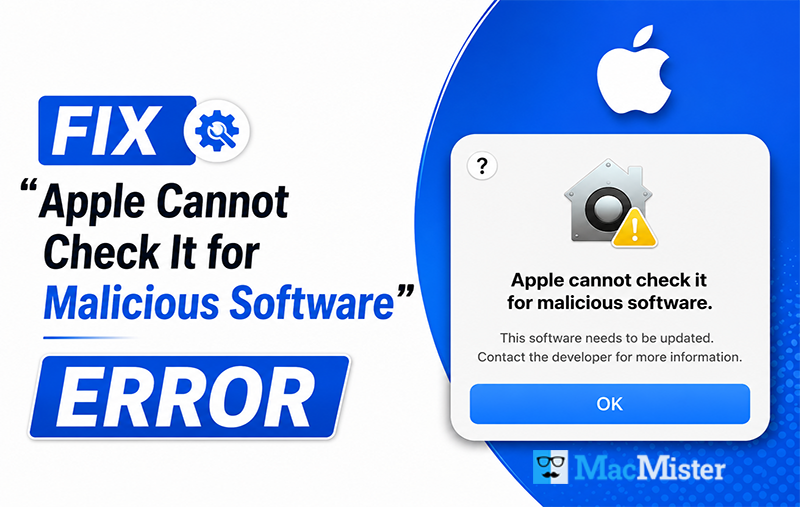
Even a small delay in starting your system can impact productivity, and warning messages like “Apple cannot check it for malicious software” can be quite frustrating. In this write-up, we’ll guide you through quick and easy approaches to open the desired application on macOS securely.
This issue usually occurs due to outdated security settings, problematic system files, or overly strict firewall configurations. To begin with, make sure your macOS and security software are fully updated. You can also temporarily disable the firewall to check whether it is causing the error.
If the issue still persists, try scanning your Mac using a trusted third-party antivirus tool to rule out deeper security conflicts. In some cases, the application itself may be corrupted, and reinstalling it or resetting security preferences to default can resolve the problem.
Since this issue requires a bit of careful troubleshooting, let’s explore the best ways to bypass or resolve Apple cannot check it for malicious software error safely.
Why macOS Shows “Apple Cannot Check It for Malicious Software” Error?
If you have ever encountered this message, it is usually triggered by the built-in security system of macOS. This warning does not necessarily mean that the application is harmful or that your system is at risk, it is simply a security protection feature designed to prevent unverified apps from running.
Common Reasons for This Error
- The application was downloaded from an unverified or unofficial source.
- Your macOS version is outdated and not fully compatible with newer apps or security protocols.
- The application files are corrupted, incomplete, or improperly installed.
- Your system is not updated, causing it to reject newer or unsigned applications.
- The app is not properly registered or recognized by Apple’s security verification system.
Because of these factors, macOS displays the warning when it cannot confirm the authenticity of the application. In the next sections, you can learn how to fix this issue safely.
Is It Safe to Bypass This Warning?
If the application is downloaded from a trusted source, such as the developer’s official website or the Mac App Store, it is generally safe to open even after this warning. However, if the app comes from an unknown or untrusted source, bypassing this protection can expose your Mac to security risks, including malware or other harmful software.
How to Resolve Apple Cannot Check It for Malicious Software Error? – Multiple Fixes
If you are facing the “Mac cannot check it for malicious software” warning, there are several simple methods you can try to resolve the issue and open the application safely.
1: Change Security Preferences
- Tick Apple menu in the top-left corner & open System Preferences.
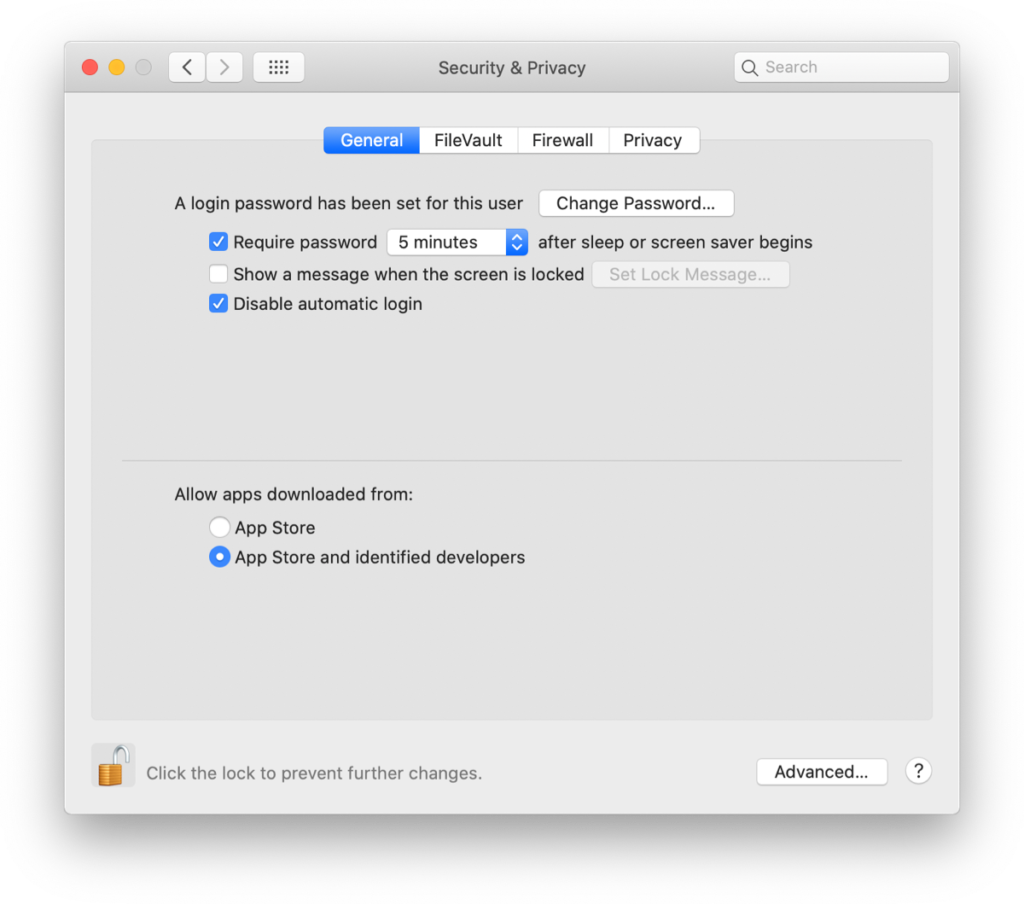
- Go to Security & Privacy.
- Under “Allow apps downloaded from,” select App Store and identified developers.
2: Use Right-Click to Open the App
- Open Finder and locate the application.
- Right-click (or Control-click) the app.
- Select Open from the menu.
- Click Open again when the confirmation dialog appears.
3: Update macOS
Keeping macOS updated helps ensure compatibility and improves security checks.
- Go to the Apple menu -> System Preferences.
- Click Software Update.
- If updates are available, click Update Now.
4: Disable Gatekeeper (Advanced Method)
Use this method only if you trust the application source.
- Open Applications > Utilities > Terminal.
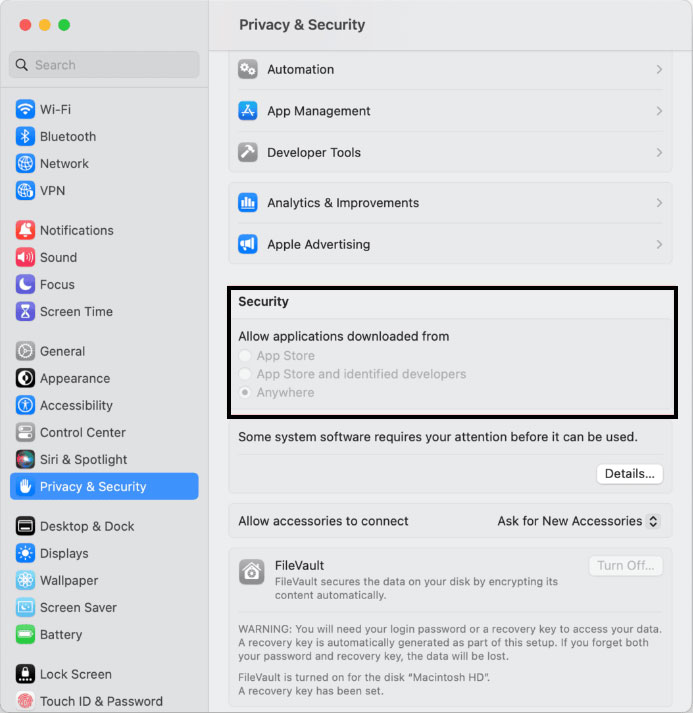
- Enter the command: sudo spctl –master-disable
- This enables “Anywhere” option under security settings, allowing all apps to install.
After installing the required application, it is strongly recommended to re-enable Gatekeeper:
- Open Terminal again.
- Enter the command: sudo spctl –master-enable
This restores macOS security protection and helps keep your system safe.
Frequently Asked Questions (FAQs)
Q- Why does this error occur?
A- This happens when you try to install an app that has not been verified by Apple’s Gatekeeper security system. It usually appears when applications are downloaded from outside the Mac App Store or from unofficial sources.
Q- How can I trust an app that isn’t from the App Store?
A- Always check the developer’s official website, read user reviews, and ensure you have reliable antivirus software installed. Avoid apps from unknown sources that claim unrealistic features or benefits.
Q- Can I use the app if I receive this error?
A- Yes, you can still use the app by following the troubleshooting steps mentioned above to bypass Gatekeeper, but only if you fully trust the source of the application.
Q- Does updating macOS fix the “Mac Mail cannot check it for malicious software” issue?
A- Updating macOS improves security and compatibility, but it may not always resolve this specific error. However, keeping your system updated is still highly recommended.
Q- Is this error specific to certain apps?
A- No, this error can appear with any application that is not verified by Apple. However, it is more commonly seen with apps downloaded from unofficial or outdated sources.
Recommended Tool to Convert Apple Mail Data Safely on Mac
If you are dealing with Mac email-related issues or need a reliable way to manage and convert Apple Mail data, the MacMister Apple Mail Converter Tool can be a helpful solution. It is designed to simplify the process of exporting and converting Apple Mail data into multiple file formats like PST, PDF, EML, MBOX, MSG, ICS, CSV, IMAP, Thunderbird, Outlook.com, Office 365, Gmail, etc. without data loss or technical complexity. The tool ensures safe handling of mailbox items while maintaining the original folder structure and email integrity, making it suitable for both personal and professional use.
Final Lines
We hope the solutions shared above have helped you understand how to bypass the Apple cannot check it for malicious software warning. While you may find multiple methods online, it is always best to follow safe and reliable steps, especially if you are not familiar with technical settings. The methods explained in this guide are simple, practical, and suitable for most users.
However, on newer and updated Mac machines, this error is less likely to occur, as Apple continuously improves its security and app verification system for better compatibility and protection.