How to Transfer Outlook PST Contacts and Calendar to Mac Address Book?
Switching from a Windows PC to macOS is an exhilarating experience. The Apple ecosystem is famous for its stylish design, easy-to-use interface, and perfect synchronization between devices. Yet, there is a huge obstacle on the way of successful switching — moving all the previous data.
If you used Microsoft Outlook for many years, your work-related and private life (email messages, contacts, and calendar entries) will be saved in a PST file. While macOS provides great built-in apps such as Apple Contacts (Address Book) and Apple Calendar, they cannot work with PST files directly.
The question is how can you resolve this problem? If you either want to move the backup of your previous data or migrate to the new MacBook right now, this complete guide will give you detailed information on how to transfer Outlook PST contacts and calendar to Mac Address Book and Apple Calendar easily and safely.
The Main Challenge: Understanding File Formats
Before jumping into the solution itself, it is necessary to comprehend why the usual drag-and-drop does not do the trick.
- PST Format: The PST format is the Microsoft database storage format where all the Outlook data is stored locally in Windows.
- MacOS Requirements: In order for an application on macOS to be able to receive data, it requires certain file formats that are universally recognized.
- The Apple Contacts (Address Book) supports the vCard (.vcf) format.
- The Apple Calendar supports the iCalendar (.ics) format.
In order to properly transfer the data, it is necessary to extract the contact and calendar information from the PST file and translate it into the corresponding file format. There are two major methods to do so: the first is Windows-specific and manual, the second is macOS-specific and automated.
Method 1: The Manual Approach (Requires Windows PC)
On the other hand, if you have access to your older computer with MS Windows operating system and MS Outlook installed, you may proceed to manual contact transfer from that computer. Even though it’s free, this method requires a lot of time and includes several steps.
Step 1: Export Contacts in vCard format
- Run MS Outlook program on your old computer.
- Open Contacts or People view.
- The drawback is MS Outlook does not have an option to export contacts in bulk in vCard format. Thus, you have to forward them: Select all contacts (Ctrl+A).
- Click on “Forward Contact” and select “As a Business Card”. This action will create an email message with all your contacts in .vcf files.
- Select all .vcf files, copy and save them in a folder on your desktop.
(Alternatively, you can use the Import/Export wizard to save your contacts as CSV, but the result of importing the CSV file into Mac Contacts is inconsistent fields and missing profile pictures).
Step 2: Export Calendar to ICS
- Navigate to the Calendar view in Windows Outlook.
- Select the particular calendar that needs to be exported.
- Click on File and then select “Save Calendar.”
- In the pop-up dialogue box, select the file type as “iCalendar Format (.ics).”
- Click on “More options” and select the time period (e.g., Whole Calendar), as well as the level of details (Full Details).
- Save the file.
Step 3: Transfer to Mac
Move the stored .vcf files and .ics file to your Mac computer through a USB flash drive, an external hard disk, or a cloud storage service such as Google Drive or Dropbox.
Drawbacks of the Manual Process:
- It needs an operational Windows PC running Outlook.
- The forwarding of hundreds or thousands of contacts through single vCards will cause crashing of the Outlook application.
- High chances of losing the pictures associated with the contacts, customized fields of the contacts, and calendar recurring events.
- It will be impossible if you have only the orphaned PST file on your Mac computer.
Method 2: Try Direct Automated Solution
In case, your Windows-based PC gets lost or you are looking for an easy solution that will work on your Mac computer, then it will be best for you if you have the PST file saved in your Mac’s hard disk. There is no other alternative except using a professional software application.
The suggested PST file converter software for you will be MacMister PST Converter for Mac. It is a specialized tool to extract and convert PST files on macOS platform.
Why Use MacMister PST Format Conversion Utility?
- Offers conversion of PST files on macOS (works on all current macOS versions, including M-series Apple Silicon chips).
- Transform Outlook contacts automatically into vCard format and calendars into ICS format in batch mode.
- Does not corrupt any data of contacts (such as phone numbers, addresses, job positions, profile pictures) and calendars (recurring events, reminders, notes, attachments).
- Does not require any technical skills at all.
Step-by-Step Guide to Extracting Data on Mac:
Step 1. Firstly download the software from the official website and start the software.
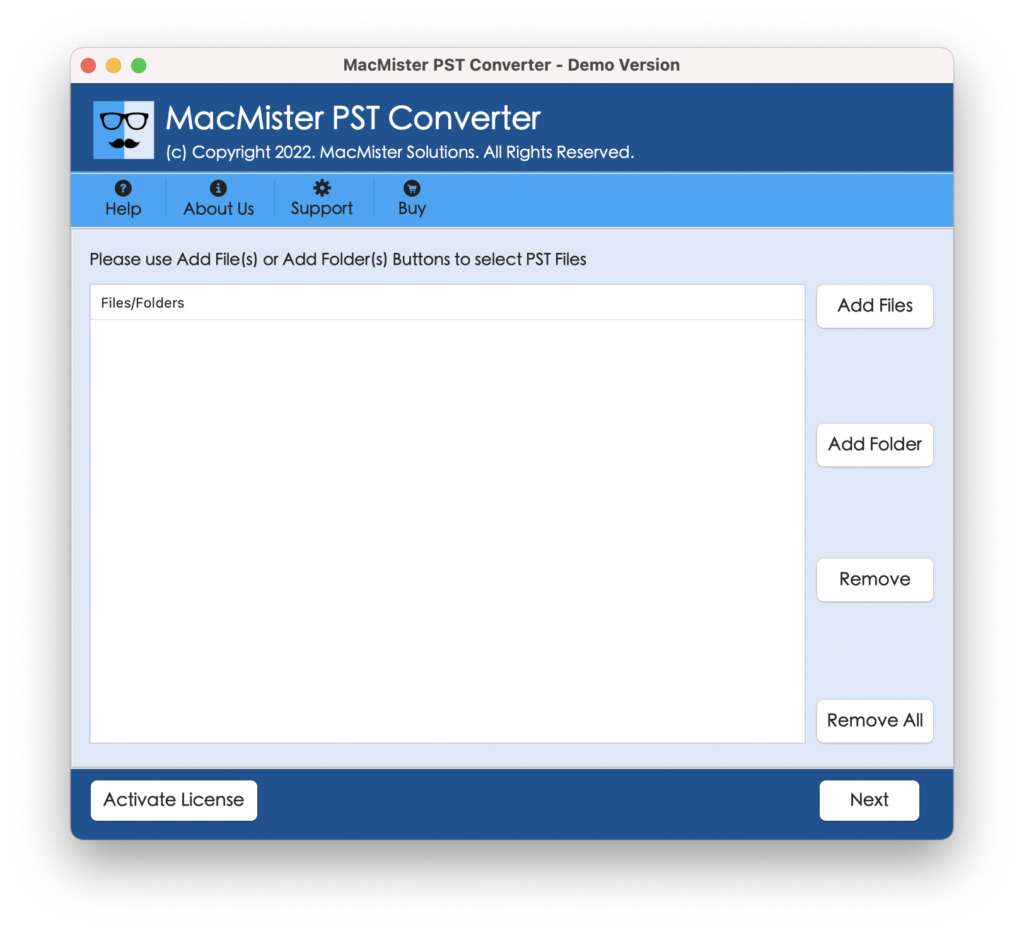
Step 2. Add PST File: Click Add File(s) or Add Folder button to add the PST file which is stored in your Mac.
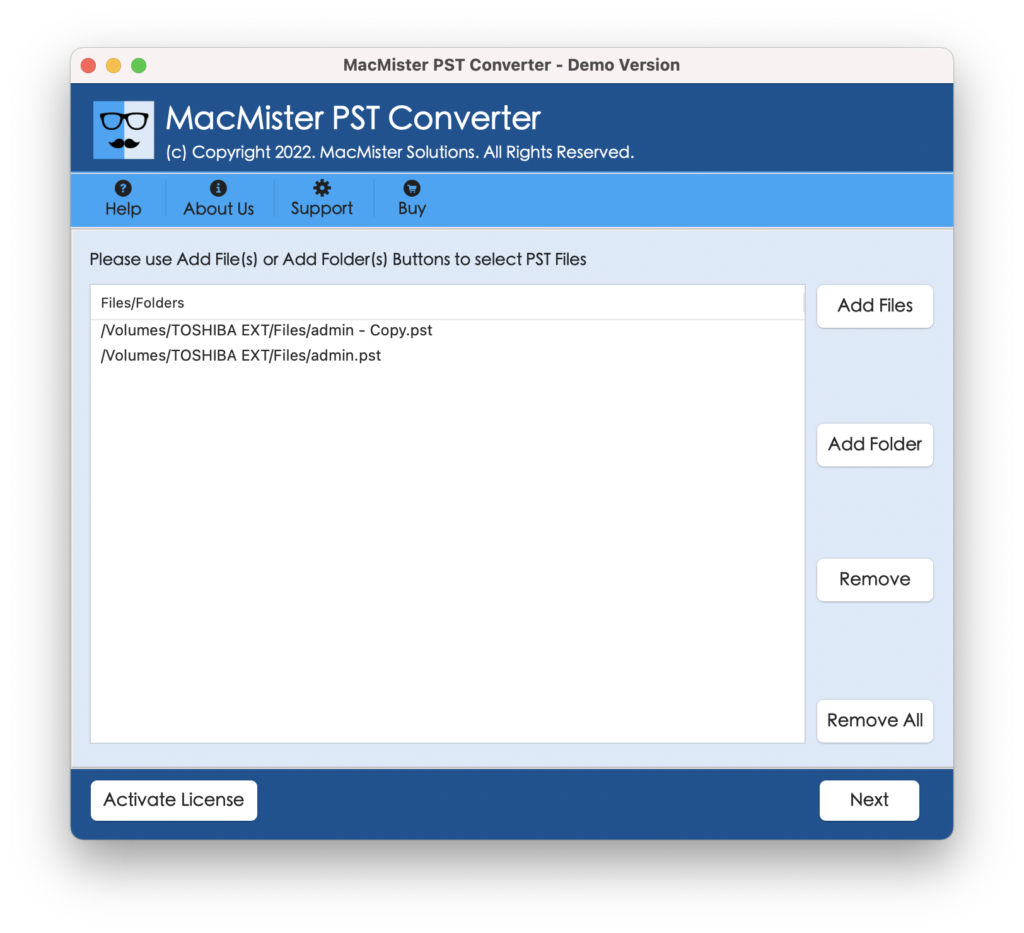
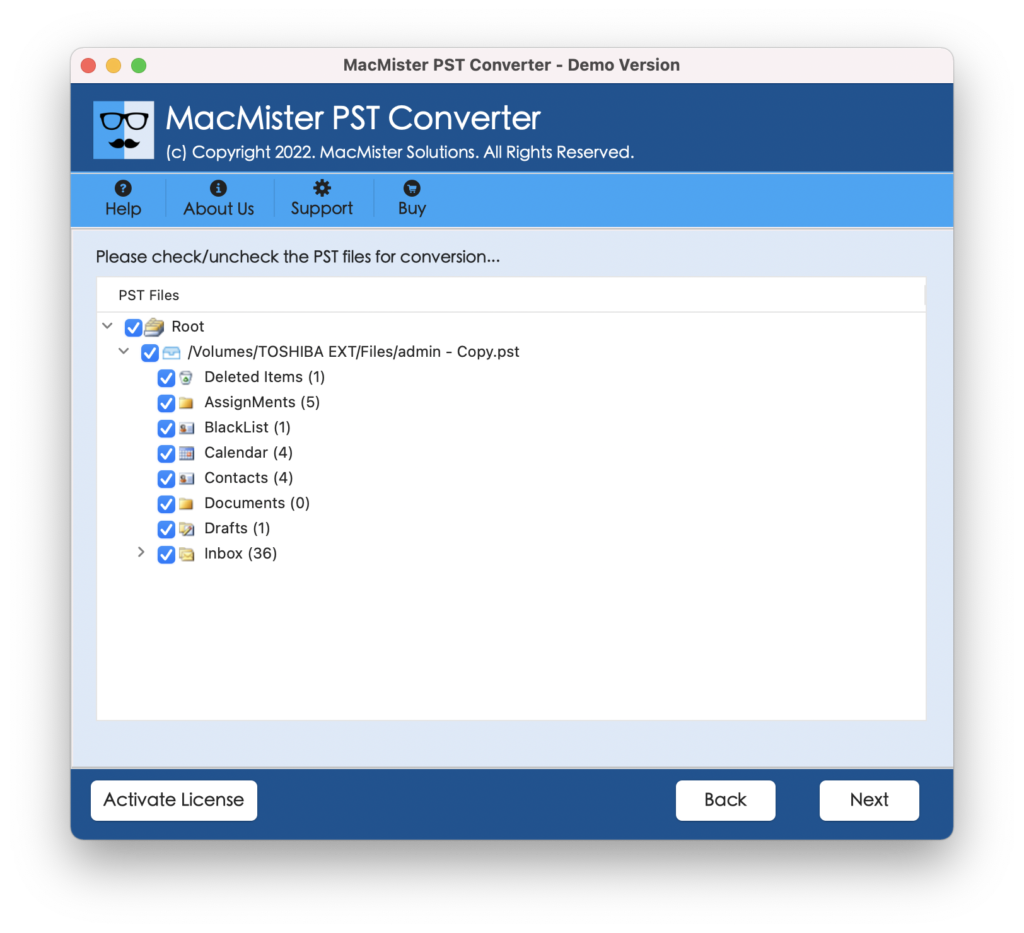
Step 3. Check Your Folders: Software will automatically scan the PST file and will show its internal folder structure. Tick the boxes for your Contacts and Calendar folders respectively. Un-check the box for emails and tasks if not required.
Step 4. Select the Required Output Format:
- Firstly select your Contacts folder. From the Select Saving Option drop-down menu select vCard.
- Then select your Calendar folder and select ICS option from the saving options.
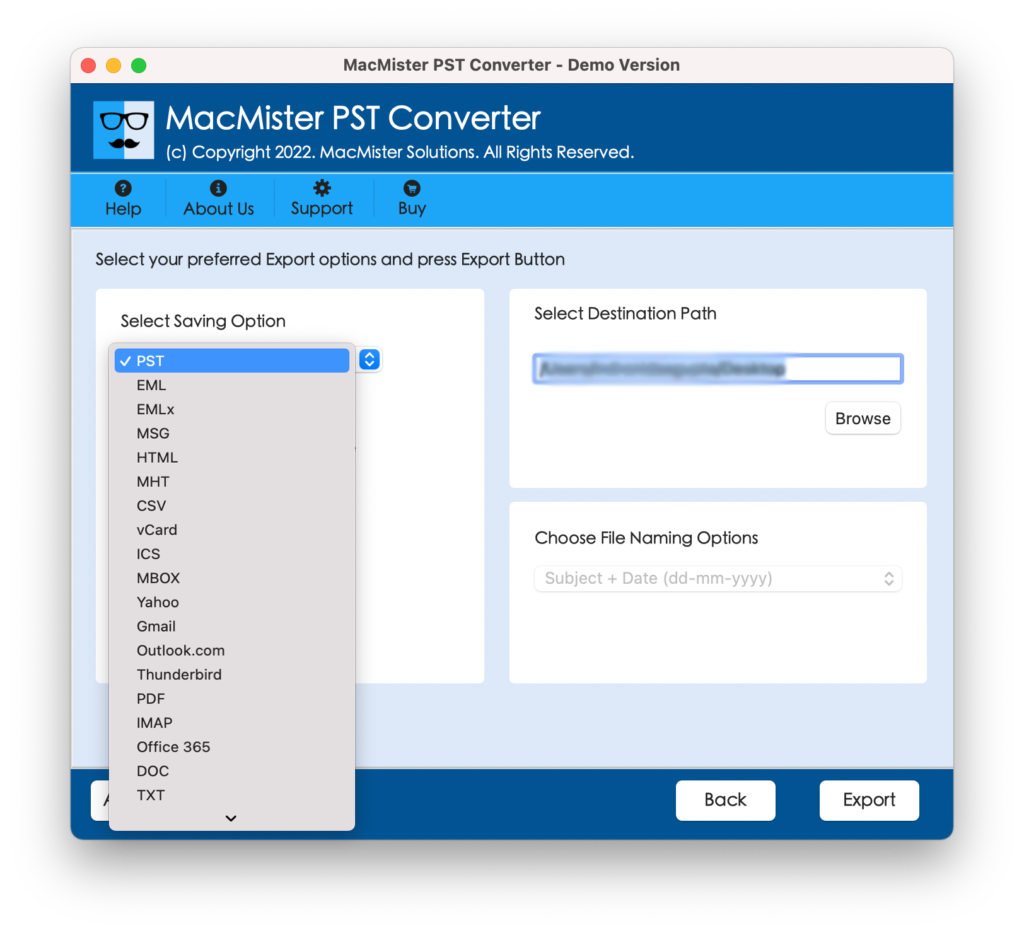
Step 5. Start Export: Select the destination folder and click on the Export button.
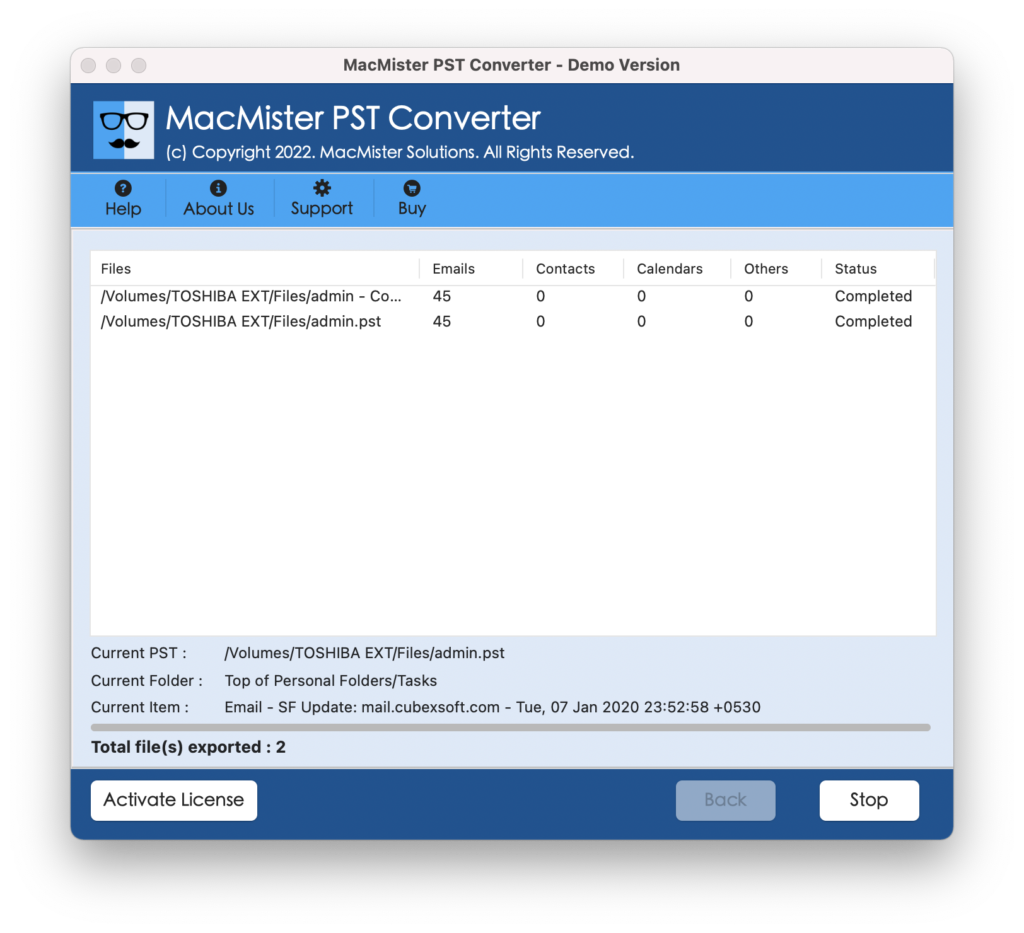
Step 6. Check Live Conversion Progress.
Step 3: Importing the Converted Files into Mac Apps
You’ve got your impeccably formatted vCards and iCalendars sitting right there on your Mac ready to be imported into the native Apple applications in seconds flat.
How to Import Contacts into Mac Address Book:
- Launch the Contacts application on your Mac computer.
- Select File from the top menu, and choose Import.
- Go to the folder where you have the converted .vcf files saved.
- Select those files, and click Open.
- A confirmation pop-up from Apple Contacts will allow you to add the new contacts to your list. Click Add.
How to Import Calendar Events into Apple Calendar:
- Launch the Calendar application on your Mac computer.
- Navigate to File in the upper menu bar, and choose Import.
- Browse and select the .ics file that you have just created and click the button ‘Import’.
- A pop-up window will come up, asking to specify the Mac calendar to which you are going to add the events (Home, Work, or Custom calendar).
- All your previous meetings and appointments will immediately appear on your Mac screen.
Epilogue
Moving your professional and personal information from Windows Outlook to a Mac need not necessarily be an excruciating, time-consuming task. Although the manual transfer process is quite acceptable for those who still own a fully functional Windows machine, it carries an excessively high risk of errors and data loss.
For others who are mostly stuck with a single PST file on their Macs, the best approach would be to use an efficient utility like MacMister PST data migration for Mac app. It takes care of any compatibility issue, requires no involvement of a Windows system at all, and guarantees you easy transfer of your Outlook PST contacts and calendar appointments to your Mac Address Book and Apple Calendar in just a few clicks.
Have a trouble-free transition and make full use of your newly-acquired macOS environment!