Bluehost Webmail to PDF – Save Emails for Offline Access
Bluehost is widely used for business and personal email hosting, allowing users to access their mailboxes through webmail from any device with an internet connection. However, relying entirely on online access can become inconvenient when users need to preserve important messages, review emails without logging in, or maintain a separate archive for future reference. In such situations, saving Bluehost webmail emails as PDF files can provide a practical solution.
PDF is a widely supported document format that can be opened on Windows, Mac, smartphones, and tablets without requiring access to the original email account. It can also help users retain important email information in a readable and shareable format. Therefore, users often look for a reliable way to perform Bluehost Webmail to PDF conversion on Mac.
This guide explains why users save Bluehost emails as PDF, the challenges involved in manual export, and how Mac users can use BlueHost to PDF Tool for Mac to create a local copy of their important emails.
Why Save Bluehost Webmail Emails as PDF?
Email messages often contain important information such as customer communication, invoices, business discussions, agreements, order details, and attachments. Keeping these messages only inside a webmail account may not be sufficient for long-term access. Converting Bluehost emails to PDF provides several benefits –
- Offline Accessibility – Once an email is saved as a PDF, it can be opened without signing in to Bluehost webmail. Users can store the files on a Mac, external drive, or other local storage and access them whenever required.
- Easy Sharing – PDF files are convenient for sharing with colleagues, clients, accountants, or other recipients. The recipient does not need access to the original Bluehost mailbox to read the saved email.
- Consistent Document Format – PDF maintains a consistent layout across different operating systems and devices. This makes it suitable for storing email conversations as readable documents.
- Protection Against Account-Related Issues – If an email account becomes inaccessible because of login problems, storage limitations, accidental deletion, or other issues, locally saved copies can provide an additional layer of protection.
- Organized Email Archiving – Important emails can be stored in dedicated folders based on projects, customers, dates, or departments.
What Makes Bluehost Webmail to PDF Conversion Difficult?
At first glance, saving an email as a PDF may appear simple. However, manually processing a large number of messages can become time-consuming.
Bluehost webmail users may have hundreds or thousands of emails distributed across Inbox, Sent, Drafts, custom folders, and other mailbox locations. Opening each message individually and using the browser’s print or save option is not practical for bulk processing. Manual conversion can also create other challenges –
- Each email generally needs to be opened separately.
- Large mailboxes require considerable time to process.
- Maintaining a consistent folder structure can be difficult.
- Attachments may require separate handling.
- Selecting numerous messages for individual PDF creation is inefficient.
- Repetitive browser-based operations increase the possibility of missing emails.
For users who only need to save one or two messages, the browser’s print-to-PDF feature may be sufficient. For larger email collections, a dedicated email conversion solution can make the process more manageable.
Manual Method to Save a Bluehost Email as PDF
For a small number of emails, users can try the built-in print functionality available through their webmail interface. The general process is –
- Sign in to Bluehost webmail using your email account.
- Open the email that you want to save.
- Use the available Print option.
- Select the PDF or Save as PDF option from the print dialog.
- Choose the destination folder on your Mac.
- Save the email as a PDF file.
This approach can work when only a few individual emails need to be archived. However, it is not an efficient option for handling a large mailbox.
If you need to save multiple Bluehost emails, repeating these steps for every message can take significant time. Folder organization and bulk processing can also become difficult.
A Better Approach for Bluehost Webmail to PDF on Mac
Mac users looking for a more structured way to archive their Bluehost emails can consider MacMister Email Backup Tool for Mac.
The software is designed to help Mac users back up and convert email data into commonly used formats. Instead of relying entirely on browser-based operations, users can process email data through a dedicated application.
|
|
|


For users who need to preserve important Bluehost messages for offline reference, a software-based approach can be useful because it reduces repetitive manual work and provides a more organized workflow.
How to Save Bluehost Webmail Emails as PDF on Mac Using the tool
The exact steps can vary depending on the email source and account configuration, but the general workflow is straightforward.
Step 1: Install BlueHost to PDF Tool
Download and install the Bluehost Email to PDF Tool on your Mac. Launch the application after installation.
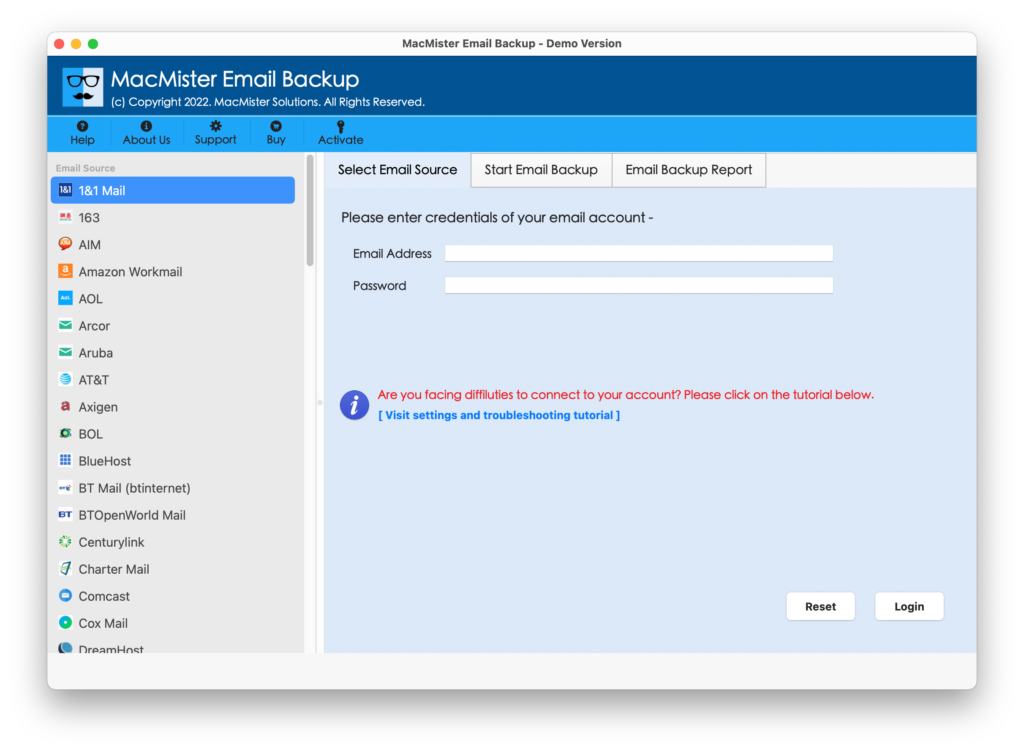
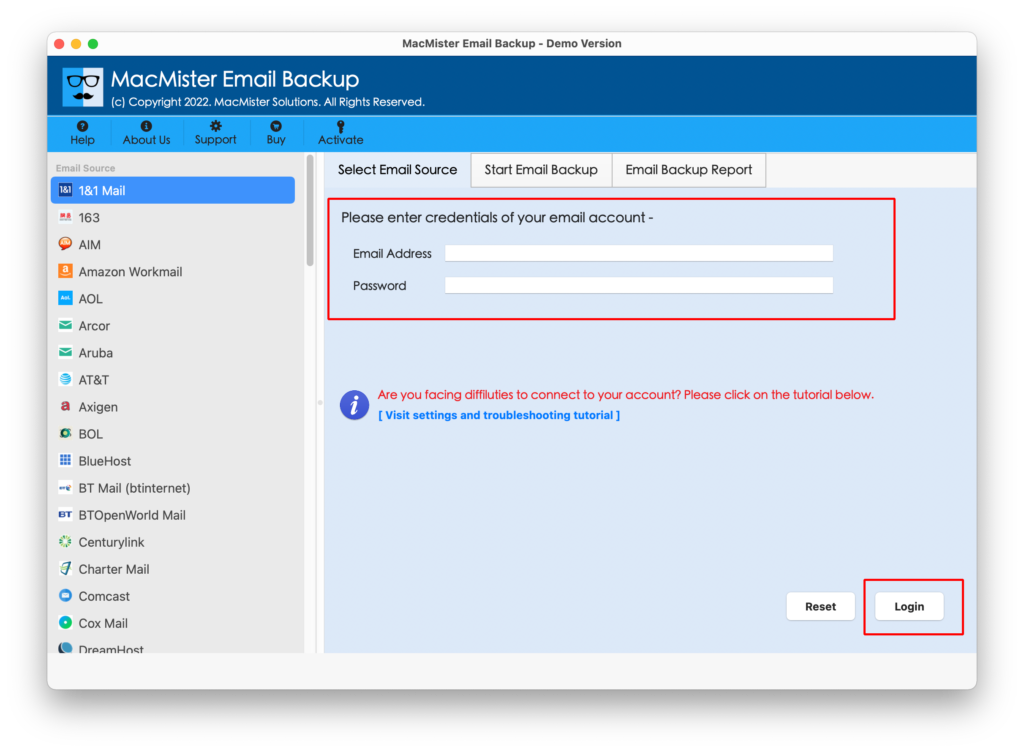
Step 2: Add the Bluehost Email Account
Select Bluehost from Webmail list. Provide the required Bluehost email account details and configure the mailbox for processing. Make sure the account credentials and required server settings are correct before proceeding.
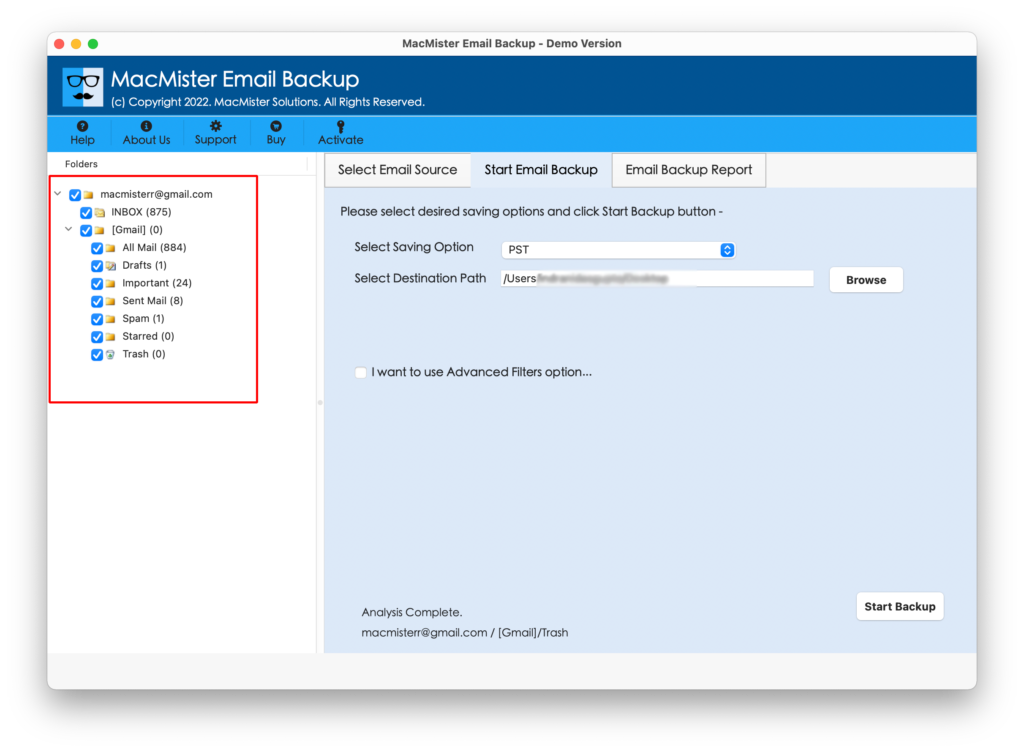
Step 3: Select the Required Mailbox Data
After connecting the account, select the folders or email data that you want to save. Depending on your requirement, you may choose Inbox, Sent Items, or other available folders.
Selecting only the required folders can help reduce unnecessary processing and keep the resulting archive organized.
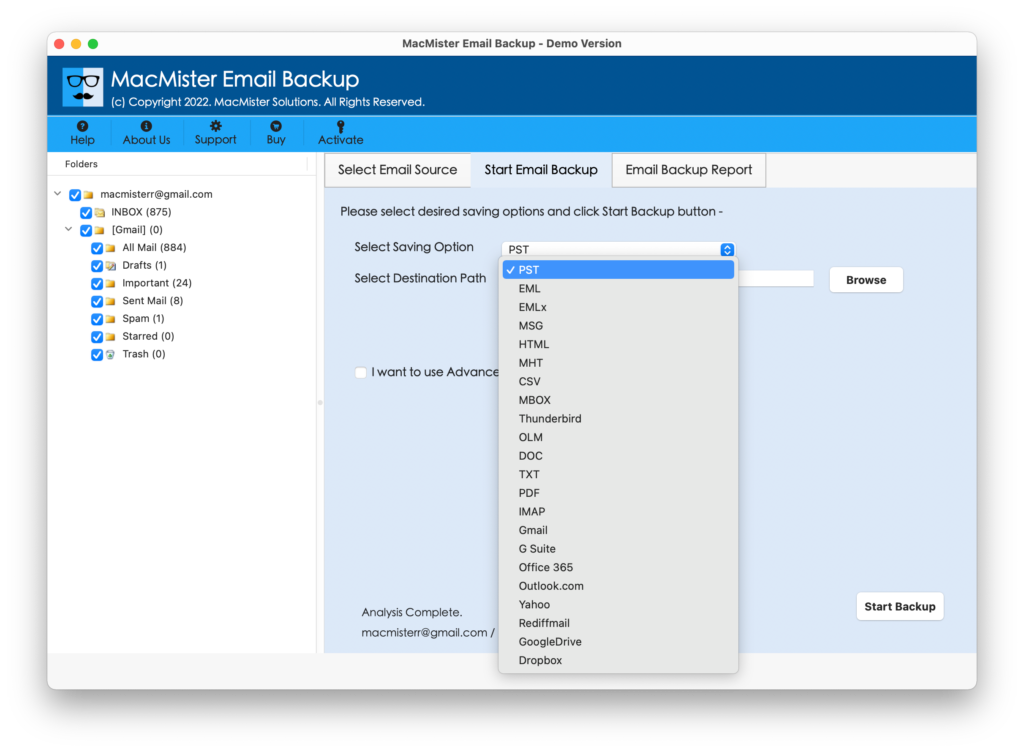
Step 4: Choose PDF as the Output Format
Select PDF from the available export or backup formats. Review the available settings before beginning the conversion.
PDF is particularly useful when the primary objective is to create readable, portable copies of email messages for offline access or documentation.
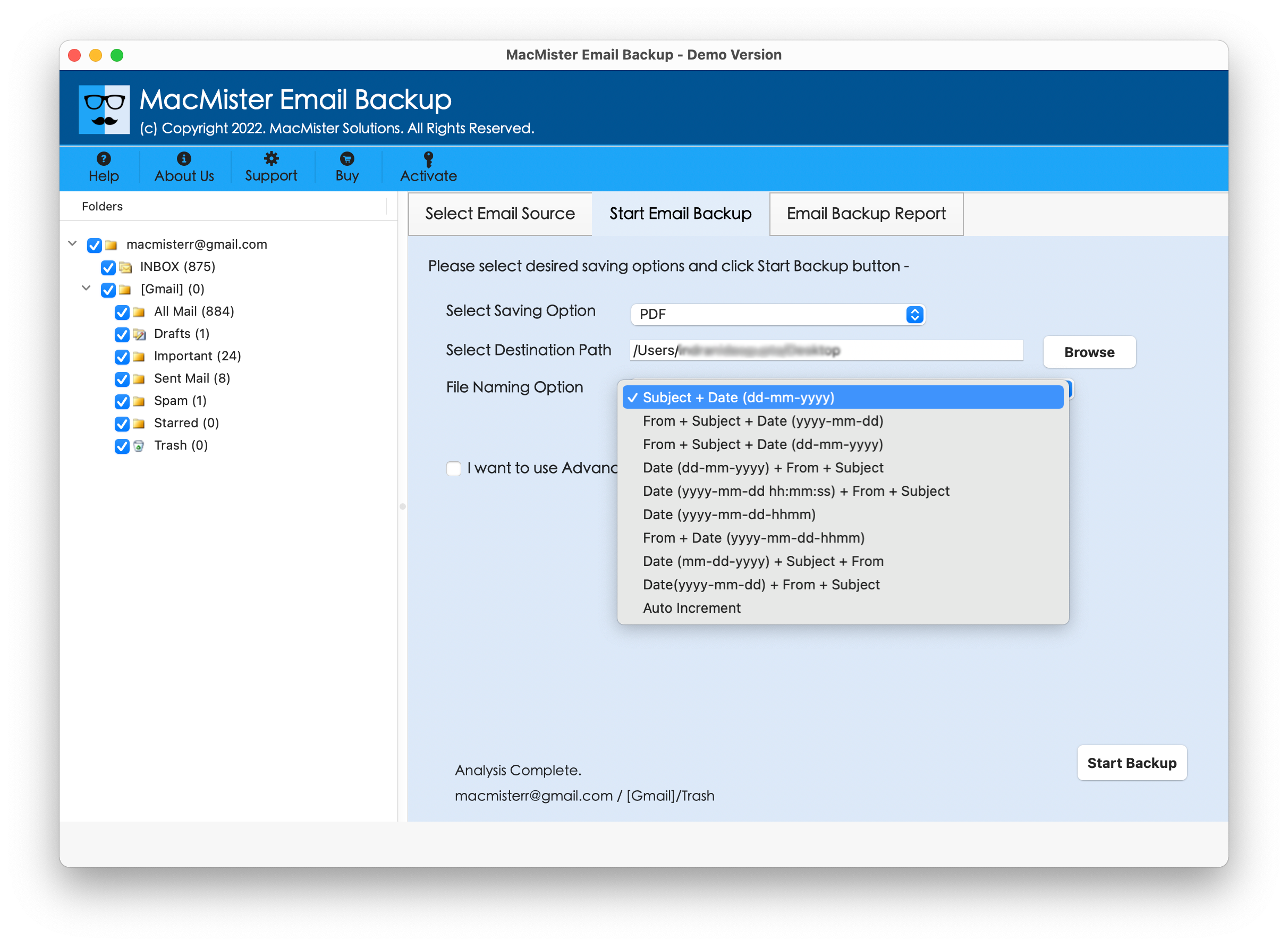
Step 5: Select the Destination Location
Choose a suitable folder on your Mac where the converted PDF files should be stored.
For better organization, you can create separate folders based on the mailbox, project, customer, or year.
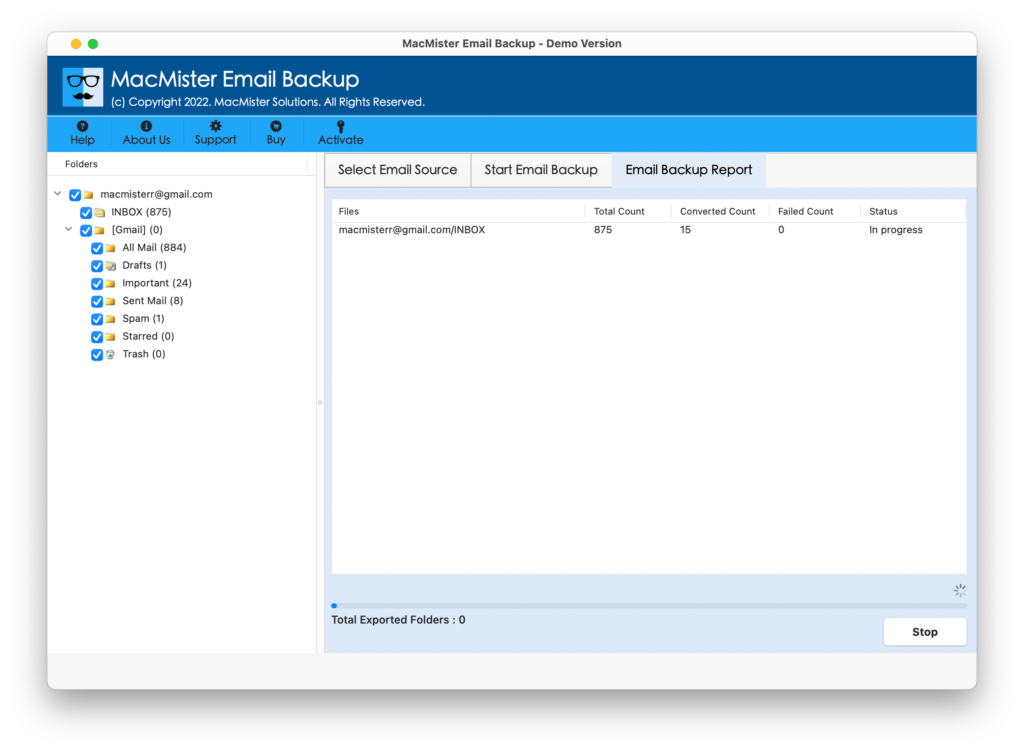
Step 6: Start the Conversion
Begin the Bluehost Webmail to PDF conversion process. The software processes the selected email data and saves it in the chosen output format.
After completion, open the destination folder and verify the generated PDF files.
Why Use for Bluehost Email Archiving?
It can be useful when the requirement extends beyond saving a single email manually. A dedicated email backup and conversion application can simplify the handling of larger collections of mailbox data. Some practical benefits include –
- Bulk Email Processing – Instead of manually opening and saving every email, users can process selected email data through a dedicated application.
- Multiple Output Options – Email backup tools are generally useful when users need to preserve their data in formats suitable for different purposes. Depending on the supported options, users can select an output format according to their archival or migration requirements.
- Local Storage – Saving email data locally provides an additional copy outside the online mailbox. Users can store the resulting files on their Mac, external storage, or another backup location.
- Convenient for Mac Users – It is specifically designed for Mac users, making it suitable for people who prefer to manage their email backup and conversion tasks directly from macOS.
- Better Email Organization – When working with a large collection of messages, selecting specific folders and maintaining an organized destination structure can make future access easier.
Explore More >>
How to Save BlueHost Email to Office 365
How to Export from BlueHost to Gmail
How to Migrate BlueHost to Thunderbird
Bluehost Webmail to PDF – Manual vs. Software Method
The manual approach is suitable for occasional requirements. If you only need to save a single important email, the browser’s built-in print-to-PDF option may be enough.
On the other hand, a dedicated application becomes more practical when you need to handle a large number of emails. It can reduce repetitive steps and provide a more systematic workflow for email backup and conversion.
| Feature | Manual Method | Bluehost to PDF Tool |
| Individual email saving | Yes | Yes |
| Bulk processing | Limited | Supported depending on source/output |
| Automated workflow | No | Yes |
| Local email backup | Basic | Yes |
| Suitable for large mailboxes | Less convenient | More suitable |
| Mac-based application | No | Yes |
Conclusion
Saving Bluehost webmail emails as PDF files is a practical way to create readable copies for offline access, sharing, and email archiving. While the built-in print option can handle a few individual messages, manually converting a large number of emails can become repetitive and time-consuming.
For Mac users dealing with larger email collections, BlueHost to PDF Tool for Mac provides a more structured approach to backing up and converting email data. Users can connect their email account, select the required mailbox data, choose PDF as the output format, specify a destination, and start the conversion.
Before beginning any large-scale email operation, it is recommended to identify the required folders, maintain sufficient storage, and keep an additional backup of important email data. With the right approach, Bluehost Webmail to PDF conversion can help create a convenient local archive that remains accessible even when online mailbox access is unavailable.
|
|
|