Unable to Open MSG Files on macOS Sequoia? Complete Troubleshooting Guide
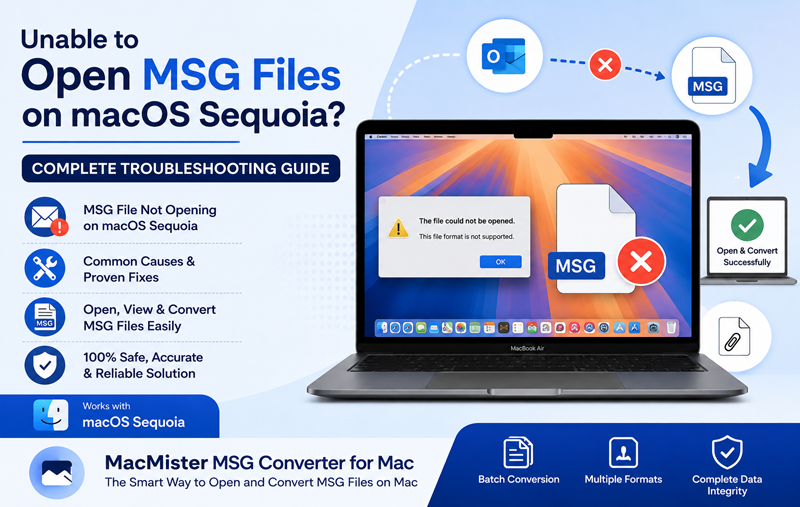
Microsoft Outlook MSG files are commonly used to store individual email messages along with their attachments, metadata, sender details, and formatting. However, after upgrading to macOS Sequoia, many users have reported that their MSG files no longer open correctly. Some files display blank content, some refuse to open altogether, while others lose attachments or formatting.
If your MSG files aren’t opening on macOS Sequoia, there are several effective ways to identify the cause and restore access to your emails. In most cases, the problem is caused by compatibility limitations rather than file corruption. This guide explains why MSG files won’t open on macOS Sequoia, how to fix the issue, and the best way to access Outlook MSG files without data loss.
Open MSG Files on macOS Sequoia Without Outlook
Looking for a reliable way to access Outlook MSG files on your Mac? MacMister MSG Converter for Mac lets you open, convert, and save MSG files in formats like PDF, MBOX, EML, PST, HTML, and more while preserving attachments, email formatting, metadata, and folder structure. No Outlook installation is required.
 |  |
Why Won’t MSG Files Open on macOS Sequoia?
Unlike Windows, macOS doesn’t natively support Microsoft’s proprietary MSG file format. While earlier workarounds sometimes worked with third-party apps, macOS Sequoia introduces stricter security and compatibility changes that can make opening MSG files even more challenging.
Let’s explore the key factors that can prevent Outlook MSG files from opening properly on macOS Sequoia.
1. macOS Sequoia Doesn’t Natively Support MSG Files
The biggest reason is simple—Apple Mail and Finder cannot directly read Outlook MSG files. Since MSG is a Microsoft Outlook format, macOS cannot interpret its internal email structure without compatible software. As a result, you may experience –
- Nothing happens after double-clicking the file.
- Finder shows an unknown file type.
- Apple Mail refuses to import the file.
- Preview cannot display the email.
2. Microsoft Outlook Isn’t Installed
Many users assume Outlook is required only for sending emails.
However, if Outlook isn’t installed on your Mac, there’s no default application capable of opening MSG files. Even if you previously opened them on Windows, transferring those files to macOS often results in unsupported file errors.
3. Outlook Version Compatibility Issues
If you’re using an older version of Microsoft Outlook, it may not fully support macOS Sequoia. Compatibility issues may include –
- MSG files opening blank
- Missing attachments
- Formatting errors
- Outlook crashing while opening emails
- Keeping Outlook updated can resolve some compatibility problems.
4. Corrupted MSG File
Sometimes the issue lies within the file itself. MSG files can become corrupted because of –
- Interrupted downloads
- USB transfer errors
- Damaged storage devices
- Incomplete email exports
- Common symptoms include:
- Error messages while opening
- Blank email body
- Missing sender information
- Attachments disappearing
If the file appears damaged or displays unreadable content, read our detailed guide on how to fix an unreadable MSG file before attempting recovery.
5. File Permissions Are Restricted
macOS Sequoia includes stronger privacy and file access controls. If the MSG file is stored in a protected folder or downloaded from the internet, macOS may block access until appropriate permissions are granted. This often results in –
- “You don’t have permission.”
- File cannot be opened.
- Unknown application error.
6. MSG File Was Created Using a Different Outlook Version
Not every Outlook version generates identical MSG files. Older Outlook editions may produce files that newer applications struggle to interpret correctly. Likewise, enterprise Outlook environments sometimes embed custom properties that aren’t recognized by other email applications.
7. Attachments Increase File Complexity
Large MSG files containing –
- Multiple attachments
- Embedded images
- Calendar invitations
- Digital signatures
- require more advanced parsing.
Basic email viewers often fail to display these elements correctly, making the file appear damaged even when it isn’t.
8. File Association Problems
Sometimes macOS doesn’t know which application should open the MSG file. Instead of launching Outlook or another compatible program, Finder displays an application selection window or reports that no compatible software is available.
Incorrect file associations are especially common after upgrading macOS.
9. Security Restrictions in macOS Sequoia
Apple continues strengthening security with every macOS release
Sequoia may block –
- Unknown email formats
- Unsigned applications
- Unverified downloaded files
- Third-party email utilities
- Although these protections improve system security, they sometimes prevent legitimate MSG files from opening properly.
10. Large MSG Files Take Longer to Load
Emails containing high-resolution images or large attachments may exceed several hundred megabytes. Older applications sometimes freeze while processing these files.
Users often mistake the delay for a corrupted file, although the application simply cannot process such large email messages efficiently.
Signs Your MSG File Has an Opening Problem
You may be experiencing an MSG compatibility issue if you notice any of the following –
- The file won’t open after double-clicking.
- Apple Mail doesn’t recognize the file.
- Outlook crashes when opening the email.
- Attachments are missing.
- Email body appears blank.
- Formatting is completely broken.
- Sender and recipient information disappears.
- Embedded images fail to load.
- An “Unsupported File Format” message appears.
If these symptoms sound familiar, don’t panic. In most situations, your email data is still intact—you simply need the right method or tool to access it.
Why You Shouldn’t Rely on Manual Methods Alone
Many online guides recommend changing file extensions, importing the file into unsupported applications, or using random free viewers. Unfortunately, these methods often lead to –
- Loss of email formatting
- Missing attachments
- Broken hyperlinks
- Corrupted metadata
- Failed imports
- Wasted time troubleshooting
For important business emails, legal documents, invoices, or archived communications, preserving every email property is essential. That’s why using a dedicated MSG conversion solution is often the safer and more reliable choice.
10 Proven Ways to Fix MSG Files Not Opening on macOS Sequoia
If your Outlook MSG files refuse to open on macOS Sequoia, try the following solutions before assuming the files are damaged.
1. Verify the MSG File Isn’t Corrupted
First, confirm whether the issue is with the file itself. Try opening the same MSG file on another computer or Windows system with Microsoft Outlook installed. If it doesn’t open there either, the file may be corrupted and you’ll need to obtain a fresh copy.
2. Update Microsoft Outlook
If Outlook is installed on your Mac, make sure you’re using the latest version. Microsoft regularly releases updates that improve compatibility with new macOS versions, including macOS Sequoia. Updating Outlook may resolve –
- MSG opening errors
- Blank email content
- Missing attachments
- Unexpected crashes
3. Check File Permissions
Sometimes macOS blocks access to downloaded files. To verify permissions –
- Right-click the MSG file.
- Select Get Info.
- Review the Sharing & Permissions section.
- Ensure your user account has Read & Write access.
If the file is blocked, move it to your Documents or Desktop folder and try opening it again.
4. Copy the File to Local Storage
Opening MSG files directly from –
- External hard drives
- USB flash drives
- Network folders
- Cloud storage
can sometimes cause compatibility issues.
Copy the file to your Mac’s internal drive before attempting to open it.
5. Try Another Email Application
If Outlook fails, another compatible email application may read the file successfully. However, many free email viewers have limitations such as –
- Missing attachments
- Formatting issues
- Unsupported embedded images
- Incomplete email properties
6. Disable Security Restrictions Temporarily
macOS Gatekeeper may prevent unknown applications from opening certain files.
If you are using a trusted application, temporarily review your privacy settings before opening the MSG file. Always re-enable security protections afterward.
7. Avoid Renaming the File Extension
Many users rename –
.msg → .eml- hoping Apple Mail will recognize the file.
- Unfortunately, changing the extension doesn’t convert the email format. It usually results in unreadable emails or missing data.
8. Re-download the MSG File
If the MSG file came from –
- Email attachment
- Cloud storage
- Shared download link
- download it again.
- A file that wasn’t downloaded completely may become unreadable, leading to errors when you try to access it on your Mac.
9. Check Available Storage
Large Outlook emails containing multiple attachments require temporary disk space while opening. If your Mac storage is nearly full –
- Delete unnecessary files.
- Empty Trash.
- Restart your Mac.
- Then try opening the file again.
10. Use Perfect Solution for Migration on Mac
If none of the above methods work, the safest solution is using a professional conversion utility.
Unlike manual workarounds, a dedicated converter reads the internal Outlook MSG structure correctly while preserving –
- Email formatting
- Attachments
- Sender information
- Metadata
- Embedded images
- Folder hierarchy
Best Way to Open MSG Files on macOS Sequoia
If you regularly receive Outlook MSG files or need to archive business emails, using a dedicated utility is the easiest and most reliable solution.
MacMister provides advanced MSG migration for Mac Tool allows you to open and convert Outlook MSG files without requiring Microsoft Outlook. The software preserves every important email property, making it ideal for professionals, legal teams, IT administrators, and everyday Mac users.
| |
Whether you want to convert one email or thousands of MSG files, the software simplifies the entire process while maintaining data integrity. If you need to send Outlook emails to someone who doesn’t use Microsoft Outlook, check out our guide on how to share Outlook MSG files with non-Outlook users without losing attachments or formatting.
Key Features
- Open Outlook MSG files without installing Outlook.
- Convert MSG files into PDF, PST, MBOX, EML, HTML, TXT, DOC, and other popular formats.
- Preserve attachments, inline images, hyperlinks, and email formatting.
- Maintain original metadata, including sender, recipient, subject, and timestamps.
- Batch convert multiple MSG files in a single process.
- Keep the original folder hierarchy intact.
- Preview emails before conversion.
- Compatible with the latest macOS Sequoia and earlier macOS versions.
- Designed with a simple and intuitive interface, the software makes MSG file conversion easy for beginners as well as experienced professionals.
Why Choose advanced Tool Instead of Manual Methods?
Although free methods may work occasionally, they often have significant limitations. A professional solution provides:
- Higher conversion accuracy.
- No data loss.
- Faster batch processing.
- Complete attachment preservation.
- Support for multiple export formats.
- Better compatibility with modern macOS versions.
- Reliable results for business and legal email archives.
- If your MSG files contain contracts, invoices, client communications, or compliance records, using a dedicated converter helps ensure every email remains complete and accessible.
Conclusion
MSG files may fail to open on macOS Sequoia due to compatibility issues, unsupported file formats, outdated Outlook versions, corrupted files, or Apple’s enhanced security settings. While basic troubleshooting—such as updating Outlook, checking permissions, or re-downloading the file—can resolve some cases, these methods don’t always work.
For a dependable and hassle-free solution, The software for Mac enables you to open, convert, and preserve Outlook MSG files without Outlook. It keeps attachments, formatting, metadata, and folder structure intact, making it an excellent choice for anyone who frequently works with Outlook email archives on a Mac.