Need to Share Outlook MSG Files with Non-Outlook Users? Here’s the Best Solution
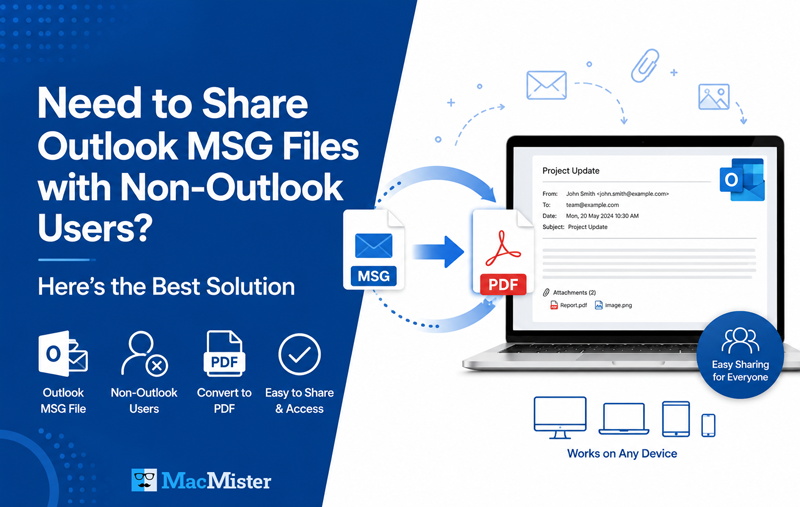
Microsoft Outlook is one of the most widely used email clients for business communication. When you save an individual email from Outlook, it is typically stored as an MSG file. This format preserves the complete email, including the subject, sender details, recipient information, attachments, timestamps, and formatting.
While MSG files are ideal for Outlook users, they become a challenge when you need to share emails with someone who doesn’t have Microsoft Outlook installed. Clients, legal teams, auditors, managers, and customers often struggle to open MSG files because the format is proprietary to Microsoft Outlook.
If you have ever sent an MSG file only to hear, “I can’t open it,” you are not alone. This is one of the most common issues faced by professionals who regularly exchange Outlook emails.
In this article, we will explain why MSG files are difficult to share, the limitations of manual methods, and the best way to convert MSG files into universally accessible PDF documents.
Understanding the MSG File Format
An MSG file is a single Outlook email saved in Microsoft’s proprietary format. Unlike common document formats such as PDF or DOCX, MSG files require compatible software to display their contents correctly. A typical MSG file stores:
- Email subject
- Sender and recipient information
- Date and time
- CC and BCC details
- Email body formatting
- Hyperlinks
- Embedded images
- Attachments
- Internet headers
- Message properties
Why Non-Outlook Users Can’t Open MSG Files
Many users assume that an MSG file works like a PDF or Word document. Unfortunately, that’s not the case. Here are some common reasons why recipients cannot access MSG files.
- Outlook Isn’t Installed – The most obvious reason is that the recipient doesn’t have Microsoft Outlook installed on their computer. Since MSG is a proprietary Outlook format, most operating systems don’t include native support for opening it.
- macOS Doesn’t Natively Support MSG Files – Mac users often receive MSG files from Windows users. Although Outlook for Mac exists, many Mac users rely on Apple Mail or webmail services, which don’t recognize MSG files directly. As a result, double-clicking the file usually doesn’t open the email correctly.
- Webmail Services Cannot Read MSG Files – Popular email services like Gmail, Yahoo Mail, Outlook.com, Zoho Mail, and many corporate webmail platforms don’t provide built-in support for viewing MSG files. Recipients often end up downloading a file they can’t access.
- Mobile Devices Have Limited Compatibility – Smartphones and tablets generally don’t include native MSG viewers. Even if third-party apps are available, they may not preserve the original email formatting or attachments accurately.
If your email opens incorrectly or cannot be viewed after downloading, you may also find our guide on why MSG files are not opening properly helpful.
Common Situations Where This Problem Occurs
The inability to open MSG files affects many industries. For example:
- A legal team receives email evidence from a client.
- An HR department shares interview communications.
- An accountant sends approval emails for audits.
- A support engineer forwards troubleshooting conversations.
- A project manager archives important client discussions.
In each case, the recipient expects to open the email instantly. Instead, they’re asked to install Outlook or search for an MSG viewer, creating unnecessary delays.
Why PDF Is the Best Format for Sharing Emails
Unlike MSG files, PDF is universally accepted across almost every operating system and device. Whether someone uses Windows, macOS, Linux, Android, or iPhone, they can easily open a PDF without requiring Microsoft Outlook. Converting Outlook emails to PDF offers several advantages –
- Universal compatibility
- Preserved email formatting
- Easy printing
- Better long-term archiving
- Simple email sharing
- Professional presentation
- Read-only protection against accidental edits
- Easy access on mobile devices
This is why many businesses convert important Outlook emails into PDF before sending them to clients or external organizations.
If you’re working with EML files instead of MSG, check out our detailed guide on converting EML to PDF while preserving email metadata.Can You Convert MSG Files Manually?
Yes, Microsoft Outlook allows users to manually save or print emails as PDF. A common approach is –
- Open the MSG file in Outlook.
- Select File > Print.
- Choose Save as PDF (or Microsoft Print to PDF on Windows).
- Save the PDF.
Although this method works for individual emails, it quickly becomes inefficient when handling multiple MSG files.
Limitations of Manual Conversion
Manual conversion has several drawbacks that make it unsuitable for professional use.
- Time-Consuming – Converting hundreds of MSG files individually requires repeating the same process over and over again.
- Outlook Dependency – The manual method requires Microsoft Outlook to be installed and properly configured.
- No Batch Conversion – Users cannot efficiently convert entire folders containing hundreds or thousands of MSG files.
- Risk of Missing Attachments – Depending on the method used, attachments may not be included or referenced correctly.
- Folder Organization Is Lost – Manual conversion doesn’t preserve the original folder hierarchy, making it harder to organize archived emails later.
These limitations often encourage users to look for a faster and more reliable solution—especially when dealing with large collections of Outlook MSG files.
The Best Solution – Convert MSG Files to PDF with MSG to PDF Converter for Mac
If you frequently need to share Outlook emails with clients, colleagues, or business partners who don’t use Microsoft Outlook, relying on manual conversion isn’t practical. A dedicated conversion tool can save time, maintain email integrity, and simplify the entire process.
MacMister MSG to PDF Converter for Mac is designed specifically for Mac users who need to convert Outlook MSG files into PDF documents quickly and accurately. Whether you have a handful of emails or thousands of MSG files, the software provides a straightforward way to create PDFs without compromising the original email content.


Unlike manual methods that require Outlook to be installed, the software performs the conversion independently, making it a convenient solution for users who no longer have access to Outlook.
Why Choose the MSG to PDF for Mac?
The software is built to make email conversion simple while preserving every important detail of your Outlook messages. Some of its key advantages include –
- Batch Convert Multiple MSG Files – Instead of converting emails one at a time, you can add an entire folder containing MSG files and convert them in a single operation. This significantly reduces the time required to archive or share large email collections.
- Preserve Original Email Formatting – Business emails often contain logos, tables, hyperlinks, signatures, images, and styled text. The software keeps the original formatting intact, ensuring the PDF looks the same as the original Outlook message.
- Maintain Email Metadata – Metadata is often just as important as the email body itself. During conversion, the software preserves information such as –Subject, Sender name, Sender email address, Recipient details, etc.
- Save Attachments Alongside Emails – Email attachments often contain invoices, contracts, reports, or supporting documents. The software ensures that attachment information is retained during the conversion process, helping you keep related data organized.
If you’re facing missing attachment issues in email files, read our guide on how to fix EML attachments not showing.
- No Outlook Installation Required – One of the biggest benefits is that you don’t need Microsoft Outlook installed on your Mac to perform the conversion. This makes the software ideal for users who have archived MSG files but no longer use Outlook.
- User-Friendly Interface – The application is designed with simplicity in mind. Even users with limited technical knowledge can convert MSG to PDF files without following complicated procedures.
Real-World Scenarios Where PDF Is a Better Choice
Converting MSG files to PDF isn’t just about convenience—it also improves accessibility and collaboration in many professional situations.
- Sharing Emails with Clients – Clients may not use Microsoft Outlook, especially if they rely on Gmail, Apple Mail, or another email platform. Sending a PDF ensures they can read the email immediately without installing additional software.
- Legal Documentation – Law firms often need to preserve email conversations as evidence. PDF files are easier to store, print, and share while maintaining the original appearance of the email.
- Audit and Compliance – Financial organizations, healthcare providers, and government agencies frequently archive email communications for compliance purposes. PDF is one of the most widely accepted formats for long-term document retention.
- Business Record Keeping – Many businesses convert completed project communications into PDF to maintain permanent records that are easy to organize and retrieve.
- Customer Support Archives – Support teams often document customer conversations for future reference. PDF files simplify sharing these conversations across departments without requiring Outlook.
Why Businesses Prefer PDF Over MSG
Organizations increasingly choose PDF because it offers greater flexibility than Outlook’s proprietary MSG format. PDF files can be –
- Shared with anyone
- Opened on nearly every operating system
- Printed without formatting issues
- Uploaded to document management systems
- Stored in cloud storage platforms
- Indexed for document searches
- Protected using PDF security options
By converting MSG files to PDF, businesses ensure that important communications remain accessible regardless of the recipient’s email application.
Best Practices Before Converting MSG Files to PDF
Although converting MSG files is straightforward, following a few best practices can help you create well-organized and easily accessible PDF archives.
- Organize MSG Files into Folders – If you have emails from multiple projects or clients, separate them into dedicated folders before starting the conversion. This makes it much easier to locate the resulting PDF files later.
- Verify Important Emails – Review your MSG files to ensure you are converting the correct emails. Remove duplicates or outdated messages if they’re no longer needed.
- Keep Attachments Safe – Many Outlook emails include contracts, invoices, images, or reports. Always verify that attachment information is preserved after conversion so your records remain complete.
- Choose a Dedicated Save Location – Create a dedicated folder for your converted PDFs instead of saving them across different locations. Organized archives are much easier to manage, especially when working with large email collections.
- Create Regular Email Archives – Rather than waiting until thousands of MSG files accumulate, archive important emails periodically. Regular backups make document management much simpler and reduce the risk of data loss.
- Common Mistakes to Avoid – Many users unintentionally create problems while sharing Outlook emails. Avoid these common mistakes to ensure a smooth experience.
- Sending Raw MSG Files to External Users – Unless you know the recipient uses Microsoft Outlook, avoid sending MSG files directly. Most users will have difficulty opening them.
- Relying on Online Converters – Free online converters may require uploading confidential business emails to third-party servers. If your emails contain sensitive information, an offline desktop solution offers better privacy and control.
- Ignoring Email Metadata – Information such as the sender, recipient, timestamps, and subject line can be essential for legal, compliance, or business purposes. Make sure these details are preserved during conversion.
- Converting Emails One by One – Manual conversion may work for a few emails, but it becomes inefficient when dealing with dozens or hundreds of MSG files. Batch conversion is a much more practical approach.
Conclusion
Although Outlook MSG files are excellent for storing individual email messages, they aren’t ideal for sharing with users who don’t have Microsoft Outlook. Compatibility issues, limited software support, and the inability to open MSG files on many devices often create unnecessary obstacles.
Converting MSG files to PDF eliminates these challenges by creating documents that are universally accessible, easy to print, and suitable for long-term storage. PDF files maintain the readability of your emails while making collaboration with clients, colleagues, and external organizations much simpler.
If you regularly work with Outlook email archives, legal records, customer communications, or business correspondence, using a professional conversion solution can save considerable time and effort.
Convert Outlook MSG Files to PDF with Confidence
Need a fast and reliable way to share Outlook emails with anyone? MacMister MSG Converter for Mac lets you convert single or multiple MSG files into PDF while preserving email formatting, metadata, and other important details. Whether you’re archiving business emails, preparing legal documentation, or simply sharing Outlook messages with non-Outlook users, the software provides a secure and efficient solution for Mac users.