How to Access Contacts and Calendars from an OLM Archive on Mac?
Shifting from one platform to another, replacing machines, or backing up files from Microsoft Outlook for Mac, there is a good chance that you will be left with a proprietary file extension known as .olm. However, opening emails in OLM archive files is not complicated at all, extracting information about other file formats—contacts and calendars is something unique. Neither operating system macOS nor desktop software is able to extract any information stored inside an orphan OLM archive file without any additional assistance.
Whatever your task may be syncing old schedules to Apple Calendar or transferring address books to Apple Contacts it is important to know how to do it. In this article, we explain why it is impossible to do and introduce a method of doing it using MacMister advanced solution.
The Challenge of Accessing OLM Contacts and Calendars
All identities, emails, tasks, notes, schedules, and address book information are stored within a private OLM database. In case if the previously used version of Mac Outlook containing that identity is not installed on your system anymore, accessing individual contents of that file is virtually impossible.
- No Default Viewer: There is no native application available in macOS capable of parsing OLM file.
- Detailed Isolation of Information: All contacts and calendar information are stored within the private MAPI folders of the database. This makes any attempts of manual file editing or renaming lead to corruption of the data container.
- Application Dependency: Regular usage implies importing the OLM file into the running version of Outlook for Mac, which is quite impossible when you have changed the computer or working environment.
To clear these blocks quickly and securely, utilizing an automated extraction utility is the most reliable strategy.
Access Contacts and Calendar from OLM Archive on Mac using Smart Approach
MacMister OLM Converter for Mac is an advanced software utility created especially for exporting and migrating data from Outlook Mac OLM files. In addition to its capabilities for migrating multiple emails, the application includes specific mapping techniques that can extract non-email data and convert it, such as converting contacts into universally readable vCard (.vcf) files and calendars into standard iCalendar (.ics).
Primary Benefits of the App to Archive OLM Contacts and Calendars:
- By using the app, you will be able to select particular folders or items so as to export only what you want and not fill your system with unnecessary information.
- Allows conversion of calendar entries to .ics file format (compatible with Apple Calendar, Google Calendar and Outlook). And contacts to .vcf file format (compatible with Apple Contacts, Android and iPhone).
- Runs as an independent program. No Microsoft Outlook is required to be present and running on your Mac machine to perform the extraction.
- All metadata properties including phone numbers, e-mail addresses, address details (home and work), event times, recurrence and description will be maintained.
- With .vcf and .ics also supports 15+ other saving types as well. It includes PST, EML, HTML, PDF, MBOX, IMAP, Yahoo, Gmail, and more.
- Work perfectly well on all versions of macOS without any issues.
Step-by-Step Tutorial to Extract Contacts and Calendars Through MacMister
The following tutorial is for users who need to export their past calendars and address books from the OLM archive. Then load the same into typical macOS applications:
Step 1. Download the the app from its official source. Drag and drop it to the Applications folder on your Mac, and launch it.
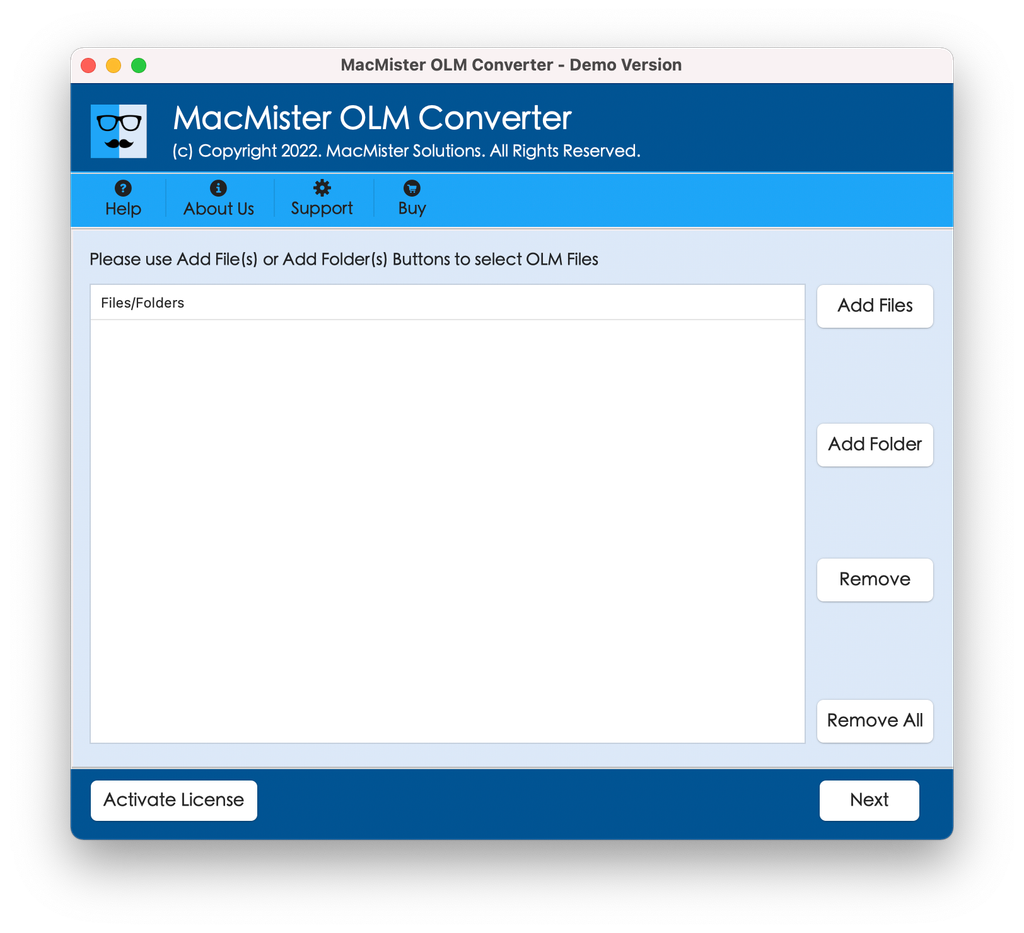
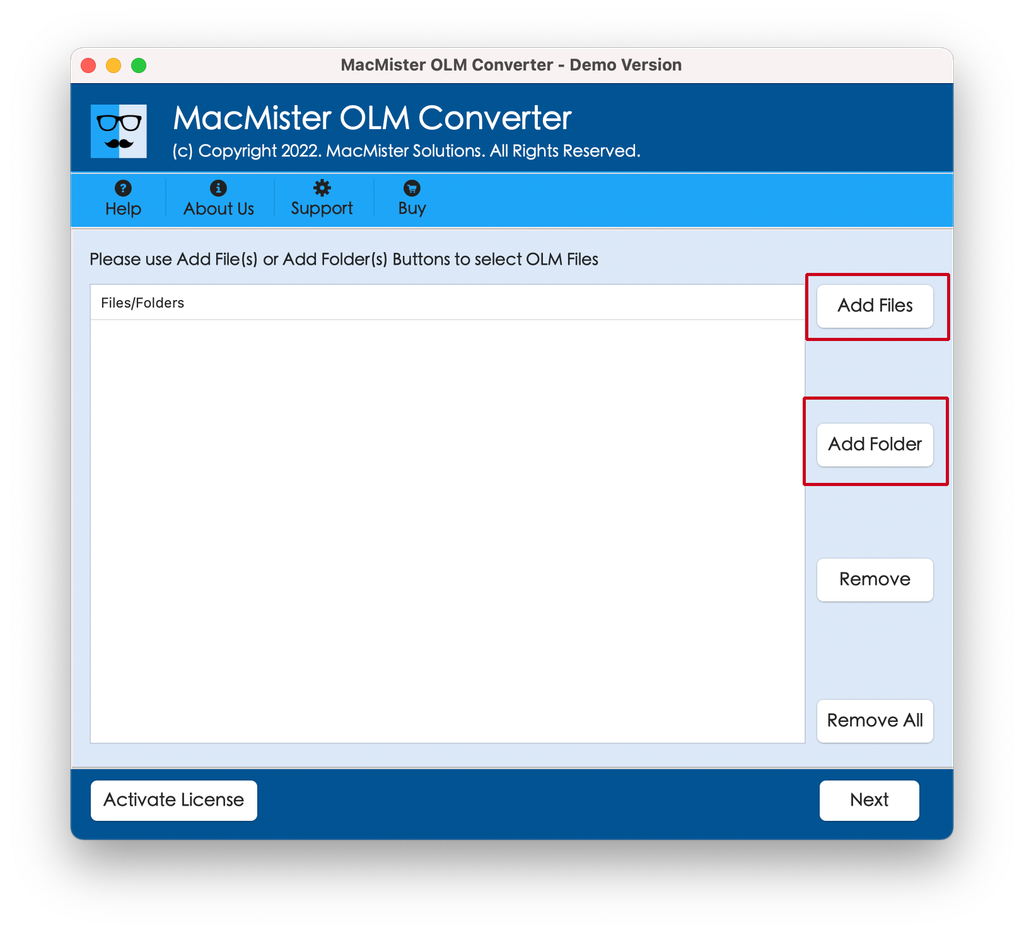
Step 2. Tap the “Add File(s)” or “Add Folder” buttons to browse through your Mac and choose the target OLM archive file.
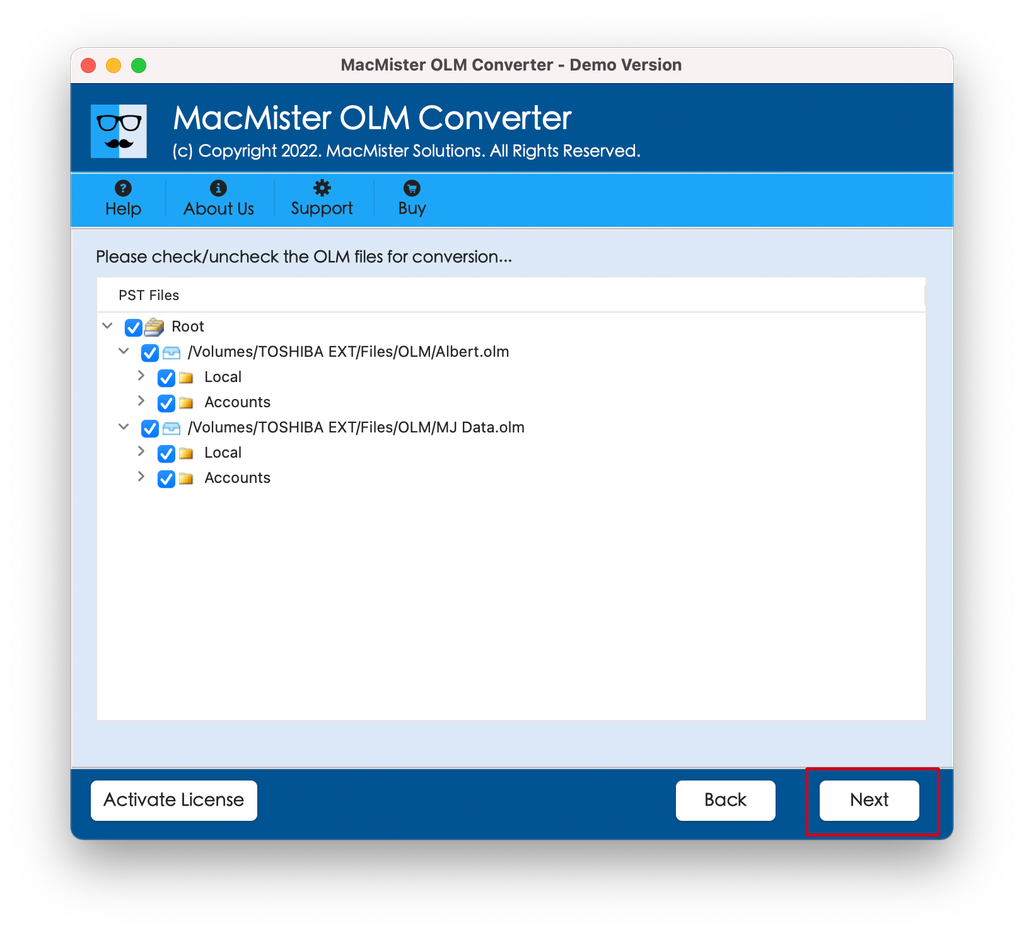
Step 3. Preview the files listed. Use the checkboxes for selective conversion, if required and click Next to proceed.
Step 4. Access the Select Saving Options menu. Choose vCard (.vcf) in case you are exporting address books, and iCalendar (.ics) when exporting schedules and calendar items.
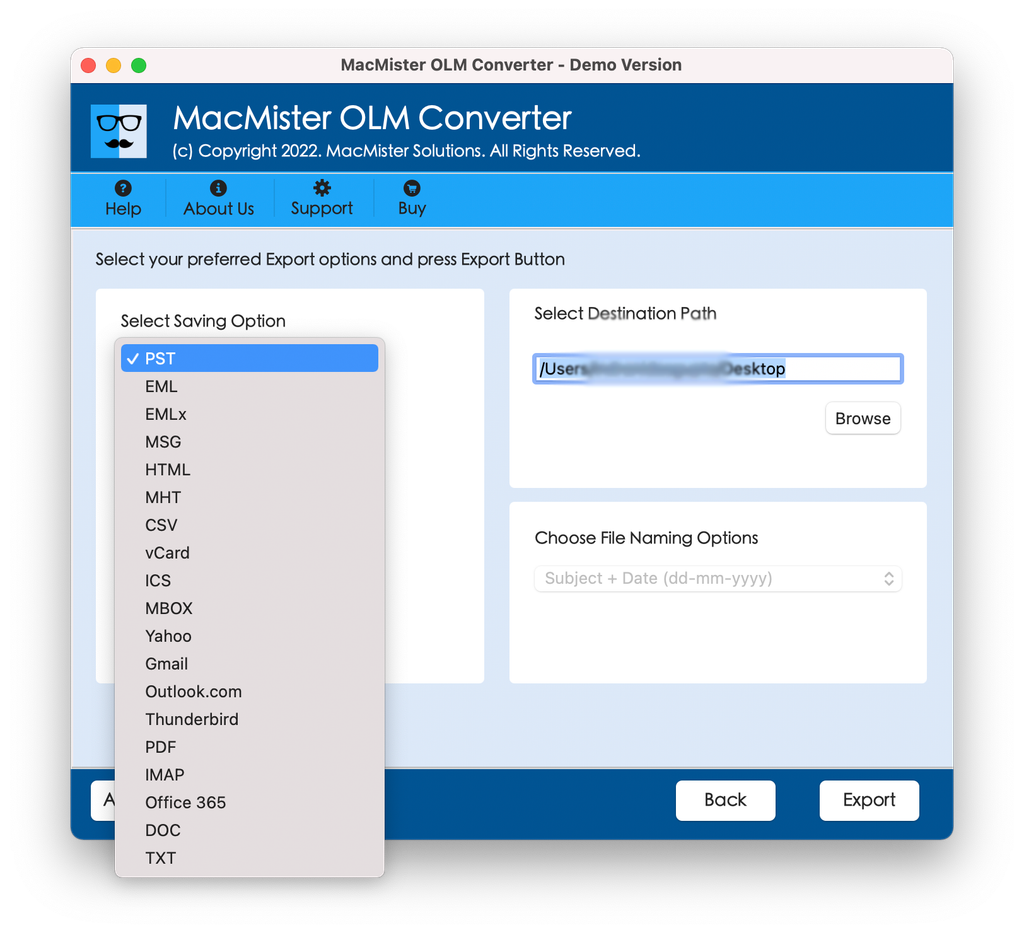
Step 5. Choose the destination directory on your Mac, where the output file will be saved, and hit the Export button.
Step 6. Check the live process and track the ongoing transformation status of OLM contacts and calendar.
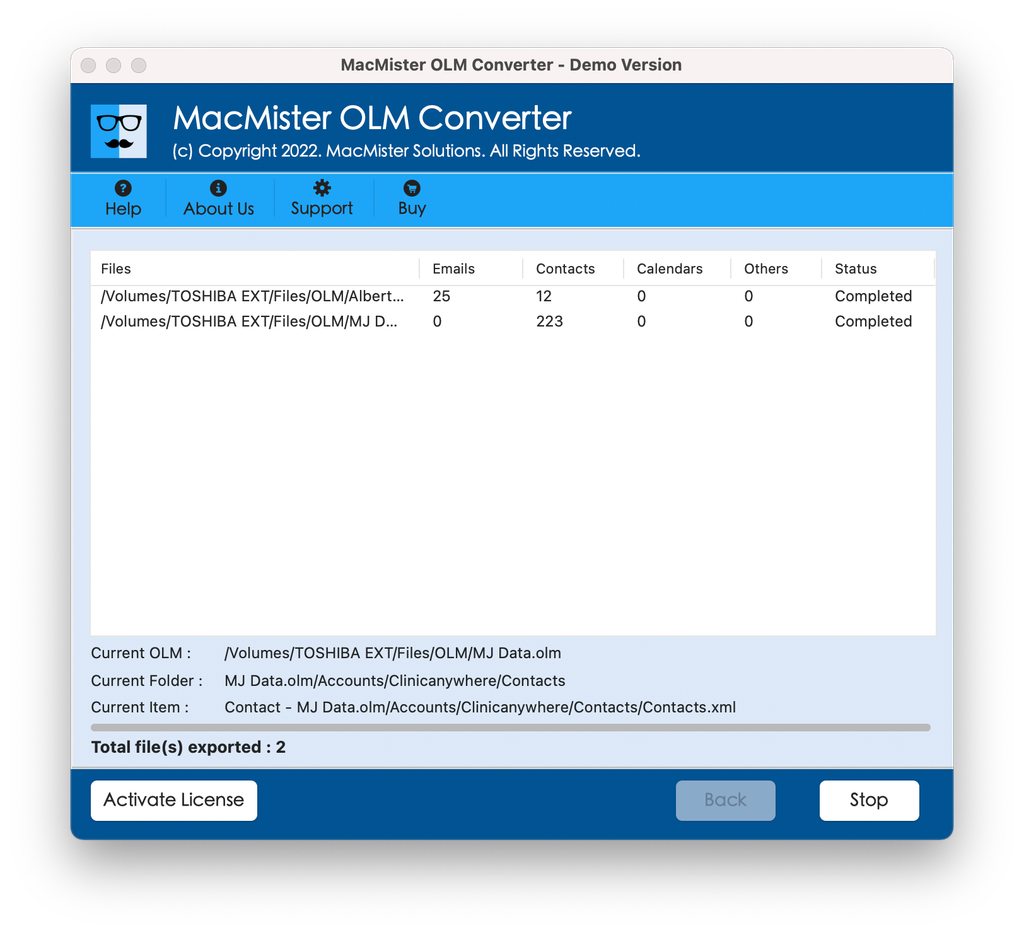
Step 7. Launch the .vcf file by double-tapping on it. Add contacts to Apple Contacts; alternatively, drag-and-drop .ics files to Apple Calendar.
Epilogue
Getting critical data contained within an old Mac Outlook OLM file is not as difficult as you might think. However, default operating systems lack the ability to read such proprietary mailbox files. The availability of utility software helps make this possible effortlessly. With the help of the MacMister OLM file conversion tool, it is possible to extract and convert contacts and calendars from an OLM file and bring them back into more common file formats.