How to Export DreamHost Email to Thunderbird on Mac?

DreamHost is widely used for hosting domain-based email accounts, while Thunderbird is a desktop email client that provides a centralized way to access and manage messages. When users want to move their DreamHost mailbox to Thunderbird on Mac, they can either configure the DreamHost account directly in Thunderbird or save the mailbox data locally and import it.
DreamHost officially recommends IMAP for email-client connections because messages remain stored on the server while being synchronized with the email client. For Thunderbird, DreamHost provides dedicated IMAP and SMTP server settings for connecting an email account.
This guide explains how to export DreamHost email to Thunderbird on Mac, including the manual approach, its limitations, and DreamHost to Thunderbird solution.
What is DreamHost Email?
DreamHost provides email hosting for custom-domain addresses. Users can access their mailboxes through DreamHost Webmail or connect them to applications such as Thunderbird, Outlook, and Apple Mail.
For an IMAP connection, DreamHost uses imap.dreamhost.com with port 993 and SSL/TLS. Its SMTP server is smtp.dreamhost.com, with port 587 and STARTTLS recommended for outgoing mail.
What is Thunderbird?
Mozilla Thunderbird is a free, open-source desktop email client that allows users to manage email accounts from one application. It supports IMAP and POP connections and can also work with locally stored mailbox data. Thunderbird provides an Import Tool for bringing supported account data and files into an existing profile.
When DreamHost is configured through IMAP, Thunderbird can synchronize mailbox folders such as Inbox, Sent, Drafts, and other available folders. DreamHost also notes that some IMAP folders may need to be subscribed to manually if they do not initially appear.
Why Export DreamHost Email to Thunderbird on Mac?
There are several reasons users may want to move or access DreamHost email through Thunderbird –
- Centralized email management – Manage DreamHost messages from a desktop application.
- Offline access – Keep synchronized email data available through Thunderbird for local access.
- Folder organization – Work with mailbox folders directly from the Thunderbird interface.
- Local mailbox storage – Create a local copy of important email data for archival purposes.
- Desktop-based management – Access messages without repeatedly opening DreamHost Webmail.
- Mailbox migration – Move DreamHost email into a Thunderbird environment when changing the way email is managed on Mac.
For users who simply want continuous synchronization, configuring DreamHost through IMAP is generally more straightforward than creating a separate export/import workflow.
Manual Method to Export DreamHost Email to Thunderbird on Mac
One way to move DreamHost emails to Thunderbird is to configure the DreamHost account using IMAP and allow Thunderbird to synchronize the mailbox.
Step 1: Open Thunderbird – Install and launch Thunderbird on your Mac.
Step 2: Add the DreamHost Account – Open the account setup option and enter –
- Full Name, DreamHost Email Address, Email Password
- Then choose Configure manually if Thunderbird does not automatically detect the settings.
Step 3: Enter Incoming Server Details – Use the following DreamHost IMAP configuration –
- Protocol: IMAP
- Hostname:
imap.dreamhost.com - Port: 993
- Connection Security: SSL/TLS
- Authentication: Normal Password
DreamHost specifically recommends IMAP for keeping email synchronized between the server and email client.
Step 4: Configure the Outgoing Server
Enter –
- SMTP Hostname:
smtp.dreamhost.com - Port: 587
- Connection Security: STARTTLS
- Authentication: Normal Password
Then test the configuration and complete the account setup.
Step 5: Synchronize the Mailbox
After successful configuration, Thunderbird starts synchronizing the DreamHost account. Depending on mailbox size and internet speed, downloading and indexing a large number of messages can take some time.
If certain folders are missing, Thunderbird provides subscription controls for displaying additional IMAP folders.
Risks and Limitations of the Manual Method
Although manual configuration can work for smaller or straightforward migrations, users may encounter difficulties when handling large DreamHost mailboxes.
- Time-consuming setup – Server settings and account authentication must be entered correctly.
- Internet dependency – IMAP synchronization requires a stable connection.
- Large mailbox delays – Thousands of emails may take considerable time to synchronize.
- Folder visibility issues – Some IMAP folders may not appear until they are subscribed to.
- Manual backup requirements – Creating a separate local mailbox copy may require additional steps.
- Incomplete transfer risk – If the process is interrupted, users may need to repeat synchronization or verify the transferred data.
- Multiple accounts – Repeating the same process for several DreamHost accounts can become tedious.
- Local storage usage – Downloading a large mailbox can consume substantial Mac storage.
For these reasons, a dedicated migration utility can be useful when the requirement is not simply to connect one DreamHost account, but to create a local mailbox or move substantial email data to Thunderbird.
Advanced DreamHost to Thunderbird Tool for Mac
The DreamHost Email Backup Tool for Mac of MacMister can simplify the migration process by reducing the amount of manual configuration involved. It provides a direct option for transferring DreamHost email to Thunderbird (if configured), and it also provides an option to save DreamHost emails directly in MBOX format.


The DreamHost to Thunderbird Tool for Mac provides a straightforward way to migrate DreamHost emails to Thunderbird without relying entirely on manual account configuration. It supports the direct migration of DreamHost mailbox data to Thunderbird, allowing users to move emails while maintaining their existing mailbox organization. This approach is suitable for users who need to transfer multiple emails, attachments, and mailbox folders from DreamHost to Thunderbird on a Mac.
Why Choose the DremHost to Thunderbird Migration tool for Mac
- Direct DreamHost to Thunderbird – Transfer DreamHost mailbox data directly to Thunderbird on Mac.
- Multiple email processing – Handle a larger collection of mailbox data without manually processing every message.
- Folder preservation – Maintain the existing organization of mailbox folders where supported.
- Attachment support – Transfer emails along with their associated attachments.
- Email information retention – Preserve important message properties during the migration.
- Mac compatibility – Designed for users performing the migration on all Mac Operating Systems.
- Flexible output – Choose Thunderbird migration or MBOX output depending on the requirement.
The direct option can be particularly useful when the final destination is Thunderbird, while the MBOX option provides a separate local mailbox copy.
How to Export DreamHost Email to Thunderbird – Working Steps
The general process can be completed in a few steps –
1. Launch the DreamHost to Thunderbird Tool on Mac. Select DremHost from the given options.
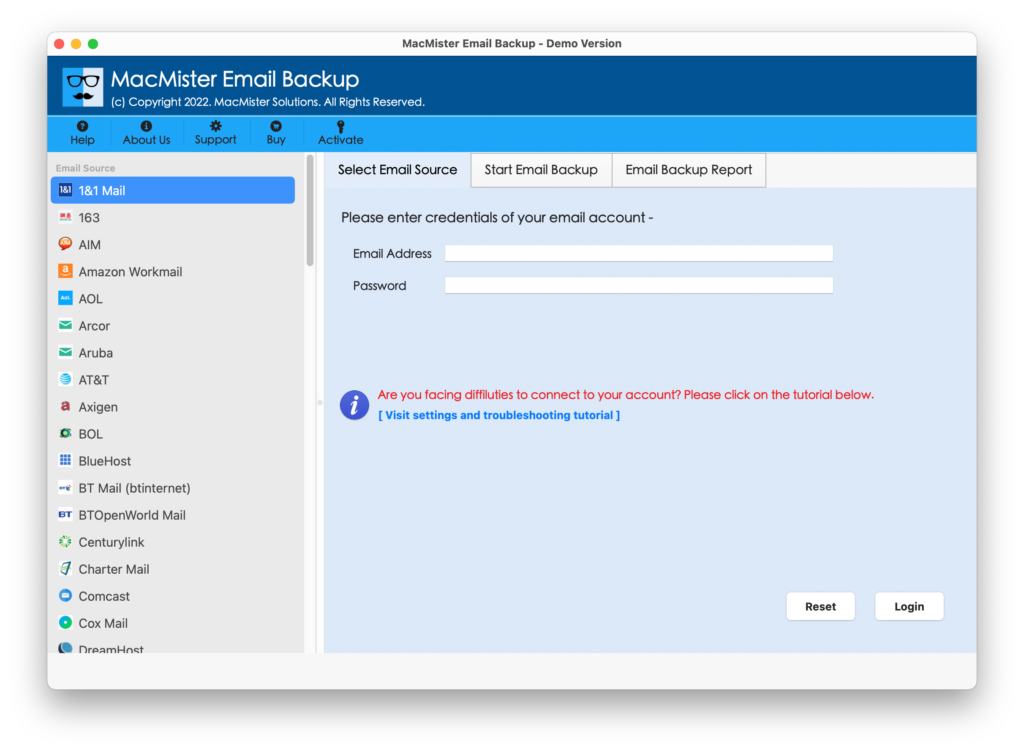
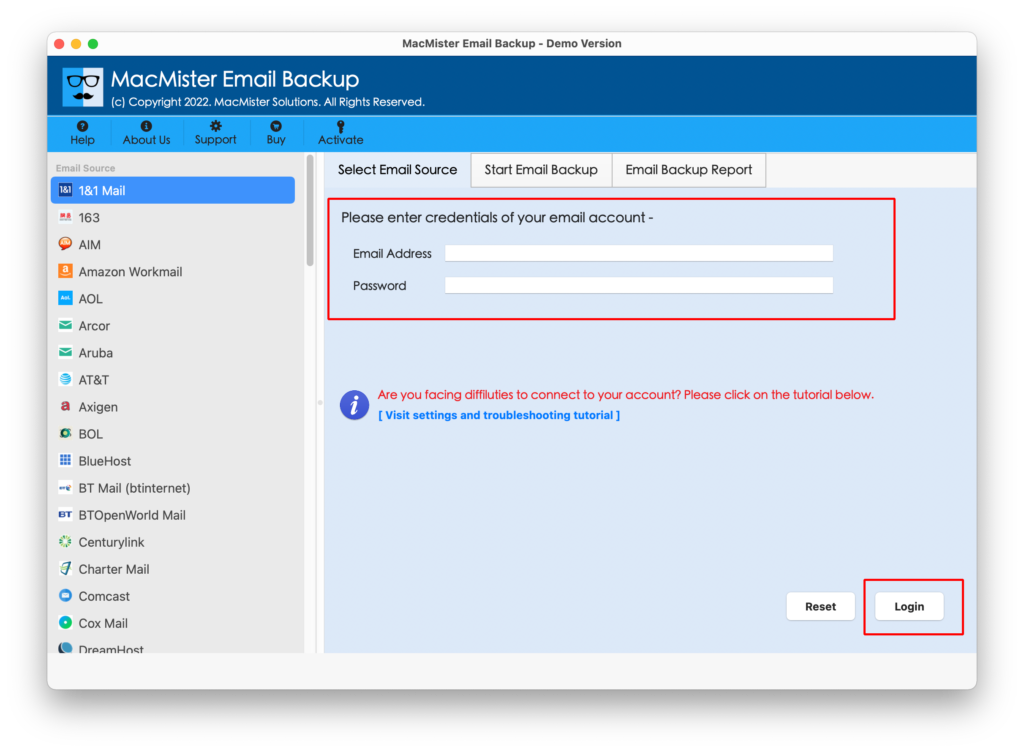
2. Enter or add the DreamHost email account. Provide the required account credentials and allow the tool to access the mailbox.
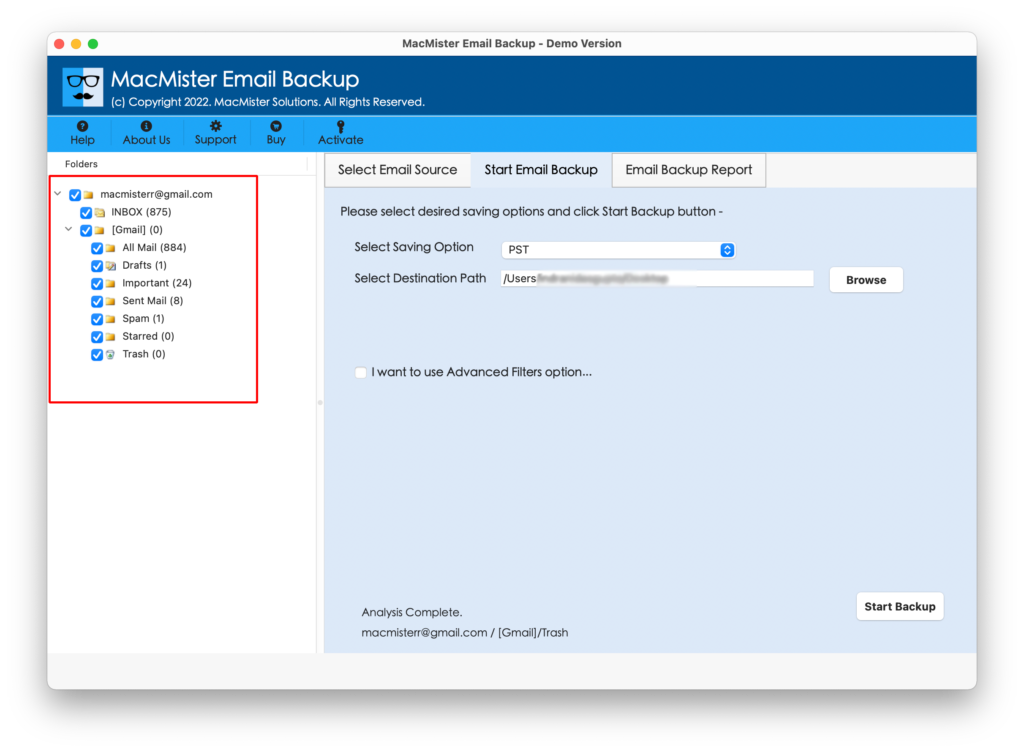
3. Select the required folders or mailbox data.
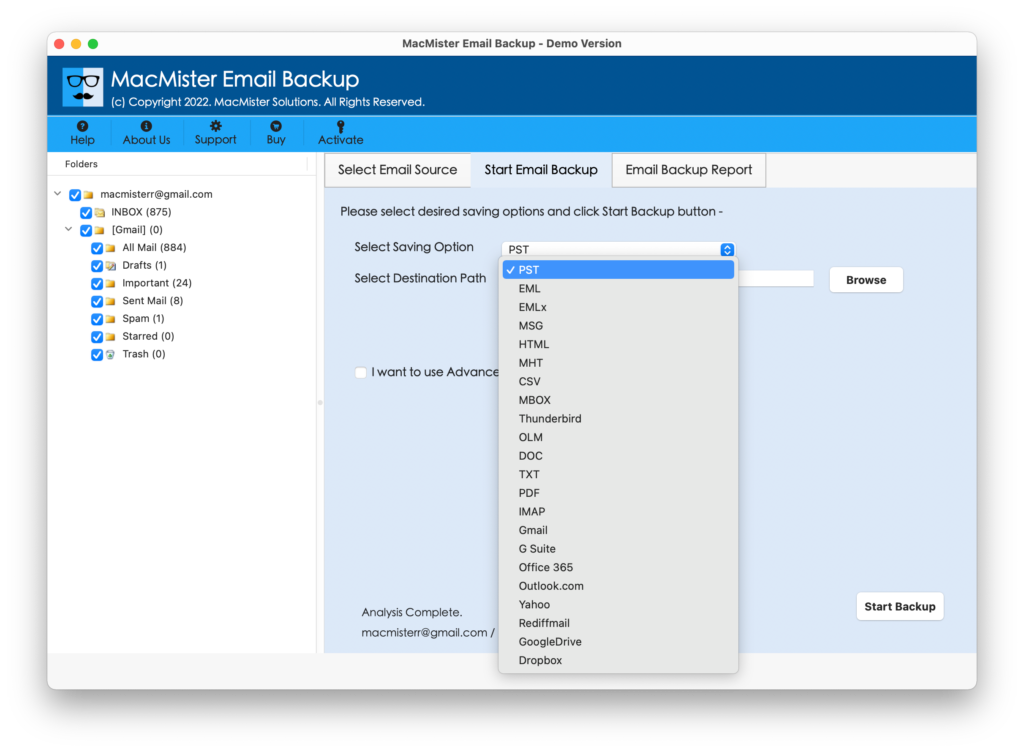
4. Choose Thunderbird as the destination if Thunderbird is configured or, select MBOX as the output format for a local mailbox copy.
5. Choose the destination location and start the migration.
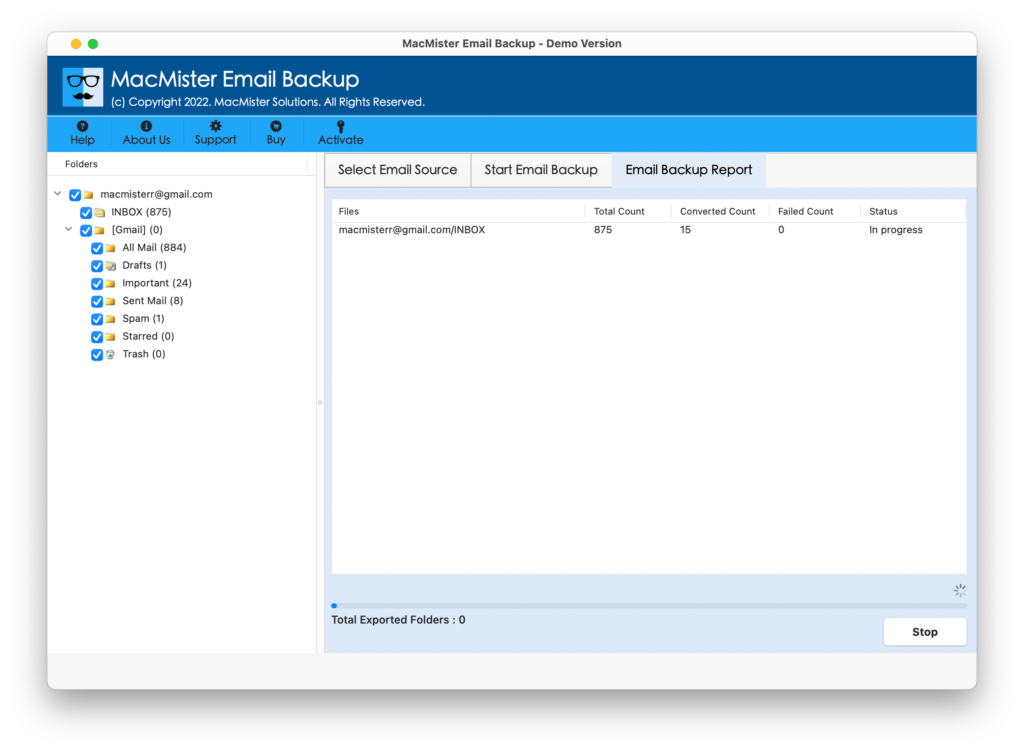
The exact options and interface may vary between software versions, so users should follow the options displayed in their installed MacMister version.
Frequently Asked Questions
Q. Can I export DreamHost emails to Thunderbird on Mac directly?
Ans. Yes. You can export DreamHost account emails to Thunderbird directly if Thunderbird is configured in your system.
Q. What are the DreamHost IMAP settings for Thunderbird?
Ans. DreamHost’s IMAP server is imap.dreamhost.com, using port 993 with SSL/TLS. The SMTP server is smtp.dreamhost.com, with port 587 and STARTTLS recommended.
Q. Can I save DreamHost email as MBOX?
Ans. Yes, a dedicated migration tool can provide DreamHost to MBOX output, allowing mailbox data to be saved in MBOX format and then you can easily import them in Thunderbird on Mac.
Q. Is the manual method suitable for a large mailbox?
Ans. Manual IMAP configuration can work, but large mailboxes may require considerable synchronization time and storage. An automated migration approach can reduce repetitive steps when dealing with larger datasets.
Q. Can I use the software on Mac OS?
Ans. Yes, the software can run on all Mac OS editions – Tahoe, Sequoia, Sonoma, Ventura, Monterey, Big Sur,
Conclusion
Exporting DreamHost email to Thunderbird on Mac can be completed through manual IMAP configuration or through an automated migration solution. The manual approach is useful when you simply need to connect an individual DreamHost account and synchronize its messages with Thunderbird. However, users dealing with large mailboxes, multiple folders, or the need for a separate local MBOX copy may prefer a more structured migration process.
The DreamHost to Thunderbird Tool for Mac provides two useful options: a direct DreamHost to Thunderbird migration and a DreamHost to MBOX export. This allows users to select the approach according to whether they need their emails directly inside Thunderbird.
|
|
|