Why Are AOL Mail Attachments Not Opening? Common Causes & Easy Fixes
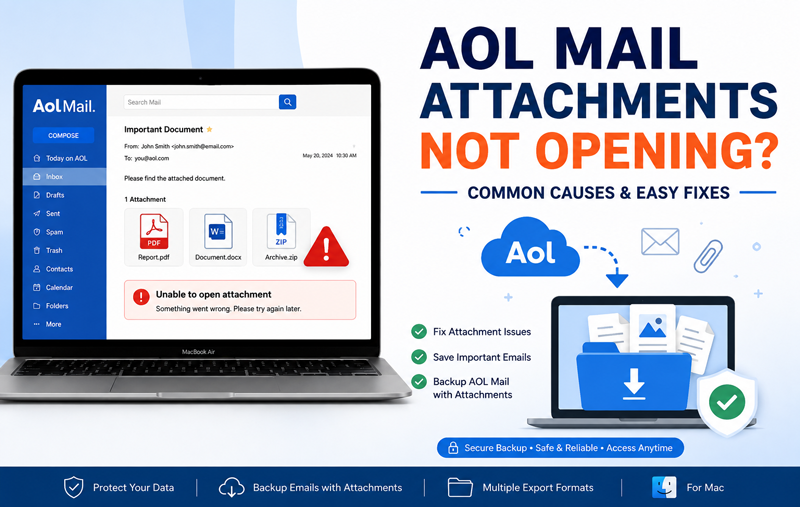
Have you ever clicked on an attachment in AOL Mail only to find that it refuses to open? Whether it’s an important PDF, Word document, image, or spreadsheet, attachment issues can be frustrating—especially when you need the file urgently. This problem is more common than many users realize and can occur due to browser issues, outdated software, internet interruptions, or even corrupted email data.
If you rely on AOL Mail for work or personal communication, inaccessible attachments can slow down your workflow and increase the risk of losing important information. Fortunately, most attachment-related problems can be resolved with a few troubleshooting steps. More importantly, creating a backup of your AOL Mail data ensures that your emails and attachments remain safe even if unexpected issues occur.
Protect Your Important AOL Emails Before It’s Too Late
If AOL Mail attachments are not opening or you’re worried about losing valuable email data, try the MacMister AOL Mail Backup Tool for Mac. It securely downloads AOL emails along with all attachments and saves them in multiple formats, ensuring you can access your files anytime—even without an internet connection.
 |  |
If you are also experiencing issues with opening email files, check out our detailed guide on AOL Mail attachment problems and their solutions.
Why Are AOL Mail Attachments Not Opening?
There isn’t a single reason behind this issue. Several technical and account-related factors can prevent attachments from opening correctly. Understanding the root cause will help you choose the right solution.
1. Poor or Unstable Internet Connection – Since AOL Mail is web-based, attachments are downloaded from the server every time you open them. If your internet connection is slow or unstable, the download may fail, causing the attachment to remain stuck or display an error. Common symptoms include –
- Attachment loading forever
- Download button not responding
- “Unable to open attachment” message
- Blank preview window
Testing your connection by opening other websites can quickly confirm whether network instability is causing the problem.
2. Browser Cache and Cookies Are Corrupted
Your browser stores temporary files to load websites faster. However, over time these cached files may become outdated or corrupted, preventing AOL Mail from functioning properly. – When this happens, you may notice –
- Attachments refusing to download
- Missing preview option
- AOL Mail pages loading incorrectly
- Buttons becoming unresponsive
- Clearing browser cache and cookies often resolves these issues within minutes.
3. Unsupported File Format
Not every attachment format is supported directly in the browser. For example –
- Unknown archive formats
- Certain executable files
- Password-protected documents
- Specialized business file types
In such situations, the attachment downloads successfully but cannot be opened because the required application isn’t installed on your Mac.
4. Outdated Browser Version
Using an old version of Safari, Chrome, Firefox, or Edge may create compatibility problems with AOL Mail’s latest features. Older browsers often struggle with –
- Secure downloads
- Modern encryption
- Attachment previews
- File rendering
Updating your browser can solve many unexpected AOL Mail attachment issues.
5. Browser Extensions Blocking Downloads
Some extensions are designed to block scripts, advertisements, or downloads for security purposes. Unfortunately, these can interfere with AOL Mail attachment functionality. Extensions that commonly create problems include –
- Ad blockers
- Privacy protection tools
- Download managers
- Script blockers
Opening AOL Mail in Incognito or Private Mode is a quick way to check whether an extension is responsible.
6. Large Attachment Size
Large attachments naturally take longer to download. If your internet speed fluctuates during the download process, the transfer may stop midway. Large files may also trigger –
- Timeout errors
- Incomplete downloads
- Browser freezing
- Failed previews
Waiting patiently or downloading the file again often fixes temporary interruptions.
7. Temporary AOL Mail Server Problems
Sometimes the issue isn’t on your device at all.
- AOL servers occasionally experience:
- Scheduled maintenance
- Heavy traffic
- Temporary outages
- Synchronization delays
When servers are unavailable, attachments may fail to load even though your internet connection is working perfectly.
Browser-related issues can affect more than just attachments. They may also prevent contacts from loading correctly. If you’re facing similar problems, check our guide on fixing the AOL Mail error loading address book.
8. Corrupted Email Data
Occasionally, the email itself becomes corrupted during synchronization or transmission. This may result in –
- Missing attachment icon
- Blank attachment
- Attachment showing 0 KB
- Unable to download file
If the sender still has the original email, asking them to resend it is often the quickest solution.
9. Antivirus or Security Software Restrictions
Some antivirus applications automatically scan downloaded attachments before allowing access. If a file appears suspicious, your security software may –
- Block downloads
- Quarantine attachments
- Prevent opening files
- Delete potentially unsafe documents
Temporarily disabling security software (only if you trust the attachment) can help identify whether it’s causing the issue.
10. Local Storage Issues on Mac
If your Mac doesn’t have enough available storage, downloaded attachments cannot be saved properly. Common warning signs include –
- Downloads stopping unexpectedly
- “Disk Full” notifications
- Attachment opening failures
- Slow browser performance
- Freeing up storage space can restore normal download functionality.
Sometimes attachment issues are caused by limited mailbox storage, which can prevent new emails and files from syncing properly. If your mailbox has reached its limit, read our guide on how to fix AOL Mail storage full issues before deleting important emails.
Why Backing Up AOL Mail Attachments Is Important
Even after fixing attachment issues, relying entirely on webmail isn’t always safe. Attachments may become inaccessible due to accidental deletion, account problems, server outages, or synchronization errors. Creating a local backup gives you several advantages –
- Access emails without an internet connection
- Preserve attachments permanently
- Prevent accidental data loss
- Keep business documents secure
- Restore emails whenever needed
- Migrate AOL Mail data easily to another email client
If your emails contain contracts, invoices, legal documents, or personal records, maintaining a secure backup becomes even more important.
10 Easy Fixes to Open AOL Mail Attachments
If your AOL Mail attachments are not opening, try the following troubleshooting methods one by one. In most cases, one of these solutions resolves the issue without requiring advanced technical knowledge.
Fix 1: Refresh AOL Mail and Sign In Again
Temporary session errors can prevent attachments from loading correctly. Simply refresh the AOL Mail page and sign out of your account. Wait a few minutes before signing in again. This refreshes your email session and often fixes temporary loading issues.
Fix 2: Clear Browser Cache and Cookies
Corrupted browser cache is one of the most common reasons behind attachment problems. To clear cache –
- Open your browser settings.
- Go to Privacy & Security.
- Select Clear Browsing Data.
- Choose Cookies and Cached Images.
- Restart the browser.
- Open AOL Mail again.
Many users notice that attachments begin opening normally after clearing cached files.
Fix 3: Update Your Browser
Older browser versions may not fully support AOL Mail’s latest security protocols. Update your preferred browser to the latest version –
- Safari
- Google Chrome
- Mozilla Firefox
- Microsoft Edge
Using an updated browser improves compatibility and enhances security.
Fix 4: Disable Browser Extensions
Extensions like ad blockers, privacy tools, or download managers sometimes interfere with AOL Mail. Try opening AOL Mail in –
- Incognito Mode (Chrome)
- Private Window (Safari)
- Private Browsing (Firefox)
- If attachments work correctly, disable extensions one by one to identify the problematic add-on.
Fix 5: Check Available Storage on Your Mac
If your Mac has very little free space, downloaded attachments may fail. To check storage –
- Open Apple Menu
- Go to System Settings
- Select Storage
- Delete unnecessary files if storage is almost full.
Fix 6: Try Another Browser
Sometimes the issue is browser-specific rather than AOL Mail itself. For example –
- If you are using Safari, try Chrome.
- If Chrome doesn’t work, test Firefox.
- If attachments open successfully in another browser, the original browser likely needs troubleshooting.
Fix 7: Download Instead of Previewing
Some file types cannot be previewed inside AOL Mail.
Instead of selecting Preview, choose Download and open the file using its respective application. Examples –
- PDF → Adobe Acrobat or Preview
- DOCX → Microsoft Word
- XLSX → Microsoft Excel
- ZIP → Archive Utility
Fix 8: Ask the Sender to Resend the Attachment
If only one particular email has attachment issues while others work normally, the email itself may be corrupted. Request the sender to –
- Send the attachment again.
- Compress the file into a ZIP folder.
- Upload it through a cloud-sharing service if necessary.
Fix 9: Check AOL Mail Service Status
Occasionally, AOL experiences temporary maintenance or server interruptions.
If many users are reporting similar issues, waiting for the service to recover is often the only solution.
Fix 10: Backup AOL Mail Before Data Becomes Inaccessible
If attachment issues continue despite trying every solution, protecting your emails should become your priority.
Instead of depending solely on AOL’s servers, it’s recommended to create a local backup of your mailbox, including all attachments.
This ensures your important emails remain accessible regardless of browser errors, account problems, or future server issues.
Best Solution to Protect AOL Emails with Attachments
If you frequently encounter AOL attachment problems or simply want to avoid losing important emails, using a professional backup solution is the safest option.
The MacMister AOL Mail Backup Tool for Mac is designed to download AOL Mail emails along with their original attachments and save them securely on your Mac. Once backed up, you can access your emails anytime without depending on an internet connection or AOL Mail servers.
| |
Key Features
- Backup AOL emails with all attachments.
- Export emails into multiple formats like PST, PDF, MBOX, EML, MSG, HTML, and more.
- Save attachments without altering the original folder structure.
- Backup selected folders instead of the entire mailbox.
- Filter emails by date range for targeted backups.
- Preserve email formatting, metadata, inline images, and folder hierarchy.
- Compatible with the latest macOS versions.
- Easy-to-use interface suitable for both technical and non-technical users.
Whether you are backing up business emails, legal documents, invoices, or personal conversations, the tool helps ensure that your important data stays safe and easily accessible.
Why Use a Backup Tool Instead of Depending on AOL Mail?
Many users assume their emails will always remain available online. However, webmail services can be affected by server outages, accidental deletions, account lockouts, synchronization failures, or browser-related issues. A local backup offers several benefits –
- Access emails even without an internet connection.
- Keep important attachments permanently.
- Protect against accidental email deletion.
- Simplify migration to another email platform.
- Maintain multiple copies of critical business data.
- Save time during unexpected account recovery situations.
For professionals and businesses, keeping an offline backup is a practical way to reduce the risk of data loss.
Conclusion
AOL Mail attachment problems can occur for many reasons, including browser cache issues, unsupported file formats, outdated browsers, server interruptions, insufficient storage, or corrupted emails. Fortunately, most issues can be resolved with simple troubleshooting steps such as clearing cache, updating your browser, switching browsers, or downloading files directly.
However, if your emails contain valuable documents, relying only on webmail is not enough. Creating a secure backup of your AOL mailbox with all attachments ensures your data remains protected and accessible, regardless of future technical issues. The AOL Mail Backup Tool for Mac provides a reliable way to archive your AOL emails and attachments while preserving their original structure and integrity.
| |