EML Files Not Opening in Excel? Convert Email Data to CSV Easily
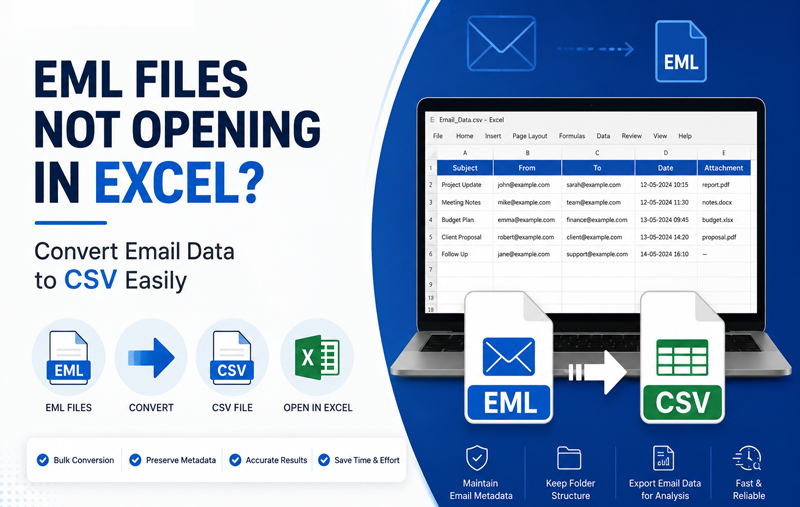
EML files are commonly used by email clients such as Windows Mail, Thunderbird, Outlook Express, Apple Mail, and several other desktop email applications. Each EML file stores a complete email message, including the subject, sender, recipient, date, body content, attachments, and other metadata.
Many users try to open EML files directly in Microsoft Excel when they need to analyze email data, create reports, maintain compliance records, or import email information into databases and CRM systems. However, Excel does not natively support the EML format. Instead of displaying email data in columns and rows, Excel may show unreadable text, HTML code, or simply fail to open the file.
If your EML files are not opening in Excel, this guide explains why the problem occurs, the most common causes, manual workarounds, their limitations, and the easiest way to convert EML email to CSV format for proper use in Excel.
Why EML Files Do Not Open Properly in Excel
An EML file is an email message format, while Excel is designed to work with spreadsheet formats such as XLSX, XLS, and CSV. Because these formats are fundamentally different, Excel cannot interpret EML email structures correctly. When you attempt to open an EML file in Excel, you may encounter several issues –
- The file opens as garbled text.
- HTML tags become visible.
- Email headers appear in a single column.
- Attachments are not recognized.
- Excel displays a file format error.
- The file does not open at all.
Common Causes of the Problem
1. Unsupported File Format – Excel has no built-in EML parser. It expects structured tabular data, not MIME-based email content.
2. Email Headers and MIME Structure – EML files contain technical headers such as –
From, To, Subject, Date, Message-ID, Content-Type, MIME-Version
Excel cannot automatically separate these elements into spreadsheet columns.
3. HTML Email Content – Modern emails are often stored in HTML format. When opened in Excel, the HTML code may appear instead of the formatted message.
4. Character Encoding Issues – Emails may use UTF-8, UTF-16, ISO-8859-1, or other encodings. If Excel interprets the encoding incorrectly, text can appear corrupted.
5. Large Number of EML Files – Organizations often need to process hundreds or thousands of EML files. Opening them individually in Excel is impractical and extremely time-consuming.
Sometimes, incorrect character encoding can also prevent EML files from displaying properly in Excel or other applications. If your emails show unreadable symbols, strange characters, or corrupted text, read our detailed guide on EML File Encoding Issues before converting your files to CSV.
Signs That Your EML Data Needs CSV Conversion
You should convert EML files to CSV if –
- You need email data in rows and columns.
- You want to filter emails by sender, date, or subject.
- You need to create audit or compliance reports.
- You want to import email information into a database.
- You need bulk analysis of email records.
- Excel is showing unreadable EML content.
What Is CSV and Why Is It Better for Excel?
CSV (Comma-Separated Values) is a simple text-based format where data is organized into rows and columns separated by commas. Excel can open CSV files directly and automatically place each field into a separate column. For email analysis, a CSV file can contain columns such as –
| Email Field | Excel Column |
| Subject | Column A |
| Sender | Column B |
| Recipient | Column C |
| Date | Column D |
| CC | Column E |
| BCC | Column F |
| Attachment Name | Column G |
This structure makes sorting, filtering, pivot tables, and reporting much easier.
Manual Method: Extract EML Data for Excel
Step 1 – Open the EML File – Open the EML file in an email client such as Thunderbird or Windows Mail.
Step 2 – Copy Required Information – Manually copy –
Subject, Sender, Recipient, Date, Email body
Step 3 – Paste into Excel – Create columns in Excel and paste the copied information into the appropriate cells.
Step 4 – Save as CSV – Use File → Save As → CSV.
Limitations of the Manual Method
Although the manual approach works for a few emails, it has significant drawbacks –
- Extremely slow for bulk conversion.
- High risk of copy-paste mistakes.
- Email metadata may be lost.
- Attachments are not tracked properly.
- Folder hierarchy is ignored.
- Formatting inconsistencies occur frequently.
- Not suitable for enterprise-scale email analysis.
For organizations dealing with hundreds or thousands of EML files, a dedicated conversion solution is far more reliable.
Elegant Solution – EML to CSV Migration Tool
To convert EML email data into a clean Excel-compatible CSV format, MacMister EML Converter for Mac provides a specialized solution designed for both Mac and Windows users.
 |  |
The software automatically extracts email properties and exports them into structured CSV files that open perfectly in Microsoft Excel.
Key Features
- Bulk EML to CSV Conversion – Convert thousands of EML files in a single operation without opening them individually.
- Preserves Email Metadata – The tool retains –
Subject, From, To, CC/BCC, Date & time, Message ID, Attachment information, Read/unread status
- Excel-Compatible Output – The generated CSV files can be opened directly in -Microsoft Excel
Google Sheets
LibreOffice Calc
Database applications
CRM systems
- Maintains Data Accuracy – No manual copying is required, reducing the risk of missing or incorrect email records.
- Advanced Filters – Export only the emails you need using –
Date range
Specific folders
Sender filters
Recipient filters
Subject keywords
How to Convert EML Files to CSV Using EML to CSV Tool
Step 1 – Install the Software – Download and launch MacMister EML to CSV Converter on your computer.
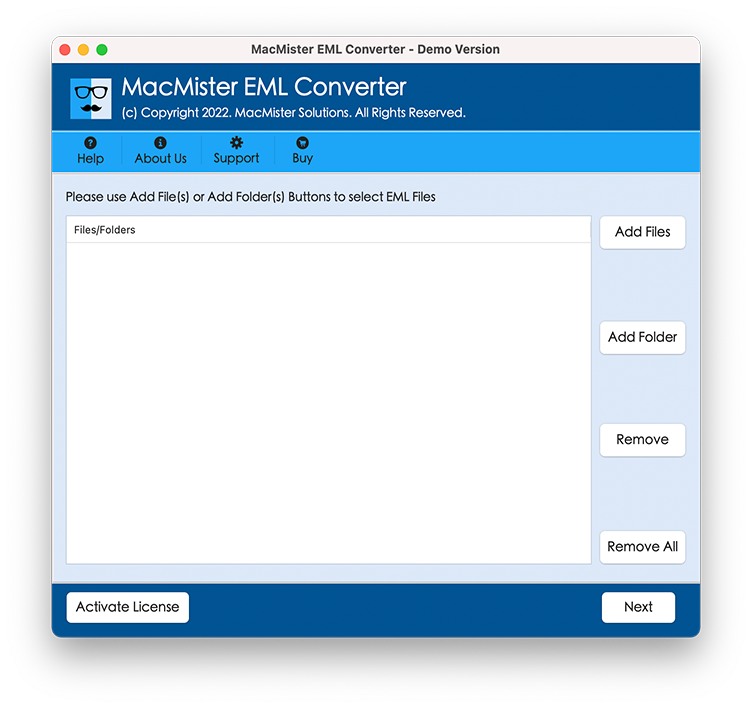
Step 2 – Add EML Files – Use Add Files or Add Folder to load single or multiple EML files.
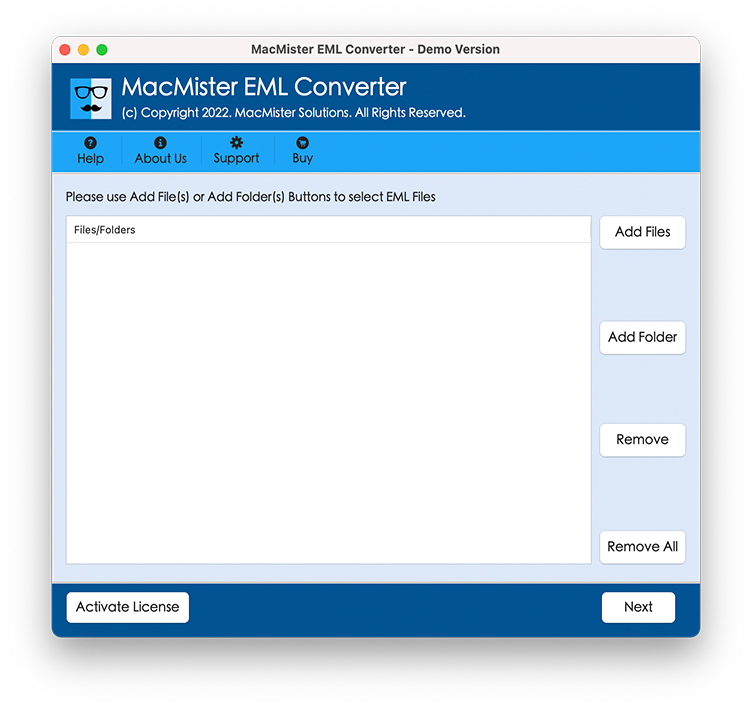
Step 3 – Preview Email Data – The software displays email folders and message details before conversion.
Step 4 – Choose CSV as Output – Select CSV from the list of export formats.
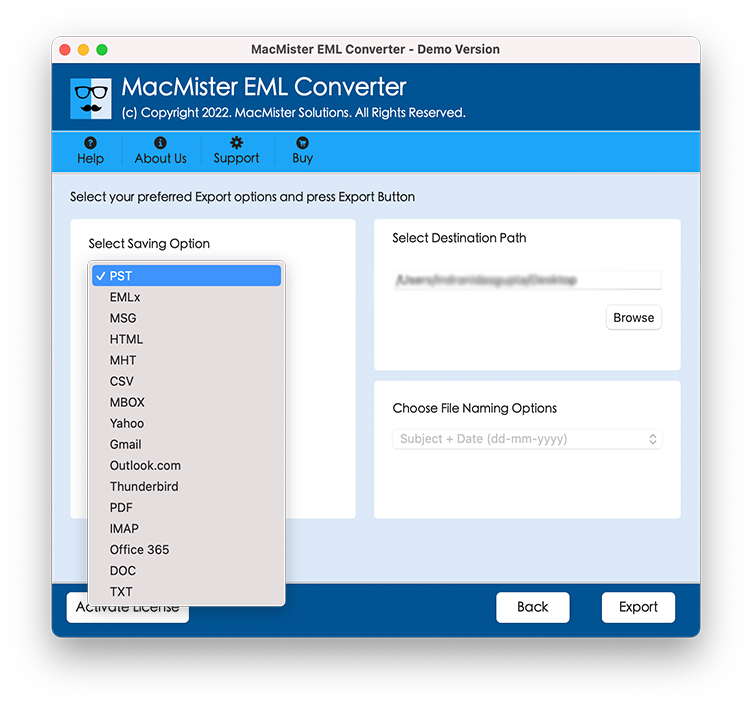
Step 5 – Apply Filters (Optional)
Use date or folder filters if you want to export only specific emails.
Step 6 – Start Conversion – Click Convert to generate the CSV file.
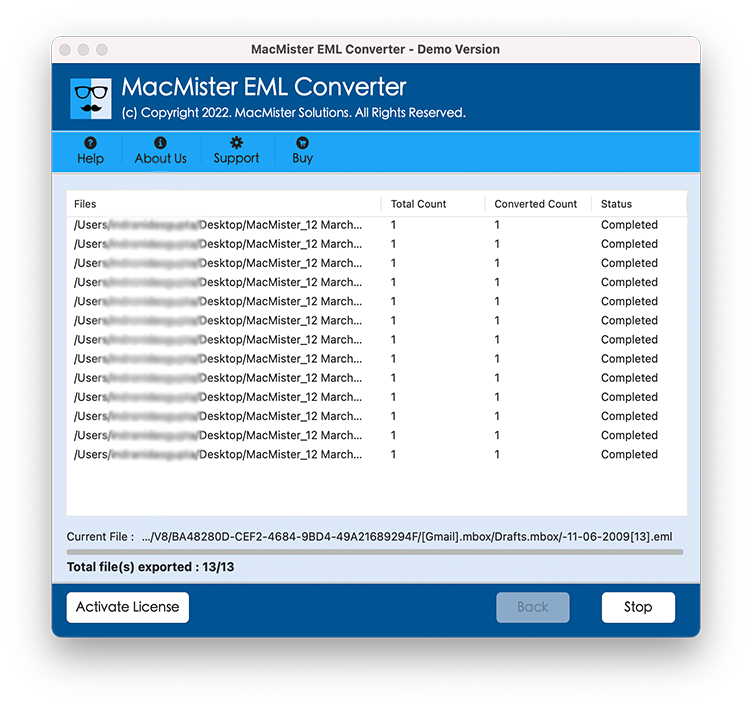
The resulting CSV opens directly in Excel with properly organized columns.
What Data Gets Exported to CSV?
A professional EML to CSV conversion typically includes –
| Data Type | Included |
| Subject | ✔ |
| Sender | ✔ |
| Recipients | ✔ |
| CC/BCC | ✔ |
| Date & Time | ✔ |
| Message ID | ✔ |
| Attachment Names | ✔ |
| Email Body Preview | ✔ |
This makes the CSV file useful for auditing, eDiscovery, customer support analysis, and compliance reporting.
Why Businesses Prefer CSV for Email Analysis
Organizations often need email data in spreadsheet form for –
- Legal discovery
- HR investigations
- Customer communication tracking
- Sales reporting
- Compliance audits
- Backup inventory creation
- Migration assessment
CSV format integrates easily with business intelligence and database tools, making it far more practical than raw EML files.
Tips to Avoid EML-to-Excel Problems
- Do not rename
.emlfiles to.csvmanually. - Avoid opening EML files directly in Excel.
- Use UTF-8 encoding during export when possible.
- Verify column mapping after conversion.
- Keep a backup of original EML files before bulk processing.
Frequently Asked Questions
Can Excel open EML files directly?
No. Excel does not natively support the EML email format.
Will attachments be included in the CSV file?
The CSV can include attachment names and metadata, but the attachment files themselves remain separate.
Can I save multiple EML files at once?
Yes. MacMister EML to CSV Converter supports bulk conversion.
Is the CSV file workable with Google Sheets?
Yes. The exported CSV can be opened in Google Sheets and other spreadsheet applications.
Will email dates remain accurate after conversion?
Yes. The software preserves original email timestamps and metadata.
Conclusion
EML files do not open properly in Microsoft Excel because EML is an email message format, not a spreadsheet format. Attempting to open EML files directly in Excel often results in unreadable text, missing metadata, and formatting issues.
While manual extraction is possible for a small number of emails, it becomes inefficient and error-prone when dealing with large email collections. Converting EML files to CSV is the most practical way to make email data searchable, sortable, and fully compatible with Excel.
The EML to CSV Converter simplifies this process by automatically extracting email properties, preserving metadata, supporting bulk conversion, and generating clean CSV files that open perfectly in Excel. If you need a fast and accurate way to analyze EML email data in spreadsheet format, using a dedicated EML-to-CSV solution is the most reliable approach.
| |