Webmail Storage Full? How to Backup Emails Before Your Mailbox Stops Receiving Messages
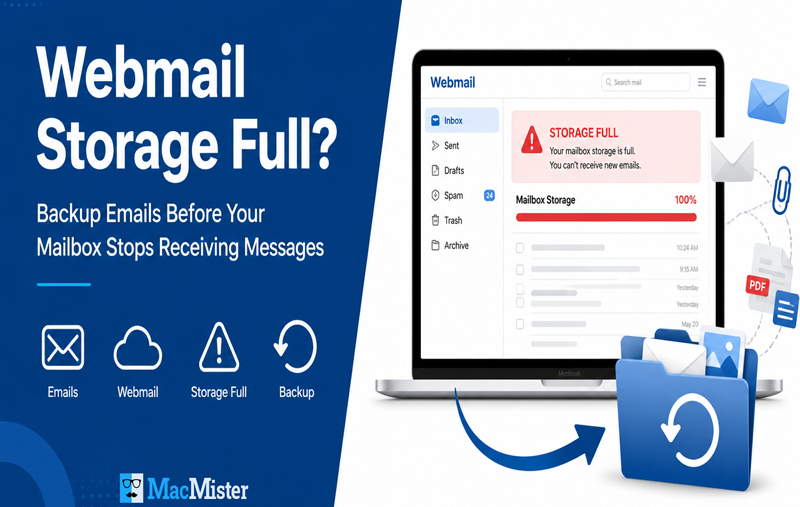
Have you ever logged into your webmail account only to find a warning that your mailbox storage is almost full? It may seem like a minor issue at first, but a full mailbox can quickly become a serious problem. Once your email storage reaches its limit, you may stop receiving new emails, experience synchronization issues, or even risk losing access to important business communications.
Whether you use cPanel Webmail, Roundcube, Horde, SquirrelMail, or another webmail service provided by your hosting company, limited mailbox storage is a common challenge. Ignoring storage alerts can result in missed client emails, delayed responses, and unnecessary stress.
In this guide, you will learn why webmail storage becomes full, what happens when it reaches its limit, and how to safely backup your emails before your mailbox stops receiving messages.
If your mailbox is frequently running out of space, using an Email Backup Software for Mac helps you create a secure copy of your emails before deleting them from the server.Why Does Webmail Storage Become Full?
Unlike cloud email services that often provide large storage quotas, many web hosting providers allocate limited mailbox space. Every email you send or receive, along with attachments, contributes to the storage used by your account. Some common reasons include –
- Large attachments such as PDFs, ZIP files, videos, and images.
- Thousands of old emails stored in Inbox, Sent, and Archive folders.
- Spam and Trash folders that haven’t been emptied.
- Multiple email accounts sharing the same hosting storage.
- Daily business communications that continue growing over time.
- As storage usage increases, mailbox performance may gradually decline.
Signs Your Webmail Storage Is Almost Full
Before your mailbox completely fills up, you will often notice several warning signs.
- You Receive Storage Warning Messages – Many hosting providers display notifications when mailbox usage exceeds a certain percentage.
- New Emails Stop Arriving – One of the biggest indicators is that people claim they’ve sent you emails, but they never appear in your Inbox.
- Sending Emails Becomes Difficult – Some mail servers may reject outgoing messages when storage is exhausted.
- Slow Mailbox Performance – Folders may load slowly, searches take longer, and login performance can decrease.
- Synchronization Problems – If you access your mailbox using Apple Mail, Outlook, Thunderbird, or another email client, synchronization may fail when storage becomes critically low.
If your mailbox also experiences synchronization issues, read our guide on IMAP Connection Failed While Backing Up Emails.
What Happens When Your Mailbox Is Full?
Many users believe a full mailbox simply prevents additional storage. In reality, it can affect your daily workflow in several ways.
- Missing Important Emails – Customers, clients, and colleagues may receive bounce-back notifications because your mailbox cannot accept additional emails.
- Lost Business Opportunities – Missing inquiries, quotations, invoices, or support requests can directly impact your business.
- Delayed Communication – Without incoming emails, projects and customer responses may be delayed.
- Increased Risk During Server Issues – If your hosting account experiences corruption, migration issues, or accidental deletion, recovering emails becomes significantly harder without a backup.
Check Your Webmail Storage Usage
Before deleting anything, it’s a good idea to review how much storage your mailbox is using. Depending on your hosting provider, you can usually check mailbox usage from –
- cPanel Email Accounts
- Plesk Mail Settings
- DirectAdmin Email Manager
- Hosting Control Panel Dashboard
- Webmail Account Settings
- If usage exceeds 80–90%, it’s time to take action.
Ways to Free Up Webmail Storage
There are several manual ways to reclaim mailbox space.
- Delete Unnecessary Emails – Remove outdated newsletters, promotional emails, and duplicate conversations.
- Empty Trash and Spam – Deleting emails from Inbox alone isn’t enough. Messages stored in Trash and Spam still consume storage.
- Remove Large Attachments – Sort emails by size and delete unnecessary files.
- Archive Older Emails – Instead of permanently deleting valuable messages, archive them locally. While these methods help temporarily, they don’t create a secure copy of your mailbox.
Why Simply Deleting Emails Isn’t Enough
Many users free up storage by deleting old emails. Unfortunately, this creates another problem.
- Once emails are deleted permanently –
- Recovery may not be possible.
- Hosting backups may already have expired.
- Important attachments could be lost forever.
- Legal or business records may disappear.
The safest approach is to create a complete backup before cleaning your mailbox.
Why Email Backup Is Better Than Email Deletion
Backing up your emails gives you complete control over your data. A proper backup allows you to –
- Preserve business communication.
- Store emails safely on your Mac.
- Keep attachments intact.
- Access archived emails anytime.
- Free mailbox storage without losing important information.
- Protect data from server failures or accidental deletion.
This is especially useful for professionals, freelancers, legal firms, healthcare organizations, educational institutions, and businesses that rely on email communication every day. If you are migrating your mailbox, you may also like our article on preserving Gmail labels during Google Workspace migration.
Manual Methods to Backup Webmail Emails
There are a few manual options available depending on your email configuration.
Method 1 – Configure an Email Client
If IMAP access is enabled, you can connect your webmail account to applications such as –
- Apple Mail
- Mozilla Thunderbird
- Microsoft Outlook
After synchronization, you can export mailbox data.
Limitations
- Requires manual configuration.
- Sync may take hours for large mailboxes.
- Interrupted connections can cause incomplete downloads.
- Attachments may not always download completely.
- Multiple mailboxes require separate setup.
Method 2 – Download Individual Emails
Most webmail services allow downloading individual messages. This method works only if you have a handful of emails.
Limitations
- Extremely time-consuming.
- Not suitable for thousands of emails.
- Folder structure isn’t preserved.
- Bulk backup isn’t available.
The Smarter Way – Use Webmail Backup Software for Mac
If you want to back up your complete webmail account safely and efficiently, using a professional solution is the easiest option.
MacMister Email Backup Software for Mac is designed to help Mac users download and preserve their email accounts without complicated manual steps.
 |  |
Instead of exporting emails one by one, the software lets you back up entire mailboxes while maintaining data integrity.
Key Benefits
- Backup complete webmail mailbox.
- Preserve folder hierarchy.
- Maintain email formatting.
- Save attachments along with emails.
- Backup multiple folders simultaneously.
- Export emails into various file formats.
- Support for selective email backup.
- Easy-to-use interface for Mac users.
- Secure backup process without modifying original mailbox data.
Whether you are creating a long-term archive or freeing mailbox space, a dedicated backup solution saves significant time.
Steps to Backup Webmail Emails Using MacMister Email Backup Software for Mac
Follow these simple steps –
Step 1 – Download and install MacMister Email Backup Software for Mac.
Step 2 – Launch the application and choose your email service.
Step 3 – Enter your webmail login credentials.
Step 4 – Select the mailbox folders you want to back up.
Step 5 – Choose the desired saving format or destination.
Step 6 – Click the Backup button to begin exporting your emails.
Once the backup is complete, you can safely remove unnecessary emails from your server to reclaim storage space.
Best Practices to Prevent Future Mailbox Storage Issues
Creating one backup isn’t enough. It’s important to maintain your mailbox regularly. Here are a few recommendations –
- Schedule regular email backups.
- Delete unnecessary spam weekly.
- Archive inactive projects.
- Monitor mailbox usage monthly.
- Keep local backup copies.
- Store backups on external drives or cloud storage.
- Review attachment-heavy folders regularly.
Following these habits helps prevent mailbox storage warnings in the future. Planning to update your Mac? Don’t forget to back up your mailbox first. Read our guide on backing up emails before a macOS Sequoia update.
Who Should Backup Their Webmail Emails?
Email backup isn’t only for businesses. It is useful for –
- Small business owners
- Web hosting users
- Freelancers
- Consultants
- Legal professionals
- Educational institutions
- Healthcare organizations
- Accountants
- Digital agencies
Anyone who depends on email communication
If your emails contain valuable information, maintaining a backup should be part of your regular workflow.
Frequently Asked Questions
Q. Can a full webmail mailbox stop receiving emails?
Ans. Yes. Once the allocated mailbox storage is exhausted, many hosting providers prevent new incoming emails until storage is freed or increased.
Q. Is deleting emails enough to solve storage problems?
Ans. Deleting emails temporarily frees space, but it permanently removes valuable information unless you’ve created a backup first.
Q. Can I backup webmail emails with attachments?
Ans. Yes. A professional email backup solution can preserve both emails and their attachments during the backup process.
Q. Is it safe to delete emails after taking a backup?
Ans. Yes. Once you’ve verified that your backup is complete and accessible, you can safely remove unnecessary emails from your mailbox to recover storage.
Final Thoughts
A full webmail mailbox is more than just an inconvenience—it can interrupt communication, prevent new emails from arriving, and increase the risk of permanent data loss. Waiting until your mailbox stops working is never the best strategy.
Instead, monitor your mailbox usage regularly, archive older emails, and create secure backups before deleting anything. Having a reliable backup ensures that your important conversations, attachments, invoices, and business records remain accessible whenever you need them.
For Mac users looking for a simple and dependable way to protect their email data, MacMister Email Backup Software for Mac provides an efficient solution to back up entire webmail accounts while preserving folder structure, formatting, and attachments. With a complete backup stored safely on your Mac, you can free up mailbox space confidently and continue receiving emails without interruption.