How to Migrate Bluehost Email to Zoho Mail on Mac

This guide explains different approaches to Bluehost Email to Zoho Mail migration on Mac, including a manual method and Bluehost to Zoho Mail Tool for Mac; both solutions can help users to know about how to migrate Bluehost email to Zoho Mail account on Mac.
Changing an email hosting provider often requires more than simply creating a new mailbox. Existing emails, folders, attachments, and other mailbox data may still be stored on the old server. When moving from Bluehost to Zoho Mail, users need a reliable way to transfer their existing mailbox data while keeping the original email structure as intact as possible.
Bluehost supports IMAP, which makes it possible to migrate email messages through an IMAP-compatible email client or migration utility. Zoho Mail also supports IMAP-based migration and provides an administrator-level migration option for moving emails from another email service.
Overview of Bluehost and Zoho Mail
Bluehost is a web hosting platform that also provides email hosting for domain-based email accounts. Bluehost mailboxes can be accessed through webmail or configured with desktop email applications using protocols such as IMAP and POP. IMAP maintains a connection between the mailbox and email server, allowing messages to remain accessible across different devices and applications.
Zoho Mail is an email hosting and management service designed for individual and organizational use. Zoho Mail works with IMAP and can be set up through compatible third-party email applications. Zoho also provides an administrator-based data migration facility for transferring emails from previous providers. Its IMAP migration method can preserve folder information and email status when the source supports the required protocol.
Why Migrate Bluehost Email to Zoho Mail?
- To move business communication to a dedicated email platform.
- To manage domain-based mailboxes through Zoho Mail.
- To retain historical emails after changing the email hosting provider.
- To access existing messages through a new email environment.
- Keep existing folders and their organization intact while moving email data to the new platform.
- To move away from the existing hosting-based email setup.
Before beginning the migration, it is important to create and verify the required domain and user accounts in Zoho Mail. Zoho recommends performing a sample migration before completing a larger mailbox transfer.
Manual Method to Migrate Bluehost Email to Zoho Mail
A manual approach can be performed with an IMAP-supported email client such as Apple Mail or Thunderbird. Bluehost confirms that IMAP-compatible clients can be used for moving messages between email servers.
- Create the required mailbox in Zoho Mail.
- Configure the Bluehost account in an IMAP-compatible email client.
- Configure the corresponding Zoho Mail account using IMAP.
- Connect both accounts, let the mailbox data load, and copy the required emails or folders from Bluehost to the destination account.
- Copy or move the selected emails into the corresponding Zoho Mail folders.
- Allow the synchronization process to complete.
- Open Zoho Mail and verify the transferred messages and folders.
Server details and setup requirements may vary according to the email provider, account type, and selected configuration. Zoho Mail supports IMAP access and uses SSL-based IMAP connections for supported account configurations.
Risks and Limitations of the Manual Method
Although the manual approach does not require specialized migration software, it can become difficult when dealing with large mailboxes or multiple accounts.
- Time-consuming process – Thousands of emails can take considerable time to copy and synchronize.
- Folder Management – Moving folders manually can require separate handling for different mailbox sections, depending on the email application being used.
- Synchronization dependency – The process depends on stable connections to both mail servers.
- Large attachments – Mailboxes containing many large attachments may take longer to process.
- Multiple accounts – Repeating the same procedure for several Bluehost accounts increases the workload.
- Migration errors – Connection or authentication problems can interrupt the transfer.
- Verification required – Users need to check the destination mailbox after migration to confirm that important messages and folders were transferred.
Bluehost also notes that IMAP migration can take time when a mailbox contains thousands of messages or large attachments.
Advanced Bluehost to Zoho Mail Tool for Mac
For users who need to process mailbox data more systematically, the Bluehost Email Backup Tool for Mac can easily transfer Bluehost emails to Zoho Mail account. The software enables to save emails from Bluehost to IMAP Zoho Mail account.
|
|
|


The Bluehost to Zoho Mail Tool for Mac is designed to simplify the migration of Bluehost email data to Zoho Mail. Instead of repeatedly opening folders and moving messages manually, users can use the software to manage the migration from a single application.
The application is suitable for migration tasks involving extensive mailbox data or multiple email accounts. It provides a more structured approach to the migration process and reduces the amount of repetitive manual work involved.
The software-based approach is particularly useful for users who want to migrate email data while maintaining the organization of the existing mailbox. Before starting a complete migration, it is still advisable to verify the source and destination account credentials and review a small set of transferred emails.
Steps for Bluehost to Zoho Mail Account migration
Launch the Tool – Open the Bluehost to Zoho Mail Tool on your Mac.
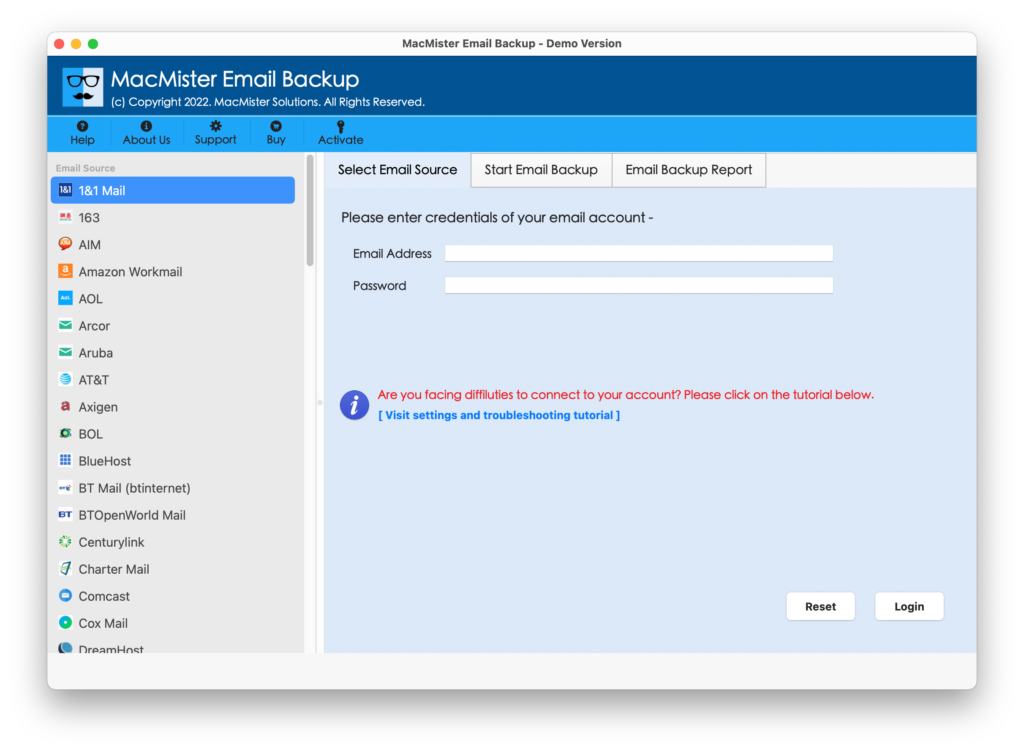
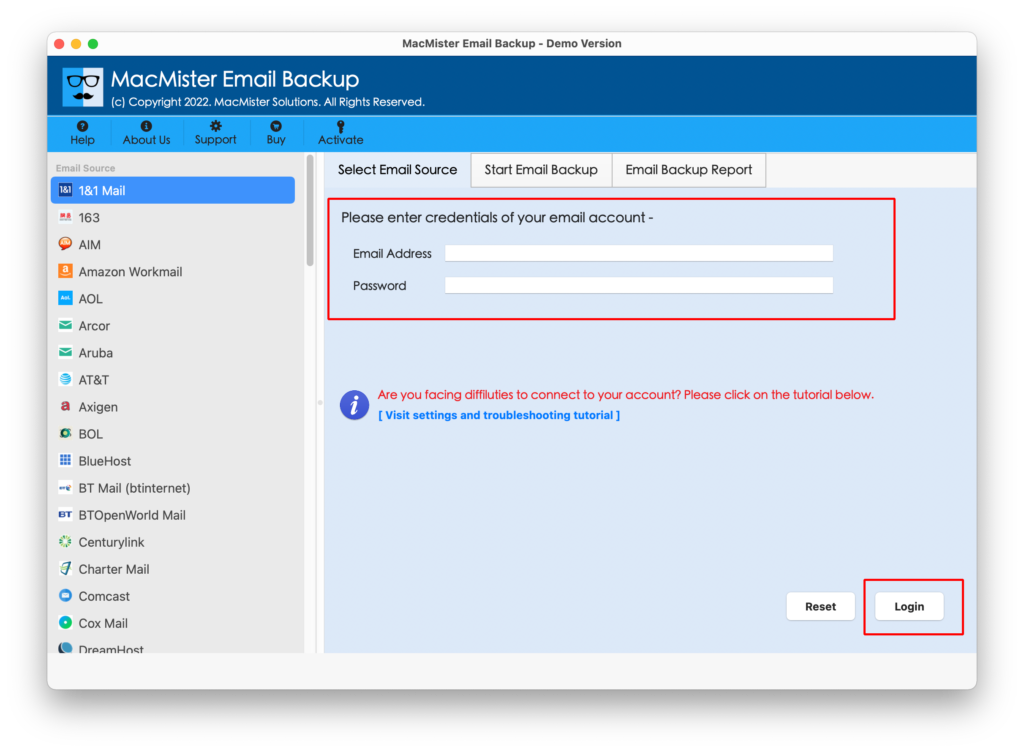
Select Bluehost – Select Bluehost from webmail list andprovide your Bluehost email account credentials and required server information.
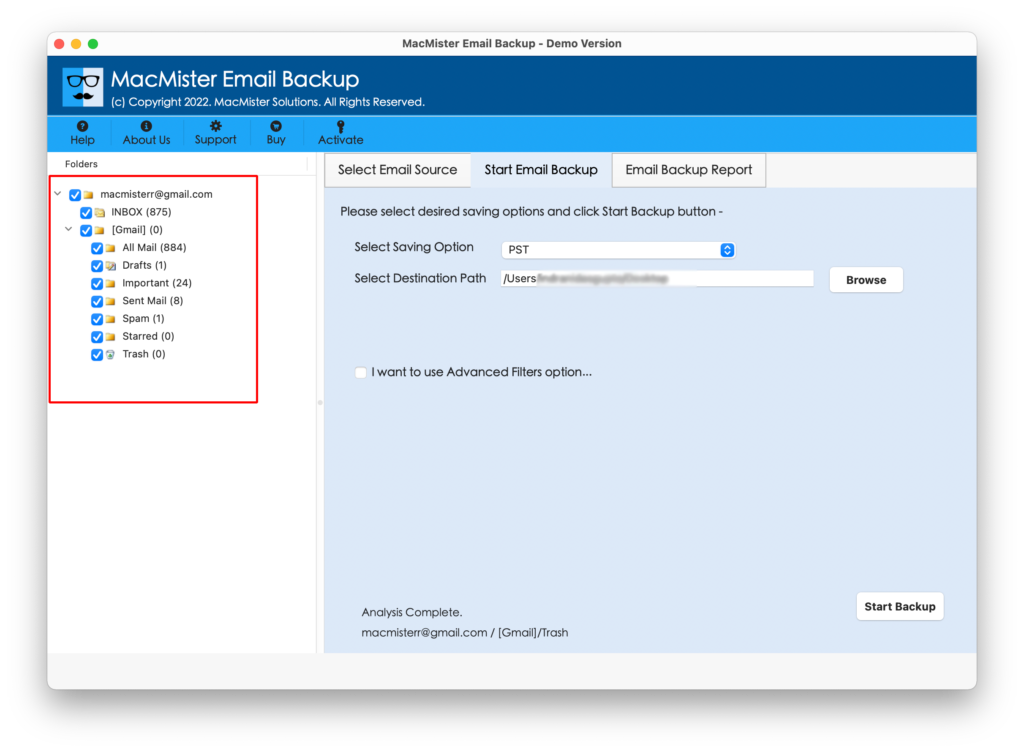
Select Mailbox Emails- Select the specific emails, folders, or other mailbox content that needs to be transferred.
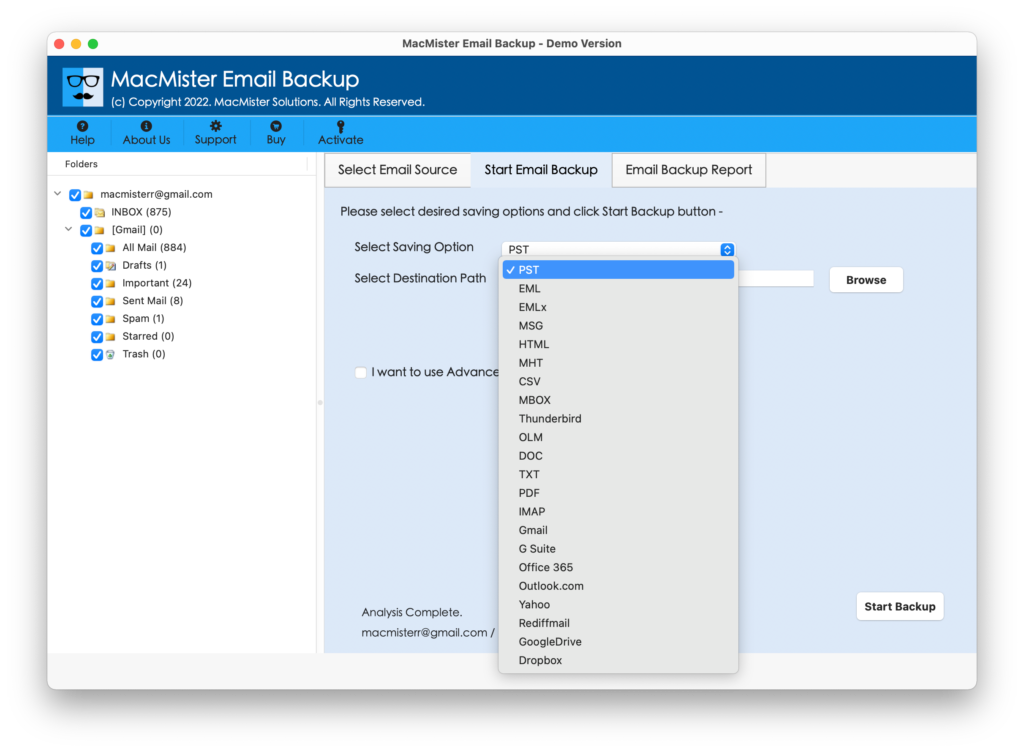
Choose Saving Option – Choose IMAP from the given options (Zoho Mail supports IMAP to import emails)
Configure Zoho Mail – Enter the Zoho Mail account information along with the appropriate IMAP server address and port number.
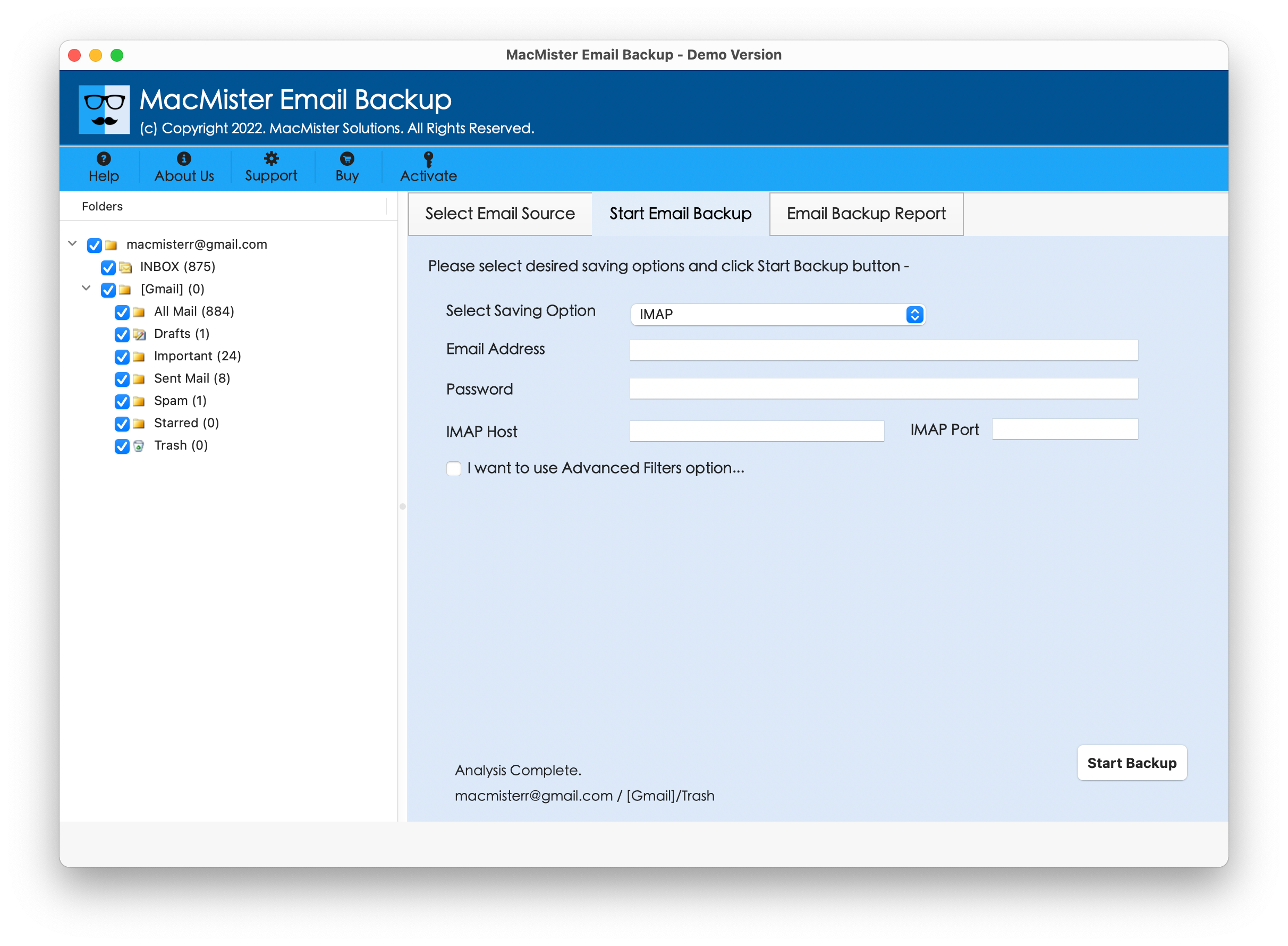
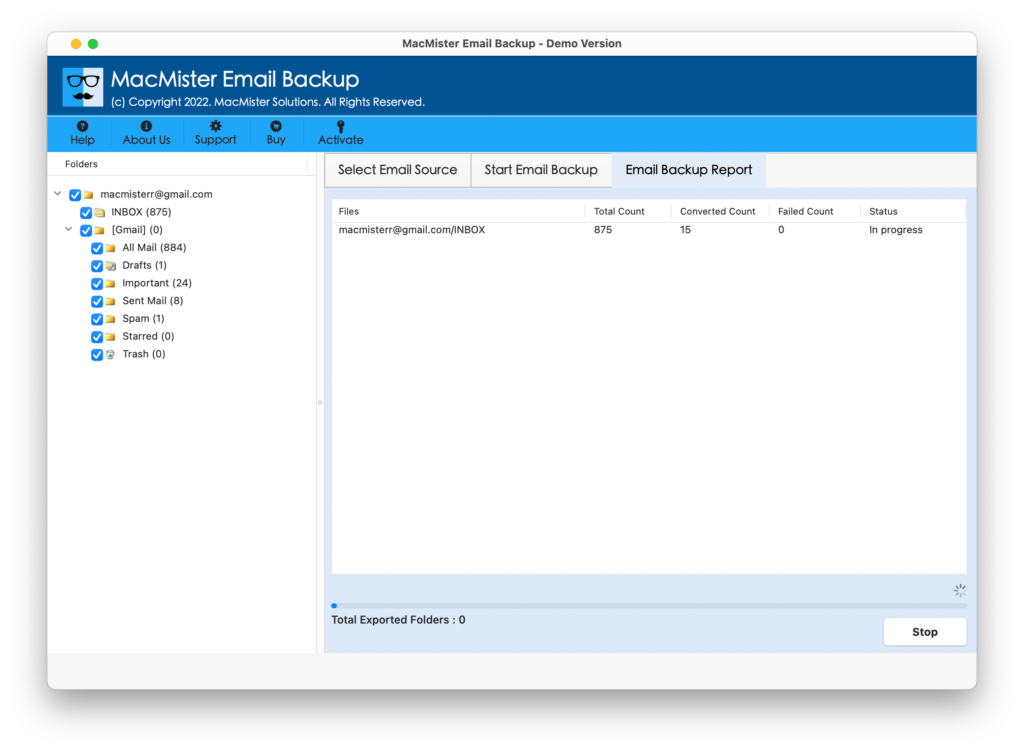
Start Migration – Click the start backup option to begin transferring Bluehost emails to Zoho Mail.
Features of Bluehost to Zoho Mail Tool for Mac
- Bluehost to Zoho Mail Migration – Transfers email data from Bluehost accounts to Zoho Mail.
- Bulk Migration – Processes multiple email messages or mailbox data together.
- Folder Preservation – Helps maintain the existing organization of mailbox folders.
- Transfer Attachments: Migrate email messages together with the files attached to them.
- Email Attributes – Helps retain important message properties during migration.
- Selective Transfer: Choose only the required mailbox content rather than moving the entire account unnecessarily.
- Mac Compatibility – Designed for users performing email migration on Mac systems.
- Simple Interface – Provides an organized interface for configuring and managing the migration process.
- Large Mailbox Support – Suitable for handling migration projects involving substantial quantities of email data.
Conclusion
Migrating Bluehost email to Zoho Mail can be completed through an IMAP-based approach, but manually transferring a large mailbox may require considerable time and attention. Bluehost supports IMAP-based email migration, while Zoho Mail provides IMAP migration capabilities for transferring email data from supported external services.
For a small mailbox, configuring both accounts in an IMAP-compatible email client and copying the required messages may be sufficient. However, users managing larger mailboxes or multiple accounts may prefer an automated Bluehost to Zoho Mail Backup Tool for Mac to reduce repetitive steps and organize the migration process more efficiently.
Before completing the switch, verify the migrated emails, folders, attachments, and user accounts in Zoho Mail. A test migration is also a practical step before processing the complete mailbox environment.