How to Get Rid of Files that won’t delete on Mac?
Any Mac user must have experienced the tremendous frustration of dragging an unused file to the Trash bin, pressing “Empty Trash” and receiving an annoying error message. Whether it is the mysterious “The file is in use,” the permission error or the file that snaps back immediately into its place, undeletable files fill up your hard drive with no useful purpose.
Undeletable files tend to be a common issue in macOS. But there is no need to let the digital chaos take over. In this guide, we will discuss what causes the files not to delete on your Mac, go through the usual troubleshooting steps and present a professional method for removing them – MacMister Data Wipe.
Why Do Files refuse to delete on macOS?
Before diving into solutions, it helps to understand why macOS occasionally puts up a roadblock when you try to clean house. The most frequent culprits include:
- The File is Currently Open: If a background process, active application, or hidden service is utilizing the file, macOS locks it to prevent system instability or data corruption.
- Locked Attributes: macOS allows users or applications to check a “Locked” box in the file’s properties, explicitly blocking modifications or deletions.
- Permission Restrictions: If you lack the required administrative privileges or ownership rights for a particular directory, the system will block your delete request.
- Corrupted Trash Folder: Sometimes, the Trash system itself becomes glitchy, causing files to loop back or error out when you try to clear them.
Built-in Methods to Force-Delete Stubborn Files
Before opting for third-party software tools, here are a few ways that you can handle problematic files using native macOS functions:
Method 1. Force Quit and Delete
- Close Other Running Applications and Force Quit
- In case macOS reports that the file is “in use,” chances are that there is an application running on your system that is locking the file.
- Hit the Command + Option + Escape keys to launch the Force Quit window.
- Look for any applications that could be linked with the troublesome file.
- Force quit the application and see if you are able to delete the file now.
Method 2. Unlock the File via Get Info
Many downloaded files or items transferred from external drives come with a locked attribute enabled by default.
- Right-click (or Control-click) the stubborn file and select Get Info.
- Look at the middle section for the Locked checkbox.
- If it is checked, uncheck it. You may need to click the padlock icon at the bottom and enter your administrator password to make changes. Once unlocked, move it to the Trash and empty it.
Method 3. Utilize Option Key While Emptying Trash
In the event that your Trash will not empty itself due to some locked files, you can use a trick from macOS.
- Simply open the Trash application by clicking on the icon in your dock.
- Press and hold the Option key on your keyboard, then click on the Empty button at the upper right of the screen.
Method 4. Leverage the Terminal (Advanced)
If graphical interfaces fail, the command line offers absolute controlthough it requires caution, as a misplaced command can impact system files.
- Open the Terminal app from Spotlight or the Utilities folder.
- Type sudo rm -rf (make sure to leave a space after -rf).
- Drag and drop the stubborn file directly from Finder into the Terminal window to automatically populate its file path.
- Press Return, enter your Mac login password (characters won’t show on screen), and hit Return again.
Get Rid of Files that won’t Delete on Mac using Professional Approach
In cases where in-built options do not work or if one needs to be absolutely sure that sensitive data is destroyed beyond any chance of electronic restoration, then such native solutions cannot do the job. Here is when specialized utility software is needed.
MacMister Data Wipe for Mac is powerful utility software for erasing data on Mac OS systems. It does not simply delete files and folders but effectively shreds them in accordance with international military standards.
Why Choose MacMister Data Wipe for Stubborn Files?
- If macOS locks down a file due to stubborn permissions or system quirks, a dedicated wiper tool forces interaction at a deeper directory level, allowing you to successfully target and remove the obstacle.
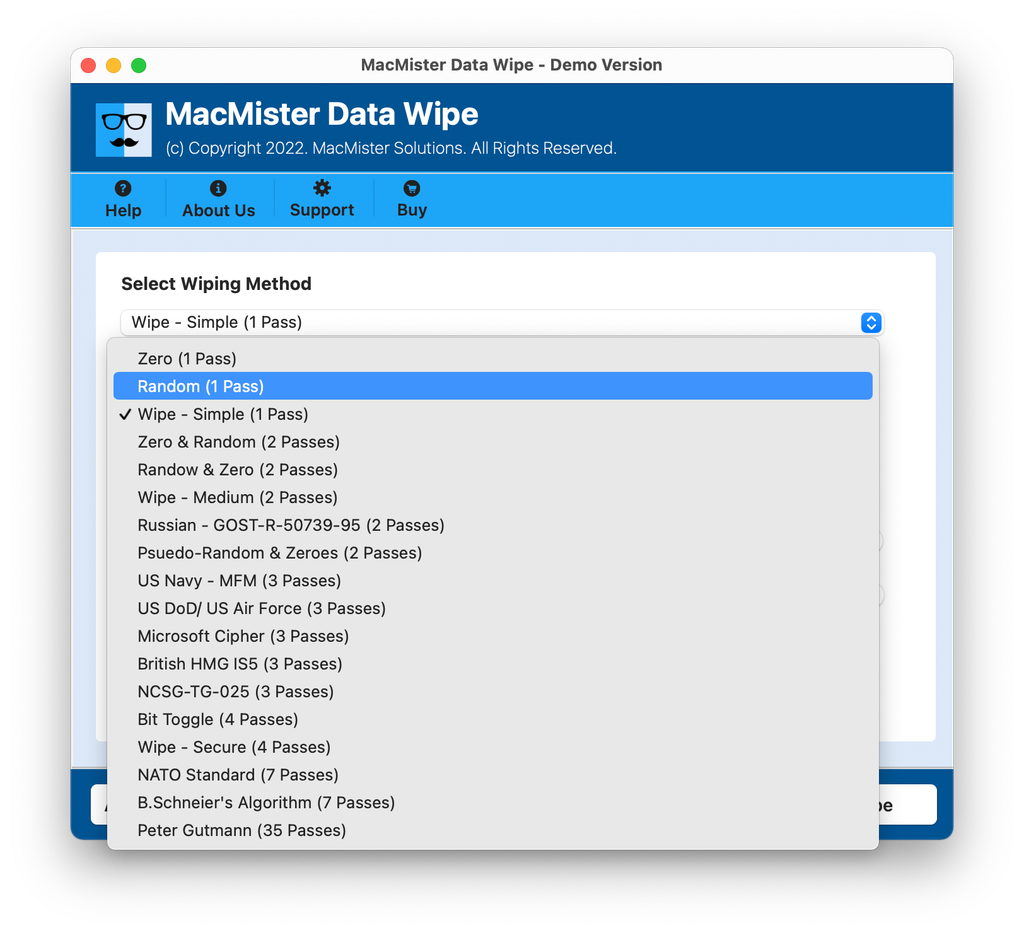
- The software supports over 15 distinct international data sanitization algorithms. Depending on how secure you need the deletion to be, you can choose from standard single-pass methods (like Zero or Random overwrites) to advanced multi-pass security frameworks (such as US DoD 5220.22-M, US Navy standards, or NATO 7-pass protocols).
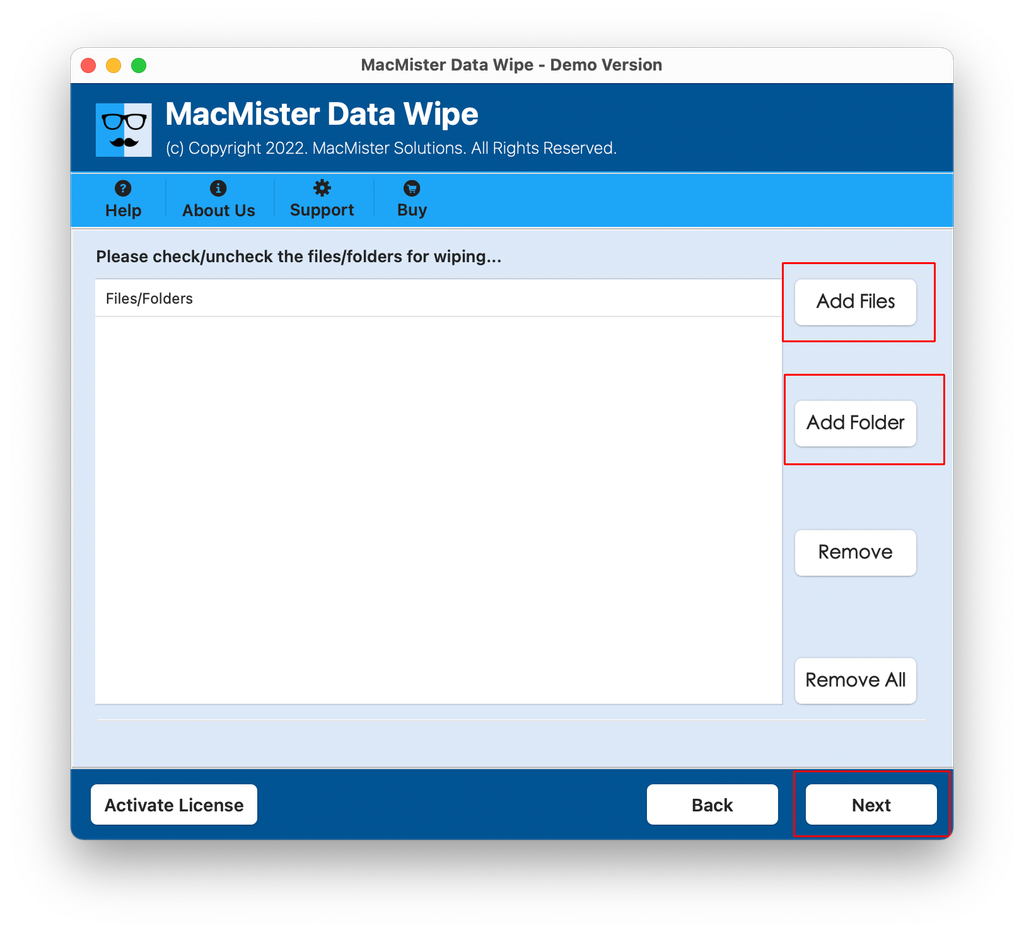
- You do not have to wipe your entire machine to get rid of a single stubborn document. MacMister Data Wipe features a clean interface with dedicated Add Files and Add Folders buttons, allowing you to selectively curate precisely what needs to be destroyed.
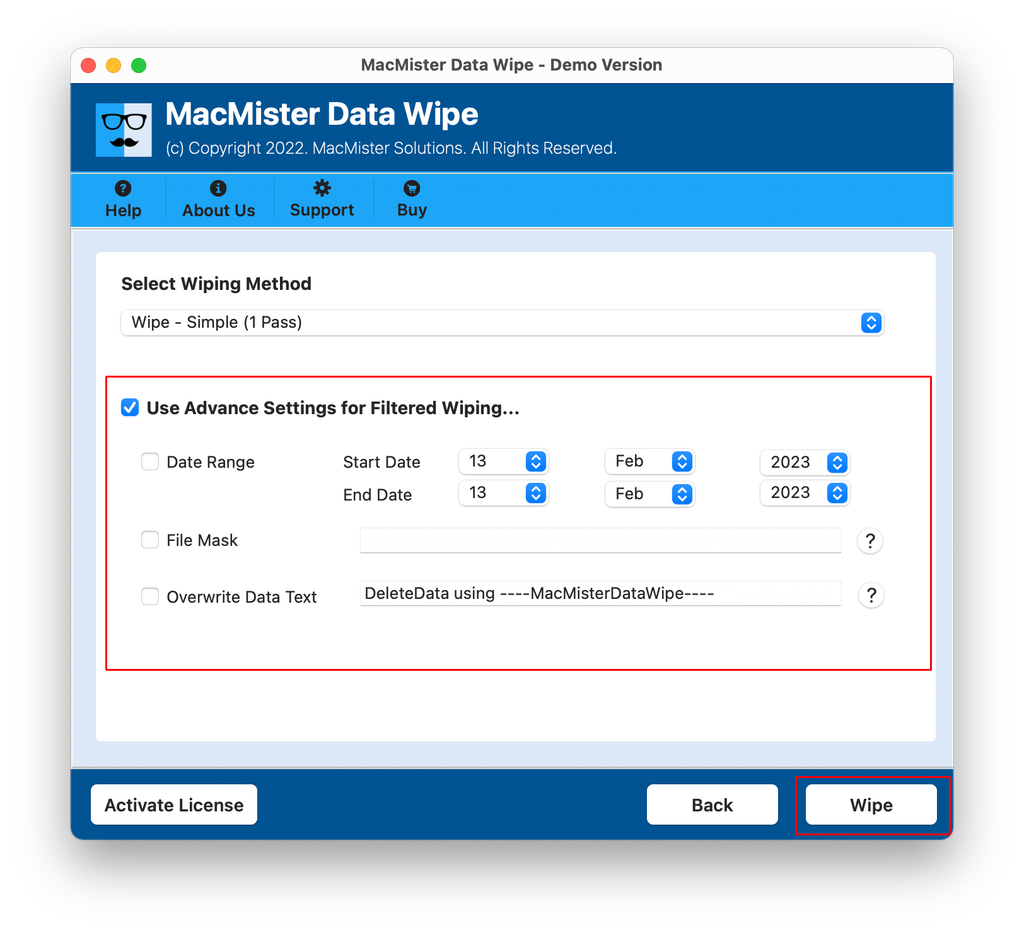
- If you are dealing with a cluster of problematic files spread across directories, you can deploy advanced filters based on date ranges, file masks, or custom extensions to clean your system systematically.
Step-by-Step Instructions of the Tool to Remove Files Which Can’t Be Deleted on Mac
It is extremely easy to delete non-responsive files using MacMister:
Download and install the the software on your macOS system.
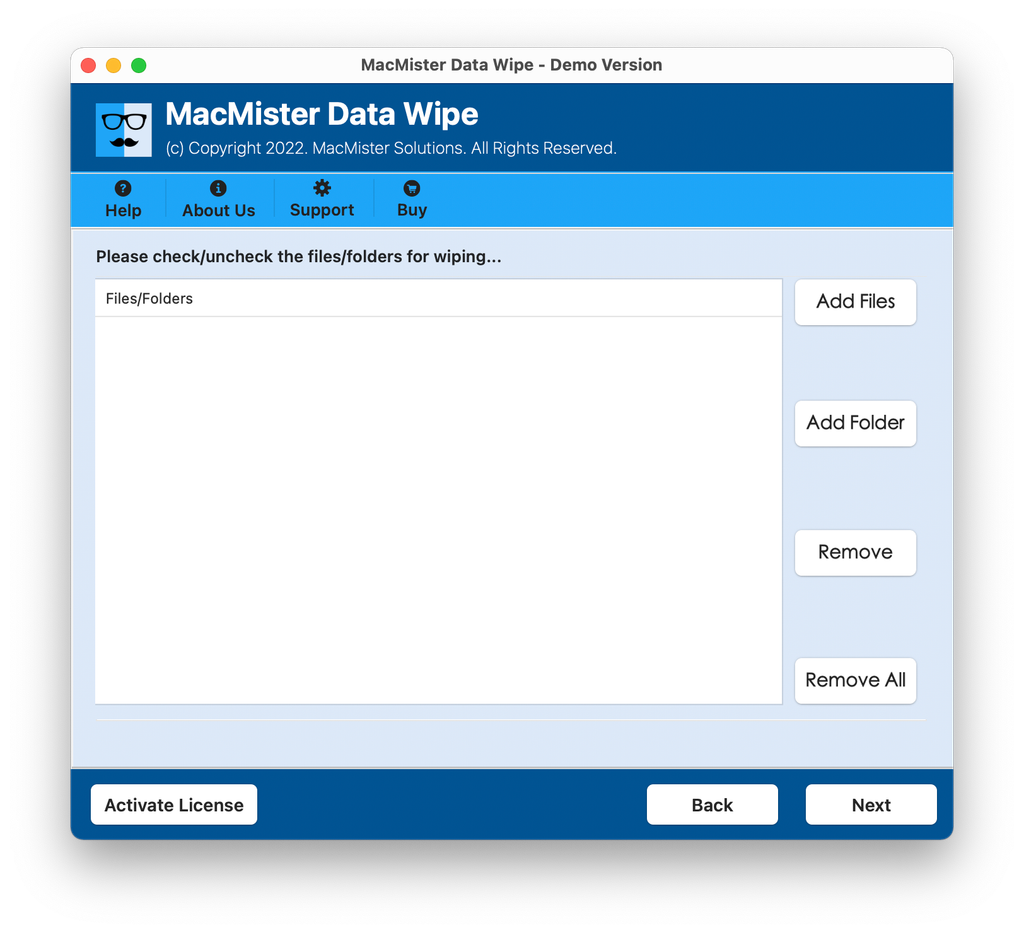
Make use of the “Add Files” or “Add Folders” function to load the non-responsive files to the interface of the software.
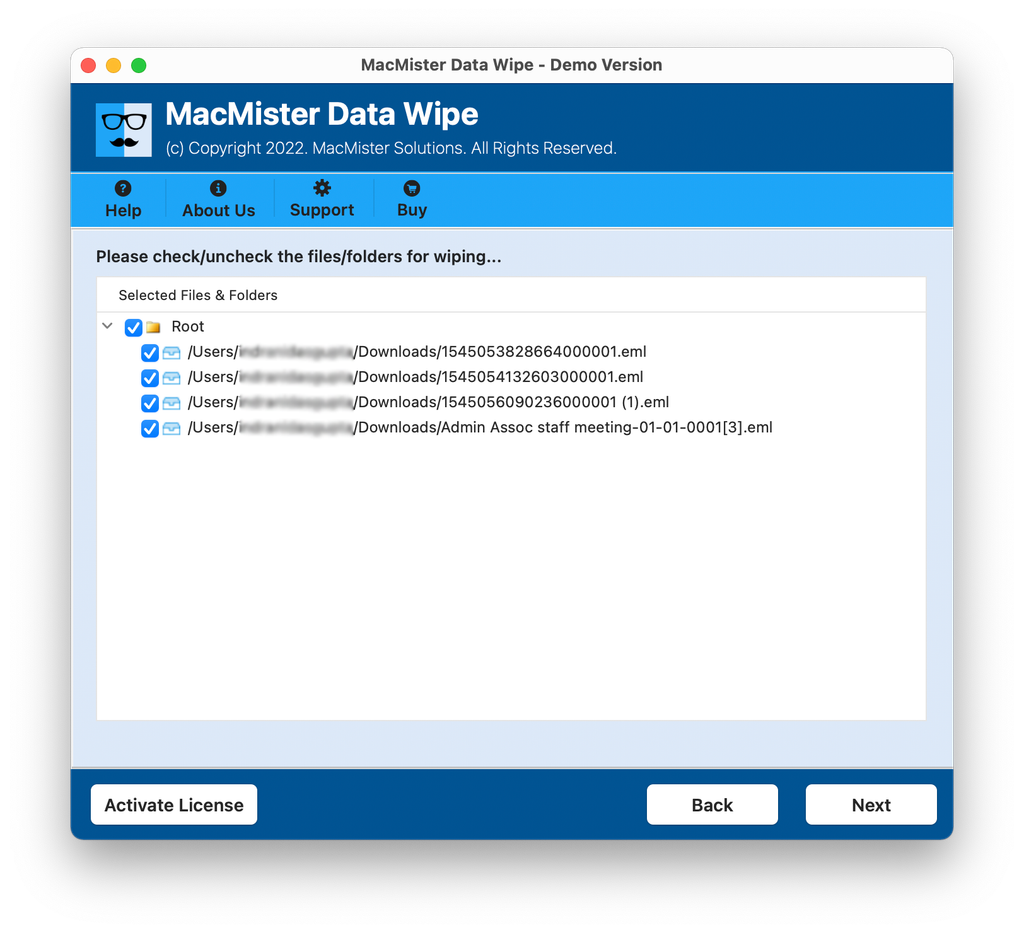
The utility will scan the file paths and display them in an interactive manner via the use of checkboxes.
Choose your favorite file wiping technique (be it simple one-time or advanced military grade) and wipe the files.
Set Advanced Data Filtering, if necessary and tap Wipe button.
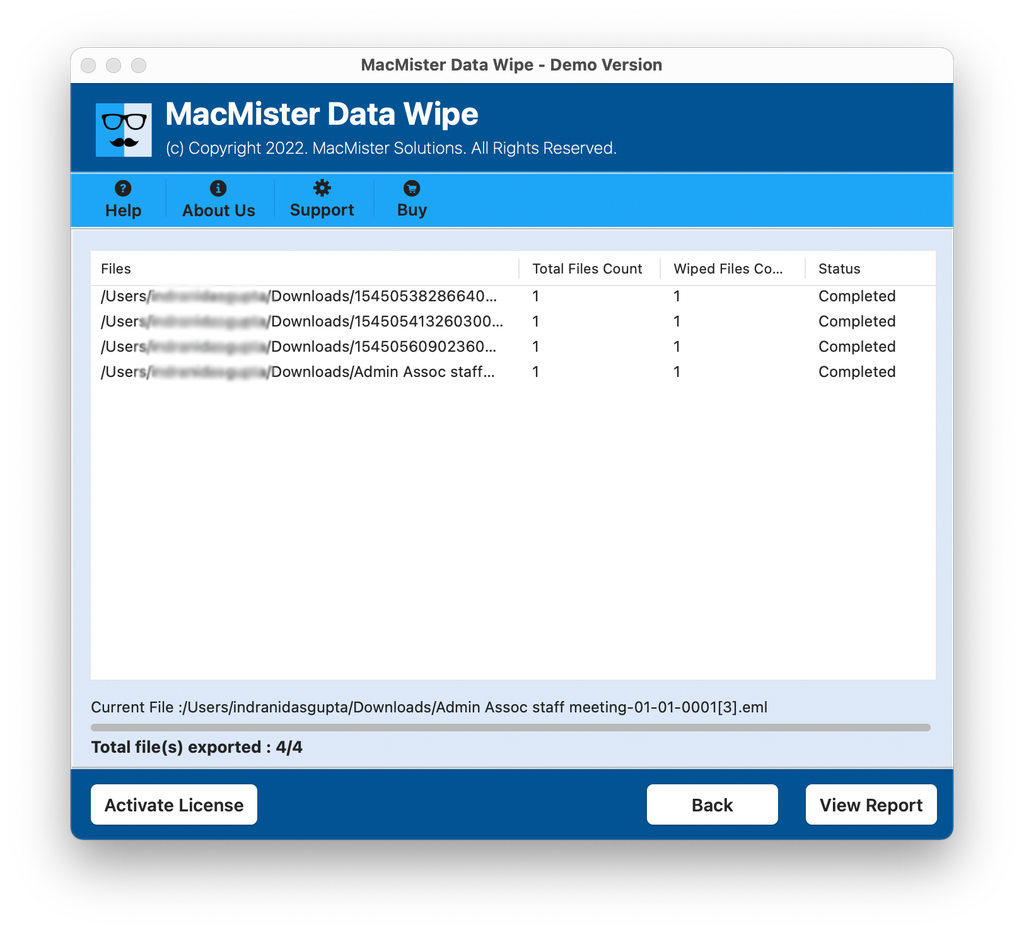
Go through the Live Progress Screen and track the wiping status.
Epilogue
Dealing with stubborn files that won’t delete themselves from Mac can be a tedious process. Though simple fixes like closing other running tasks, disabling file lock options, or executing terminal commands can fix the most common cases, sometimes you’ll need something stronger to take down those digital obstacles.
To have peace of mind at all times, using a special application such as MacMister Data Removal Tool will guarantee that you have full control over your Mac’s disk, no matter what type of file it may be or how sensitive its content is.